Overview:
Rostering and Attendance work together to help you compare an employee's scheduled working hours with their actual hours tracked.
When an employee is assigned a Rostering-type Work Schedule, their working pattern is based on assigned shifts and Rest Days rather than a fixed weekly schedule.
The key points to remember are:
- Rostering determines the employee's scheduled working days and hours.
- Attendance records the employee's actual working time.
- Scheduled Hours are now displayed in the Attendance Tracker for comparison.
- Rostered shifts are not automatically populated into Attendance timesheets.
- The Populate with Schedule function continues to support Fixed Schedules only.
TABLE OF CONTENTS
- 1. Scheduled Hours in Attendance Tracker
- 2. Adding or Editing Attendance Timesheets
- 3. Who Appears in the Attendance Tracker?
- 4. Populate with Schedule
- Recommended Setup
1. Scheduled Hours in Attendance Tracker
The Attendance Tracker includes a Scheduled Hours column to help you compare scheduled hours with actual hours tracked.
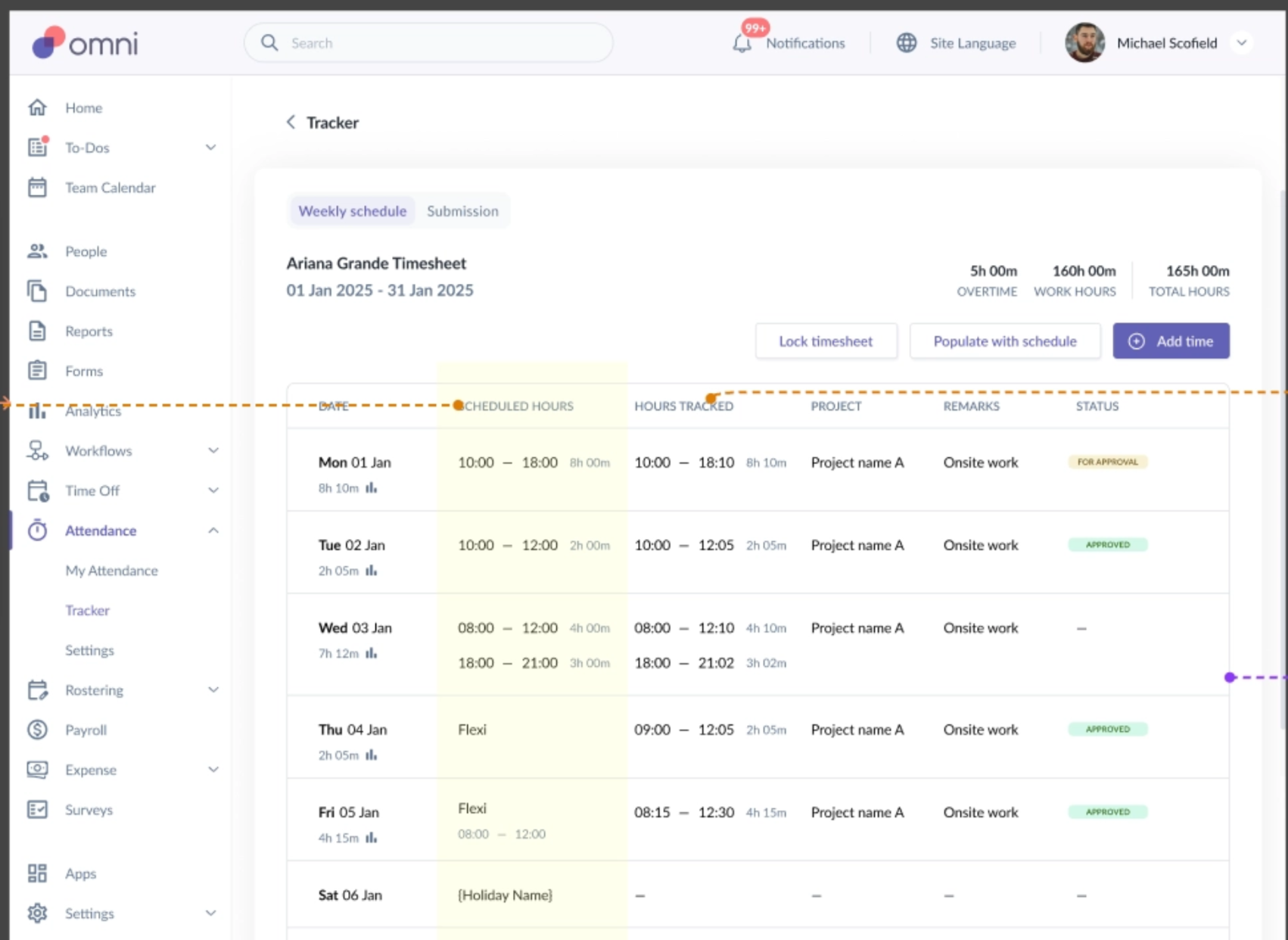
For employees on a Rostering Work Schedule:
- Scheduled hours are based on the employee's roster.
- Shift break time is not deducted from the displayed scheduled hours.
- Actual hours tracked are displayed based on the time recorded by the employee.
Example :
If an employee has a shift from 9:00 AM to 6:00 PM with a 1-hour break:
Attendance Information | Hours |
|---|---|
Scheduled Hours | 9 hours |
Hours Tracked | 9 hours |
The break configured in the shift is not deducted from these displayed hours.
Note: Rostering does not change how clock-in and clock-out records are captured. It changes how scheduled hours are determined.
2. Adding or Editing Attendance Timesheets
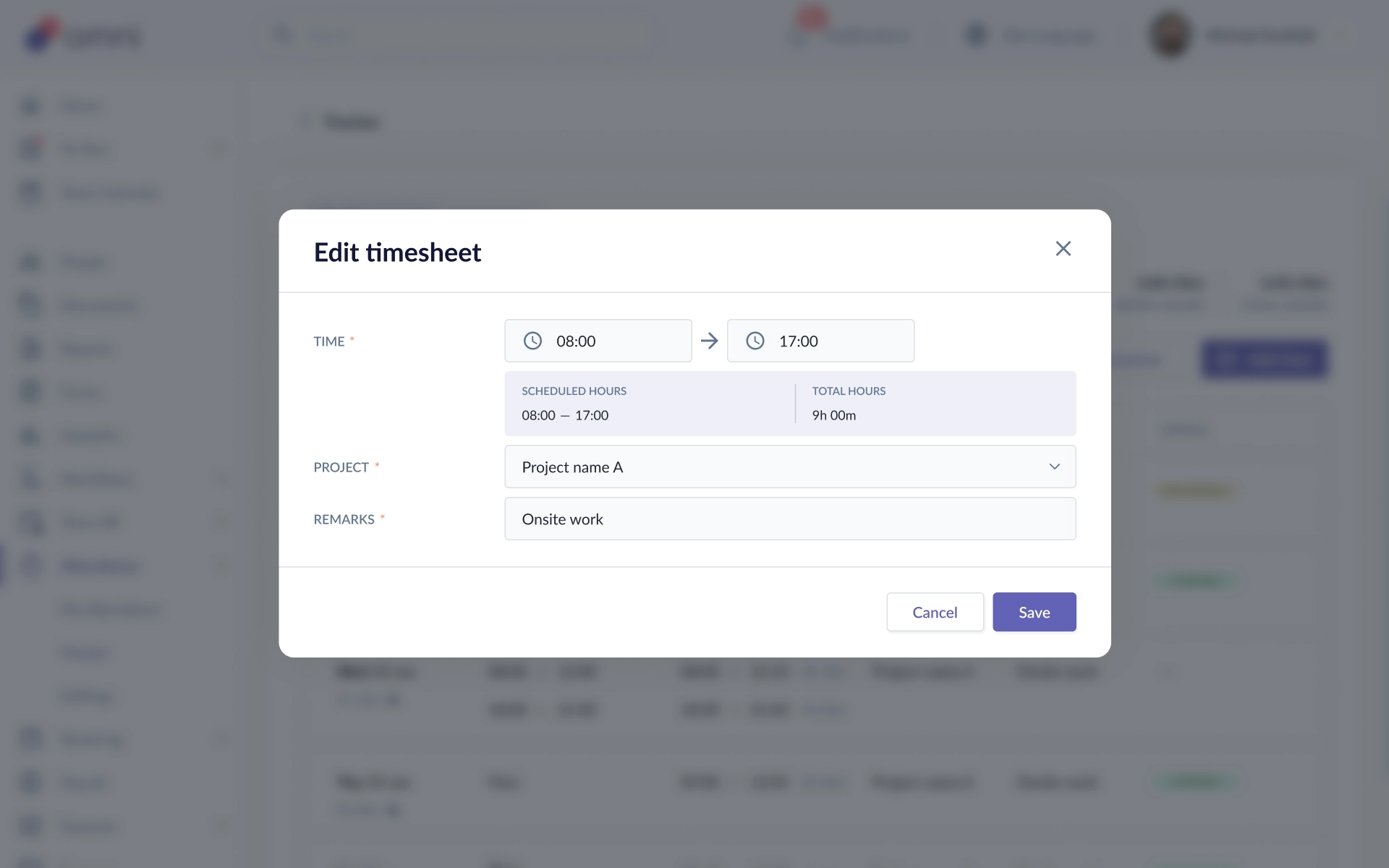
When adding or editing a timesheet entry, the Attendance modal displays the employee's scheduled hours.
You can access this from:
- Add Time in the Attendance Tracker
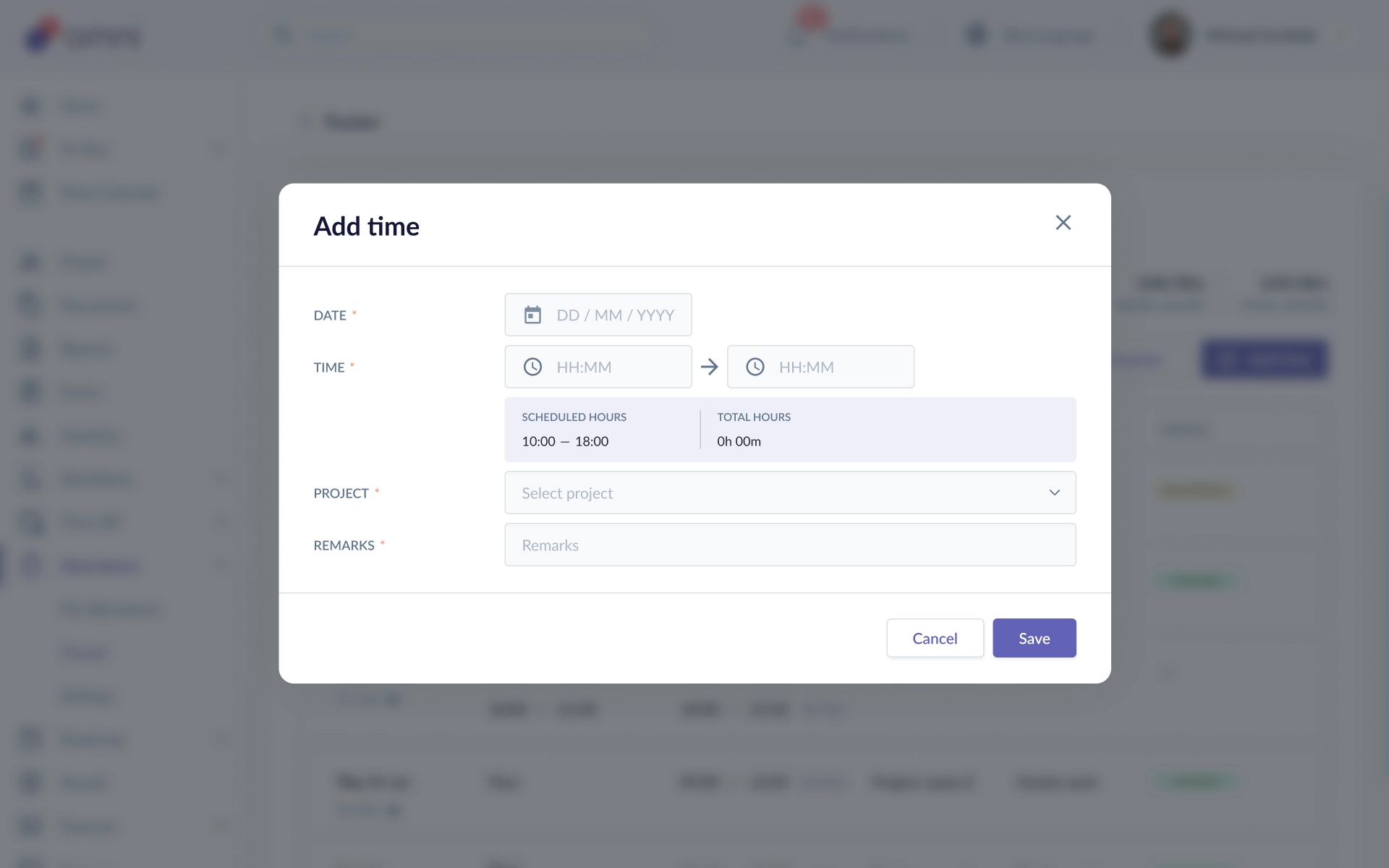
- The + icon on a specific day
- The Edit icon on an existing timesheet entry
When multiple events apply to the same day, the system considers them in the following order:
- Holiday
- Time Off
- Scheduled working hours
3. Who Appears in the Attendance Tracker?
An employee can appear in the Attendance Tracker when their work schedule includes at least one day with timesheet tracking enabled within the selected timeframe.
This applies to both:
- Fixed Schedule Work Schedules
- Rostering Work Schedules
4. Populate with Schedule
The Populate with Schedule feature continues to support Fixed Schedules.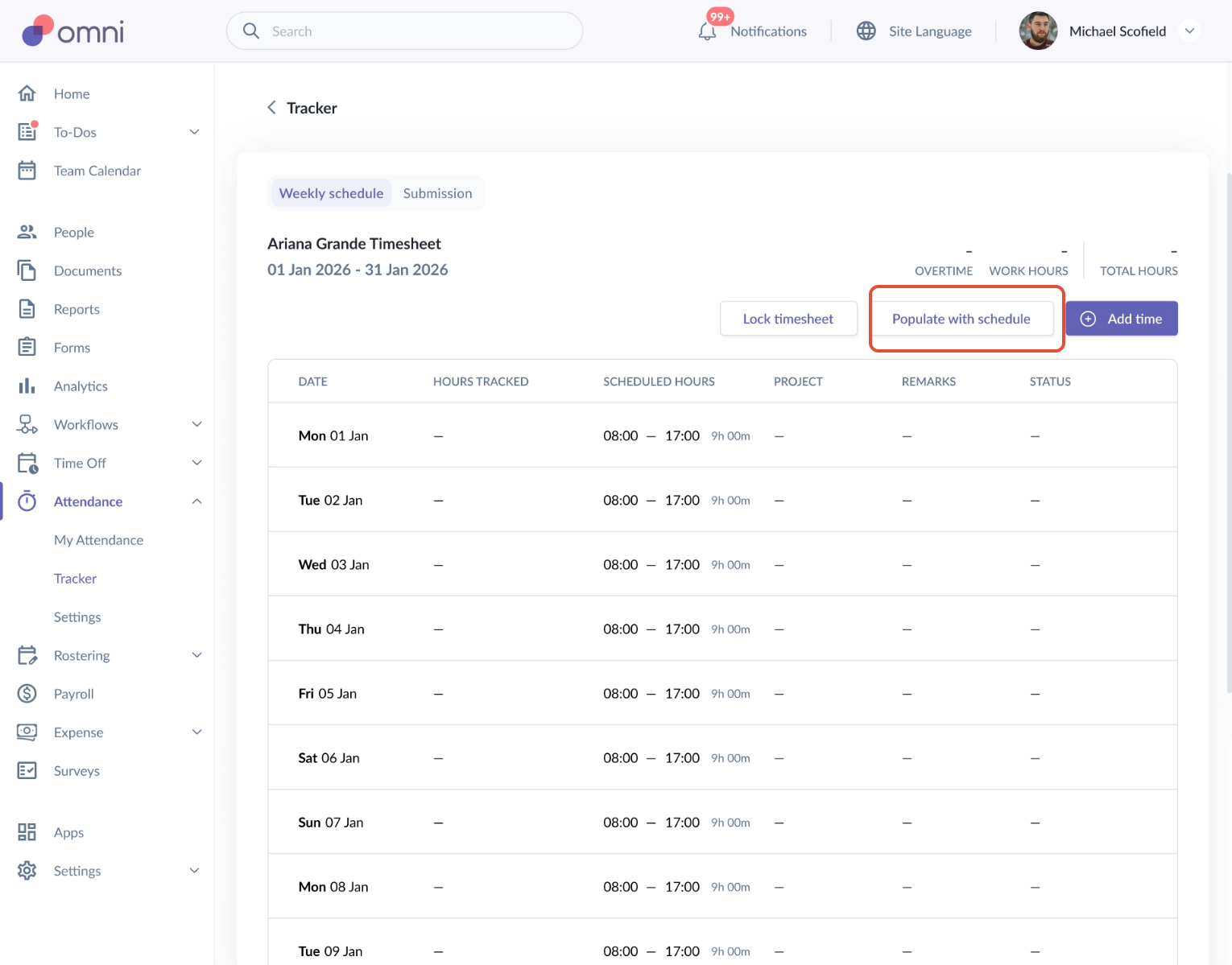
For employees using Rostering:
- Rostered shifts are not automatically used to populate timesheets.
- Unpublished shifts are not used.
- Days where timesheet tracking is disabled are not populated.
- If the selected timeframe contains only Rostering-based schedules, the Populate with Schedule option is hidden.
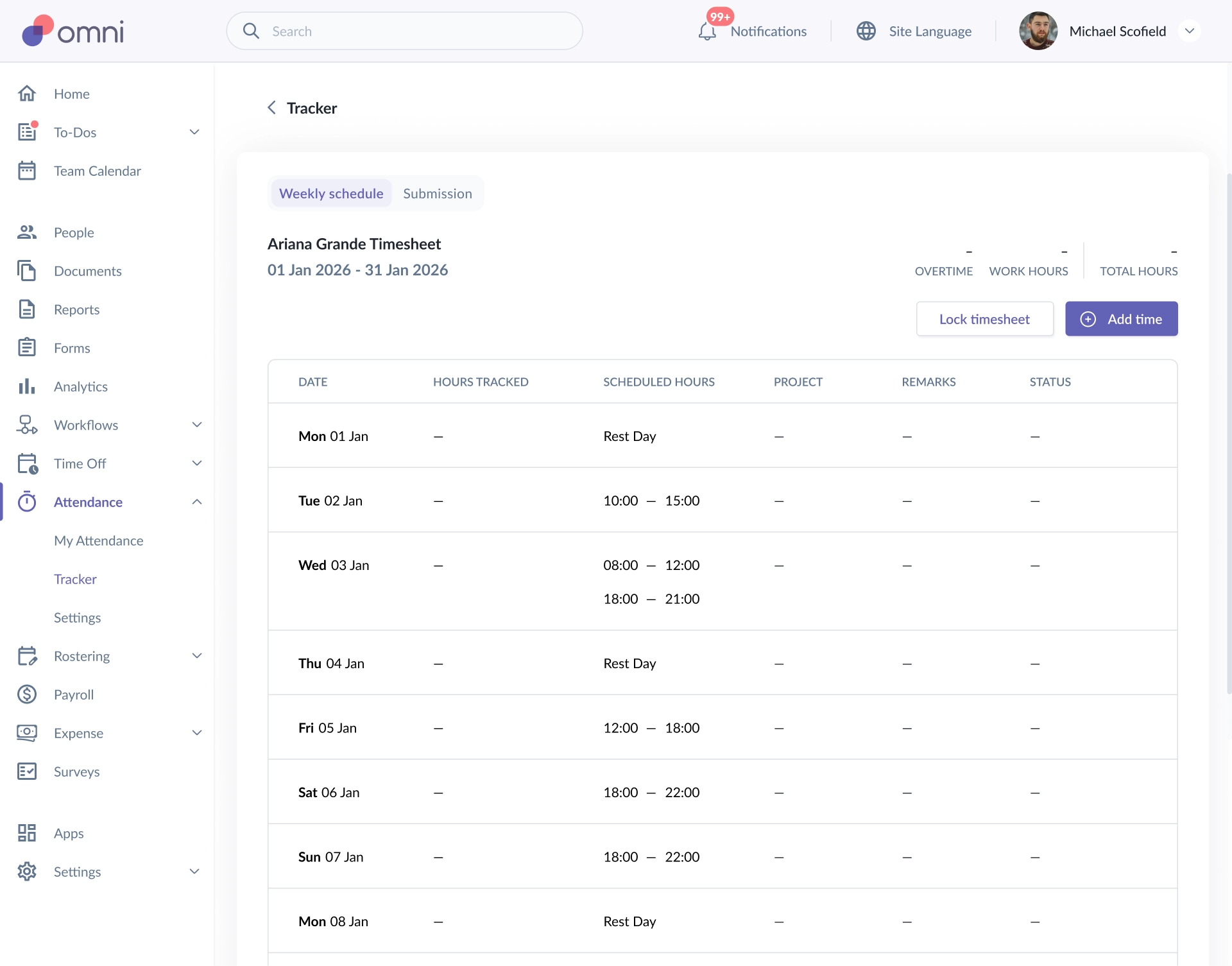
Mixed Fixed Schedule and Rostering
If an employee has both Fixed Schedule and Rostering periods within the selected timeframe, Populate with Schedule may still be available when there is at least one day with a Fixed Schedule and timesheet tracking enabled.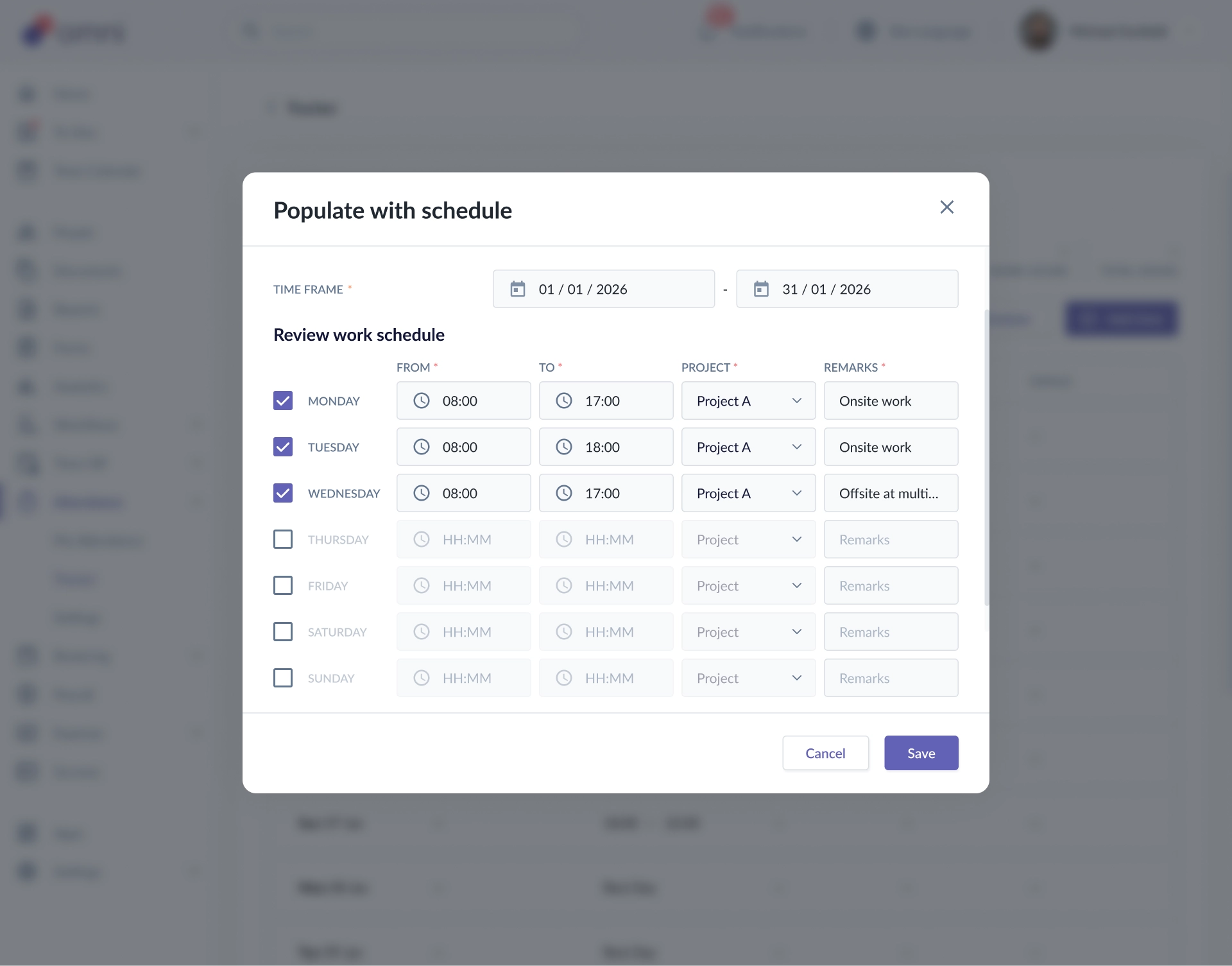
Recommended Setup
Before using Rostering with Attendance:
- Assign the employee a Rostering-type Work Schedule.
- Enable timesheet tracking if the employee needs to record attendance.
- Create and publish the employee's shifts.
- Review the Attendance Tracker to compare scheduled and actual hours.
Was this article helpful?
That’s Great!
Thank you for your feedback
Sorry! We couldn't be helpful
Thank you for your feedback
Feedback sent
We appreciate your effort and will try to fix the article