Overview:
When a shift is part of a recurring pattern, you don't have to choose between editing the whole series or leaving it alone. You can make ad hoc changes to a recurring shift by editing or deleting just one occurrence, or a shift and everything after it without breaking the rest of the recurrence.
Every edit or delete also comes with a choice of Save or Save and Publish, and the email notification employees receive depends on whether the shift was already published before your change. This article walks through both actions and what employees will (or won't) be notified about in each case.
TABLE OF CONTENTS
How to Edit Recurring Shifts
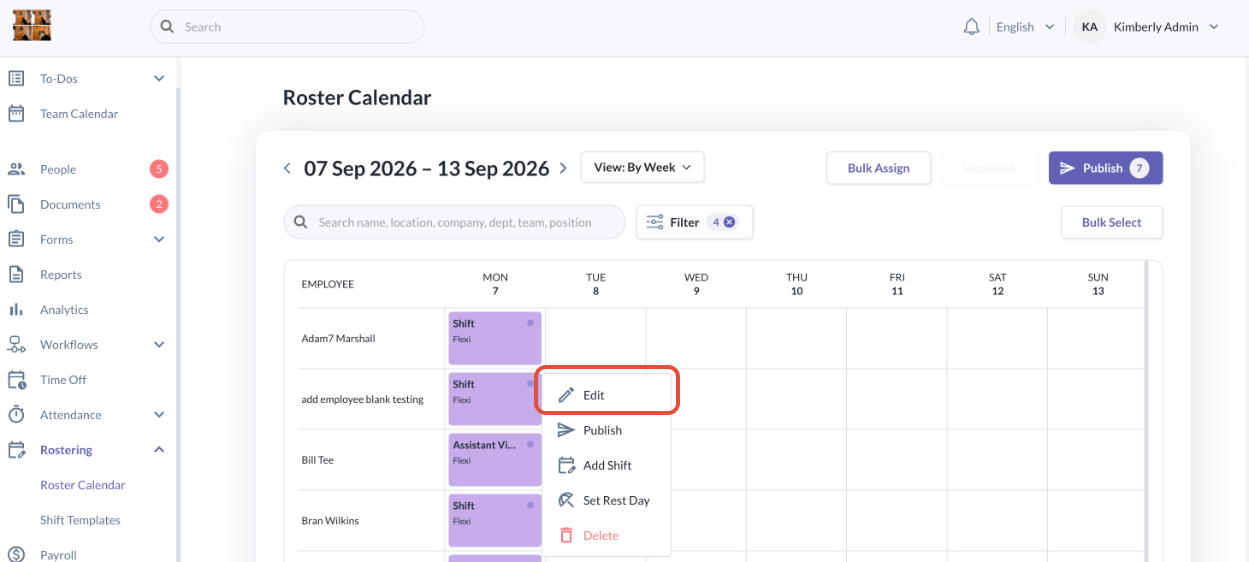
- Under the Rostering > Roster Calendar, click on to a shift that is recurring and you will see an option to edit. Click on Edit.
- Once the pop up appears, you can make the changes and choose to either click Save or Save and Publish.
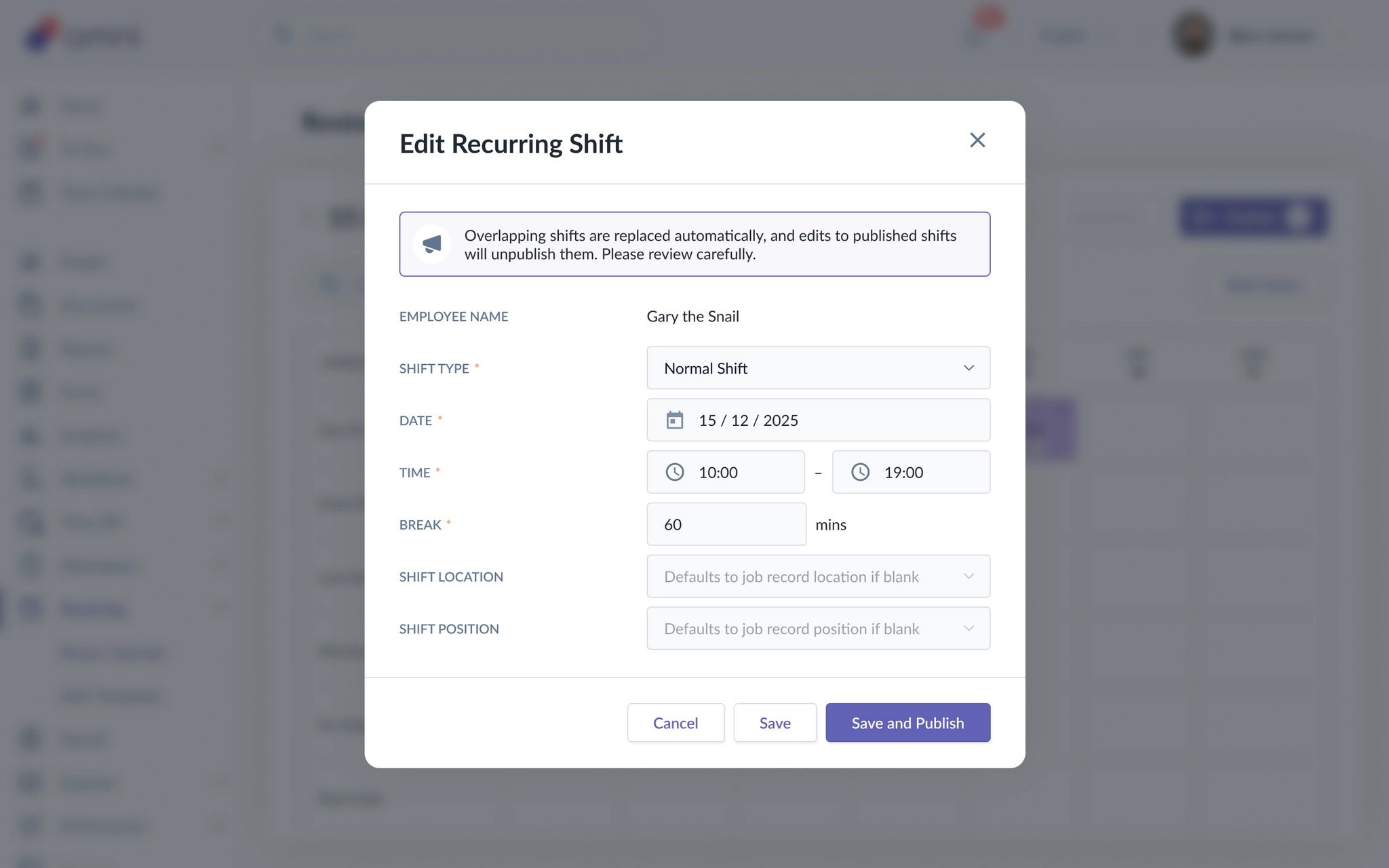
- If you choose to click Save, if the shift that was previously unpublished, there will be no email notification sent out to the employee. If the shift was already previously published, the employee will only receive an email notification for a shift cancellation.
- If you choose to click Save and Publish, if the shift was previously unpublished, an email notification will be sent out to the employee for a new shift. However, if it was previously unpublished, the employee will receive an email notification for a shift update.
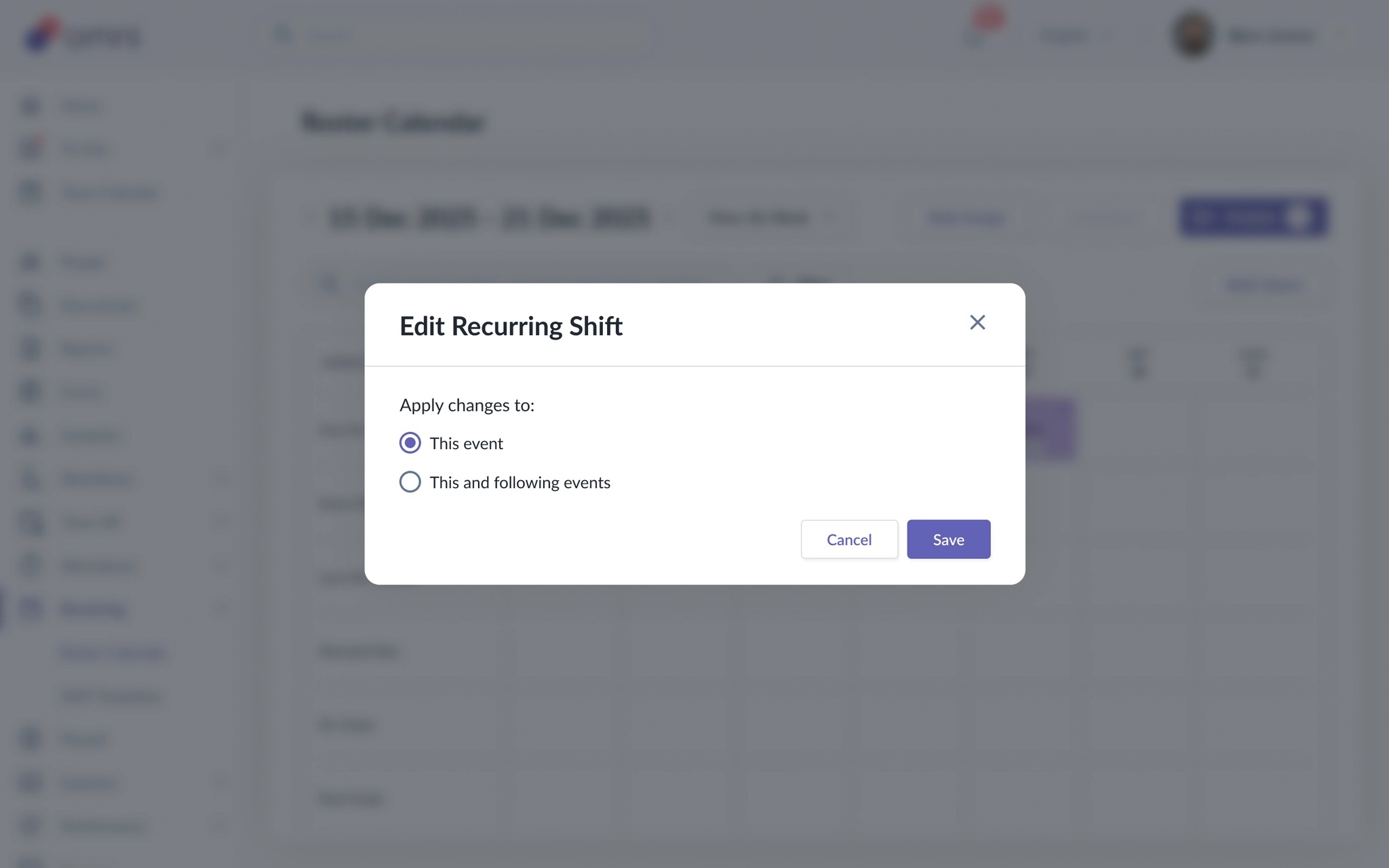
- After clicking one of the options above, you will have the option to apply this change to This event or This and following events
- This is the view if you chose Save:
- This is the view if you chose Save and Publish:
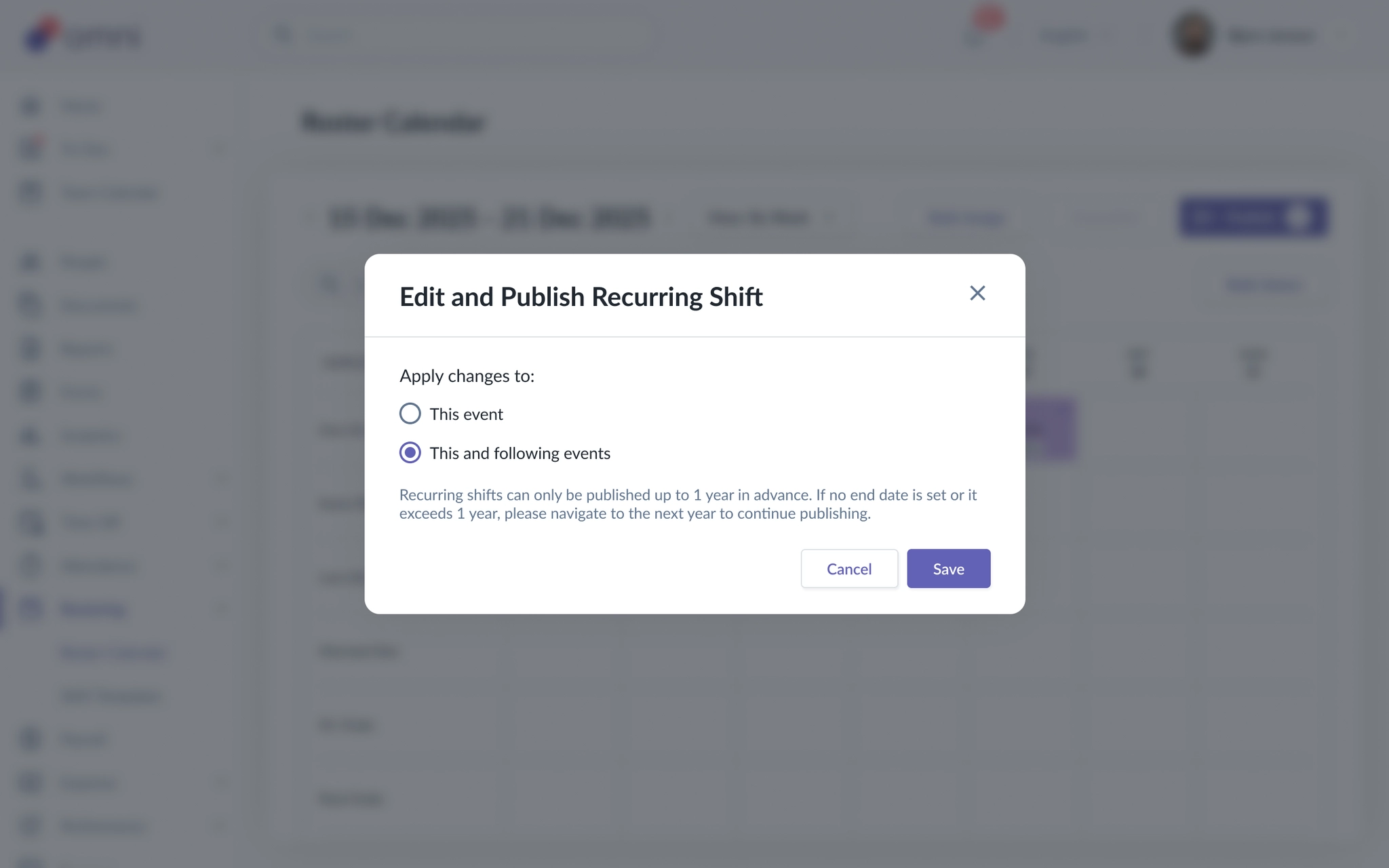
- If you choose to apply changes to This event, only the single shift is edited. This shift then becomes independent from the original recurring group. Therefore, future edits to the group of recurring shifts will no longer affect this shift.
- If you choose to apply changes to This and following events, all shifts from that particular selected shift onwards is updated.
- This is the view if you chose Save:
- Then click the final Save button to apply the change.
How to Delete Recurring Shifts
- When you click on a recurring shift, you will see a list of actions appear, click on Delete.
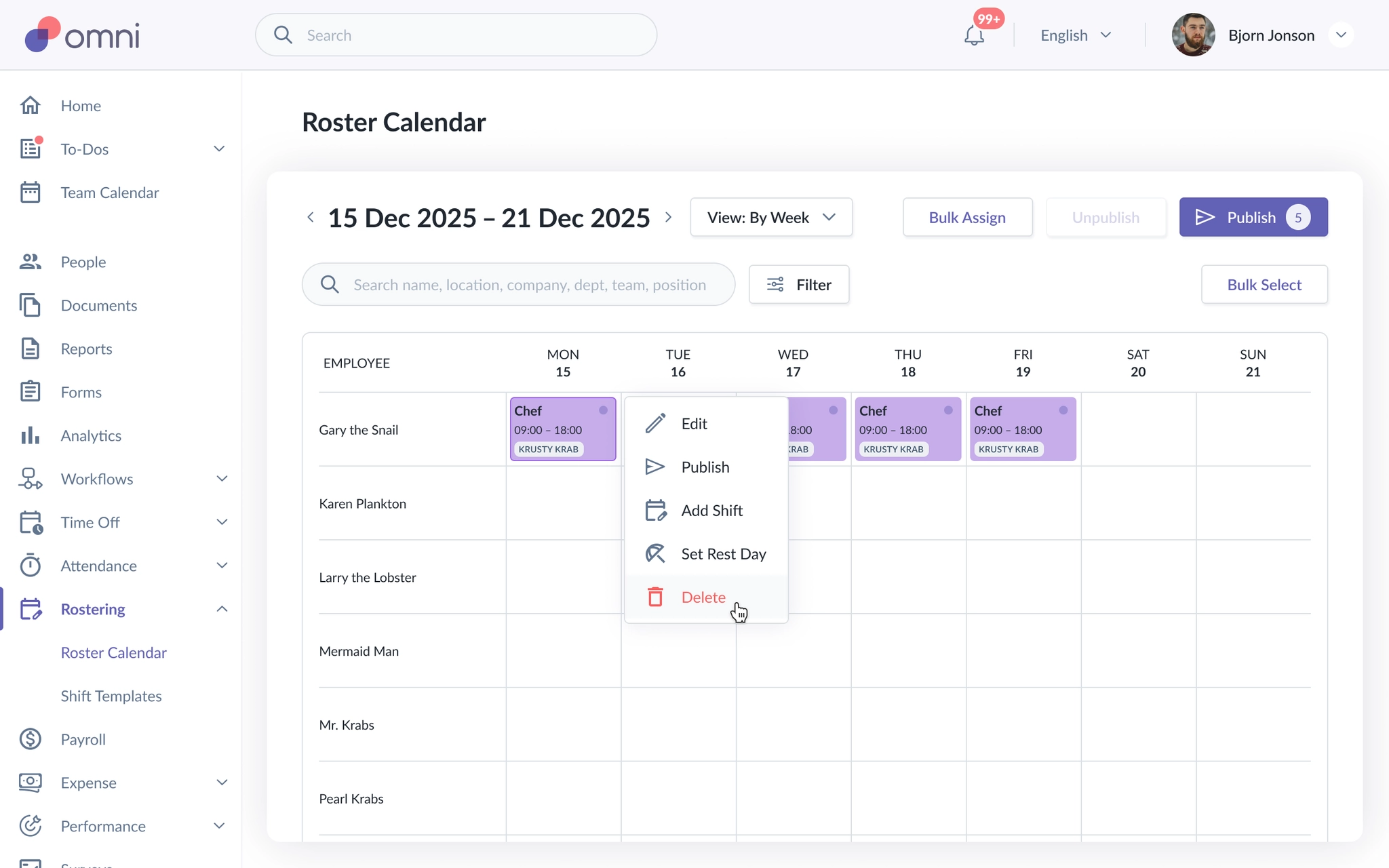
- Similar to editing, you will also be asked if you wanted to delete This event or This and following events
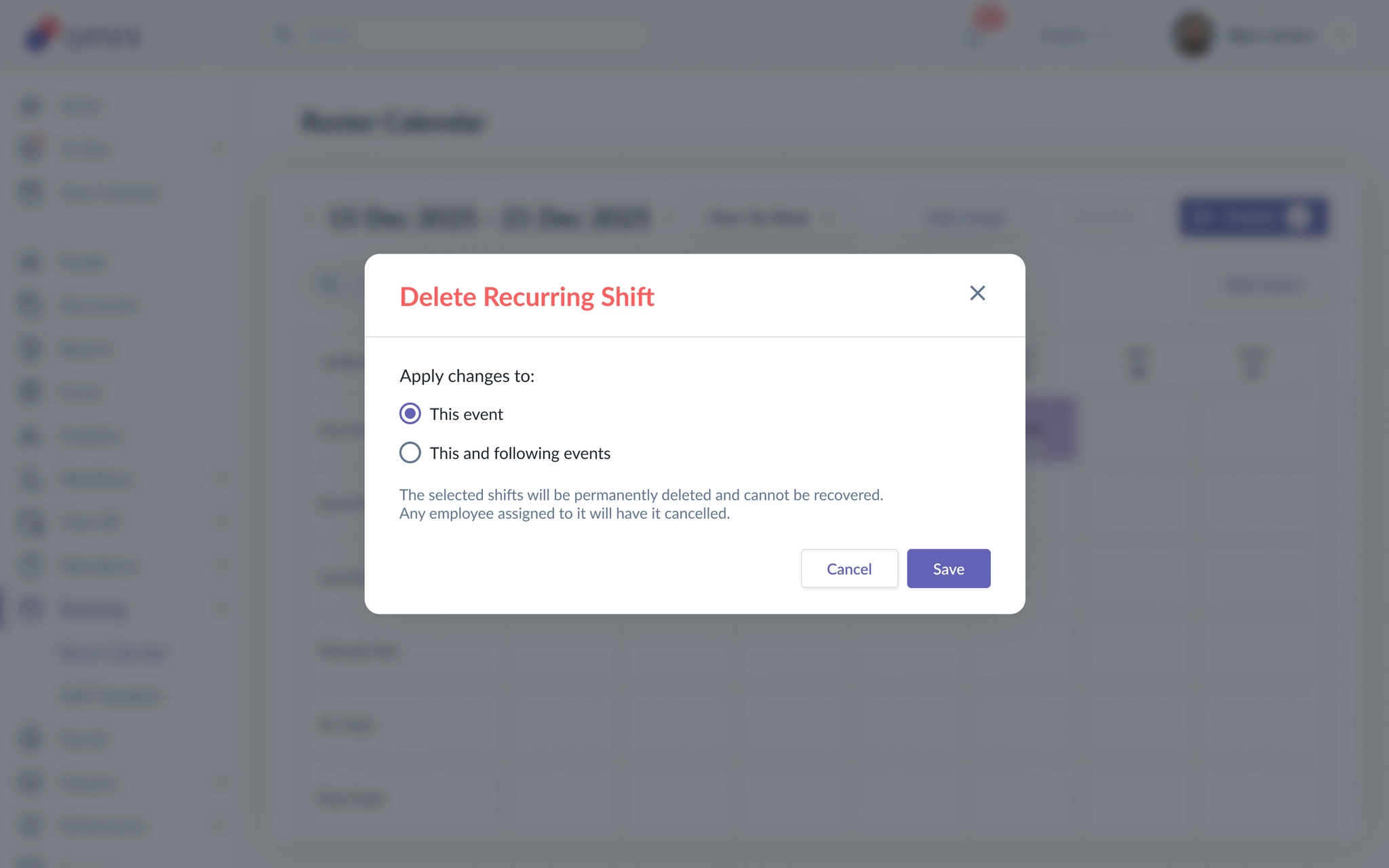
If you select This event, only the selected single shift is deleted.
If you select This and following events, all shifts from that particular shift onwards will be deleted.
Remember to click the final Save to delete based on your selection.
After saving, if the shift was previously unpublished, the employee will not receive any notification. However, if the shift was previously published, the employee will receive the email notification on the shift cancellation.
Notifications Sample
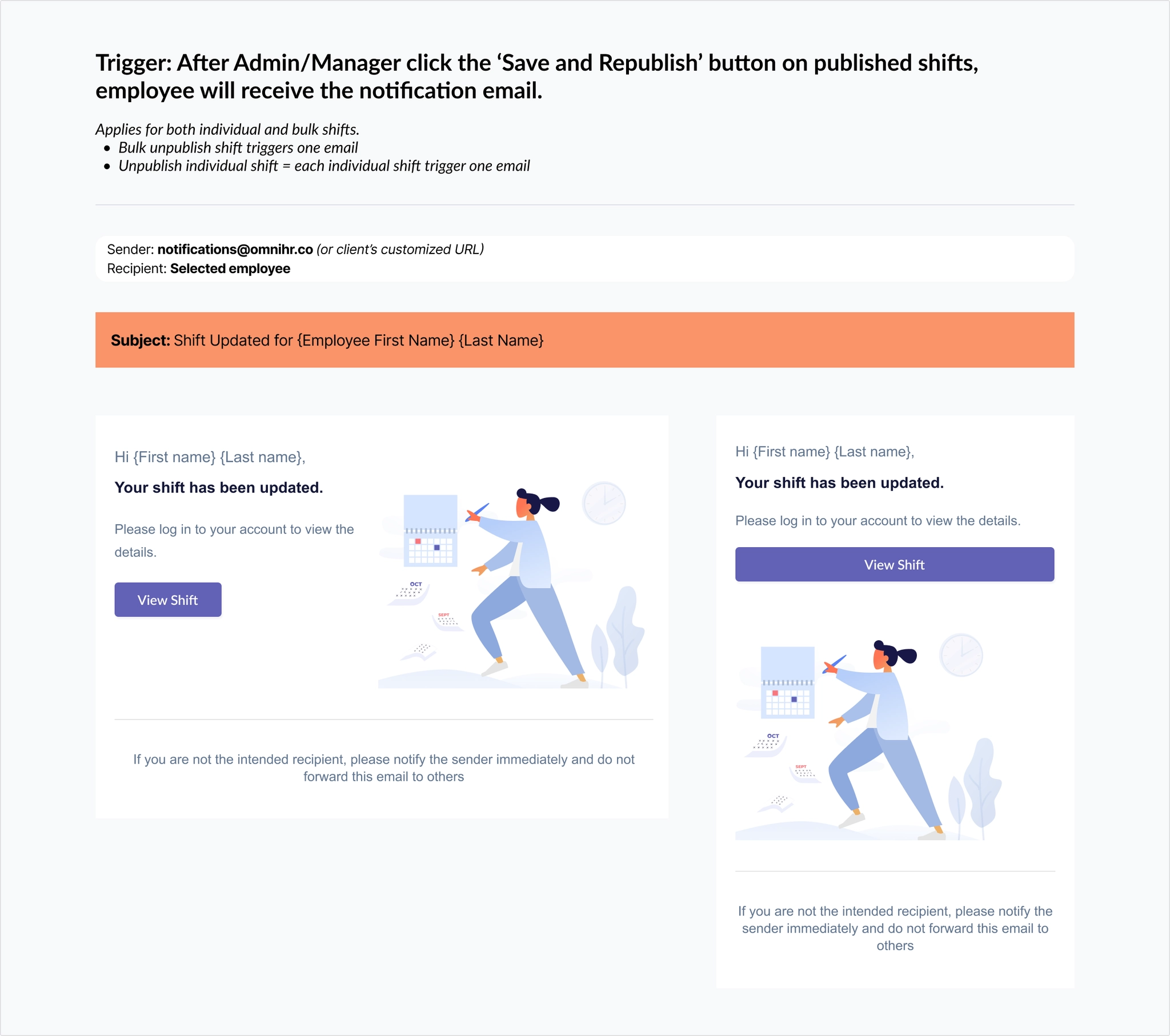
Below is a sample of the notification that the employee will receive when a shift is updated:
Still Need Help?:
Reach out to our support team should you need further assistance.
Was this article helpful?
That’s Great!
Thank you for your feedback
Sorry! We couldn't be helpful
Thank you for your feedback
Feedback sent
We appreciate your effort and will try to fix the article