Overview:
Admins can bulk assign or unassign time off policies when required via Omni HR by following the steps below.
This guide will aim to show you the steps to take if you wish to assign new policies, or un-assign policies that may not be relevant to a group of employees any longer. This guide will also advise you on the best practices to ensure a smooth and error free process.
TABLE OF CONTENTS
Best practices for bulk assign & un-assign
This are the best practices we recommend to ensure a smooth and error free process:
- Generate time off balance & transaction reports for the complete policy period
- This reports will act as your source of truth and backup in the event you need to make any reversions if you encounter issues during the import process.
- Here is a guide on how to generate these time off reports: Generating Time Off Reports
- Run test uploads for 1 or 2 employees
- This is recommended to ensure that the bulk import template will result in the desired outcome, without any errors.
- Once you can confirm that the import template works as intended, then you may proceed with the import for the rest.
- In the event you require to re-assign policies or transition employees from one policy to another, kindly write in to support@omnihr.co for further guidance and support.
- Un-assigning a time off policy from an employee will result in complete removal of employee's time off history and balances tied to that policy. This action cannot be reversed as the data cannot be recovered upon removal of the policy.
- We will only advise un-assigning time off policies from employees in the event:
- The policies tied to the employees have no historical time off records or balances
- The time off records and balances can be removed along with the un-assignment
Step by step guide to bulk assign or un-assign
Step 1. Please write in to support@omnihr.co to request for the bulk upload template
Step 2. Fill-up the template accordingly.
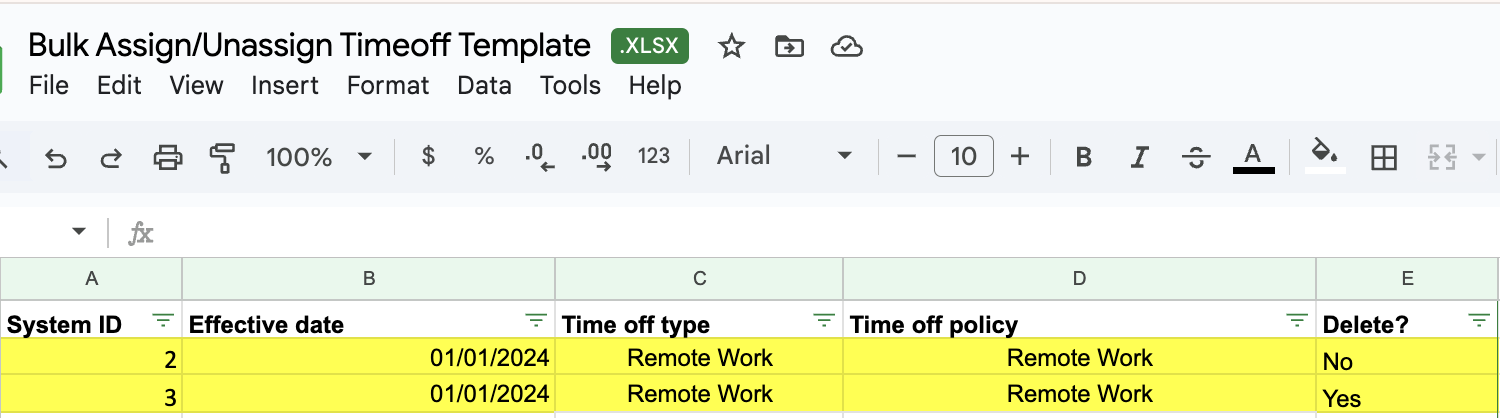
- Here are some things to remember about the template as you are filling up
- For "Column A (System ID)" , you can get this by generating an employee list through the reports module. The first column in the report show the system ID of the employees.
- For "Columns B, C, and D" , these are all required. If you miss putting in even just one of the columns, the upload will fail.
- For "Column B (Effective date)", this should be in the format DD/MM/YYYY
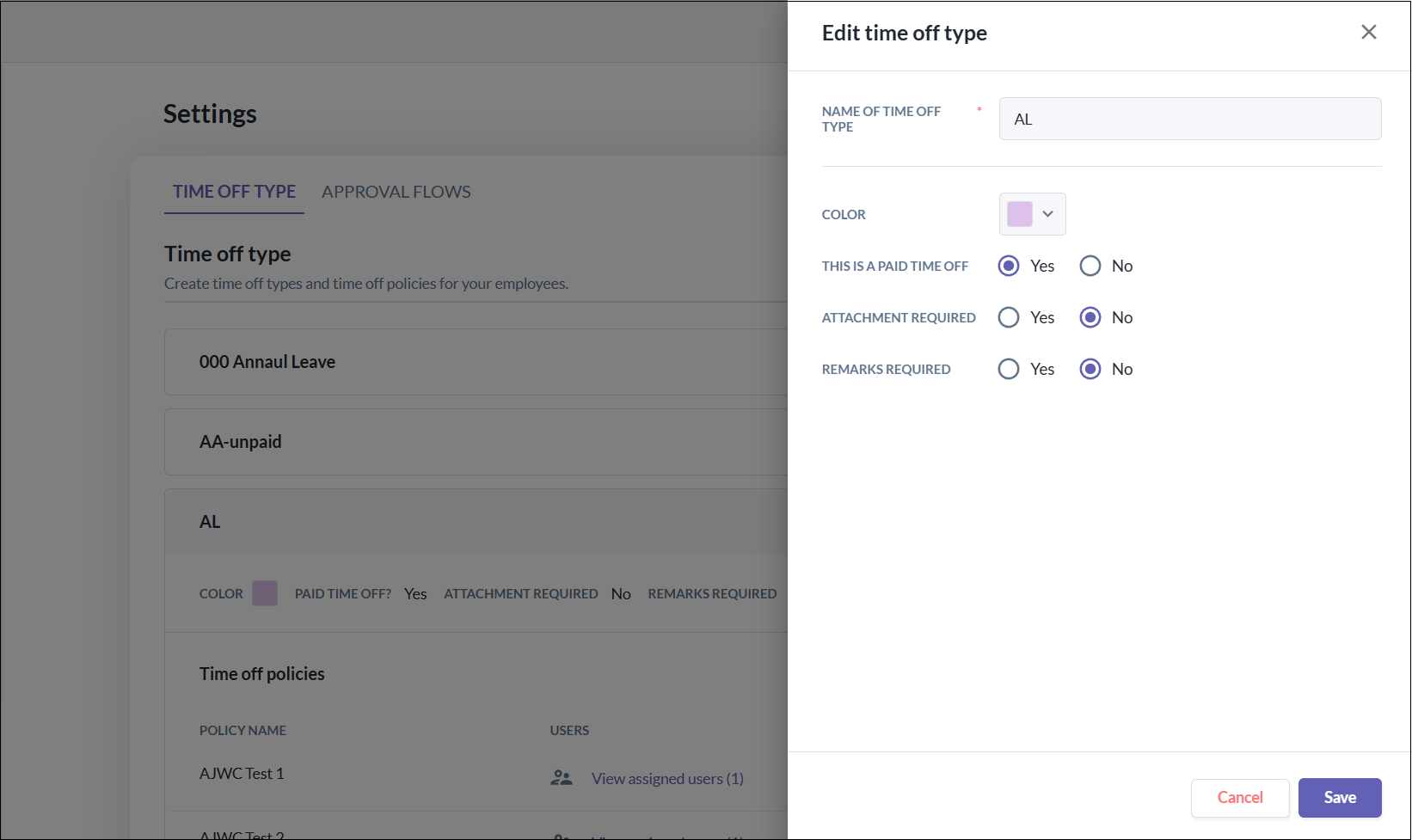
- For "Column C (Time off type)", ensure that the time off type you'll use here is the same as in the system. You can get this through Time off > Settings > Time Off Type > Click on the Time Off Type you want to assign > Click the pencil icon > Copy the name from the "Name of Time Off Type" field
 For "Column D (Time off policy)" , ensure that the time off policy you'll use here is the same as in the system. Go to Time off > Settings > Time Off Type > Choose the Time Off Type > Under it, choose the Time Off policy you want to assign > copy the name from the "Policy Name" field.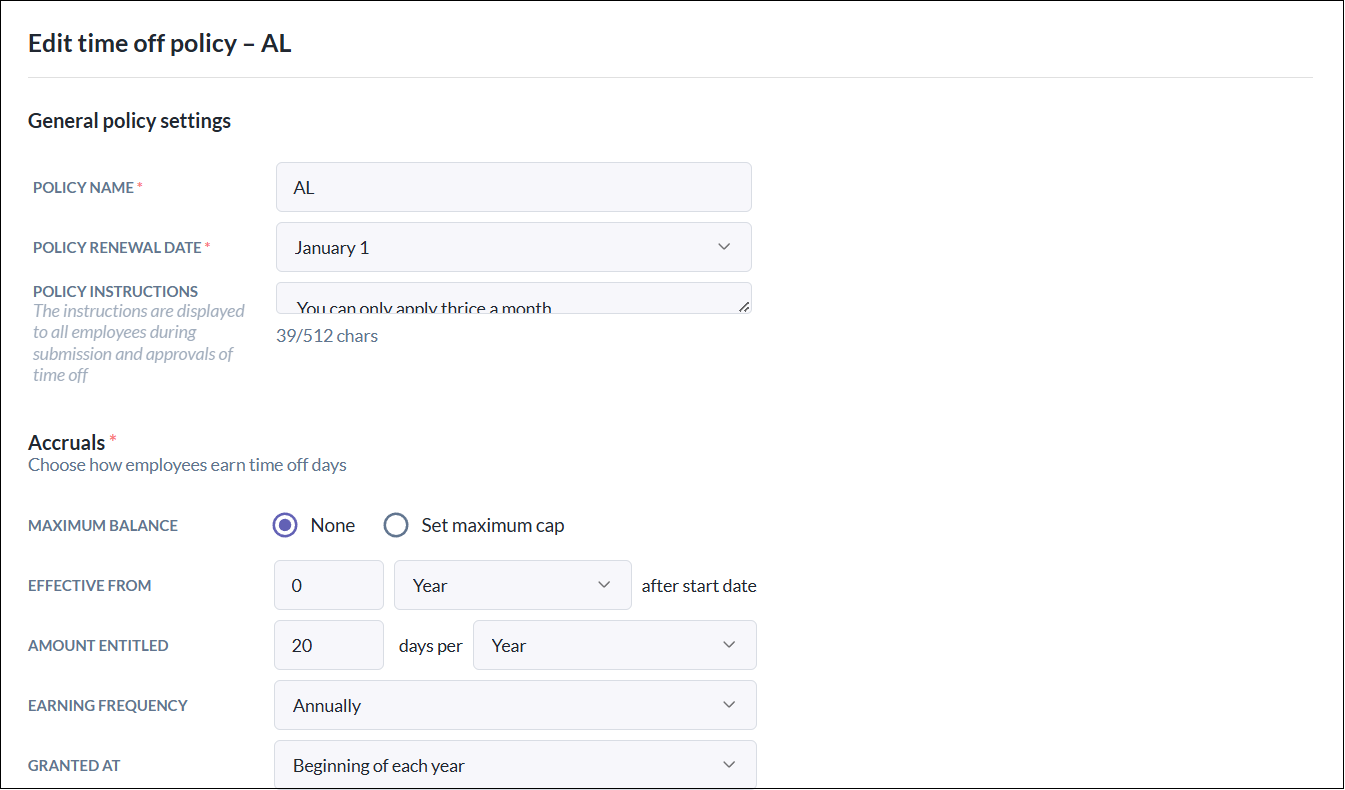
- For "Column E (Delete?)", depending if you are intending to assign or unassign time off policies in bulk, fill in as below:
- No = To assign the time off policy to the employee
- Yes = To unassign the time off policy from the employee
Step 3. Upload the template in your Omni URL through "(company name).omnihr.co/new-import". For example, if your Omni URL is omnihr.omnihr.co, you will want to upload through "omnihr.omnihr.co/new-import".
- Click Import > Click the Dropdown in the pop-up > Choose "Update Time off type & policy".
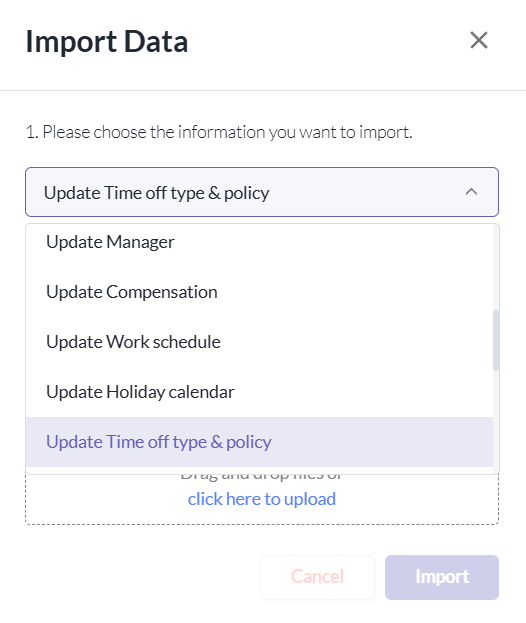
- "Drag and drop" or "click here to upload" to choose the upload template. Click Import.
- After a few minutes, you will receive an email through your primary email. Click the attached file to see if the upload was successful.
- You will see "Success!" in Column A (Validation) for items that were successfully uploaded. If it failed, you will see an error message. Adjust the upload template accordingly, then try uploading again.
Still Need Help?
Reach out to our support team should you need further assistance.
Was this article helpful?
That’s Great!
Thank you for your feedback
Sorry! We couldn't be helpful
Thank you for your feedback
Feedback sent
We appreciate your effort and will try to fix the article