Overview:
When creating a new time off type, you are able to configure whether this is a paid or unpaid time off type:
- Paid: Standard leave types like annual leave, sick leave, paid maternity leave
- Unpaid: No-pay leave, unpaid portions of extended leave
TABLE OF CONTENTS
How to Configure?
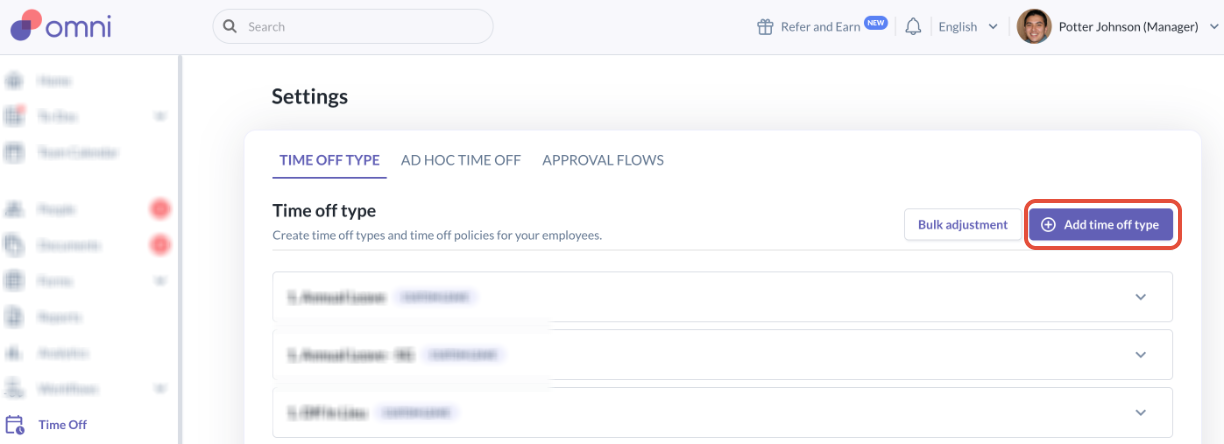
Step 1: Go to Time Off > Add Time Off Type
Step 2: Set Time Off Type as Paid or Unpaid
Toggle on for whether the time off type to create is a paid or unpaid time off type.
Fill in and setup the rest, and Click Save once complete.
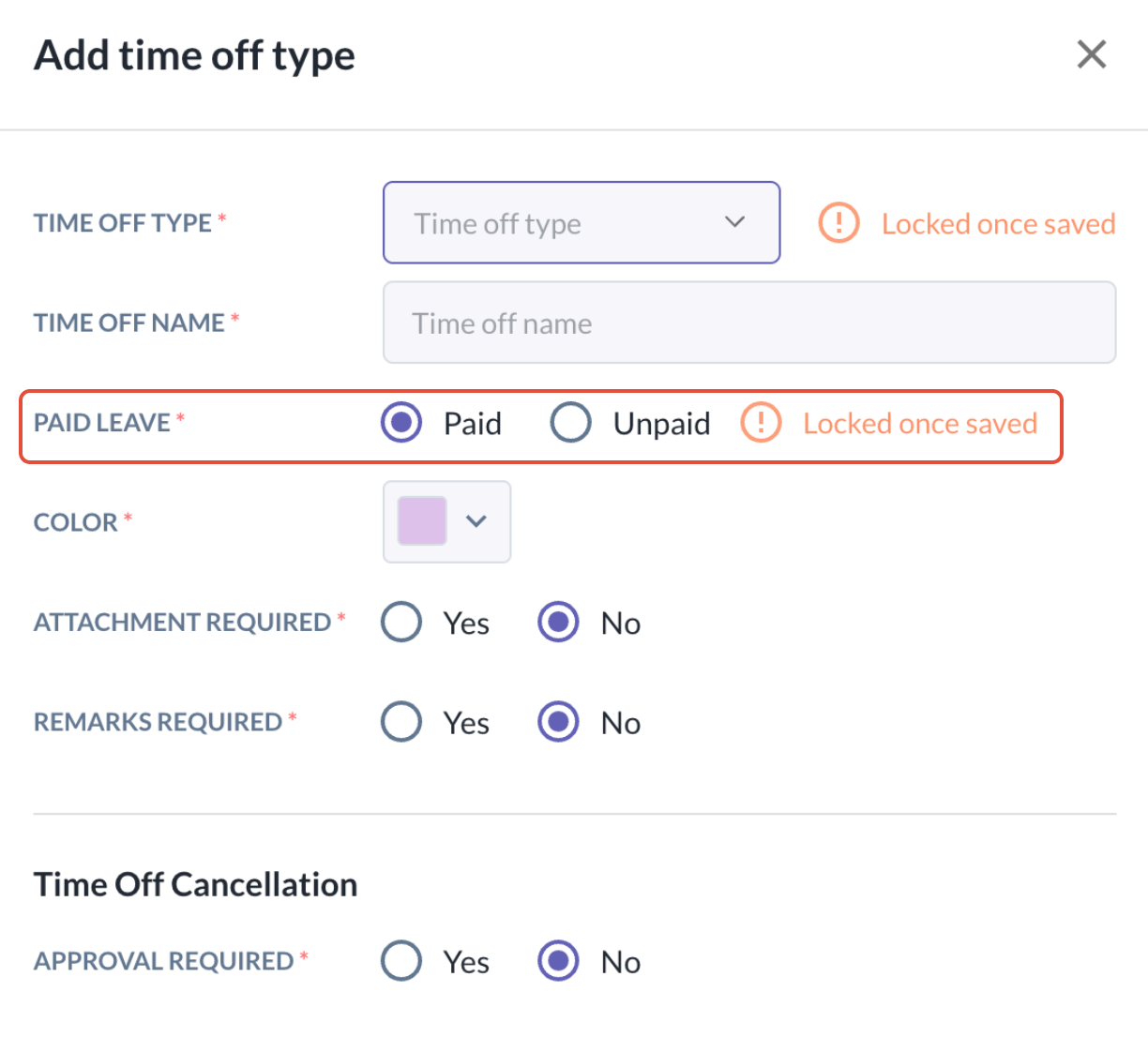
- Once you toggle your setting and click Save, this setting will be locked and will not be able to be changed later. This is to maintain payroll integrity and audit trails.
What if I need to change the settings?
- If you need to change an existing time off type from paid to unpaid (or vice versa), we will advise you to create a new time off type with the correct paid or unpaid setting.
Still Need Help?
Reach out to our support team should you need further assistance.
Was this article helpful?
That’s Great!
Thank you for your feedback
Sorry! We couldn't be helpful
Thank you for your feedback
Feedback sent
We appreciate your effort and will try to fix the article