Last Updated: July 23, 2025
Overview:
CPF contributions are submitted via the CPF EZPay service, which integrates with the CPF API Exchange (APEX) for seamless and secure processing. With this integration, you can now submit and pay your statutory CPF contributions directly through our software system—no manual uploads required.
Making The Submission
Here are the steps you'll need to take to make your CPF submissions via APEX in OmniHR:
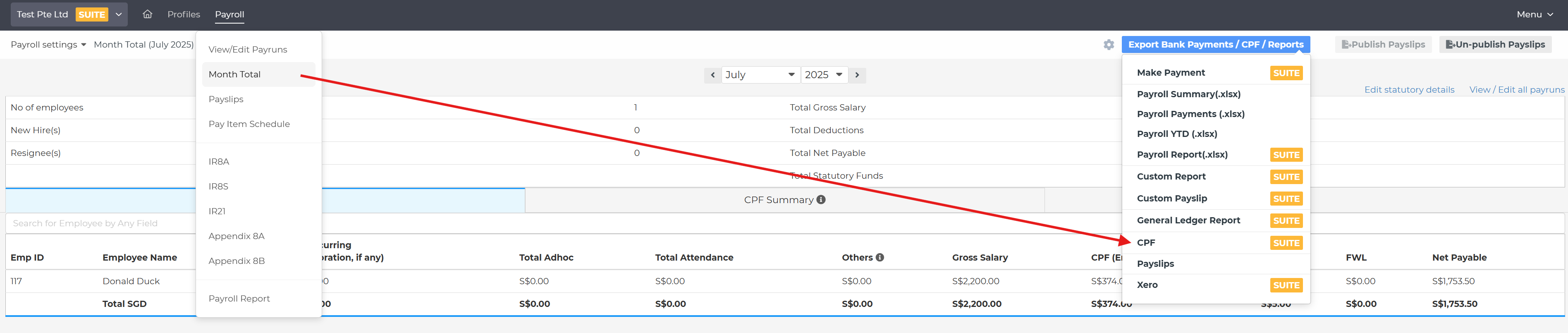
1) Inside Payroll system, go to Payroll > Month Total > Export Bank Payment / CPF / Reports > CPF:
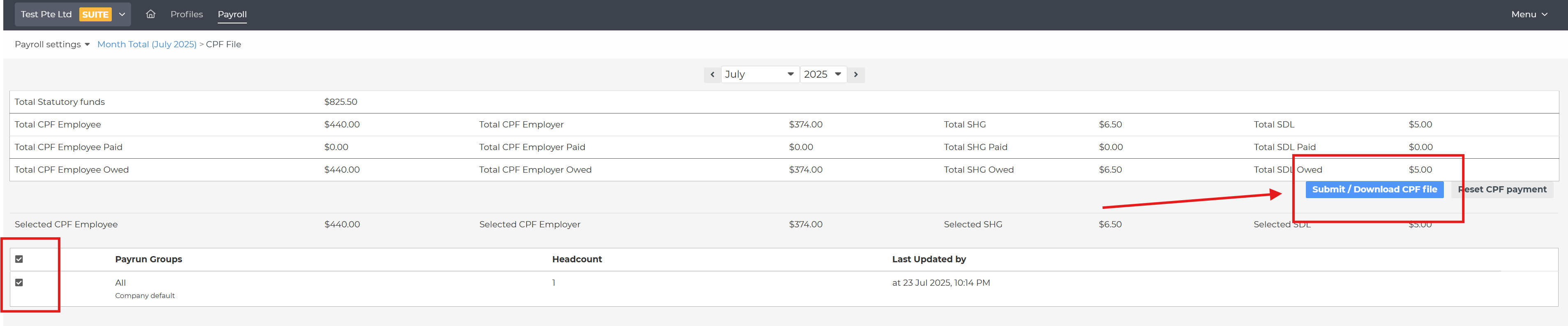
2) On the CPF File page, select the payrun groups you wish to include in the CPF submission. Then, click on the "Submit / Download CPF file" button to proceed.
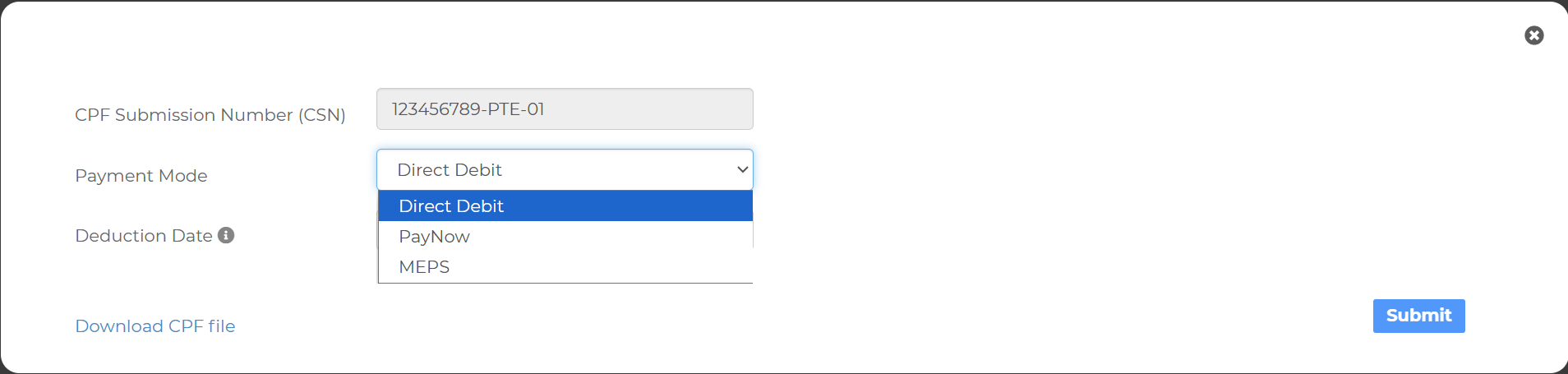
3) A pop-up window will appear. You’ll be given options to:
i) Select your preferred Payment Mode if you want to send the CPF contribution details directly to CPFB via APEX
Direct Debit
PayNow
MEPS
Once you've selected the desired Payment Mode, click the "Submit" button to proceed.
ii) Download CPF file – for manual upload via CPF EZPay
4)Once you click "Submit", you’ll be guided through a series of pages to complete your CPF submission and payment:
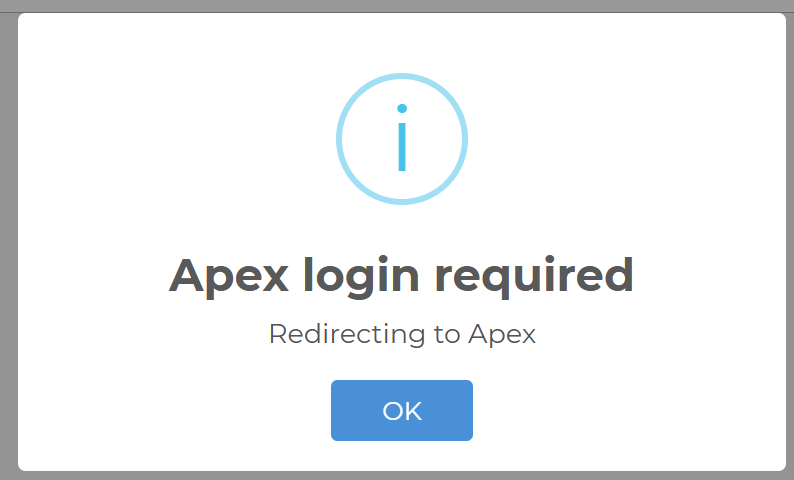
Redirect Page
You will be redirected to APEX if you haven't authenticated yet.
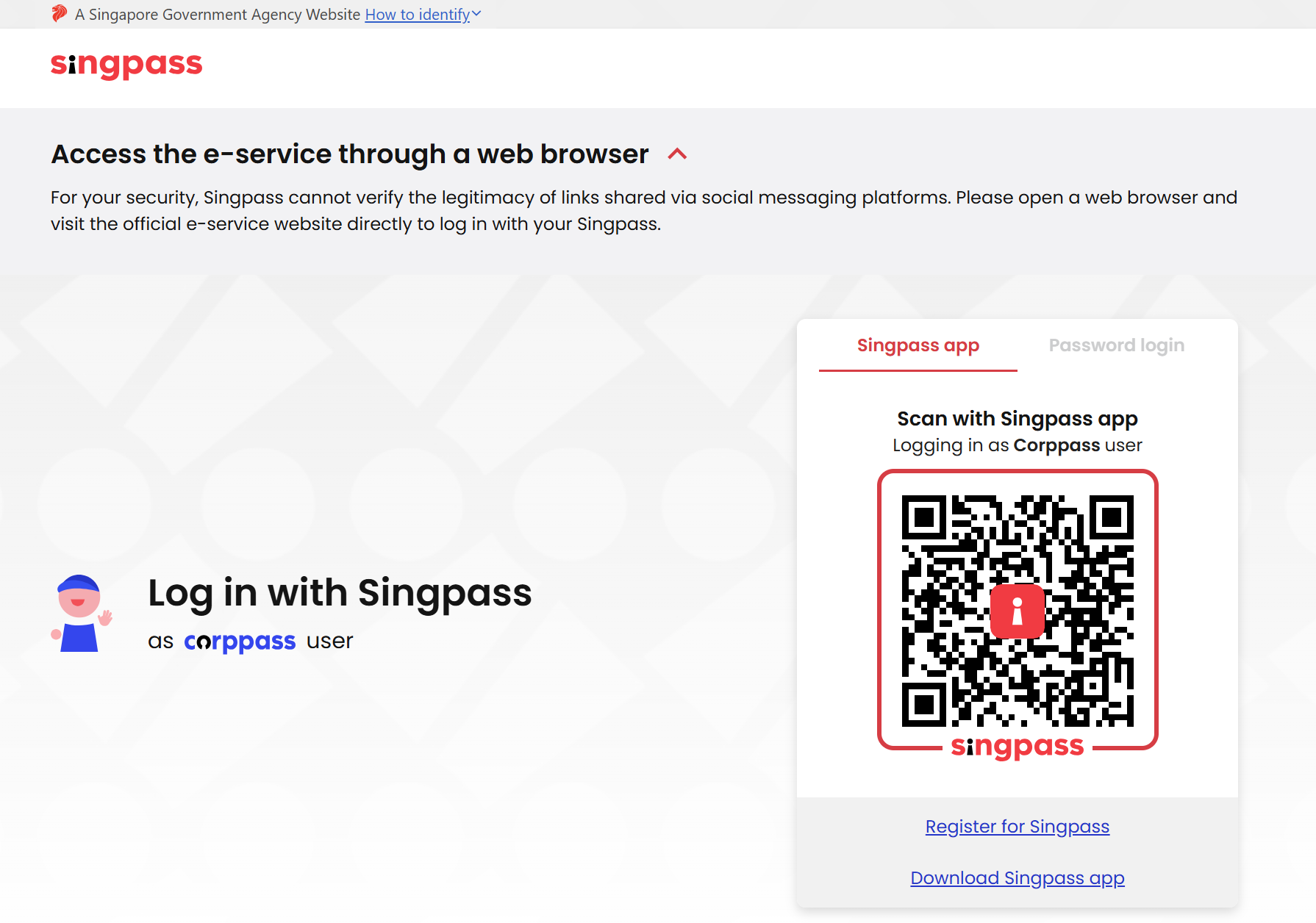
Singpass Login
Log in using your Singpass for identity verification as the authorised submitter.
Payment Page
This page reflects the Payment Mode (e.g., Direct Debit, PayNow, MEPS) you selected earlier.
APEX Permission/Consent Page (First-time only)
If this is your first submission via APEX, you’ll be prompted to grant consent for Payroll System to submit CPF files on your behalf.
5) Once payment has been successfully made, the corresponding CPF submission in the payroll system will be blanked out to prevent duplicate submissions for the same payment batch.
However, if you need to make changes or resubmit, you can still do so by clicking the "Reset CPF Payment" button.
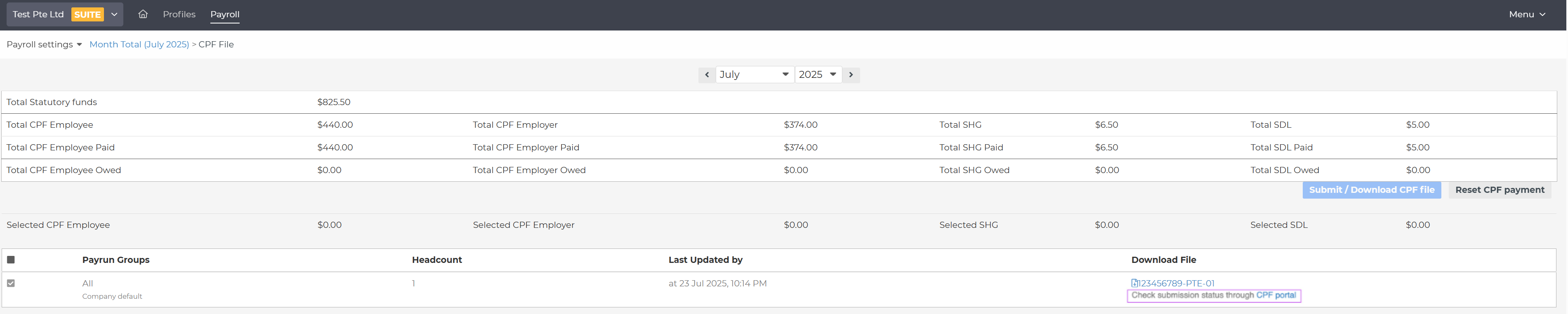
You'll be able to check on the submission status of your CPF amounts through the CPF portal linked directly there.
Still Need Help?
Reach out to our support team should you need further assistance.
Was this article helpful?
That’s Great!
Thank you for your feedback
Sorry! We couldn't be helpful
Thank you for your feedback
Feedback sent
We appreciate your effort and will try to fix the article