Overview:
This article covers the statutory setup for Singapore employees in Omni HR platform including enrolling the employee into your Singapore entity, then completing the Immigration Status and Self-Help Group (SHG) fields.
TABLE OF CONTENTS
- Overview:
- Create the Employee Profile
- Enroll the Employee into the Singapore Entity
- Complete Identification & Statutory Details
Create the Employee Profile
Statutory setup can only be done once the employee exists in Omni HR.
- If the employee hasn't been added yet, follow How to Add a New Employee first, then return to this article.
- If the profile already exists, skip ahead to the steps below.
Enroll the Employee into the Singapore Entity
Enrolling the employee into your Singapore entity is what triggers the country-specific statutory fields to appear on their profile.
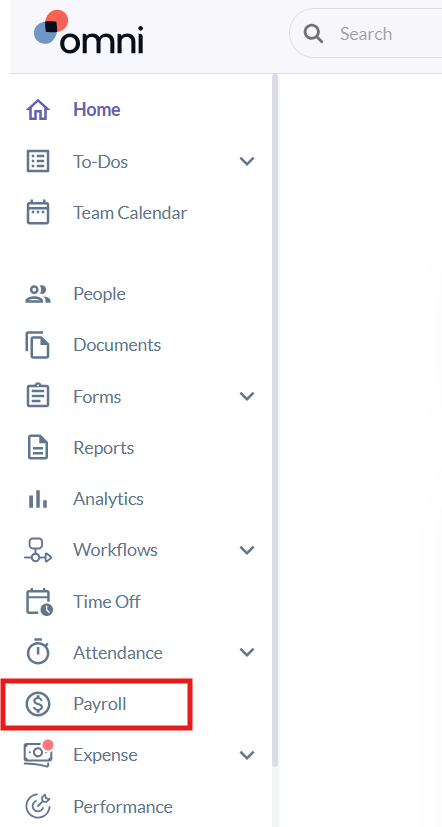
- Select the Payroll tab from the left-hand side panel.
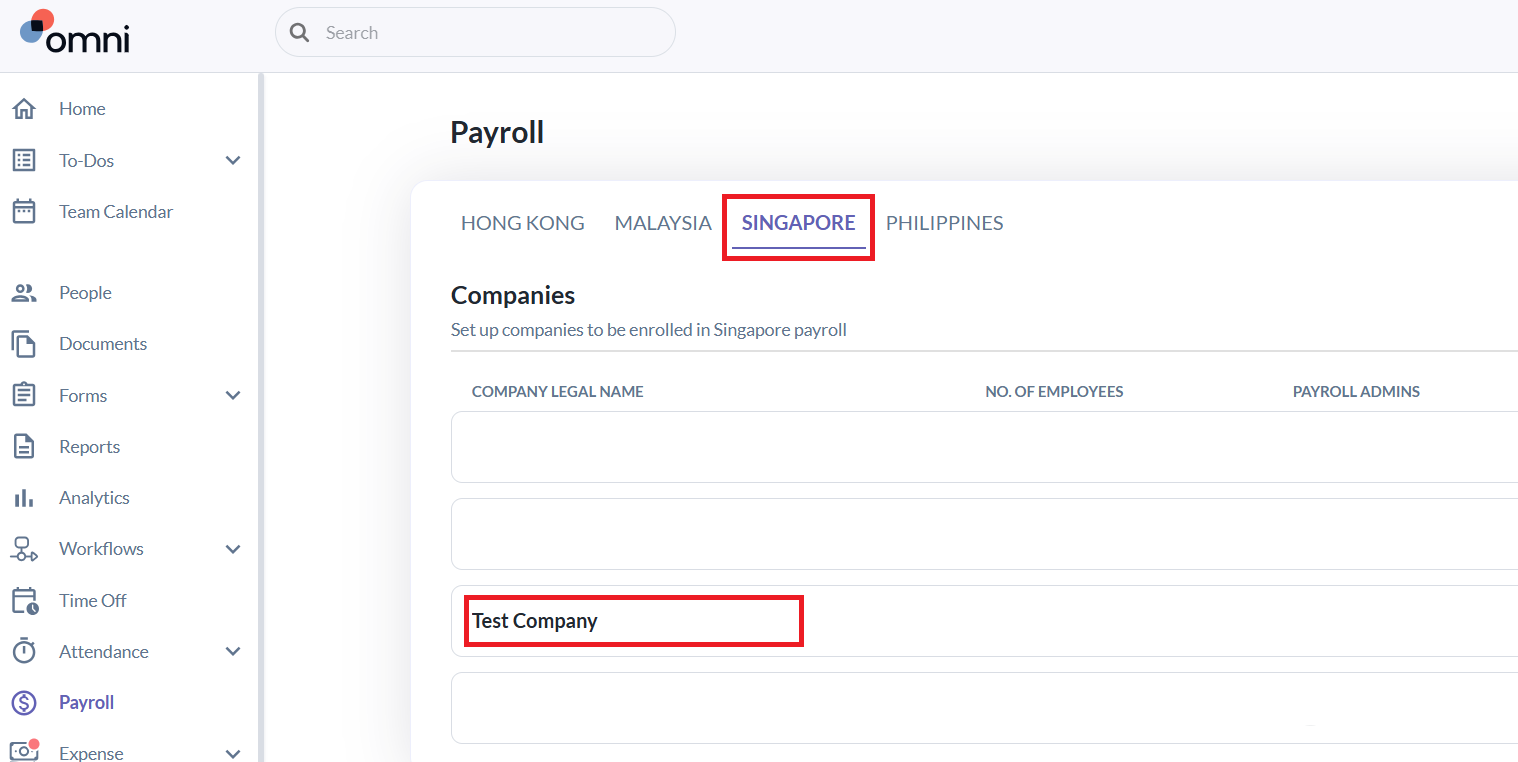
- Under the relevant country, select the Singapore entity you want to enroll the employee into.
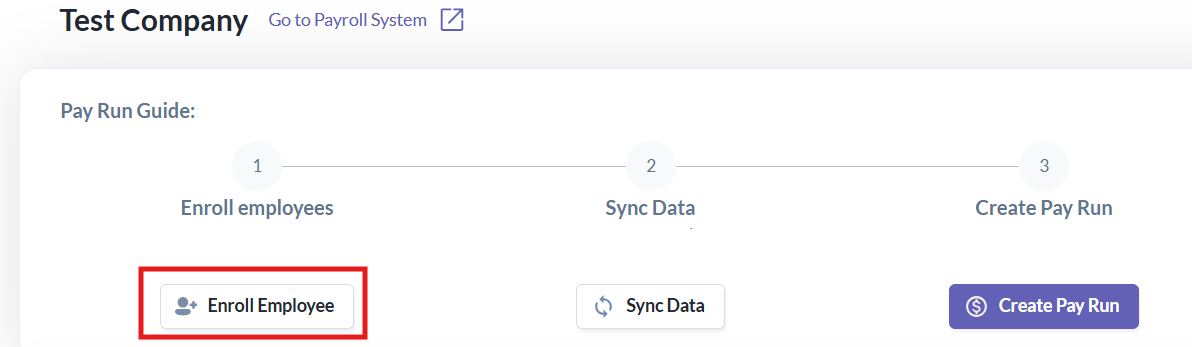
- Click Enroll Employee, select the employee, then click Save.
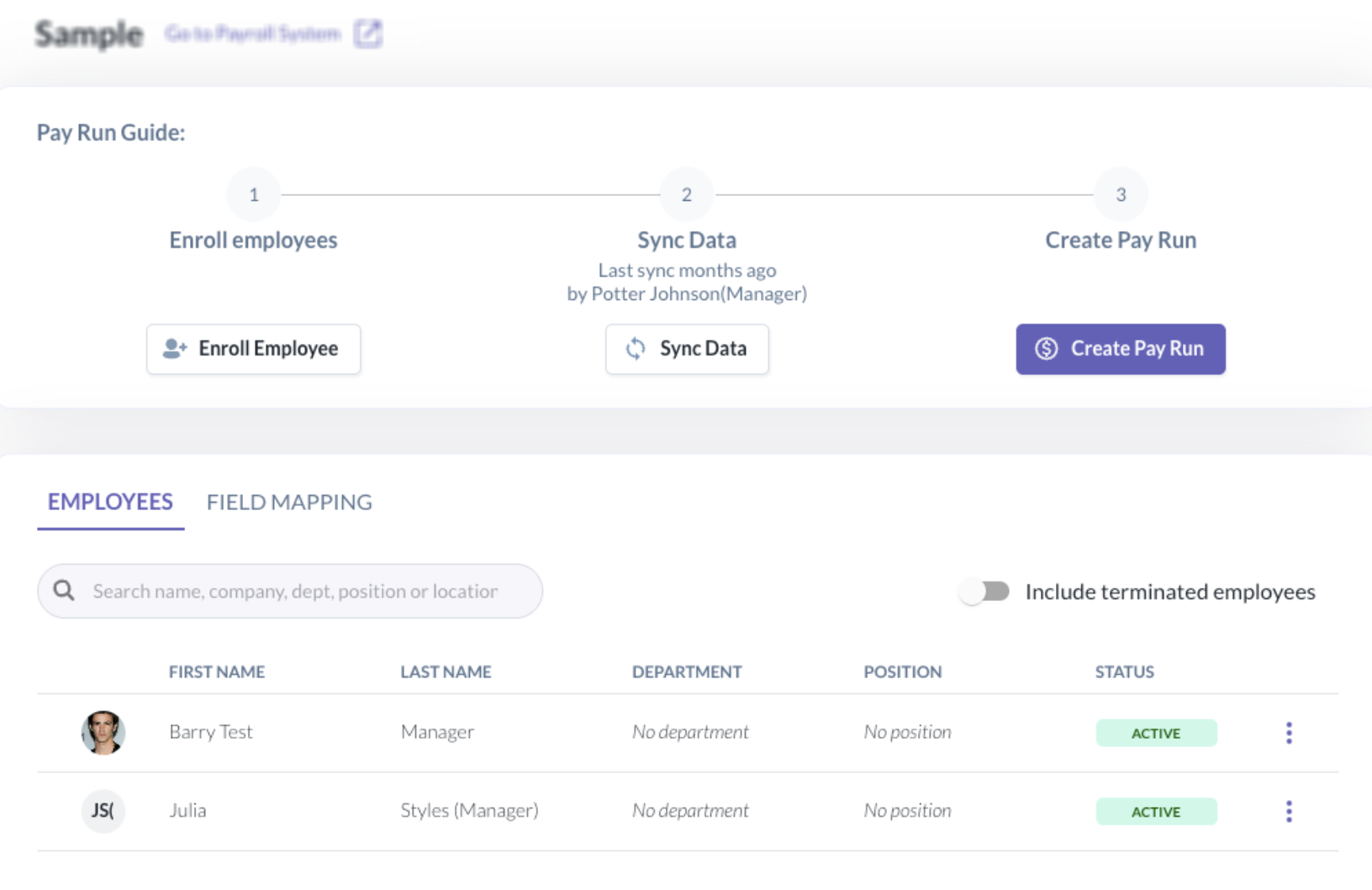
- The employee's name will now appear in the list of employees under that entity.
Complete Identification & Statutory Details
Once enrolled, Omni HR displays country-specific fields in the payroll tab of the employee's profile, for identification and statutory information.
These fields are what our payroll system uses to calculate CPF, SDL, and SHG contributions, so they need to be filled in accurately.
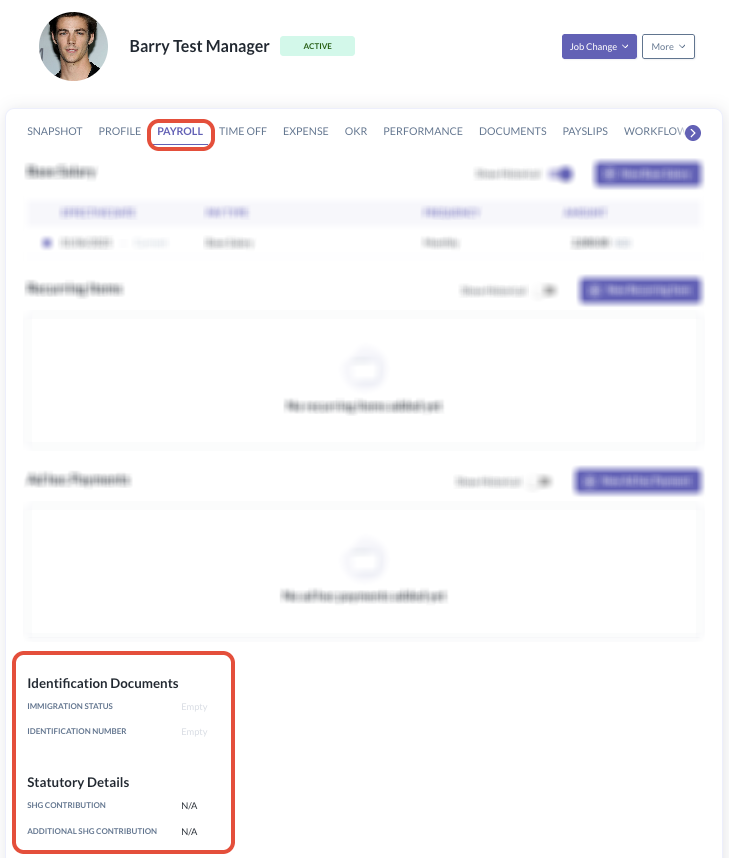
Step 1: Immigration Status
Select the Immigration Status that reflects the employee's actual status in Singapore. This is the key field for statutory accuracy — it's what tells our payroll system which contributions apply (for example, CPF is not calculated for work pass holders).
| Immigration Status | Typically used for | CPF | SDL |
| Singapore Citizen | Employees holding Singapore citizenship | Yes | Yes |
| Singapore PR | Employees holding Singapore PR status | Yes — graduated rates may apply, see note below | Yes |
| E Pass / S Pass / Work Pass | Foreign employees on a valid MOM work pass | No | Yes |
| Intern | Student interns | No | No |
| Contract (No CPF, No SDL) | Contract arrangement excluded from both | No | No |
| Contract With SDL (No CPF, W/SDL) | Contract arrangement excluded from CPF only | No | Yes |
Note: If you select Singapore PR, also fill in the PR Effective Date and Expiry Date. Our payroll system uses these dates to apply the correct CPF contribution rate for the employee's PR tenure.
Step 2: Identification Number
After selecting the Immigration Status, fill in the employee's corresponding identification number (e.g., NRIC for Singapore Citizens/PRs, or FIN for pass holders). This should match the employee's identification document exactly, as it feeds into CPF submissions and other statutory filings.
Step 3: Self-Help Group (SHG) Contributions
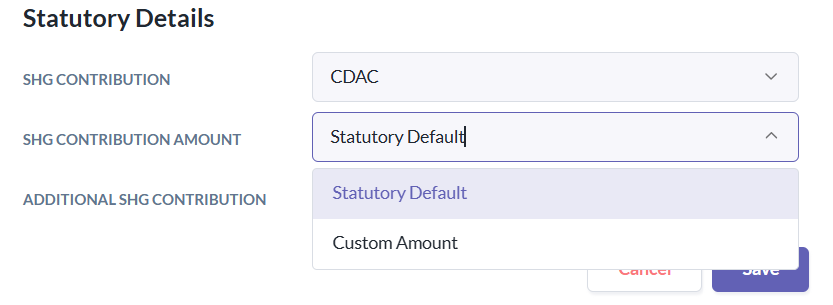
Next, complete the SHG contribution field. Singapore has four Self-Help Group (SHG) funds, each supporting lower-income households within a specific community:
| Fund | Community | Who contributes |
| CDAC — Chinese Development Assistance Council Fund | Chinese | Singapore Citizens and PRs from the Chinese community |
| ECF — Eurasian Community Fund | Eurasian | Singapore Citizens and PRs from the Eurasian community |
| MBMF — Mosque Building and Mendaki Fund | Muslim | Singapore Citizens, PRs, and foreign employees who are Muslim |
| SINDA — Singapore Indian Development Association Fund | Indian | Singapore Citizens, PRs, and Employment Pass holders from the Indian community |
SHG contributions are opt-out rather than opt-in, eligible employees contribute by default based on their declared community and can choose to opt out or change their contribution tier. Make sure the appropriate SHG contribution amount is selected on the employee’s profile, either the statutory default or a custom amount to ensure payroll deducts the correct contribution each cycle.
Still Need Help?
Reach out to our support team should you need further assistance.
Was this article helpful?
That’s Great!
Thank you for your feedback
Sorry! We couldn't be helpful
Thank you for your feedback
Feedback sent
We appreciate your effort and will try to fix the article