Overview:
If as an admin or manager, you wish to correct or update the timesheet of other employees, you will be able to do so directly from the Attendance > Tracker feature. You are able to delete incorrect records or update the records to reflect accurate timesheets for your employees.
Prerequisite
Admins or managers need to be granted the right access permissions, before they are able to manage the timesheet of other employees. For more information, please refer to How to Enable Managers to View & Edit Timesheet
TABLE OF CONTENTS
- Steps to edit & update employee timesheet (if no approval rules setup)
- Steps to edit & update employee timesheet (if approval rules are setup)
Steps to edit & update employee timesheet (if no approval rules setup)
1. Go to Attendance > Tracker
2. Toggle the filters below to view the timesheet in the range you wish.
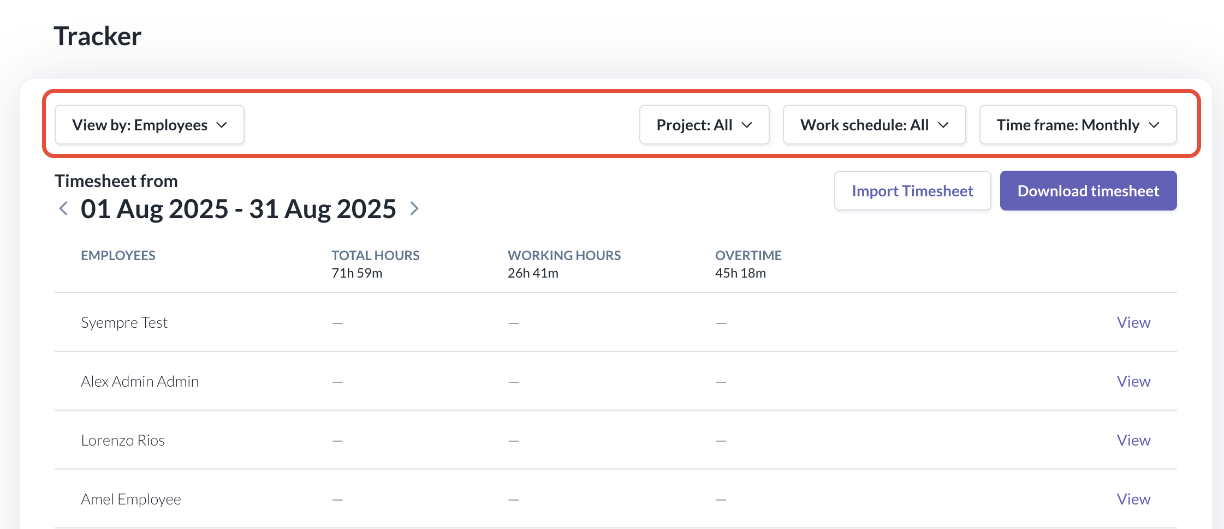
3. Click on View next to the specific employee's timesheet record.

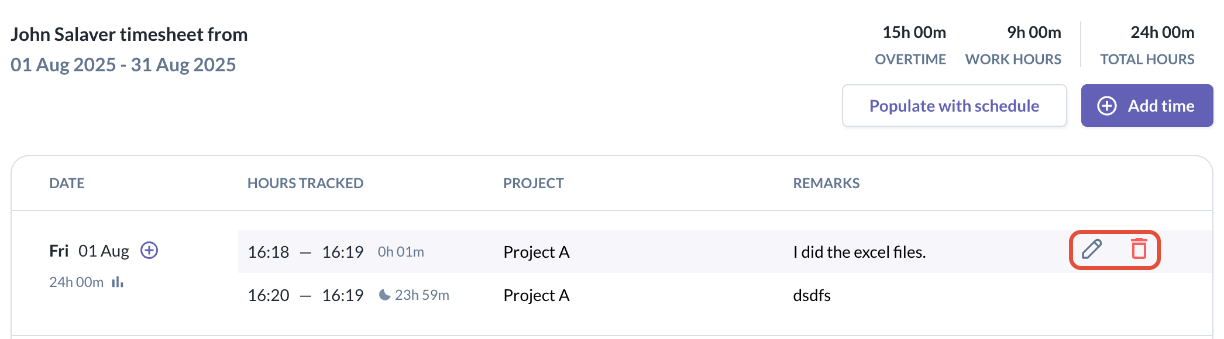
4. Hover over the record you wish to edit and update. You have the options to edit or delete the record.
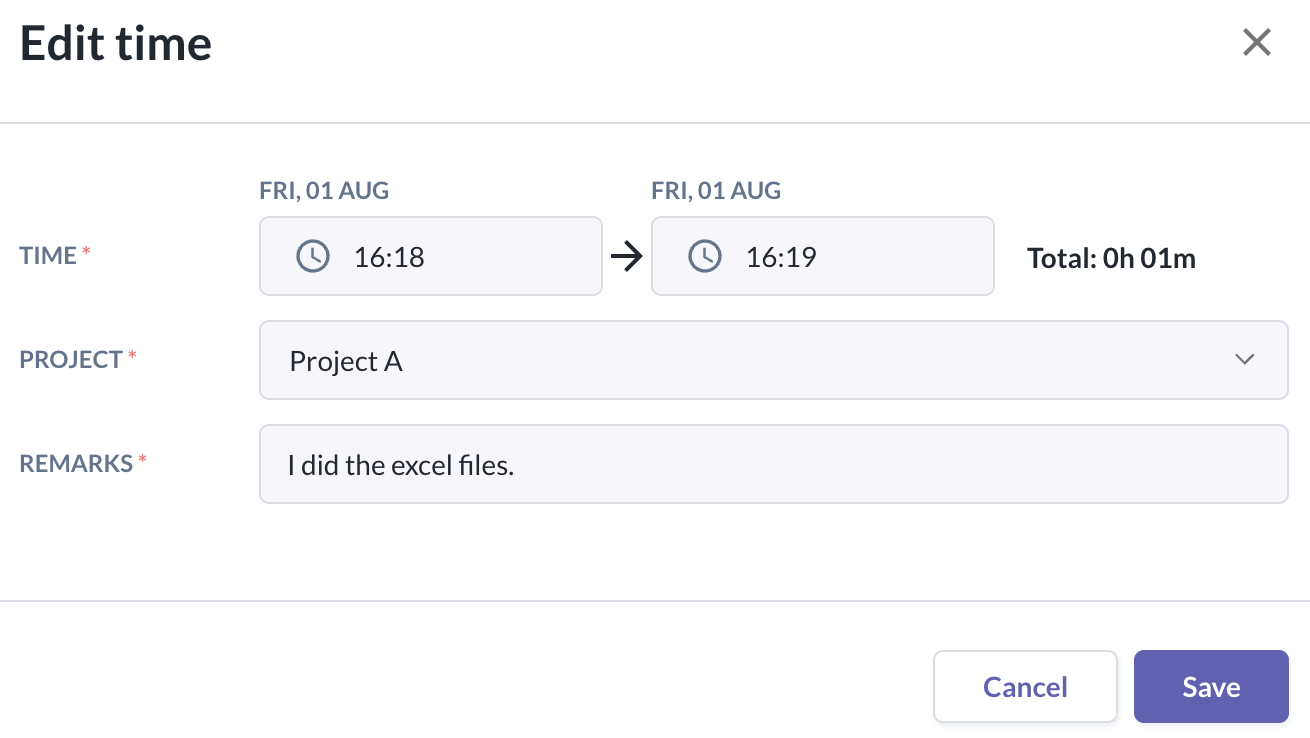
5. If you click on the pencil icon, you will see the pop-up below to do the necessary updates to the record. Once done, click save.
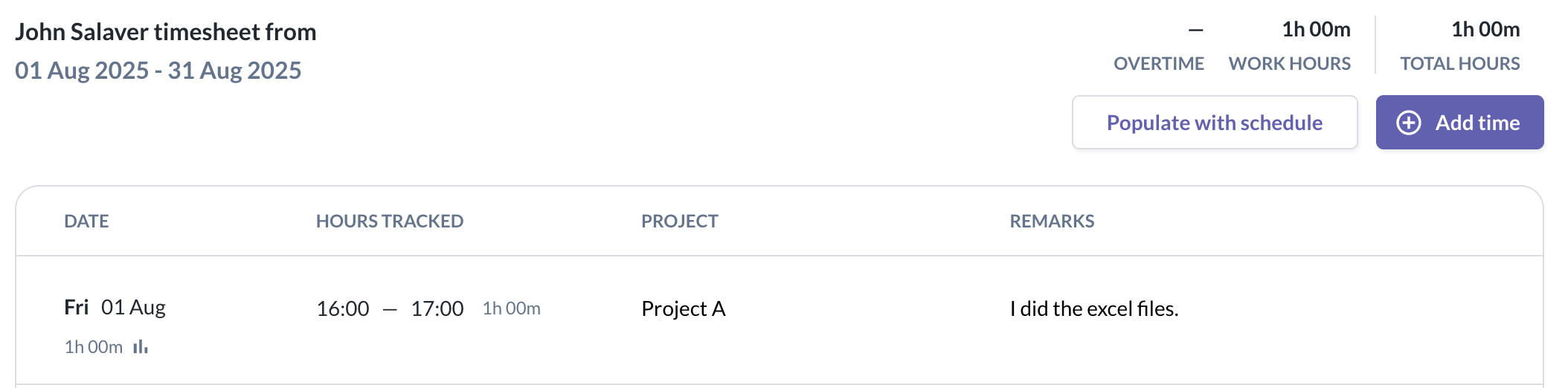
After updating the records, you will be able to see the corrections/updates reflected instantly.
Steps to edit & update employee timesheet (if approval rules are setup)
If the timesheet is not locked, admins can still manage timesheet entries directly from Tracker, including entries connected to approval requests.
This includes:
- reviewing request-linked entries
- directly editing a timesheet entry
- approving or rejecting requests from the admin side where applicable
The Tracker page allows admins to resolve or manage these records directly without relying on the employee to update the request first.
For request-linked entries:
- admins can open the related request details
- admins can approve or reject the request
- the final result is reflected in both admin and employee views
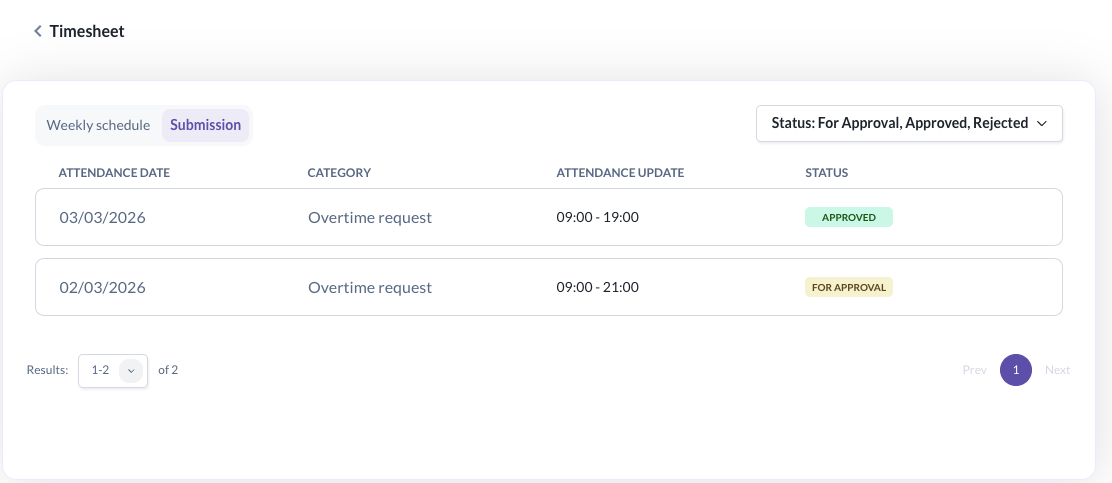
For example, Zayne Li has submitted two timesheet entries with overtime requests and is currently status = For Approval.
A - Viewing timesheet submission requests as an Admin
1. Go to Attendance > Tracker
2. Toggle the filters below to view the timesheet in the range you wish.
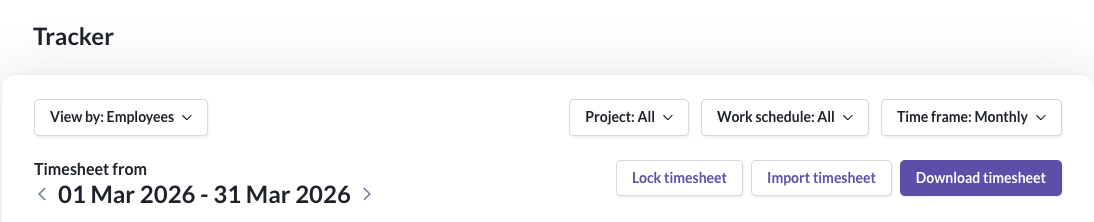
3. Click on View next to the specific employee's timesheet record.

4. In the employee's timesheet, you can select Submissions to review the current pending requests
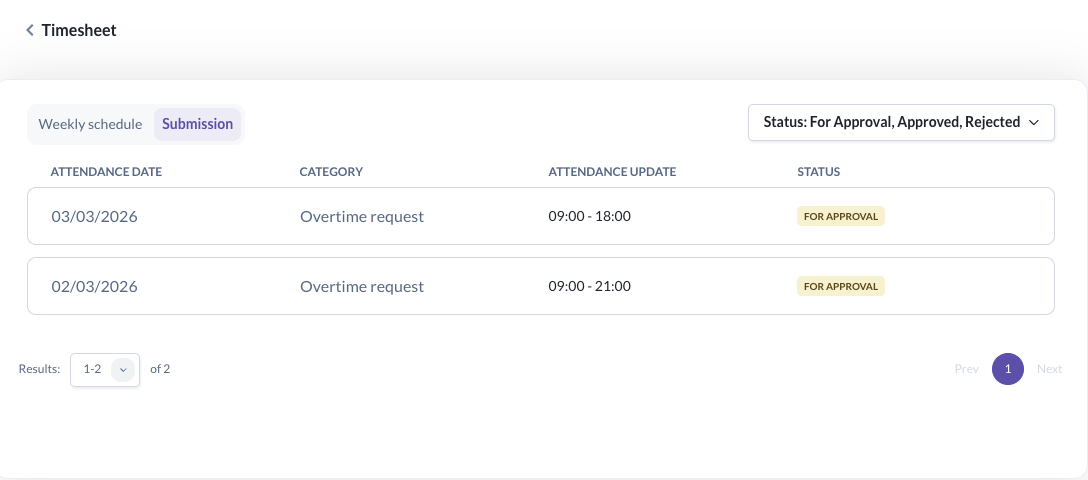
5. Admin's can click into any requests to view the related request
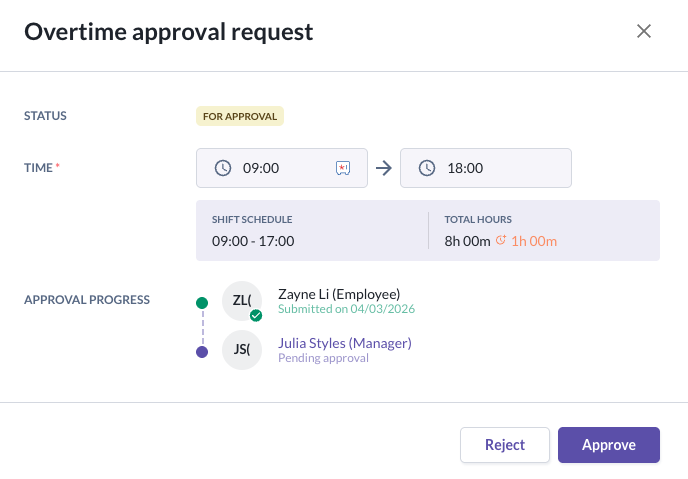
B - Editing, approving or rejecting timesheet requests as an Admin
1. Admin can make edits to the Time entries i.e. change the start or end time
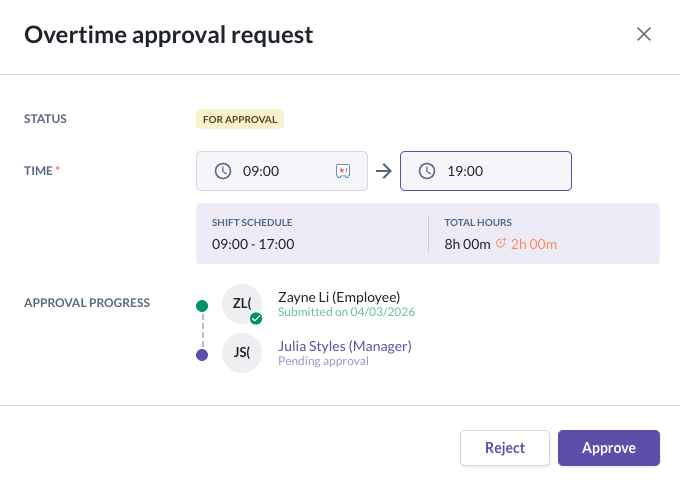
2. Admins may then choose to approve or reject the timesheet entry request
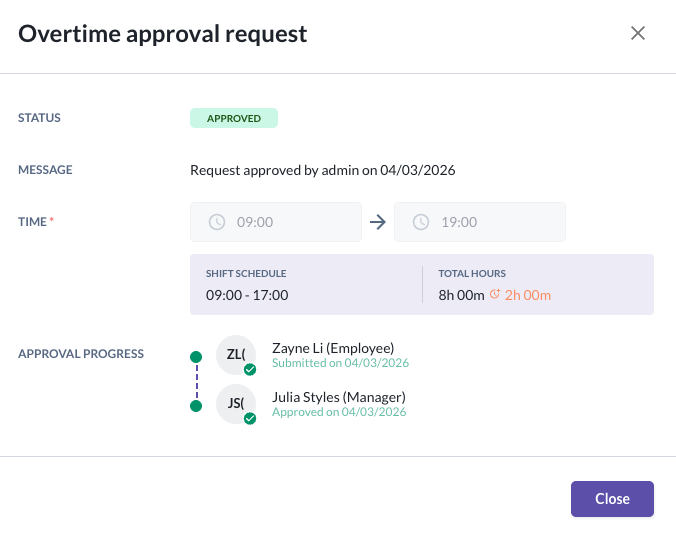
If admin approves
- the request is completed as approved
- all approval levels are marked as approved
- each level still displays the original configured approver names
- a message is shown at the top to indicate that the request was actually approved by admin
If admin rejects
- the request is completed as rejected
- all approval levels are marked as rejected
- each level still displays the original configured approver names
- the rejection reason includes a message indicating that the request was actually rejected by admin
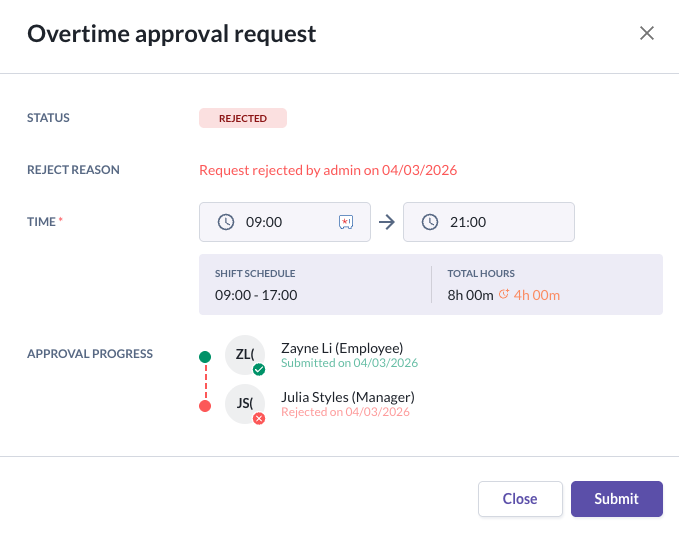
After rejecting the overtime request, admin can edit the overtime request and submit it for approval again on behalf of the employee if required.
Still Need Help?
Reach out to our support team should you need further assistance.
Was this article helpful?
That’s Great!
Thank you for your feedback
Sorry! We couldn't be helpful
Thank you for your feedback
Feedback sent
We appreciate your effort and will try to fix the article