Overview:
If you ever need to make updates or corrections to an employee's expense limit, Omni HR allows you to do this quickly and easily. The process is straightforward and ensures that all changes are clearly recorded for transparency and tracking.
Pre-requisite
- Admins to have the correct access control permissions. You can refer to this help guide to understand on the requirements: Configuring Access Permissions for Expenses
How to adjust expense limits for an employee
1. Go to the Employee's Profile
- From your dashboard, navigate to Employee Profile > Expense tab.
- Select the specific Expense Policy you'd like to adjust.
2. Open the Expense Policy
- Click on the Expense Policy to review the current balance and related information.
3. Apply the Adjustment
- Click Adjust and choose whether to:
- Add (+) to increase the balance, or
- Deduct (-) to reduce it.
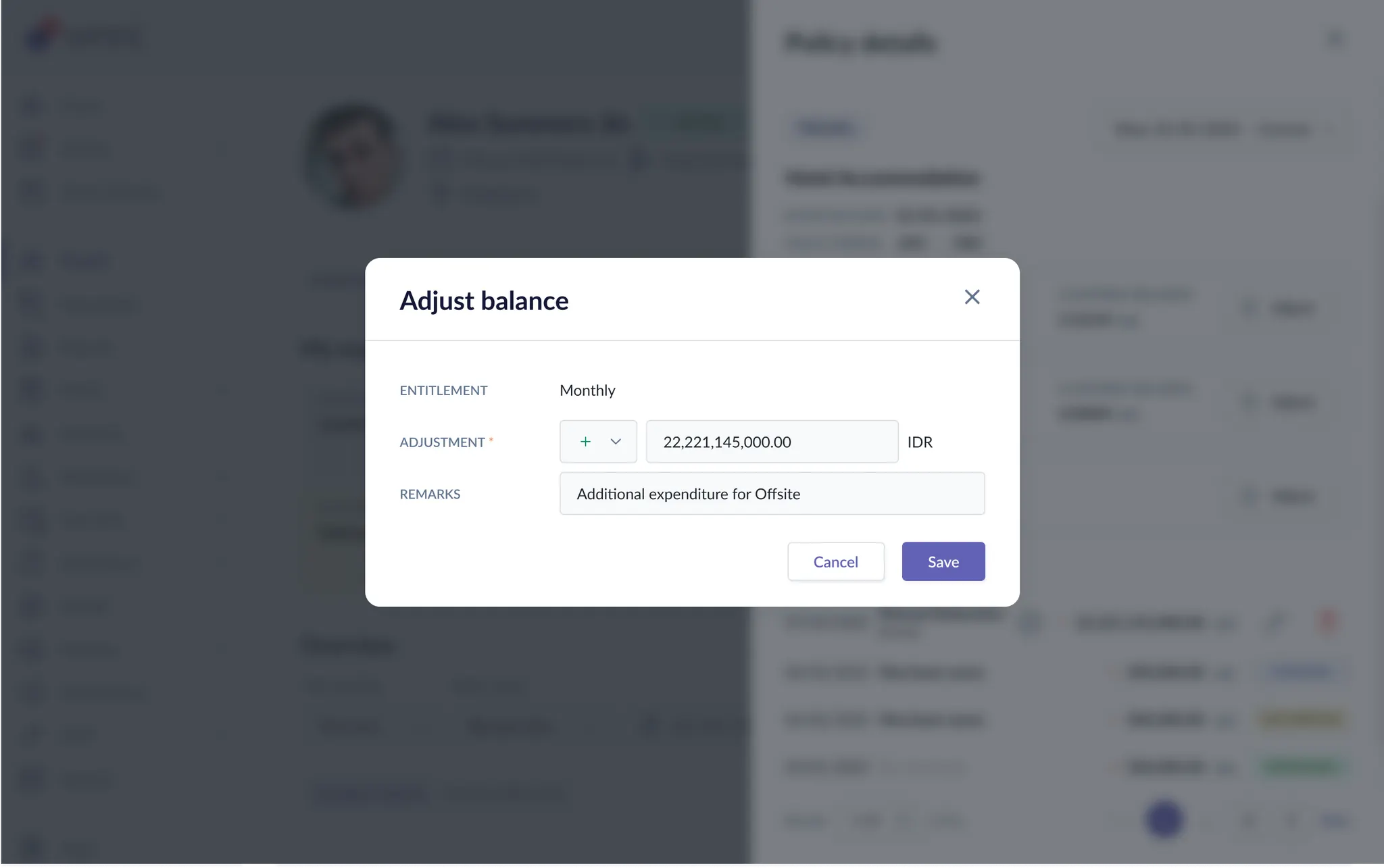
- The adjustment will apply to BOTH Total Limit & Claimable Balance, with expiry of adjustment default set to Policy Renewal Date.
- You can also add a Remarks (optional) to explain the reason for adjustment.
- Click Save
4. Review the Updated Balance
- Once saved, the Balance History will automatically reflect the adjustment, along with the date and details.
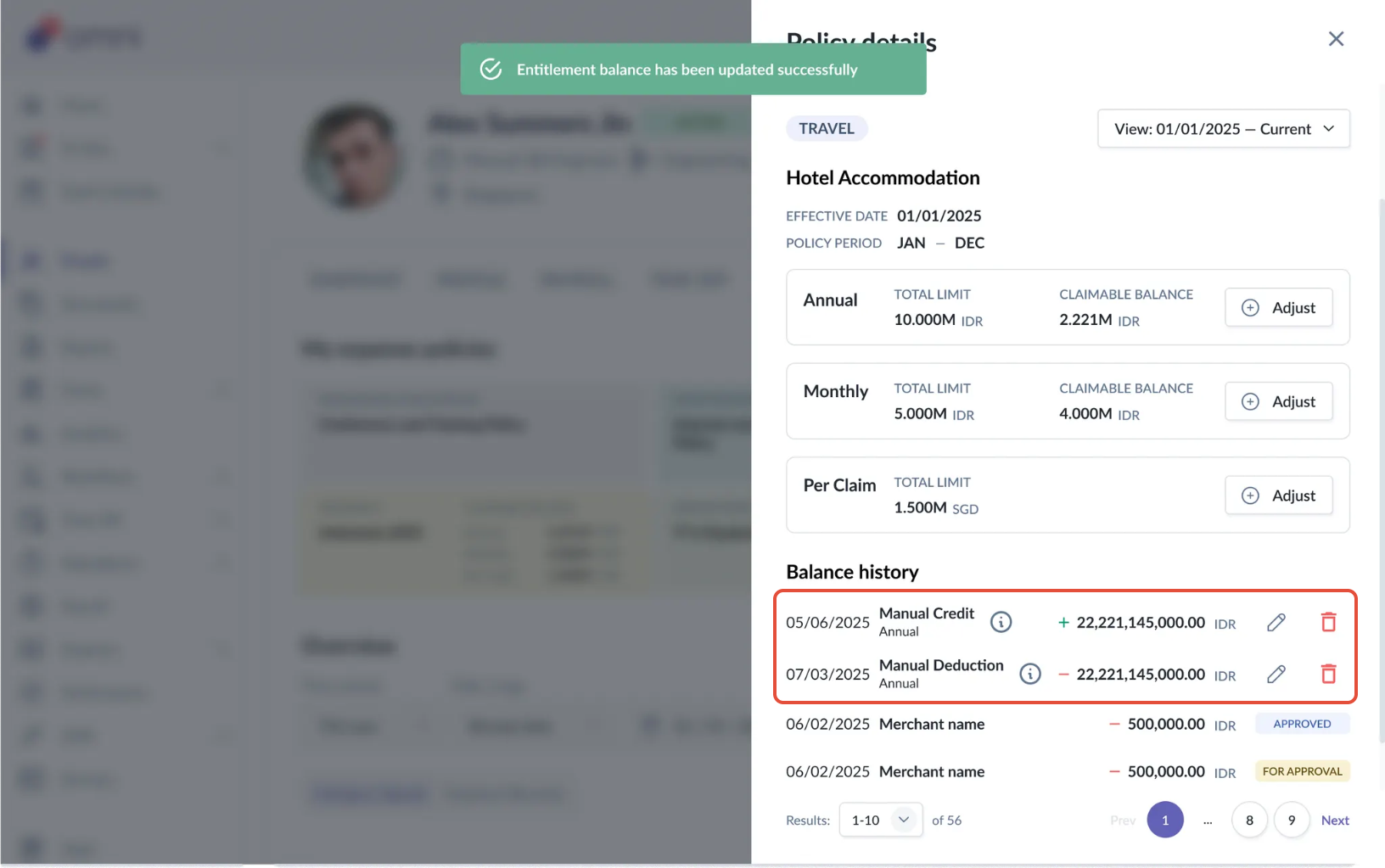
- Admins will still be able to edit or remove any adjustments made after if required.
Here's a quick video guide to help you adjust the expense limit
Still Need Help?
Reach out to our support team should you need further assistance.
Was this article helpful?
That’s Great!
Thank you for your feedback
Sorry! We couldn't be helpful
Thank you for your feedback
Feedback sent
We appreciate your effort and will try to fix the article