Overview :
The Expense tab in your Profile lets you easily view all Expense Policies that are automatically assigned to you.
It gives you a clear overview of your claimable balances, policy details, and history — all in one place.
TABLE OF CONTENTS
- 1. Expense Policy Card Overview
- 2. Policy Details View
- 3. Expense Policies Without Limits
- 4. Viewing Past Policy Details
- 5. Viewing Inactive Policy Details
1. Expense Policy Card Overview
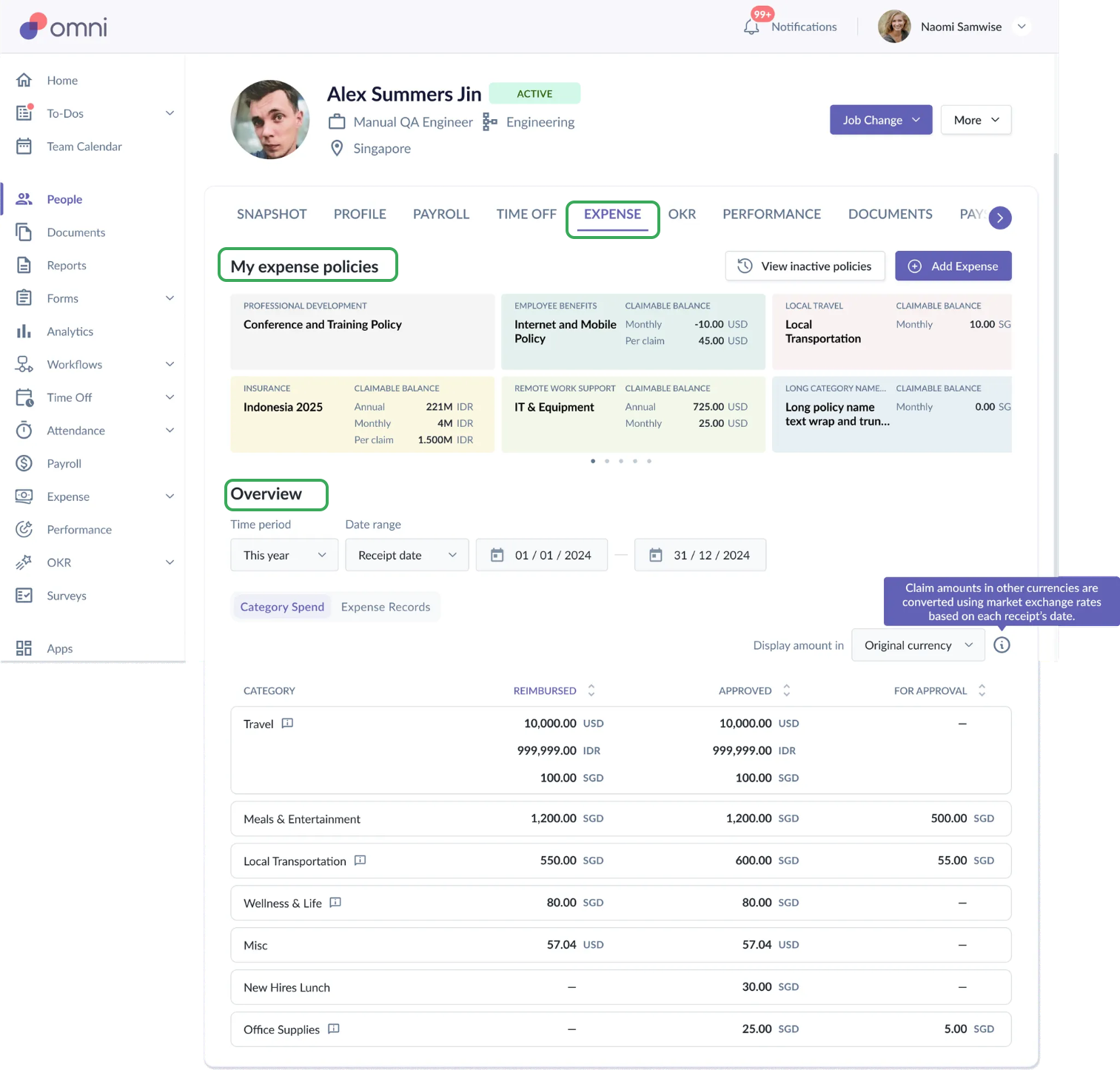
In your Expenses tab, you’ll find two main sections — My Expense Policies and Overview — that help you easily view and manage your expense entitlements, as well as track and review your expense submissions.
1.1) My Expense Policies
This section gives you a quick and clear overview of all Expense Policies assigned to you, including your available claimable balance.
Each Expense Policy appears as a policy card, allowing you to easily view key information at a glance.
You can click on any policy card to open the full policy details and see your policy history, limits, and associated claims.
✅ Claimable Balance
View how much you can still claim, depending on how the policy is structured:
Annual
Monthly
Per claim
1.2) Overview Section
The Overview section provides a summary of your expense activity across all categories.
Here, you can:
View all expense categories you’ve submitted.
Track the status of your expense claims (e.g., Pending, Approved, or Rejected).
See the total amount claimed under each category.
Get a quick snapshot of your spending trends and available balances.
This section helps you stay on top of your claims and understand how your expenses are distributed across different categories.
2. Policy Details View
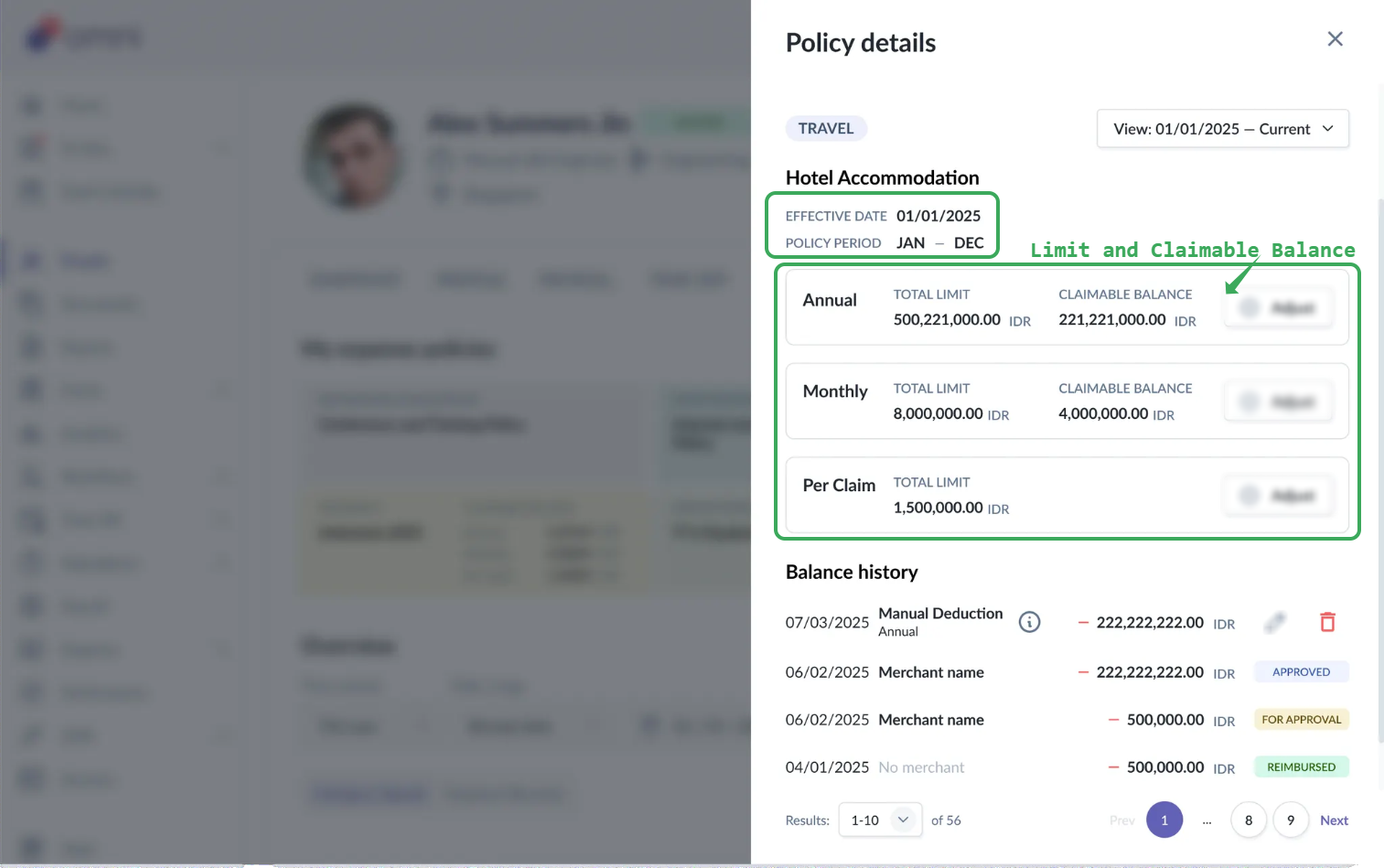
When you open a policy card, you’ll see a detailed view of your policy, including:
Past Effective Policy History (if available) : Shows previous periods where the policy applied to you.
For example:01/01/2020 – 31/12/2021
01/01/2025 – Current
This may appear if you were unassigned and later reassigned to the same policy (e.g., after a location change).
Effective Date – When the policy started
Policy Period – The duration of the policy and its renewal date
Policy Limits – Total limit and remaining claimable balance (for the current policy period only, e.g., Jan 2025 – Dec 2025)
Associated Expense Records – All expense claims linked to the current policy period
This view gives you full transparency into your expense entitlements and helps reduce confusion about your remaining balance or eligibility.
Note:
Adjust button is available only for Admins or HR to make balance adjustments and will not visible for employees.
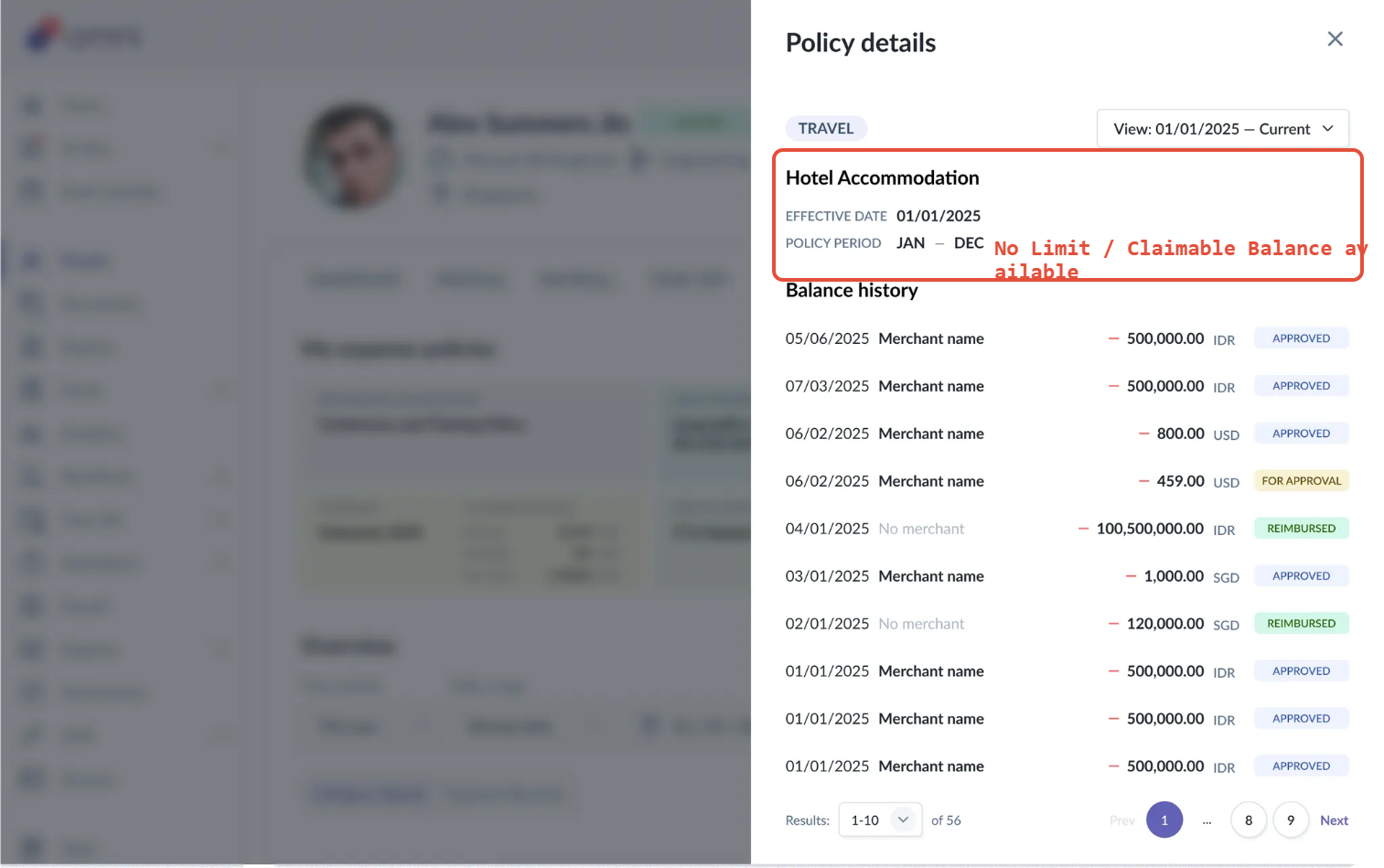
3. Expense Policies Without Limits
If your expenses policy has no expense limits, you’ll not see the claimable balance displayed on the card.
4. Viewing Past Policy Details
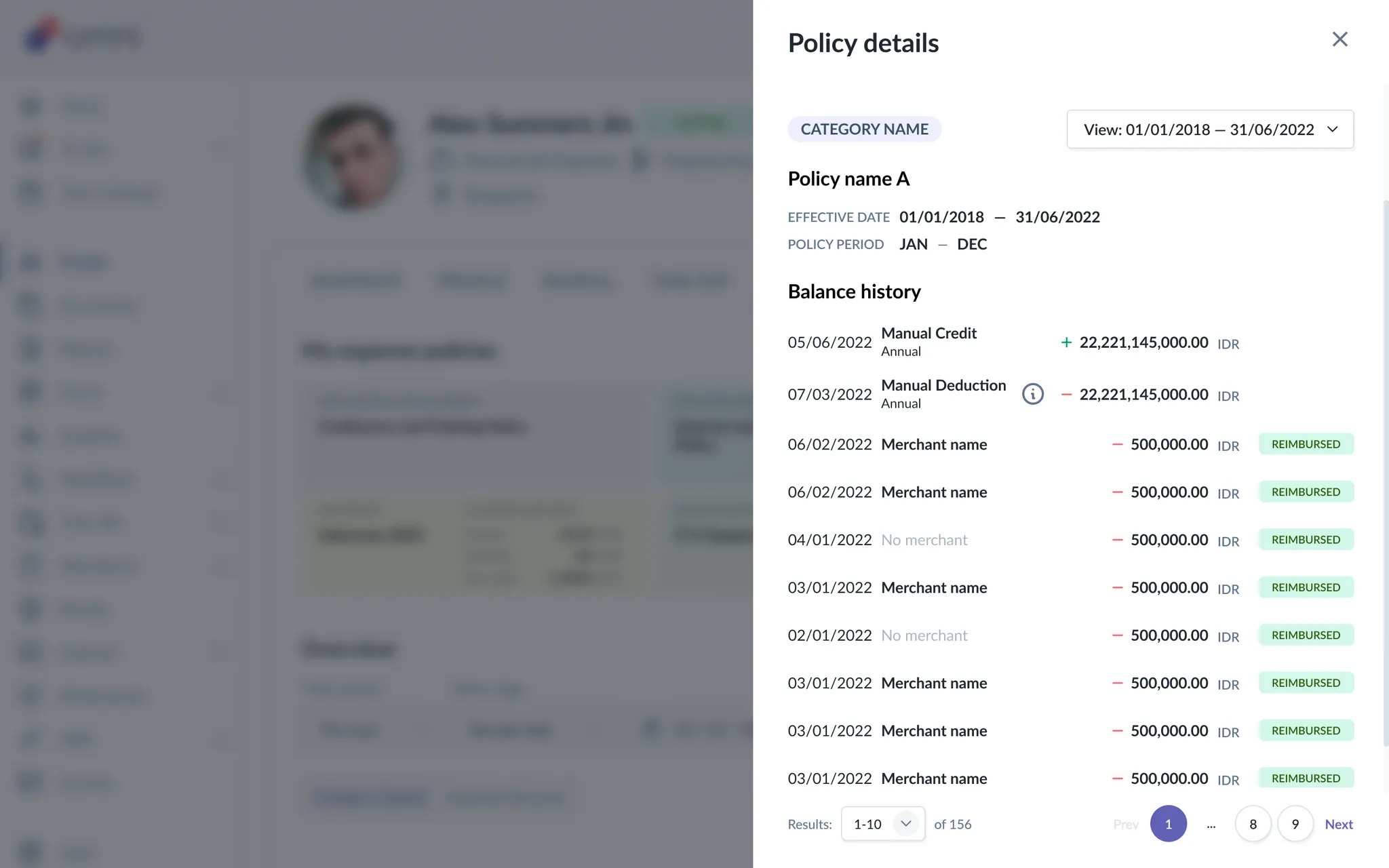
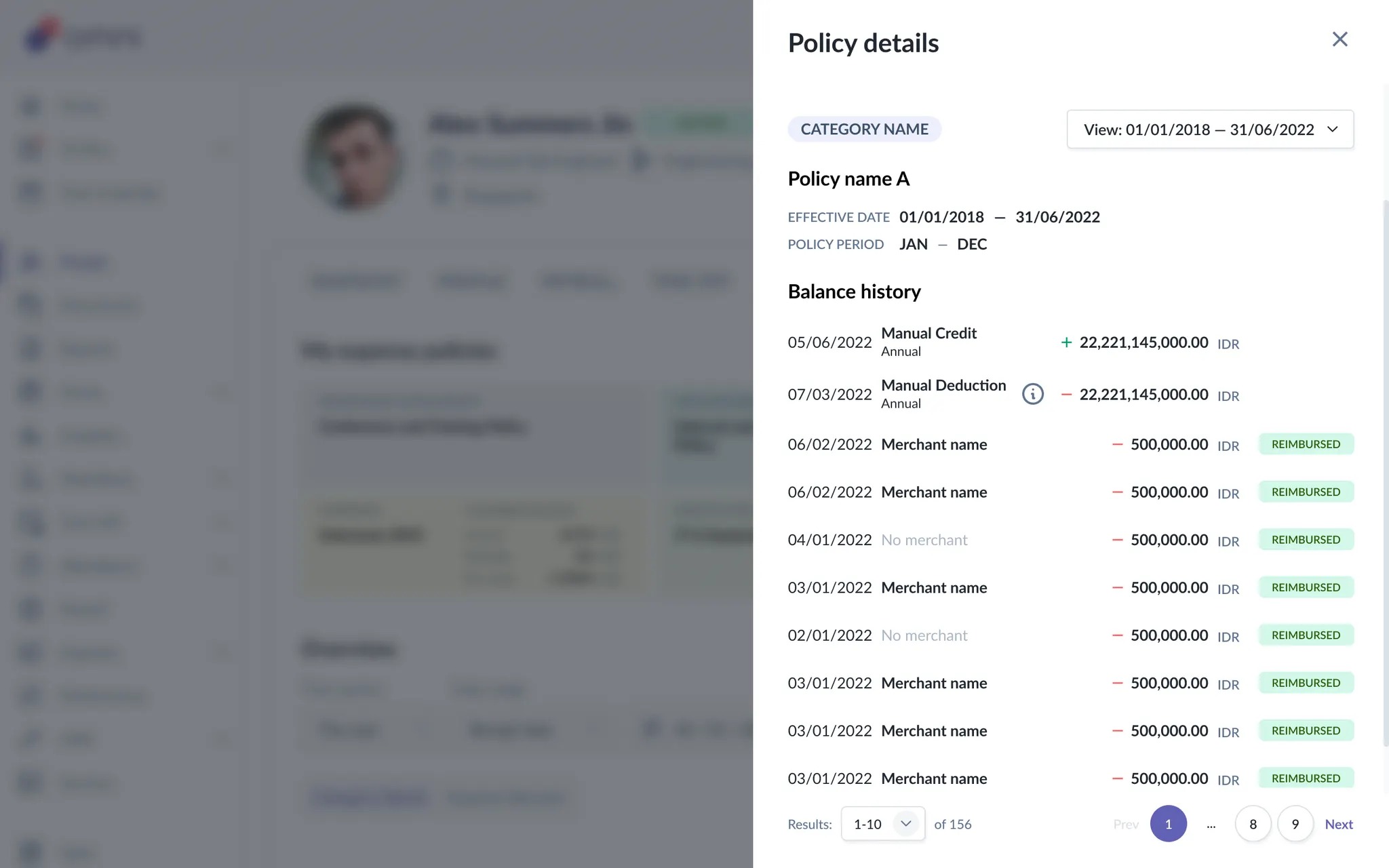
You can easily check your previous policy details based on the policy period.
When you open a policy card, simply click on the view dates option in the top-right corner to switch between current and past policy periods.
You may see multiple policy periods if you’ve:
Moved from Location A to Location B, or
Had other job record changes (such as transfers or reassignments) that caused you to receive a new expense policy and entitlement.
Notes :
Past policy details will not display entitlements.
An effective end date will be shown.
There is no option to edit or delete manual adjustments for past policies.
Tip: Checking your past policies helps you understand how your entitlements changed over time — especially if you’ve had location or role transitions.

5. Viewing Inactive Policy Details
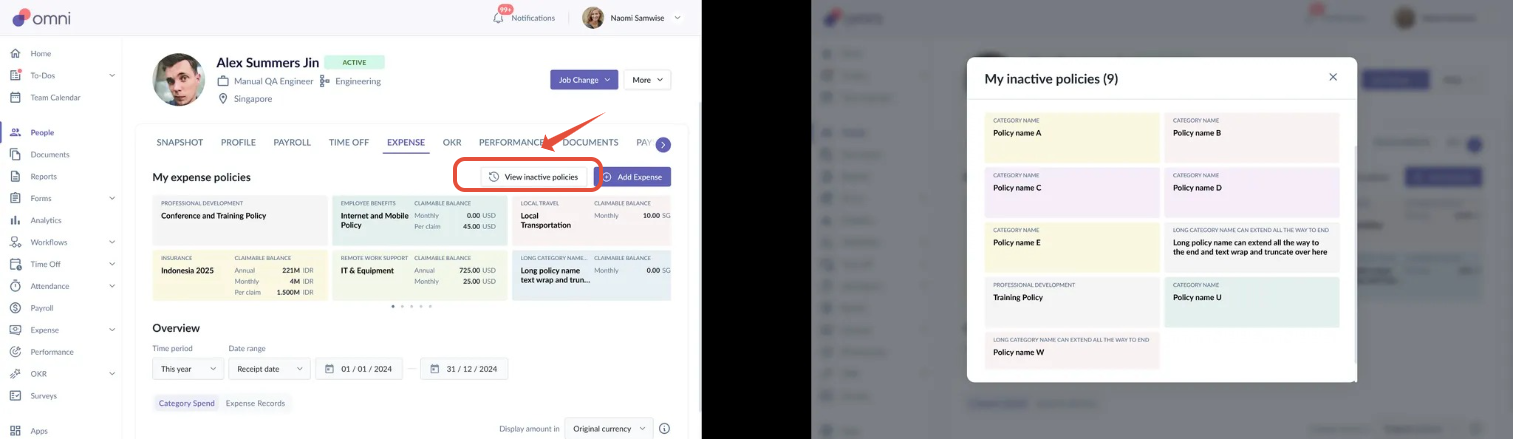
Want to see your past policies? You can!
Just click “View inactive policies” button at of your Expense tab.
Here, you’ll find:
All past policies that have ended
Any past claims made under those policies
Still Need Help?
Reach out to our support team should you need further assistance.
Was this article helpful?
That’s Great!
Thank you for your feedback
Sorry! We couldn't be helpful
Thank you for your feedback
Feedback sent
We appreciate your effort and will try to fix the article