Last Updated: January 12, 2026
Overview:
Jobs are created in the Recruit module to start a hiring process. The job creation flow guides you through defining job details, configuring the hiring workflow, and deciding how the job is shared.
Creating a new job
Connecting your work email allows Omni to send candidate emails using your email address.
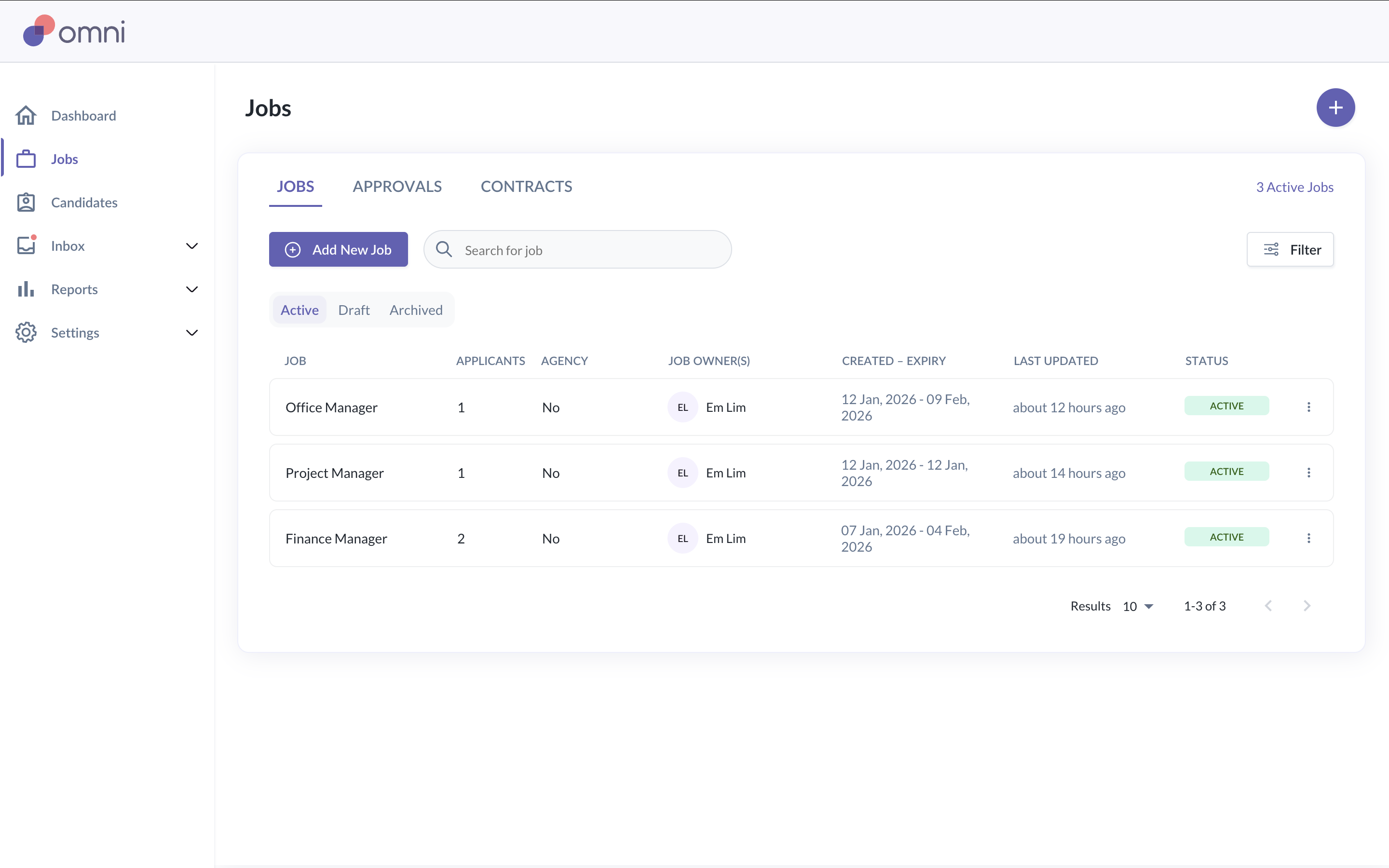
- Go to Jobs > Add New Job
You will be guided through a series of steps to configure the job.
Step 1: Job details
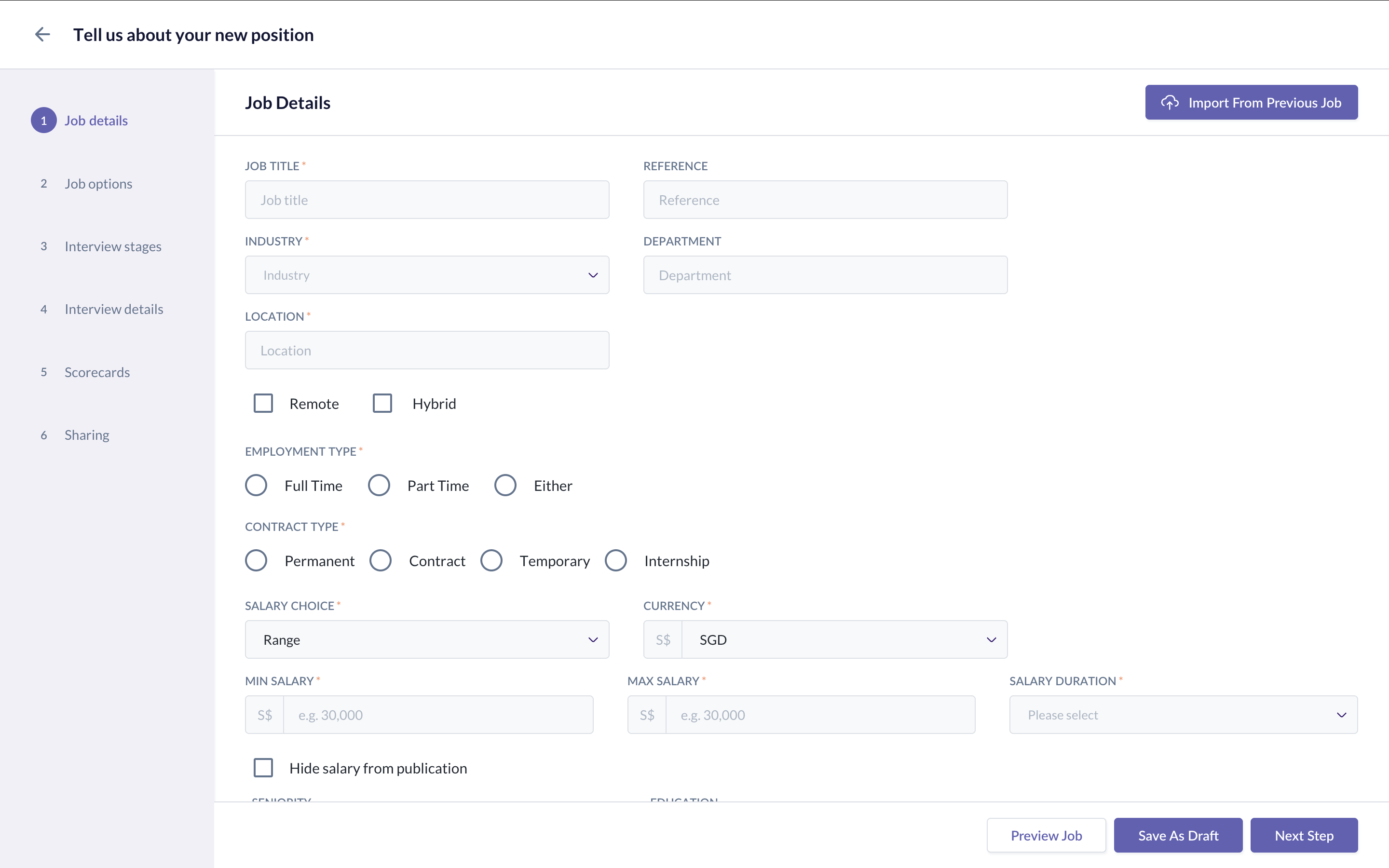
Job details describe the role and are shown to candidates when the job is published.
Enter the job title
Select the job location
Define the employment type
Set the salary range. Note a salary range is required in order for the job to be published to various job boards. If you'd prefer to not disclose the salary range, you can check the option "Hide salary from publication" and replace it with a text input (e.g. "Negotiable" or "Competitive" or "n/a")
Add the job description
These details help candidates understand the role and determine whether they are a good fit.
Step 2: Job options
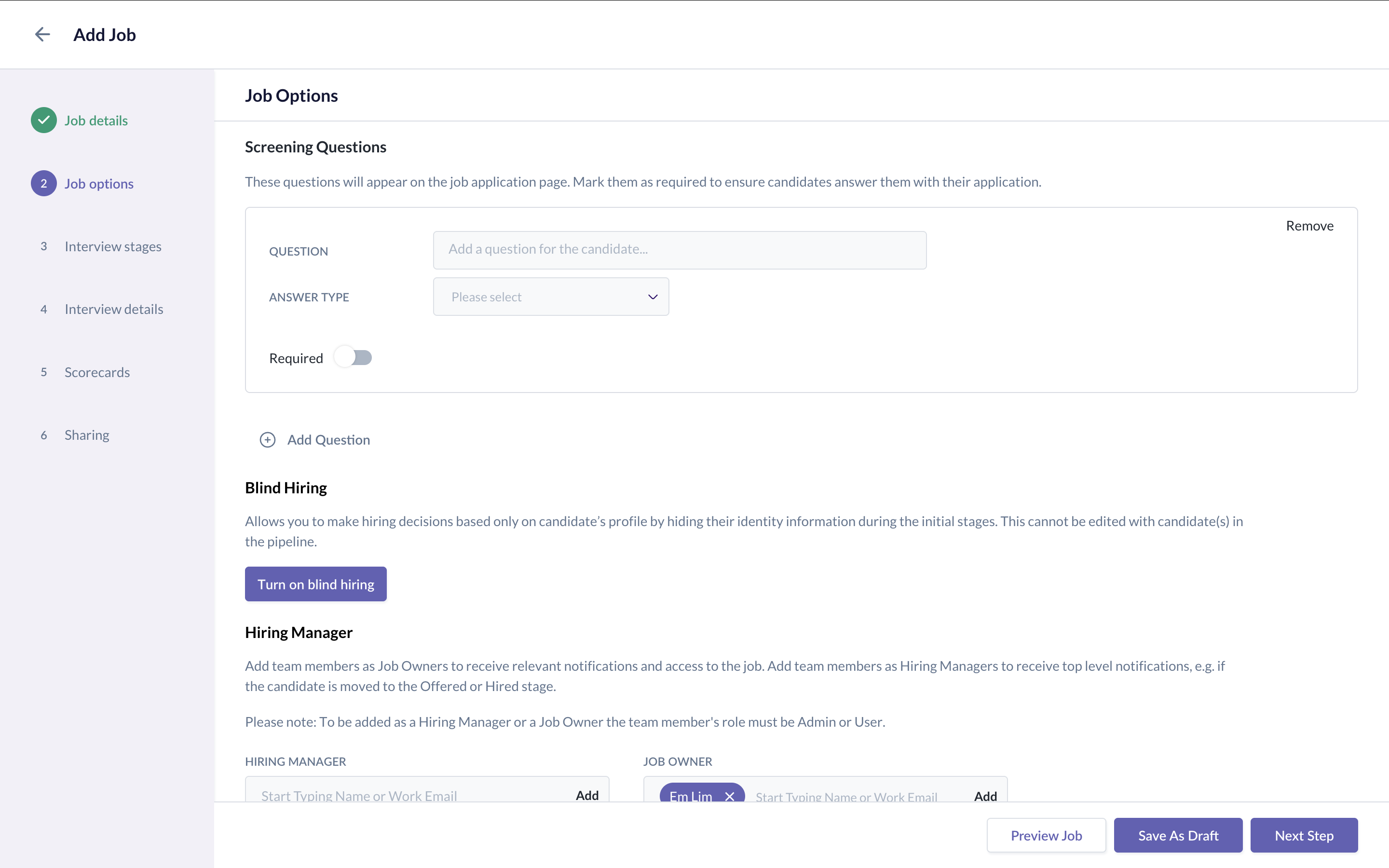
Job options define ownership, responsibilities, and any screening required before candidates move forward.
- Configure screening questions for candidates, if needed
- Screening questions are presented to candidates when they submit the application form.
- While candidates won't be automatically rejected by screening questions, you can filter candidates based on their response to the screening questions
- Assign Hiring Managers (if applicable)
- Select a Job Requisition Approver (if approvals are required)
Note: If a User creates the job, they are automatically assigned as the Job Owner.
Step 3: Interview stages
Interview stages define the steps candidates go through during the hiring process.
Interview stages are broken down by:
- Screening stages
- Interview stages
In this step, you can select the event type for each stage
- Phone (for either screening or assessment)
- Assessment
- Video Q&A
- Video interview
- In-person interview
Note: After you've selected the interview stages, you will have a chance to further customise the details on the next step.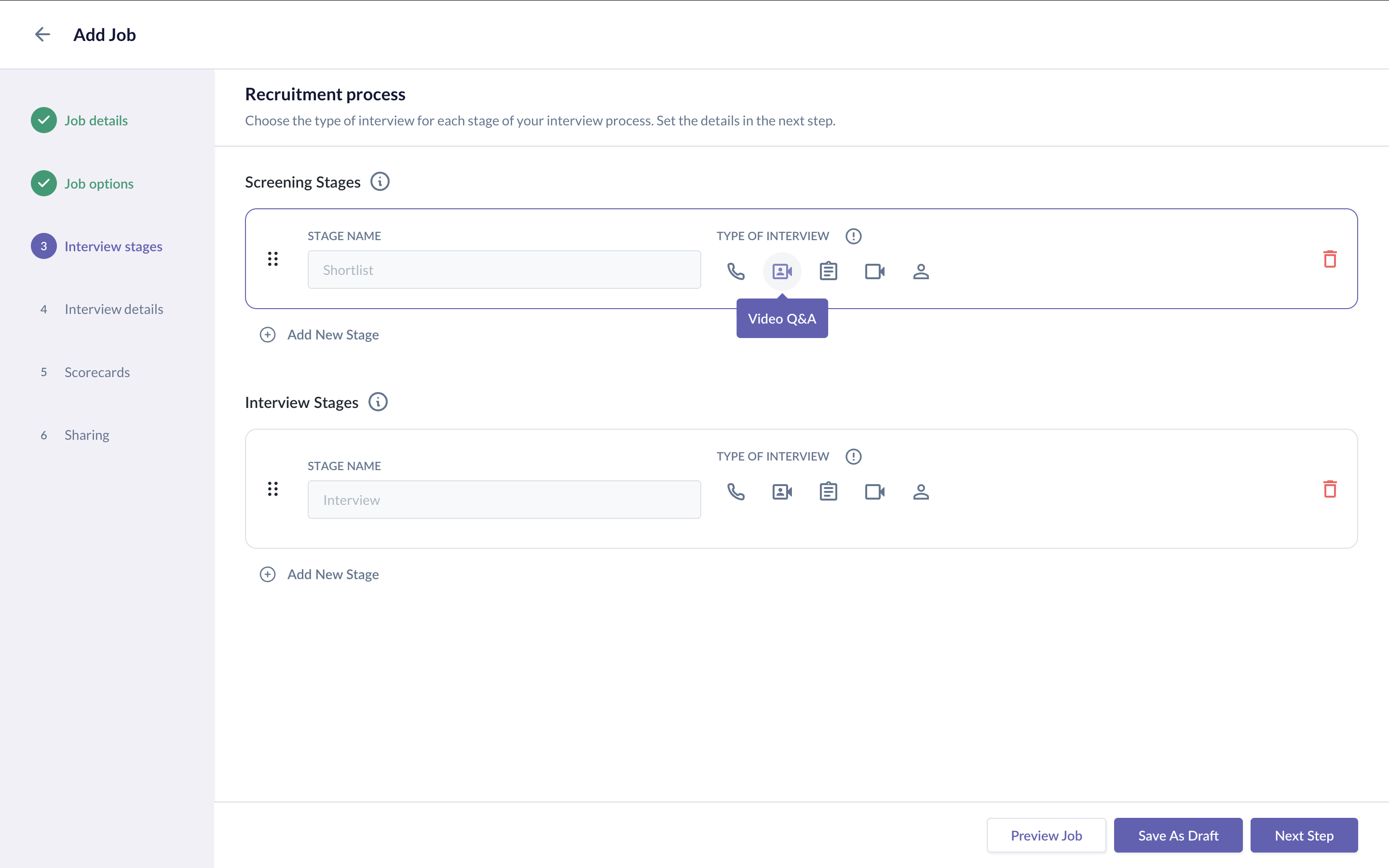
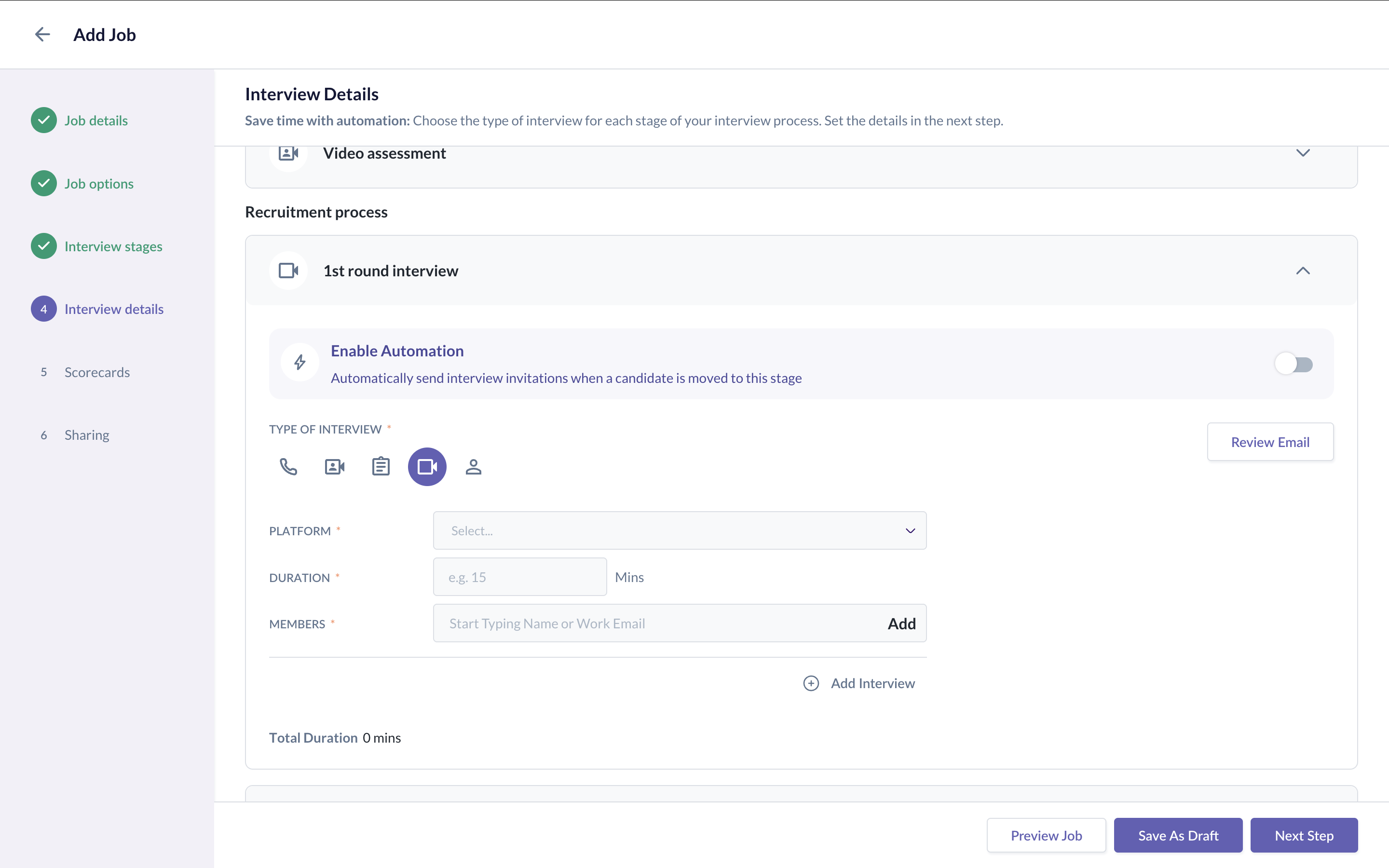
Step 4: Interview details
Interview details are configured based on the interview stages selected in the previous step. Each stage type requires different information to be completed before candidates can move forward.
Assessments
Assessments are used to evaluate candidates through tests or assignments. When configuring an assessment stage, you will:
Select an assessment from the assessment library or create from scratch
Review or customise assessment instructions
Define when the assessment is sent to candidates
Once configured, the system will automatically send the assessment email to candidates when they reach this stage.
Video Q&A
Video Q&A stages allow candidates to record responses to predefined questions. When configuring a video Q&A stage, you will:
- Add the video questions candidates need to respond to
- Set the time limit for each response
- Define the number of attempts allowed (if applicable)
The system will automatically send an invitation email to candidates with instructions on how to record and submit their responses.
Phone interview
Phone interviews are used for live screening calls. When configuring a phone interview stage, you will:
- Set the interview duration
- Assign the interviewer
- Select the email template used to invite candidates
Calendar invitations and email notifications are sent automatically based on the interview scheduling.
Video interview
Video interviews are conducted through connected video conferencing tools. When configuring a video interview stage, you will:
- Set the interview duration
- Assign interviewers or panel members
- Select the video conferencing tool (if connected)
- Select the email and calendar invite templates
Once scheduled, the system will automatically generate the meeting link and send interview invitations to both candidates and interviewers.
In-person interview
In-person interviews are conducted at a physical location. When configuring an in-person interview stage, you will:
- Set the interview duration
- Add location details
- Assign interviewers or panel members
- Select the email and calendar invite templates
Calendar invitations and candidate emails are sent automatically when the interview is scheduled.
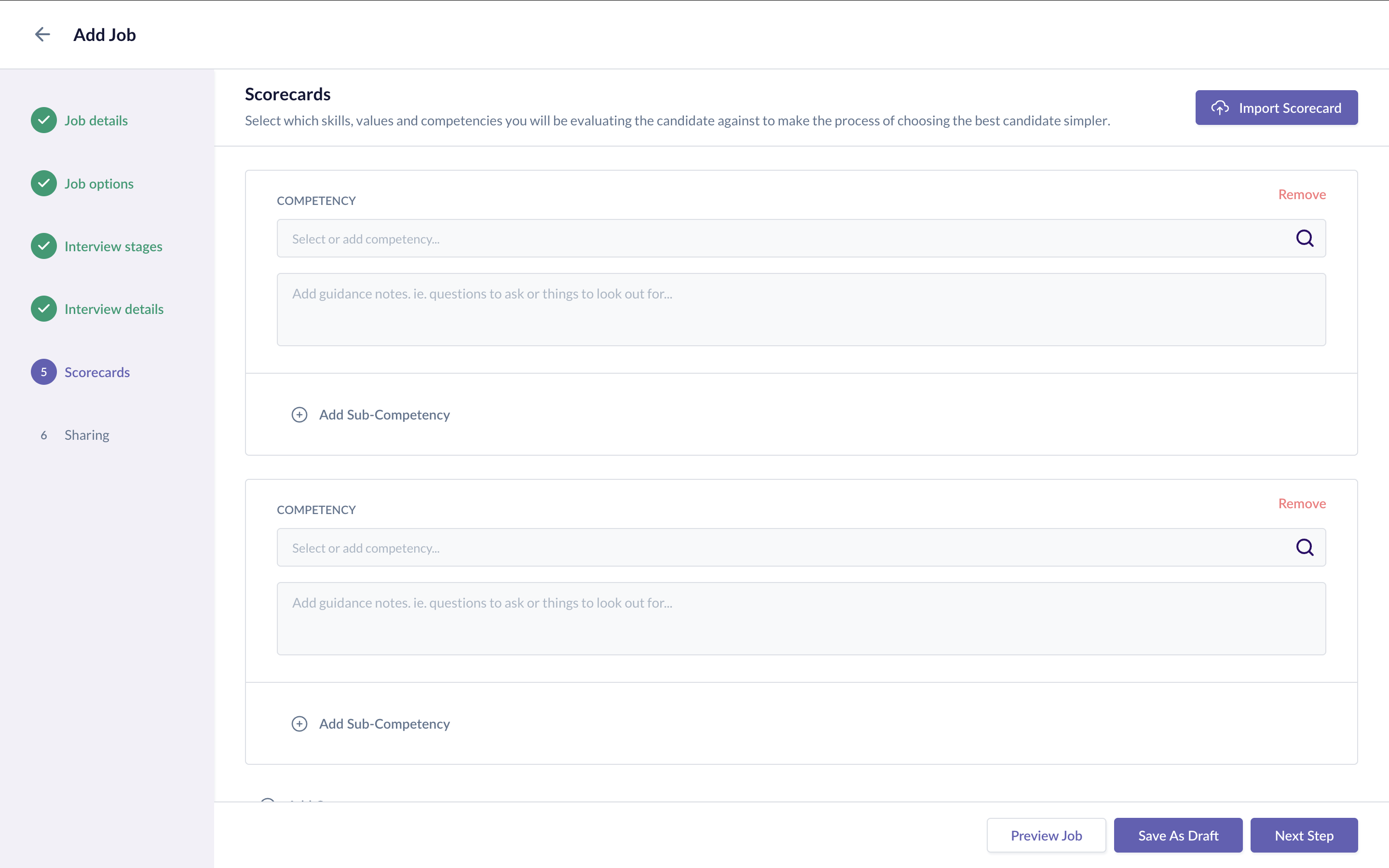
Step 5: Scorecards
Scorecards are used to collect structured interview feedback.
Select an existing scorecard template
Or create a new scorecard for the job
Using scorecards helps ensure feedback is collected consistently across interviewers.
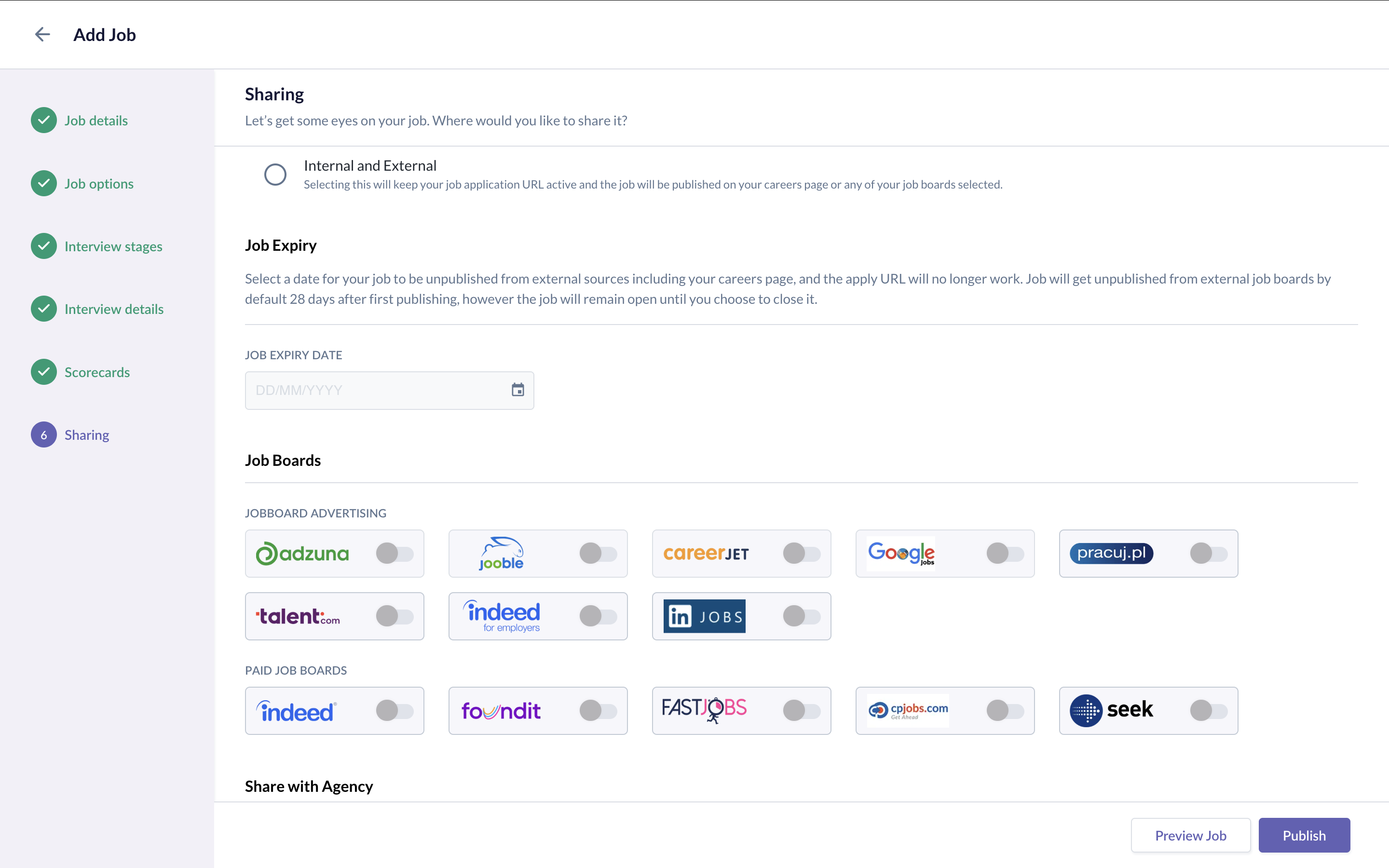
Step 6: Sharing the job
The final step determines how the job is shared. You can choose to:
Keep the job internal only
Publish the job externally
Post the job to selected job boards
Invite recruitment agencies to submit candidates
Jobs can be shared immediately or saved for publishing later.
Automated communication
For interview stages that involve candidate interaction, the Recruit module automatically sends emails based on the configured templates. These include:
- Assessment invitations
- Video Q&A instructions
- Interview invitations
- Interview confirmations and reminders
Email and calendar invite templates can be managed in the Configuring candidate communication templates (email & calendar invites) section in the Setting up the Recruit Module (Admin) article.
Saving the job as draft
Saved jobs in Draft status are not visible to candidates until published.
Was this article helpful?
That’s Great!
Thank you for your feedback
Sorry! We couldn't be helpful
Thank you for your feedback
Feedback sent
We appreciate your effort and will try to fix the article