Last Updated: January 12, 2026
Overview:
Before using the Recruit module, some company-level setup is required. This setup is typically completed once and ensures Recruit module can be used correctly across your organisation.
TABLE OF CONTENTS
- Generating a candidate privacy policy
- Setting candidate data retention
- Configuring recruitment integrations
- Configuring job board integrations
- Setting up the career page
- Configuring candidate communication templates (email & calendar invites)
- Configuring interview scorecard templates
- Configuring assessment library
- (Optional) Setting up agencies
Generating a candidate privacy policy
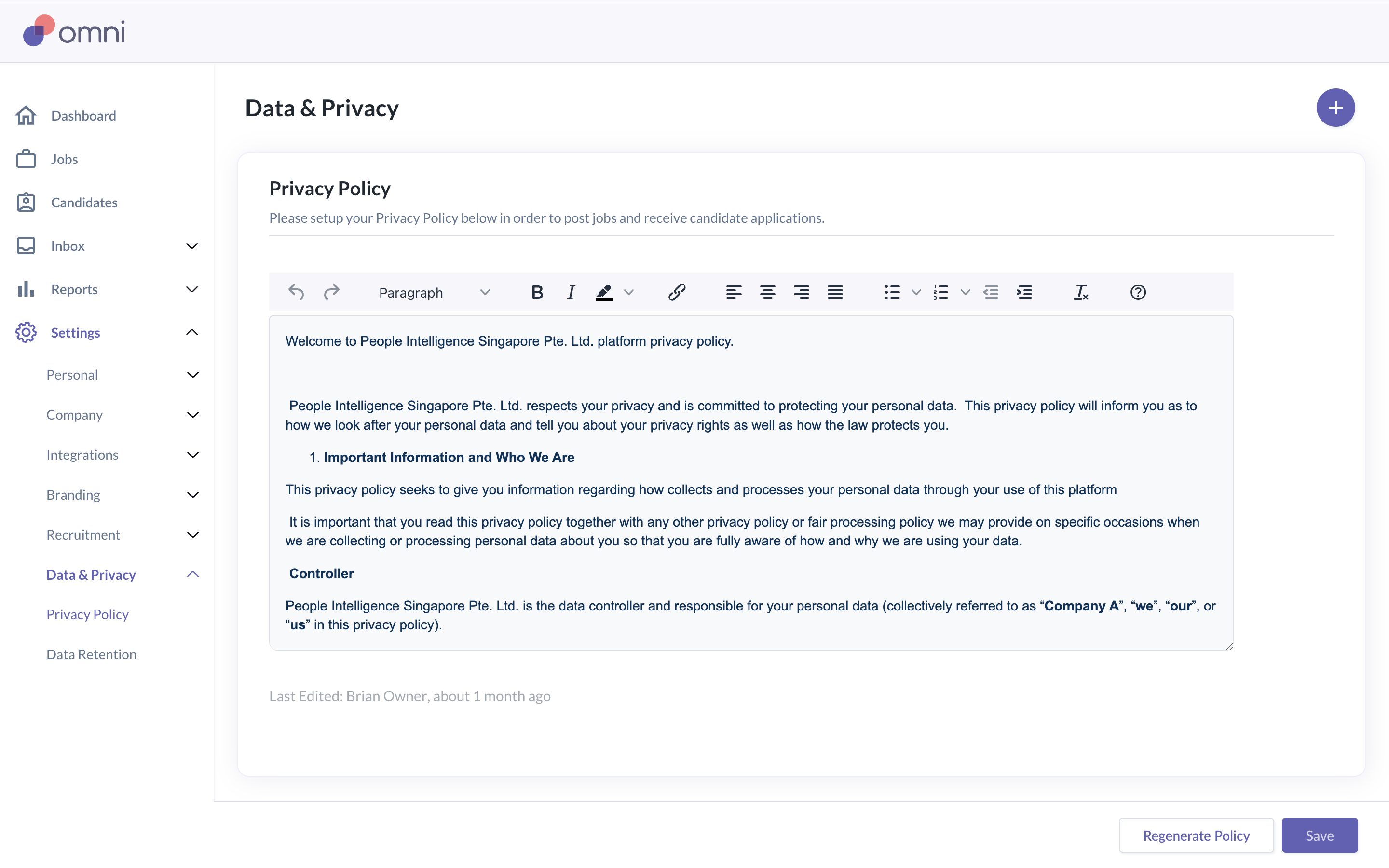
A candidate privacy policy is required before any job can be published. This policy explains how candidate data is collected and used, and candidates must agree to it when applying for a role.
Go to Settings > Data & Privacy > Privacy Policy
Enter the required company information
Click Generate to create the privacy policy following Omni HR's template
Make any edits necessary and then click Save
Once generated, the privacy policy will be applied automatically to all job applications.
Note: When candidates apply for a position, they will click to consent to this privacy policy.
Setting candidate data retention
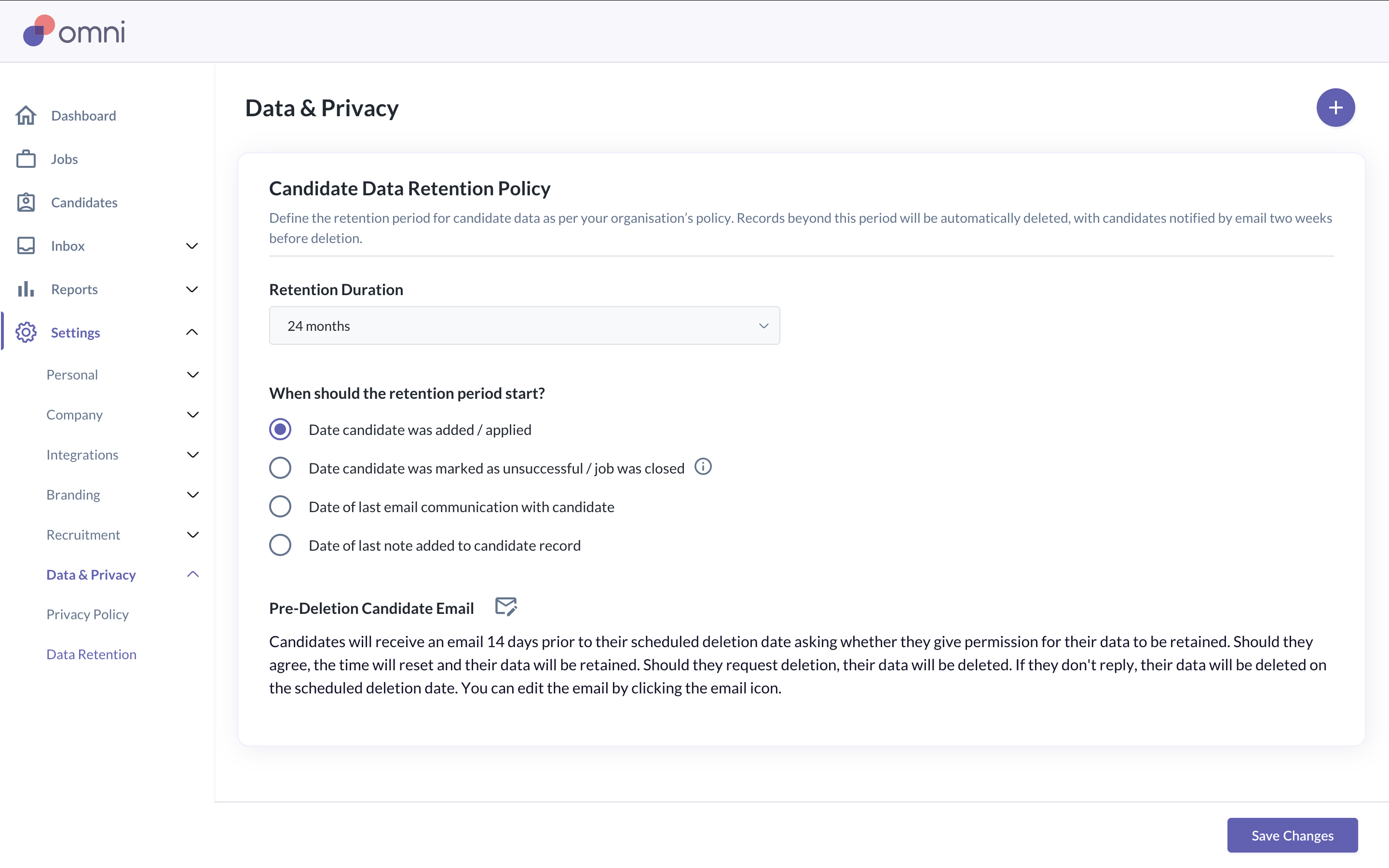
Candidate data retention controls how long candidate information is stored in the system. This helps ensure compliance with data protection requirements and keeps your candidate database up to date.
Go to Settings > Data & Privacy > Data Retention
Select a data retention period
Save changes
Candidate data will be automatically removed based on the selected retention period and rules.
Configuring recruitment integrations
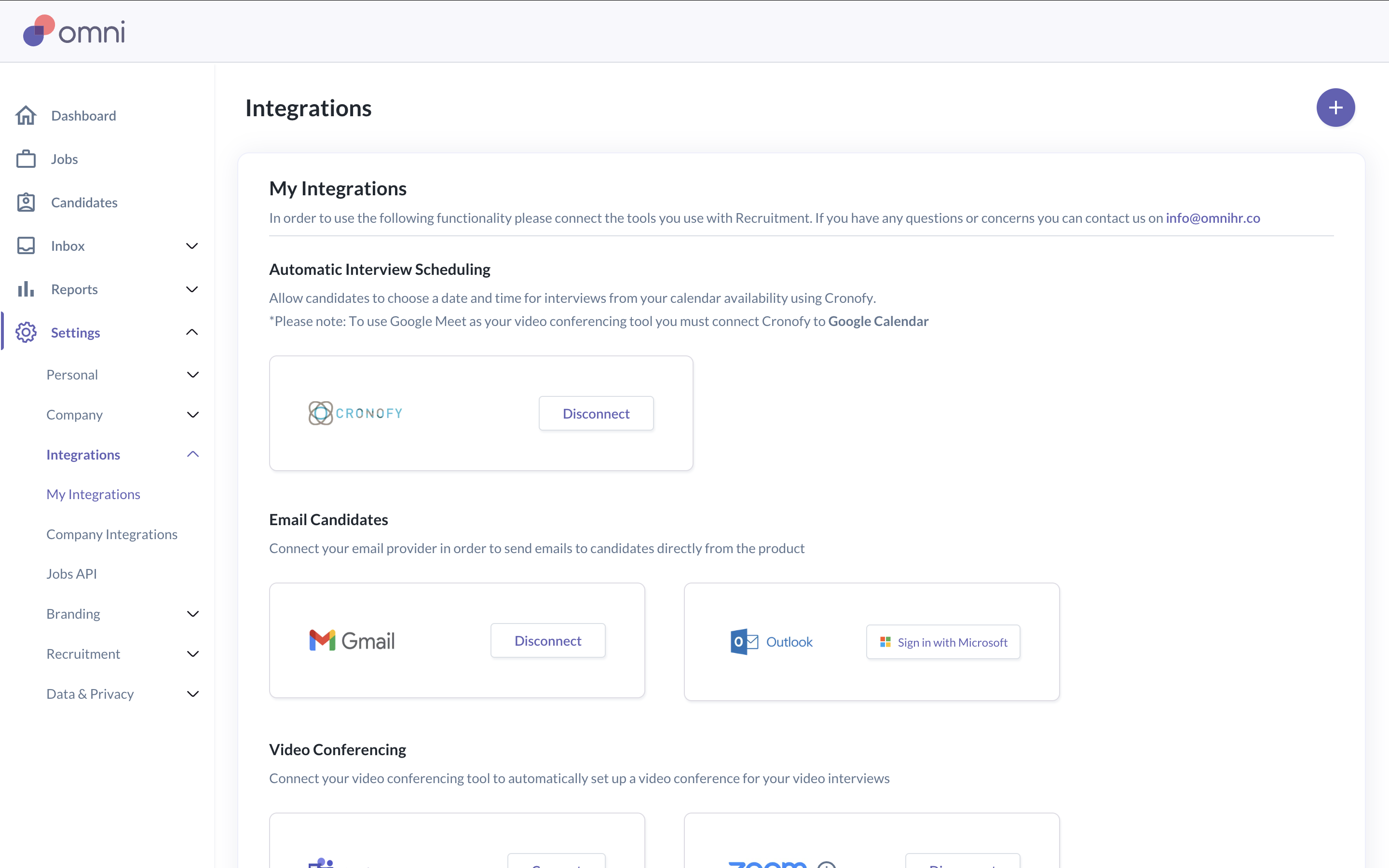
Recruitment integrations support key hiring workflows such as interview scheduling, job distribution, and candidate communication. Integrations are managed centrally and apply across all recruitment activity.
Go to Settings > Integrations > My Integrations
Integrate with the following applications:
Email
Calendar
Video conferencing tools
Slack
Refer to the article Setting Up Your Hiring Profile on how to enable the integrations.
Configuring job board integrations
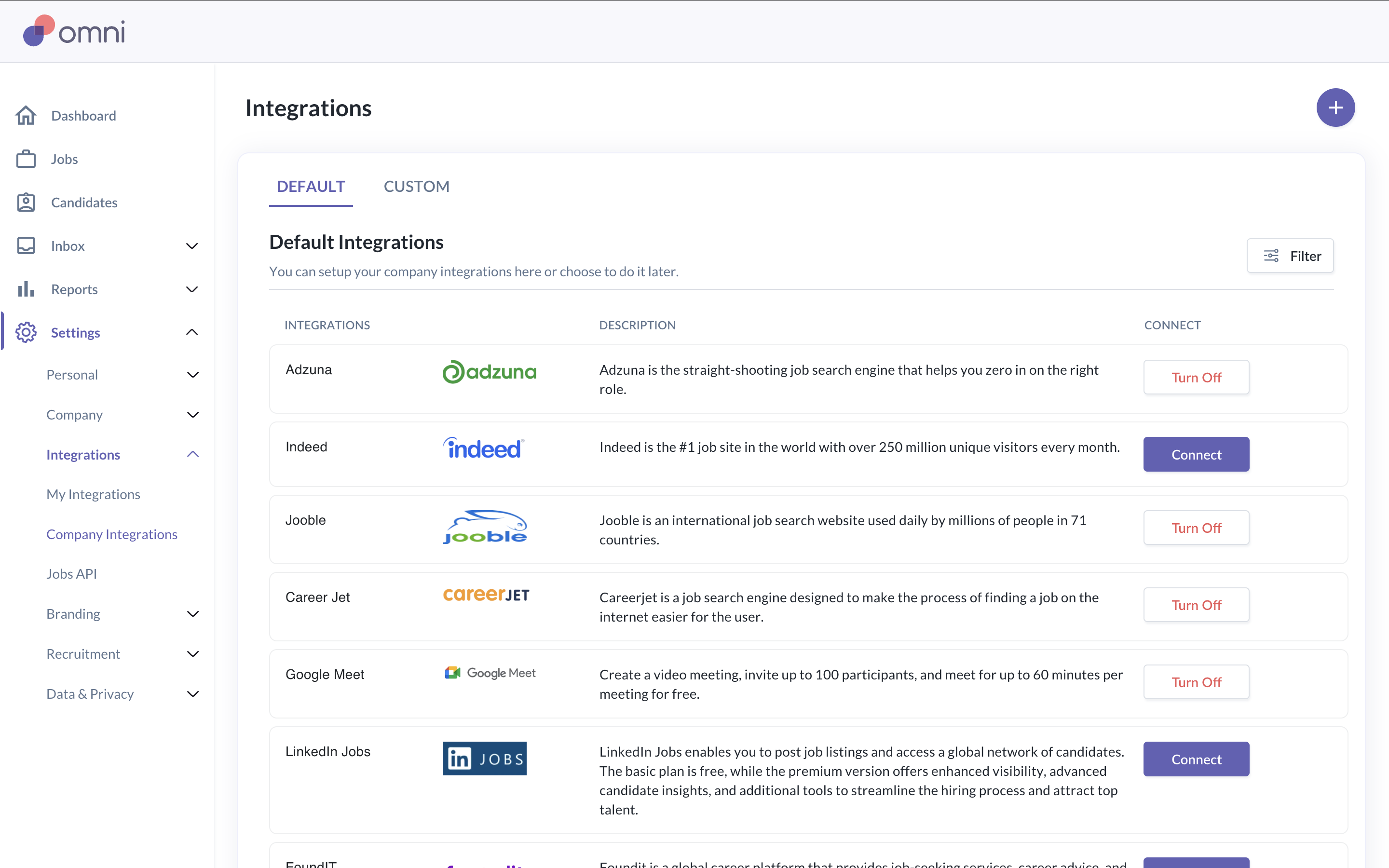
Job board integrations allow jobs created in the Recruit module to be published externally. This helps increase visibility and attract candidates from multiple sources.
Go to Settings > Integrations > Company Integrations
Enable the relevant job board integrations
Once configured, job boards can be selected when publishing a job.
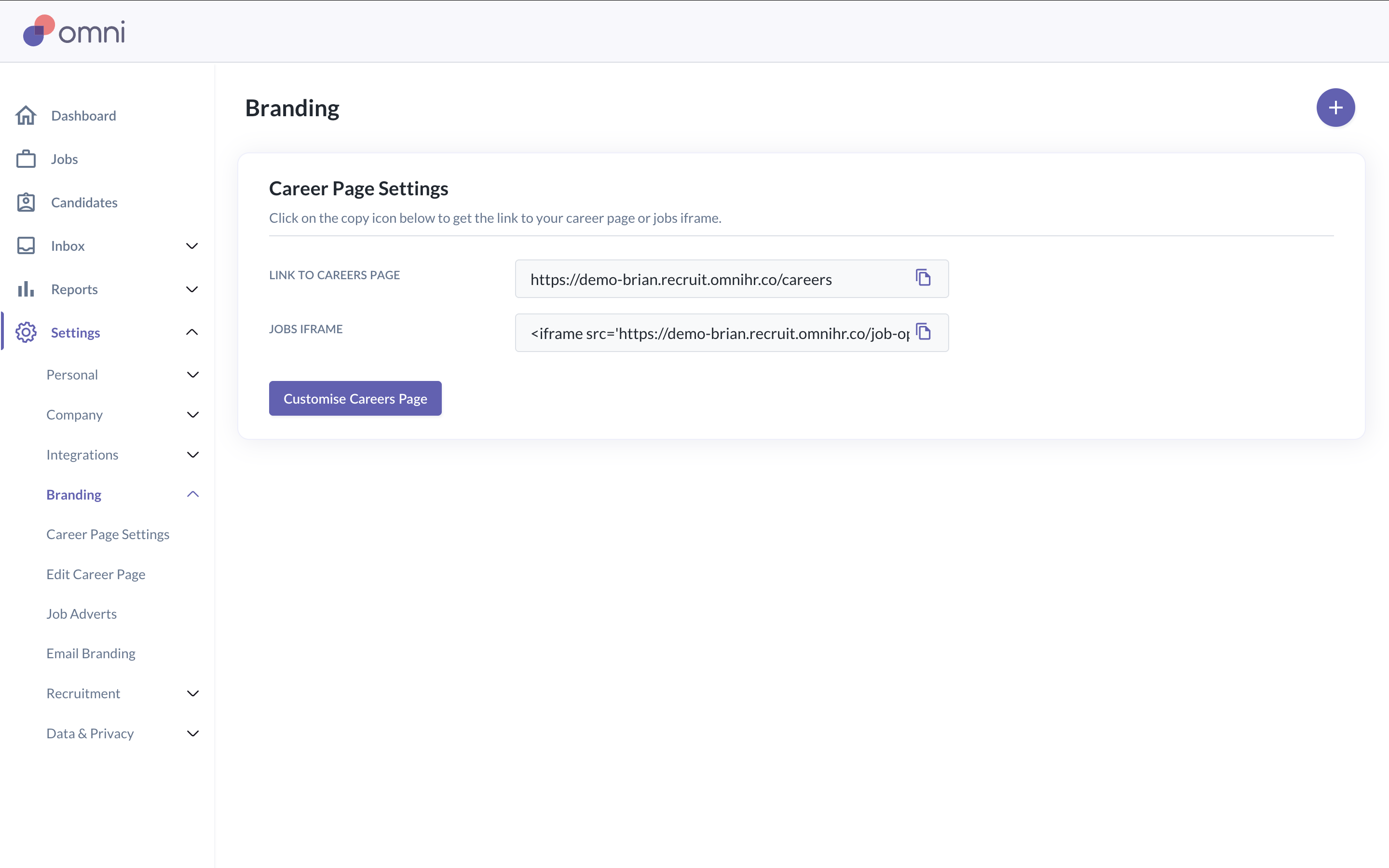
Setting up the career page
The career page displays your open roles to candidates and serves as the main entry point for job applications. You can customise the career page to reflect your company branding and messaging.
Go to Settings > Branding > Edit Career Page
Update page content and branding
Go to Settings > Branding > Job Adverts
Update design and branding
Publish the career page and job adverts
Once published, the career page link can be shared externally or embedded on your company website.
Configuring candidate communication templates (email & calendar invites)
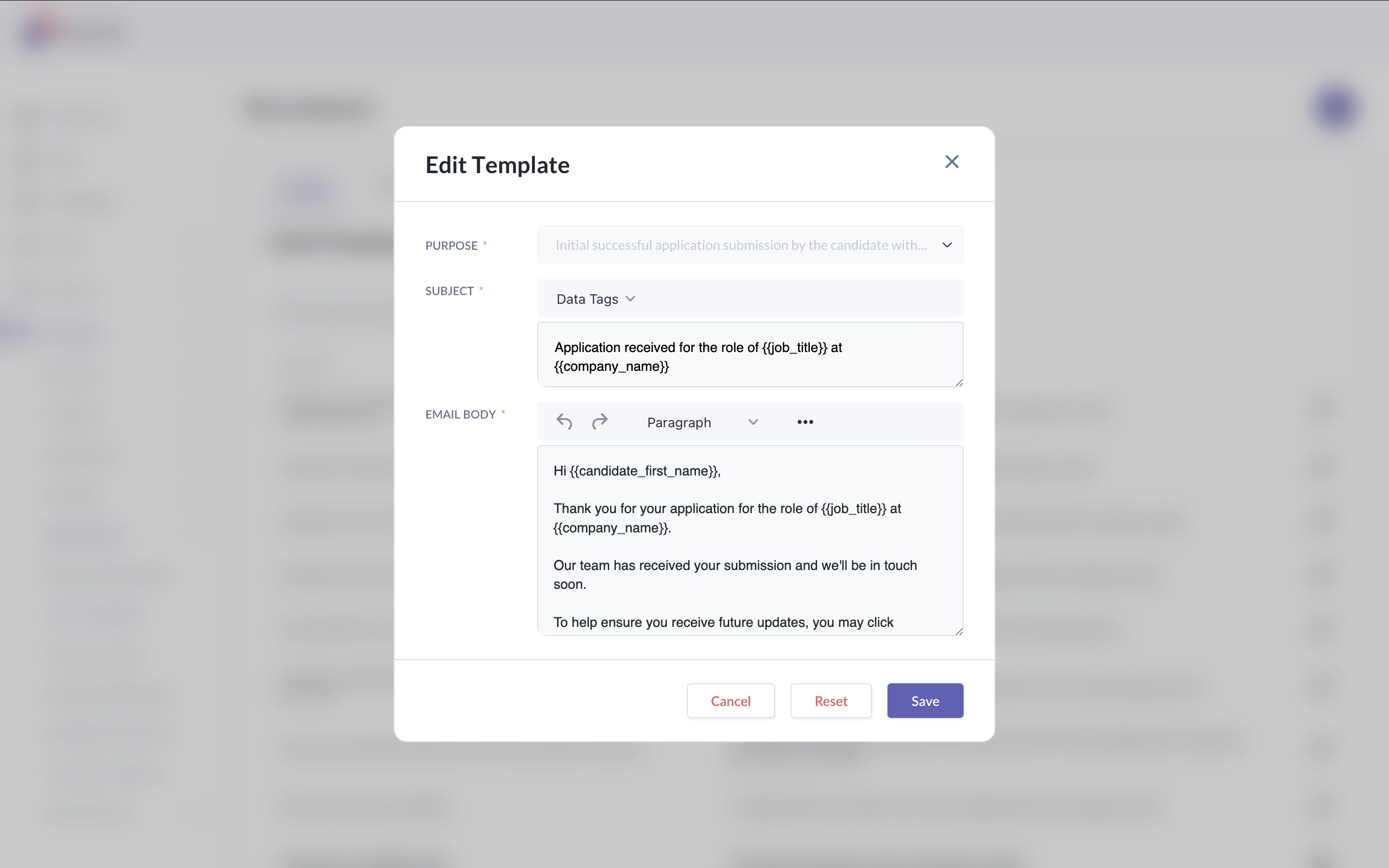
Communication templates help standardise how candidates are contacted throughout the hiring process. These templates are used for emails, interview invitations, and other candidate communications.
Go to Settings > Recruitment
Review and edit templates where necessary
Email templates
Calendar invite templates
Insert available placeholders where required
Save the templates
Email templates can be used for common candidate communications such as application acknowledgements, interview invitations, and rejection emails.
Calendar invite templates are used when scheduling interviews and define the content included in interview invitations sent to candidates, such as interview details and joining instructions.
Templates can be reused across multiple jobs and stages. You can assign different templates to different interview stages depending on your hiring workflow.
Configuring interview scorecard templates
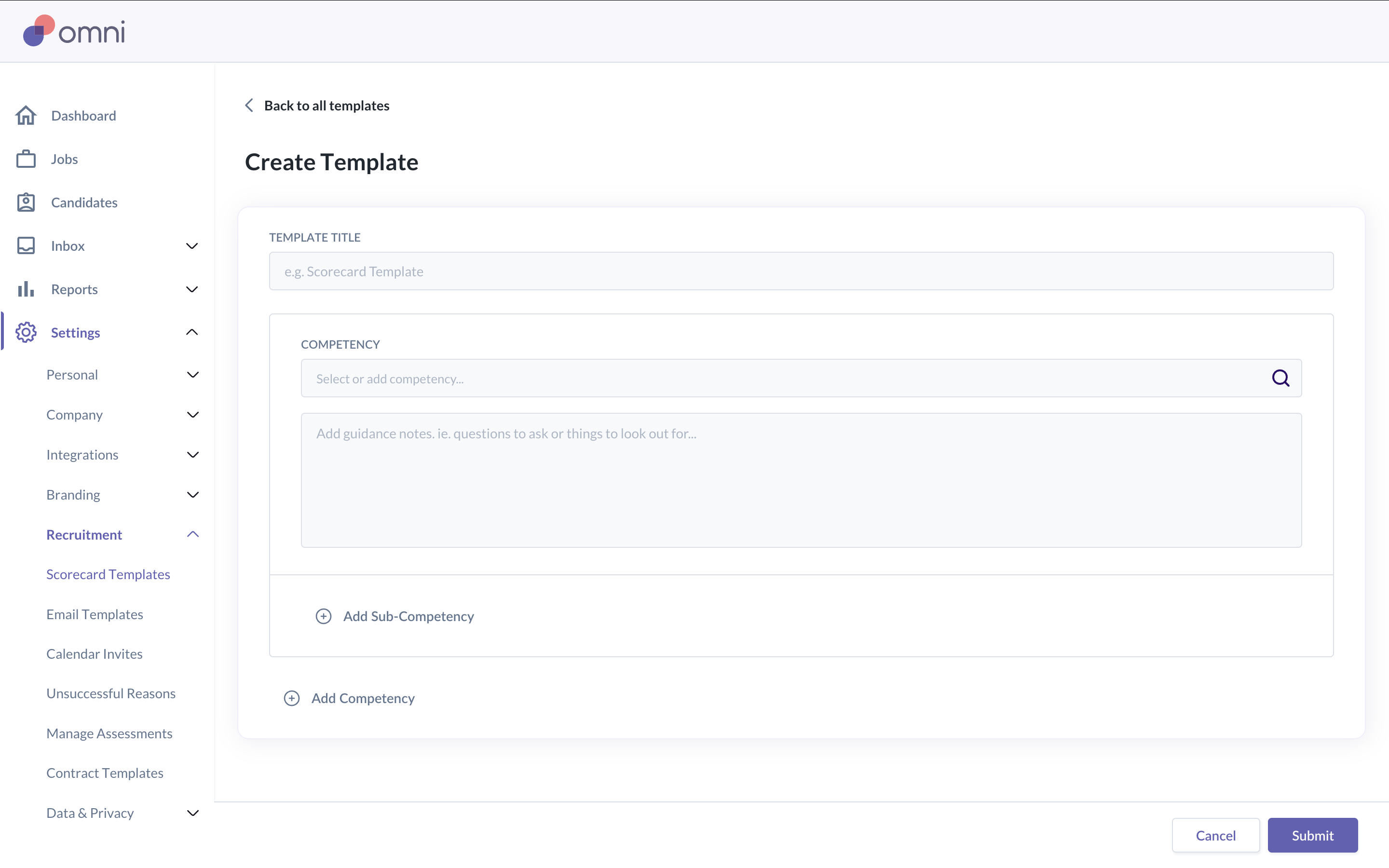
Interview scorecard templates define how candidates are evaluated during interviews. Using scorecards helps ensure interviews are structured and feedback is collected consistently across different interviewers and roles.
Go to Settings > Recruitment > Scorecard Templates
Click Create Template
Enter a scorecard name and description. Then add evaluation criteria and questions
You can use the space to add any guidance notes for the grading scale
Reviewers will be given the chance to evaluate the criteria on a 1-5 scale, along with a space to enter quantitative description
Save the scorecard template
Scorecard templates can be reused across multiple jobs and interview stages. You can assign different scorecards to different interview stages depending on the role or interview type.
Configuring assessment library
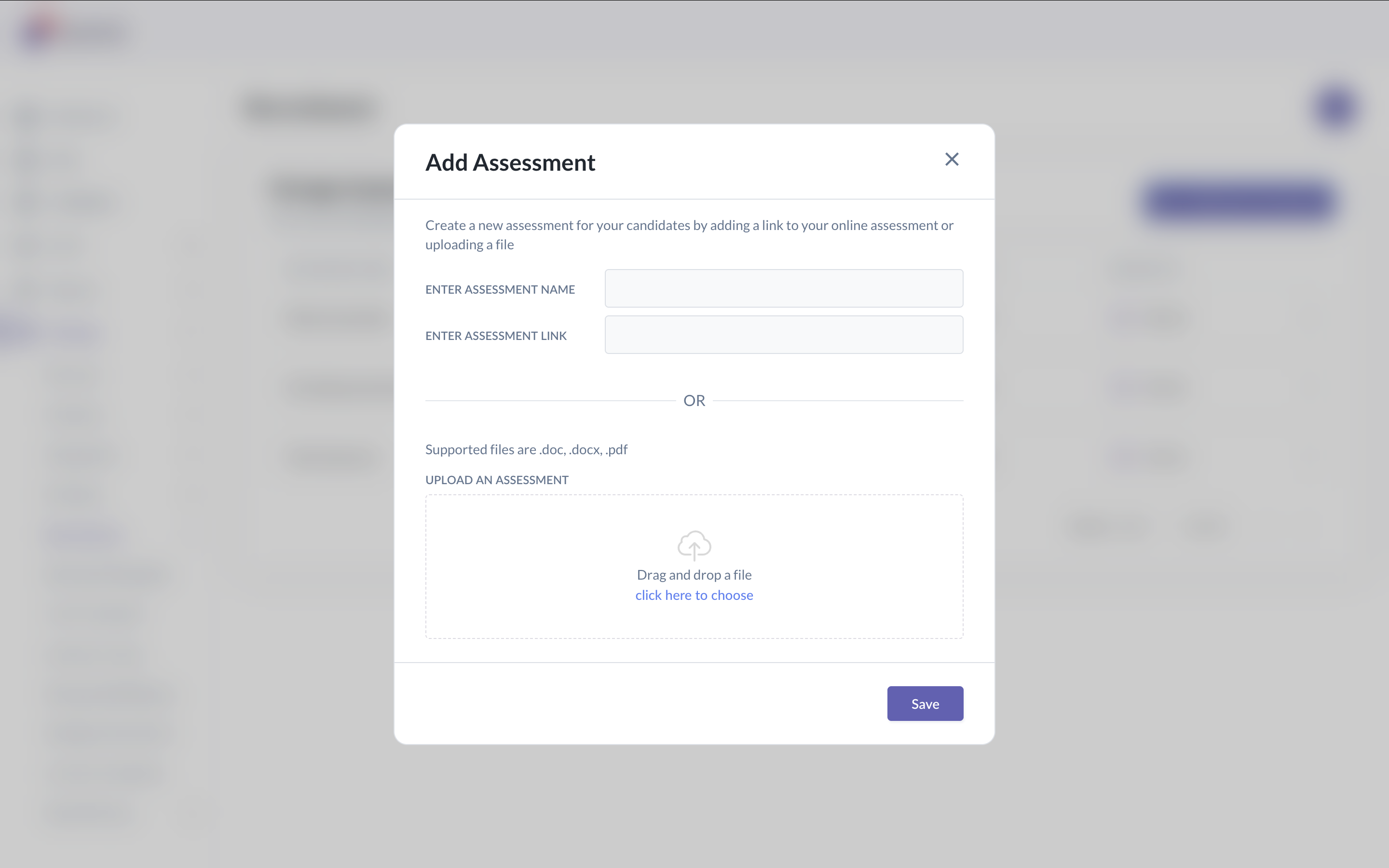
The assessment library allows you to create and manage assessments used during the hiring process. Assessments can be assigned to candidates at specific stages to evaluate skills, knowledge, or suitability before progressing further.
Go to Settings > Recruitment > Manage Assessments
Click Add New Assessments
Enter assessment instructions and configure questions / evaluation criteria
Save the assessment
Once created, assessments can be attached to jobs and assigned to candidates during the recruitment process. Candidates will receive assessment invitations automatically based on the job stage configuration.
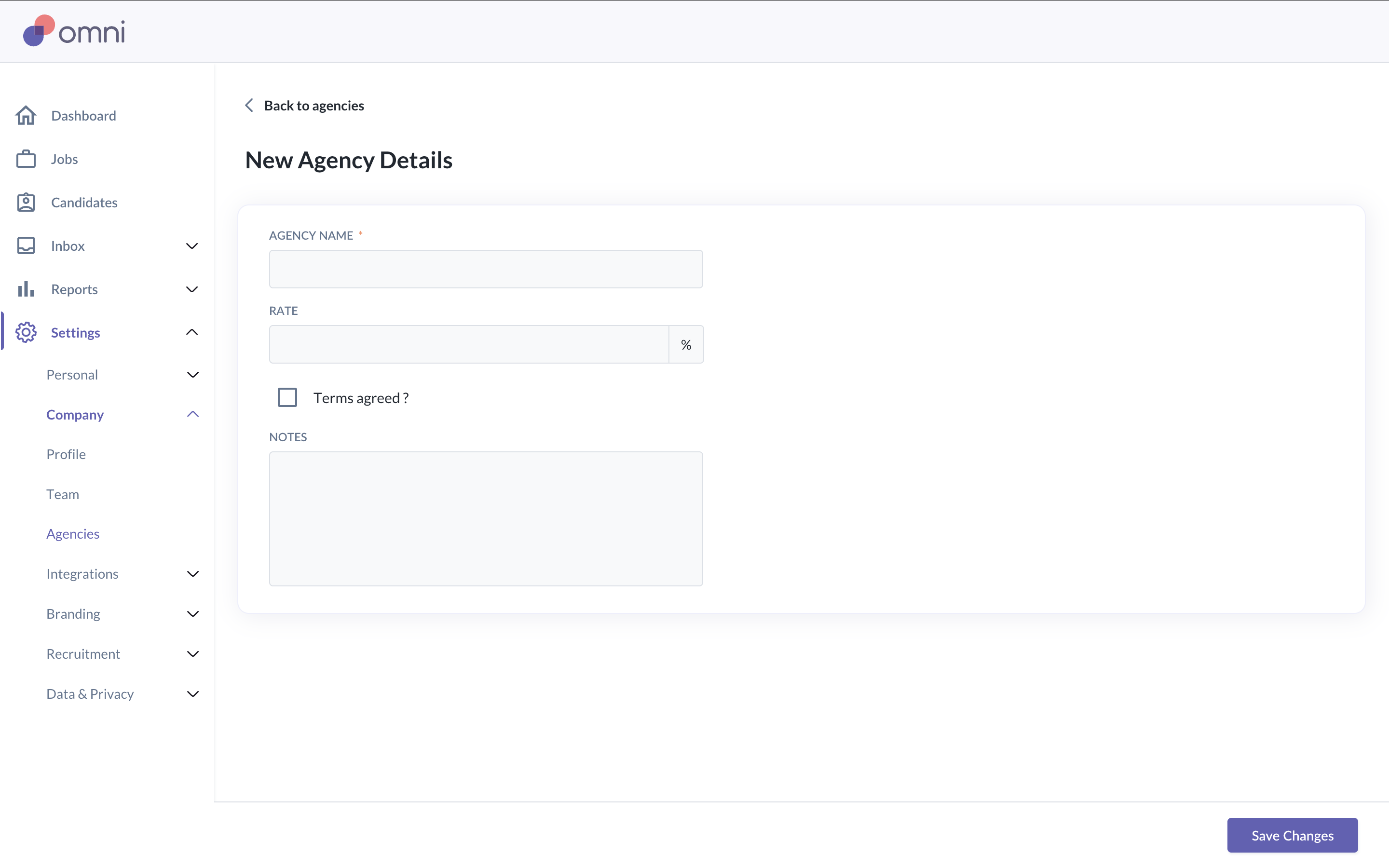
(Optional) Setting up agencies
If you work with external recruitment agencies, you can add them to the Recruit module. This allows agencies to submit candidates directly into your recruitment pipeline while limiting their access to relevant jobs only.
Go to Settings > Company > Agencies
Click Add New Agency
Enter agency details and configure agency access and permissions
Save the agency
Once added, agencies can be invited to specific jobs. Agencies can only view and submit candidates for jobs they are invited to and cannot access other recruitment data.
Still Need Help?
Reach out to our support team should you need further assistance.
Was this article helpful?
That’s Great!
Thank you for your feedback
Sorry! We couldn't be helpful
Thank you for your feedback
Feedback sent
We appreciate your effort and will try to fix the article