Overview:
If your organisation has provided the option for employees to take no pay or unpaid leave, this guide will aim to show you how to process this deductions on your monthly payroll. Specifically, it will walk you through the steps for cases where no pay leave is linked to a single time off type, such as Unpaid Sick Leave or Unpaid Sabbatical Leave.
On Omni:
- Step 1: Go to Reports > Preset > Time Off Transactions. Select the correct time off type (those of no pay leave) when downloading unpaid leave records.
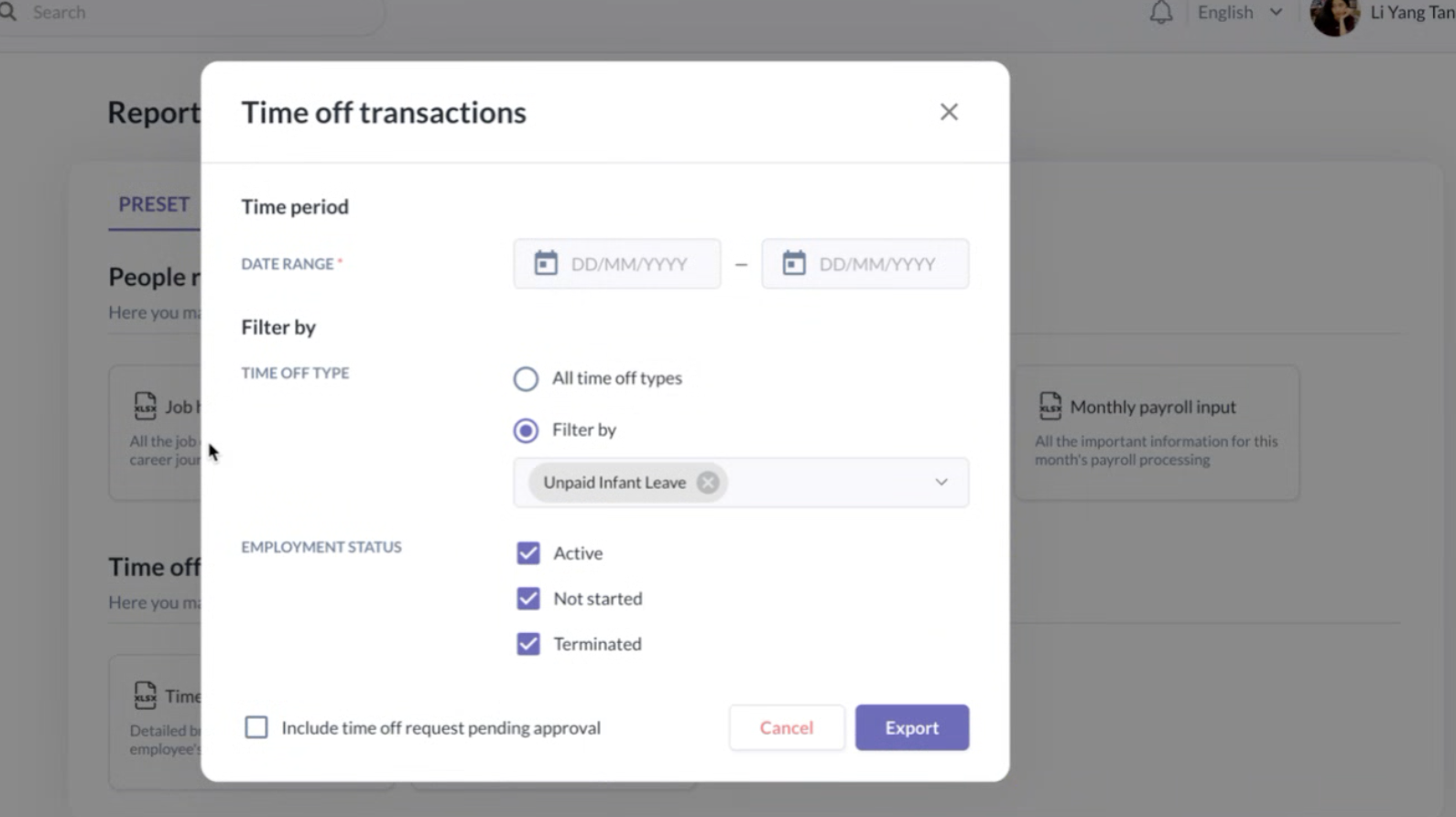
- Step 2: In the downloaded report, use the From and To dates in the columns provided to key in the information in the Payroll system.
On Payroll System:
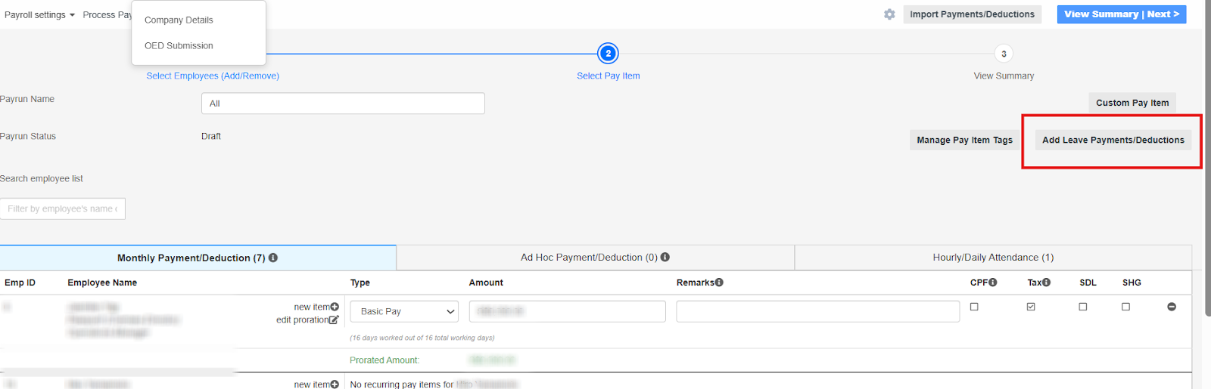
- Step 1: On the Payroll System dashboard, click Add/Leave Payment Deduction at the upper right-hand corner of the screen.
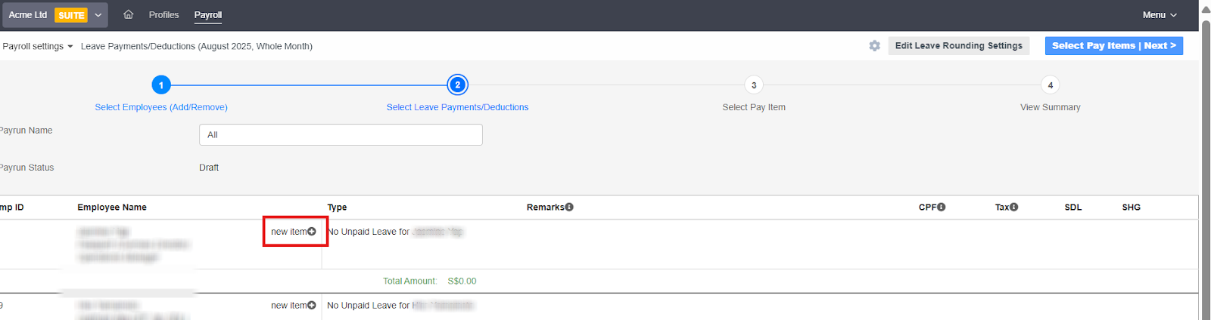
- Step 2: Once you click, the screen below will appear. Select the employee with no pay leave and click New Item.
- Step 3: Enter the start date and end date for the unpaid leave. The system will automatically calculate the deduction amount for the no pay leave.
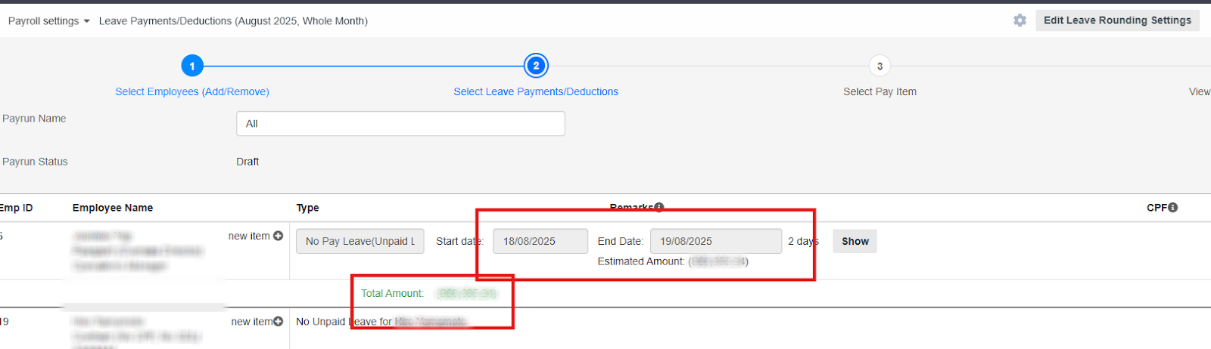
- The no pay leave (NPL) deduction will be based on the employee’s Monthly Gross Rate of Pay, calculated either by working days or calendar days:
- Working Days: (No. of days of NPL in MM/YYYY / No. of working days in MM/YYYY) x Monthly **Gross Rate of Pay
- Calendar Days: (No. of days of NPL in MM/YYYY / No. of calendar days in MM/YYYY) x Monthly **Gross Rate of Pay
- Step 4: If the employee’s work schedule differs (e.g., part-time or special arrangements), click Edit Amount and adjust the value as needed.
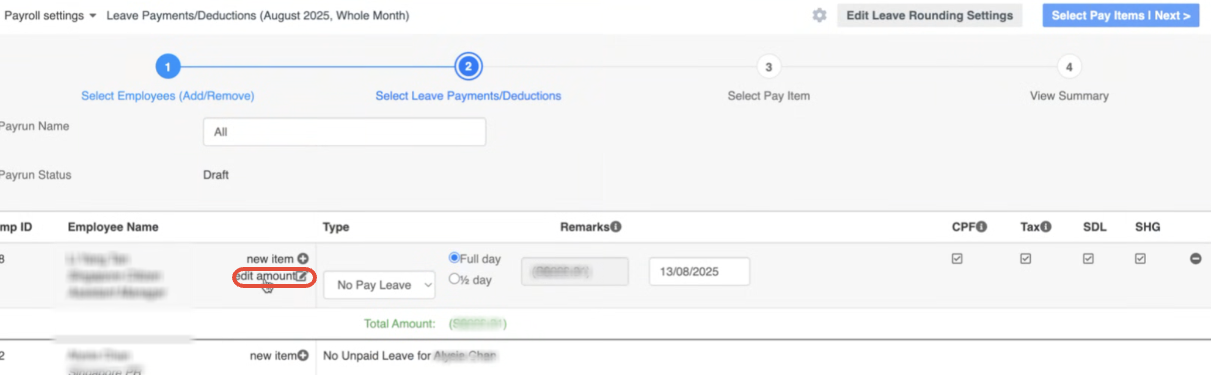
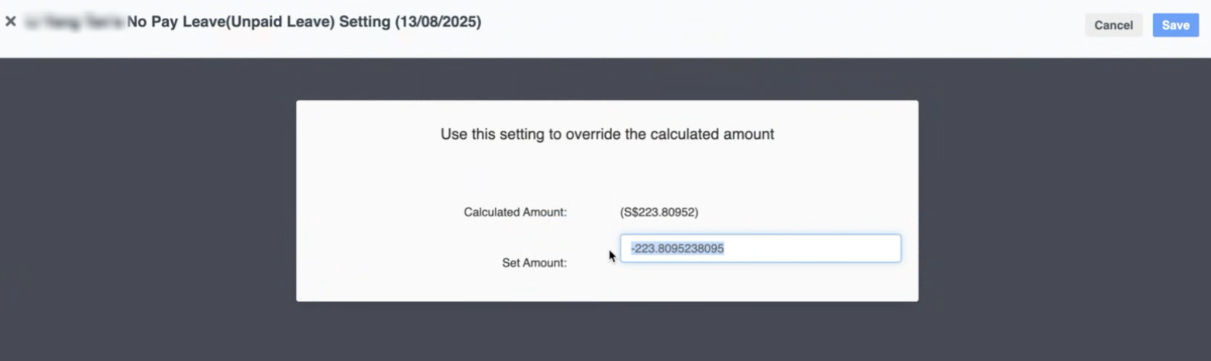
- Step 5: Once you have updated all employees with no pay leave, proceed to Select Pay Items and finalize the rest of the payroll.
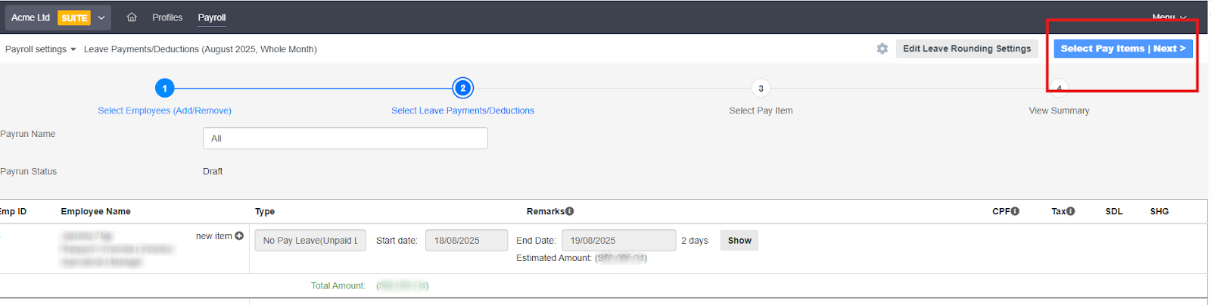
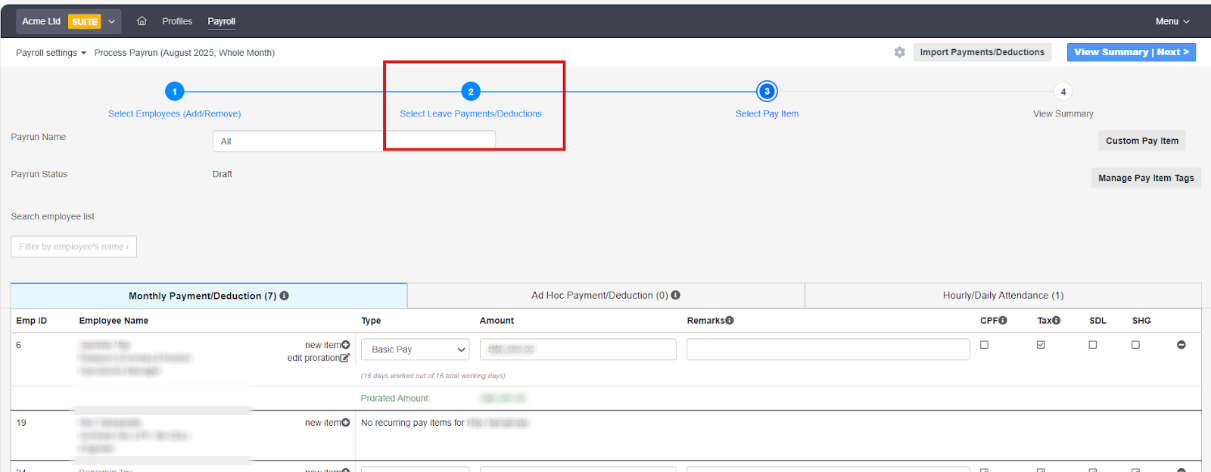
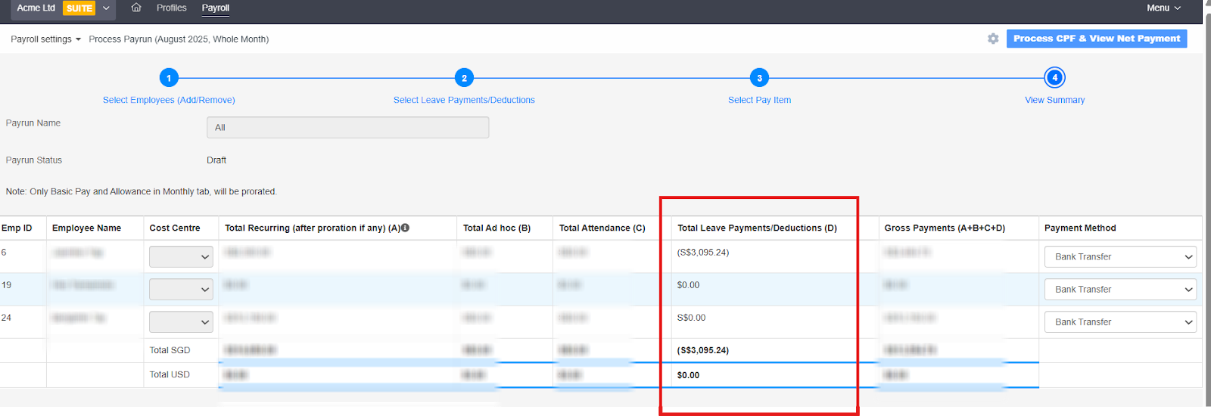
- The no pay leave will be reflected as a deduction in the final payroll summary.
Related Article(s):
Still Need Help?
Reach out to our support team should you need further assistance.
Was this article helpful?
That’s Great!
Thank you for your feedback
Sorry! We couldn't be helpful
Thank you for your feedback
Feedback sent
We appreciate your effort and will try to fix the article