Overview:
Unpaid time off requests now sync directly to payroll processing in the payroll system. When creating a pay run in Omni HR, you can view, select, and process unpaid leave deductions directly from approved time off requests — eliminating manual calculations and data entry.
We would follow five main steps to achieve this:
- Configure time off type to be unpaid
- Time off requests for unpaid time off type is submitted and approved by employees
- In pay run, time off requests that can be processed are displayed based on selected pay cycle, pay period and employees
- Select individual dates within time off request to be processed
- Process unpaid time off dates in the payroll system
TABLE OF CONTENTS
- How it works?
How it works?
Step 1 — Configure time off types to be paid or unpaid
- When creating a new time off type, there is an existing mechanism to specify whether it's paid or unpaid:
- Paid: Standard leave types like annual leave, sick leave, paid maternity leave
- Unpaid: No-pay leave, unpaid portions of extended leave
- Here is our help article that walks you through how to set this up: Configure Time Off Types to be Unpaid or Paid
Step 2 — Employees submit time off requests
- Employees submit unpaid time off requests through the normal workflow:
- Time off and time off cancellation requests get routed based on the approval flows effective on the date of request submission
- Managers approve or reject the request based on the approval flow
- Only time off requests with the Approved status will be available for payroll processing.
- Requests in For cancellation status are visible but cannot be selected for processing until the cancellation request is approved or rejected by the manager(s).
Step 3 — Select unpaid time off requests for processing in payroll
Step 3.1 — Enable unpaid time off processing when creating pay run
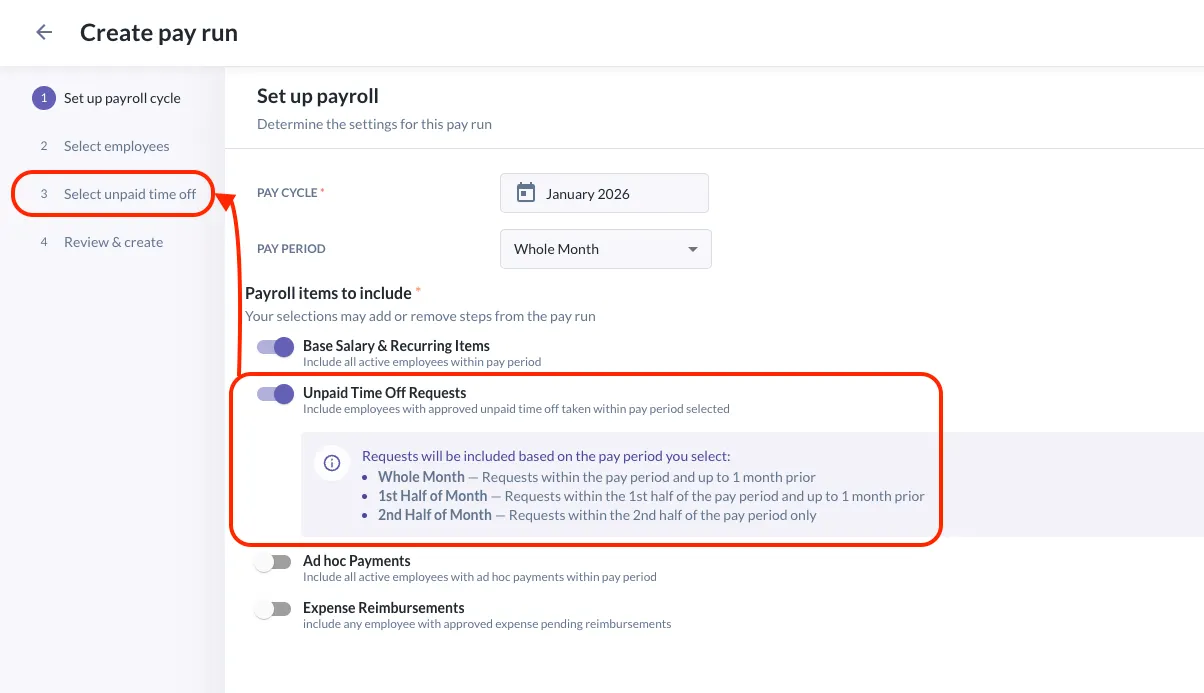
- Enabling this toggle will allow payroll admins to select unpaid time off requests for processing.
- Admins will see a callout explaining which requests will be displayed:
- Whole Month: Requests within the pay period and up to 1 month prior
- 1st Half of Month: Requests from 1st to 15th day of the pay period and up to 1 month prior
- 2nd Half of Month: Requests from 16th to last day of the pay period only
For example:
| Pay cycle | Pay period | Date range of requests displayed |
| September 2025 | Whole month | 1 August — 30 September 2025 |
| September 2025 | 1st Half of month | 1 August — 15 September 2025 |
| September 2025 | 2nd Half of month | 16 — 30 September 2025 |
ℹ️ If an unpaid time off request falls only partially in the date range specified above, it will still be shown, but an advanced filtering and handling of exact dates outside of this range will be available in Step 3.4.
Step 3.2 — Select employees
- A filter option that filters all employees with Unpaid time off requests eligible for processing is available.
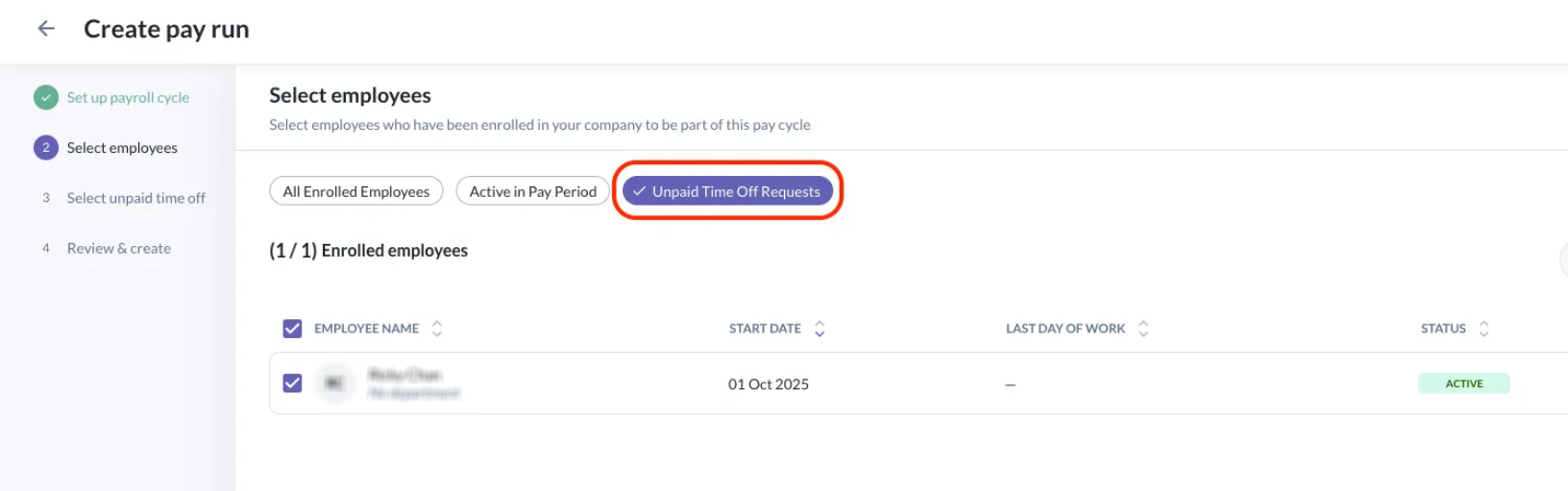
Step 3.3 — View list of unpaid time off requests
- The system displays a filtered list of unpaid time off requests ready for processing.
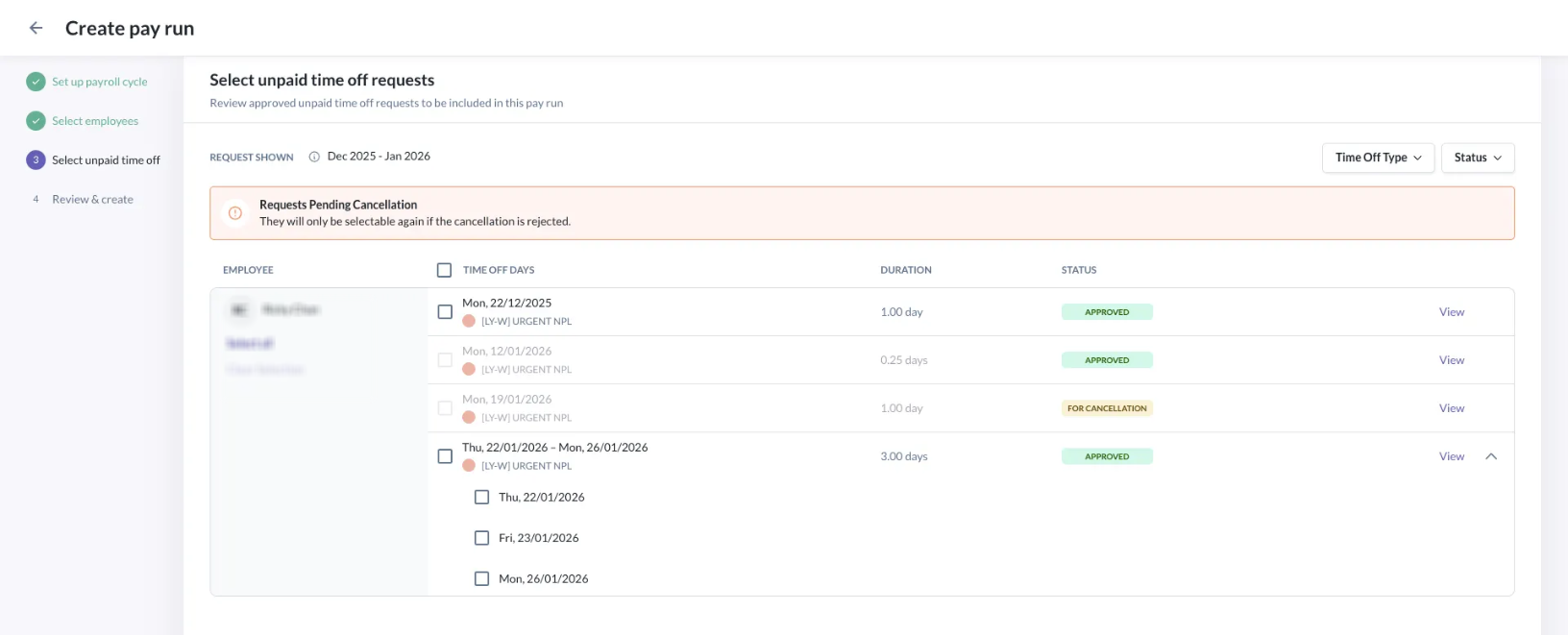
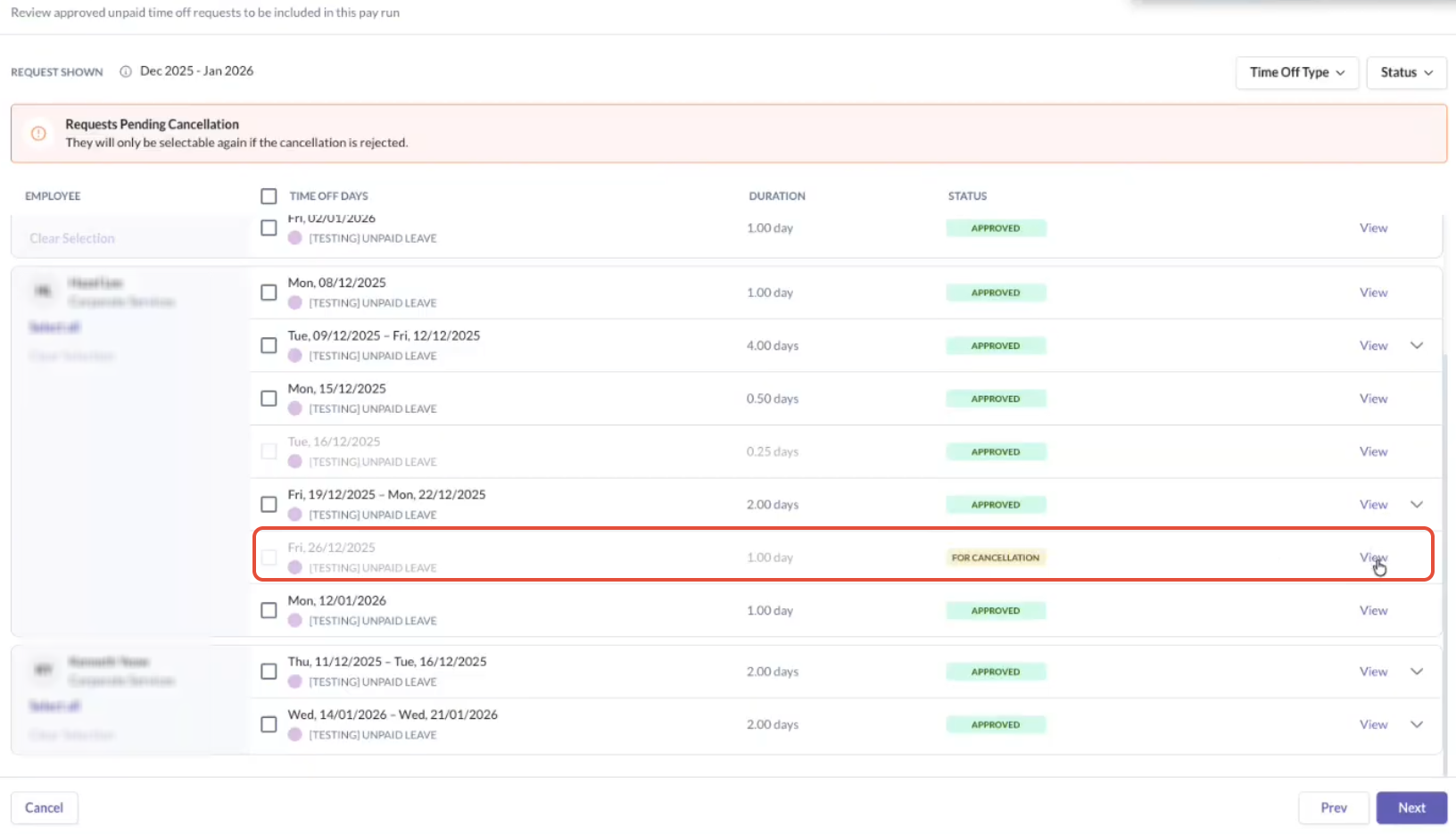
- Some requests may appear but cannot be selected:
- Requests that have already been Processed in payroll before
- Requests that have a duration of 0.25 days
- Requests that have For cancellation status
Approving cancellation requests during pay run creation
- If an unpaid time off request is in For cancellation status, it cannot be selected for payroll processing. However, payroll admins with the appropriate permission can resolve this directly within the pay run flow.
- Payroll admins with the Approve on behalf access control permission can:
- Click on View and review cancellation requests
- Approve the cancellation on a manager’s behalf
- Do so directly on this page, without leaving the pay run creation flow
- This allows payroll teams to unblock processing when managers are unavailable, while still respecting approval controls.
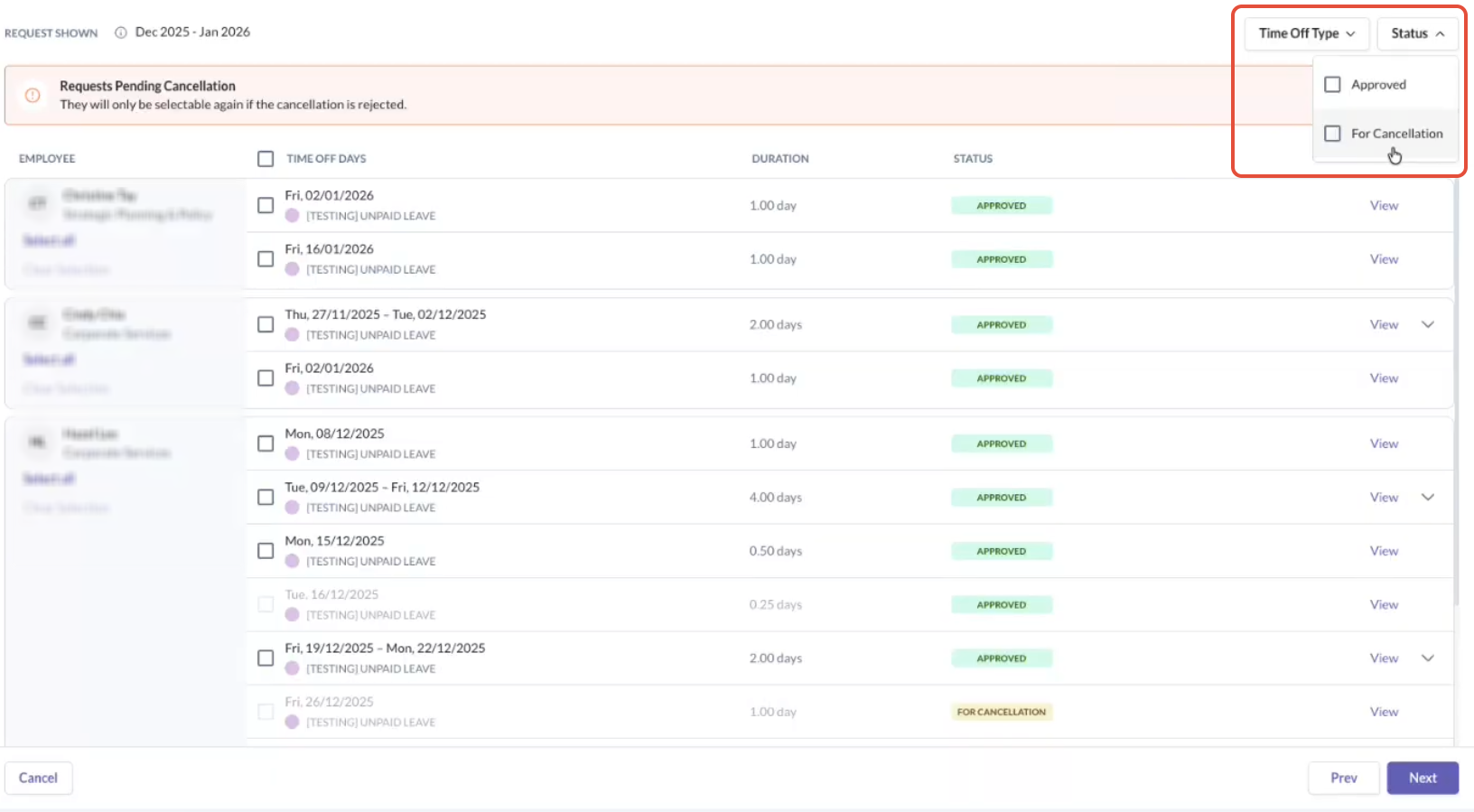
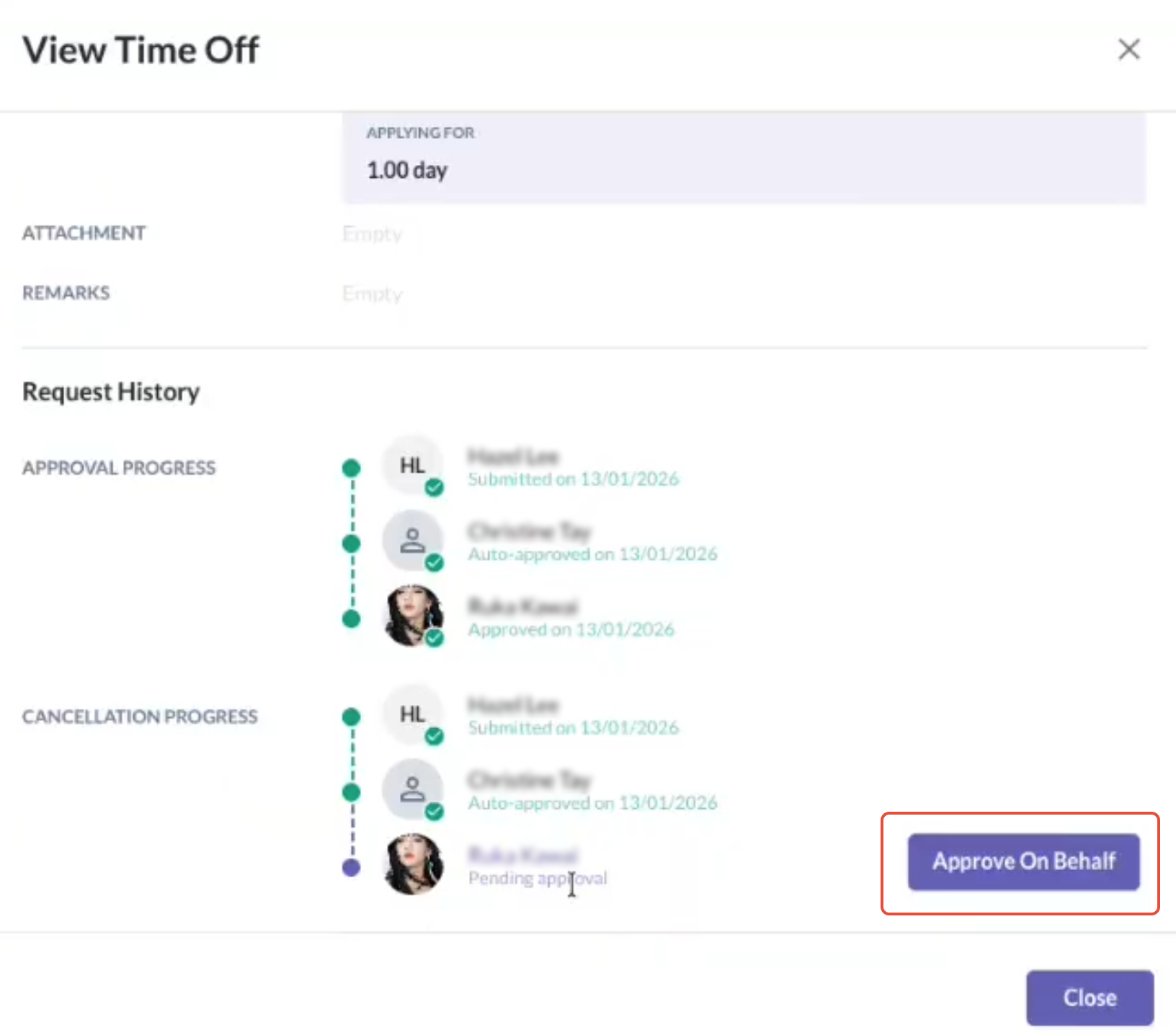
Once the cancellation request is approved:
- The time off request status updates to Cancelled. The request will no longer be eligible for payroll processing
- A page refresh is required for the cancelled request to disappear from the list
You can refresh the state by:
- Manually refreshing the page
- Clicking Previous, then returning to this step
- Switching to another tab and returning to this tab
Step 3.4 — Select time off requests or individual time off dates for processing
- You can select entire requests or individual dates within requests. Some individual dates may appear but cannot be selected:
- Dates that have already been Processed in payroll before
- Dates that fall outside of pay period date range (refer to Step 3.1)
- These dates belong to a different pay cycle and should be processed in that period's pay run instead.
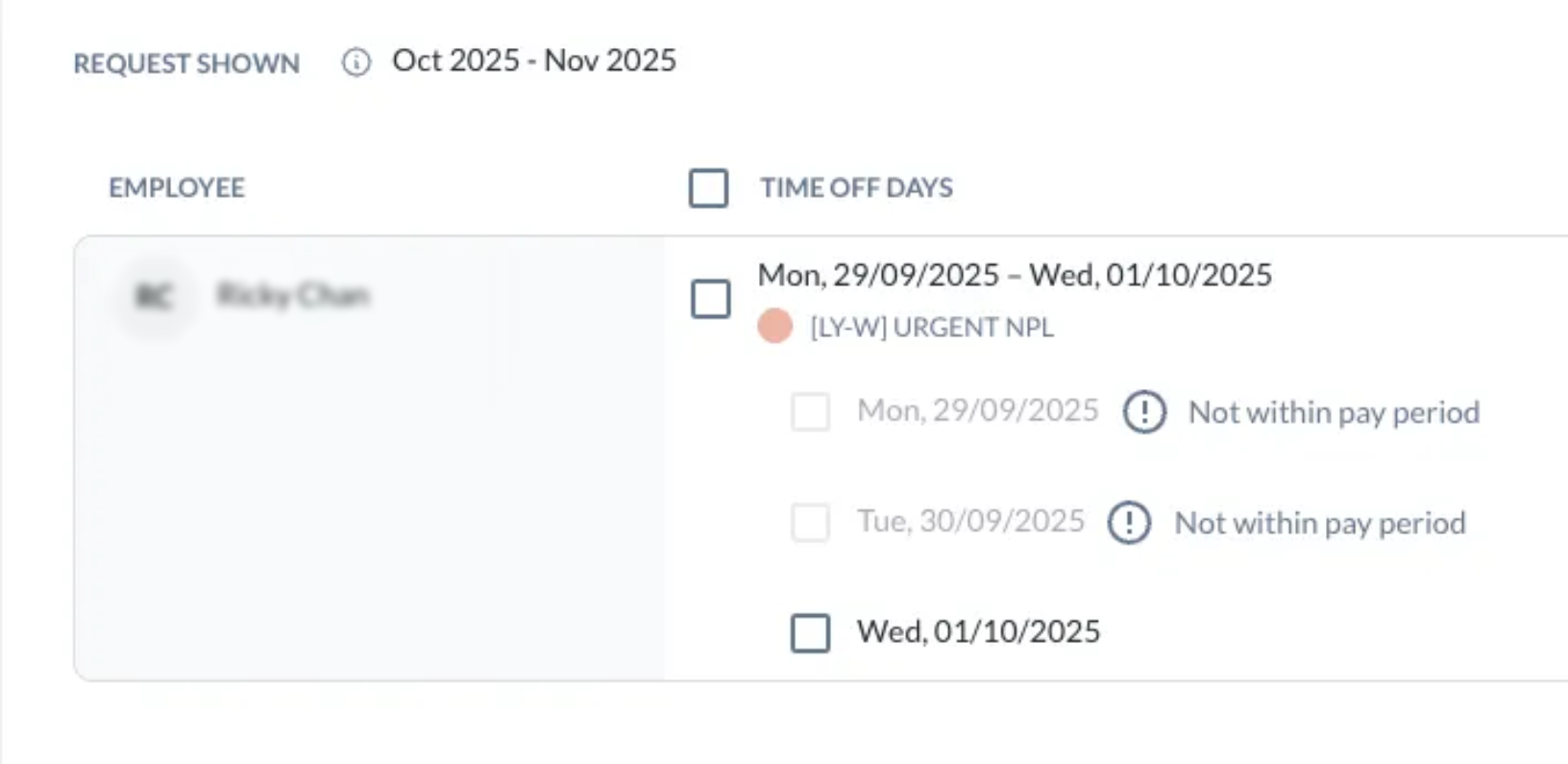
- These dates belong to a different pay cycle and should be processed in that period's pay run instead.
- Dates that fall before an employee’s Hire Date
- Dates that fall after an employee’s Last Day of Work
Step 4 — Sync unpaid time off dates to payroll system
- After confirming the pay run details in Omni, you will be redirected to the payroll system to continue payroll processing.
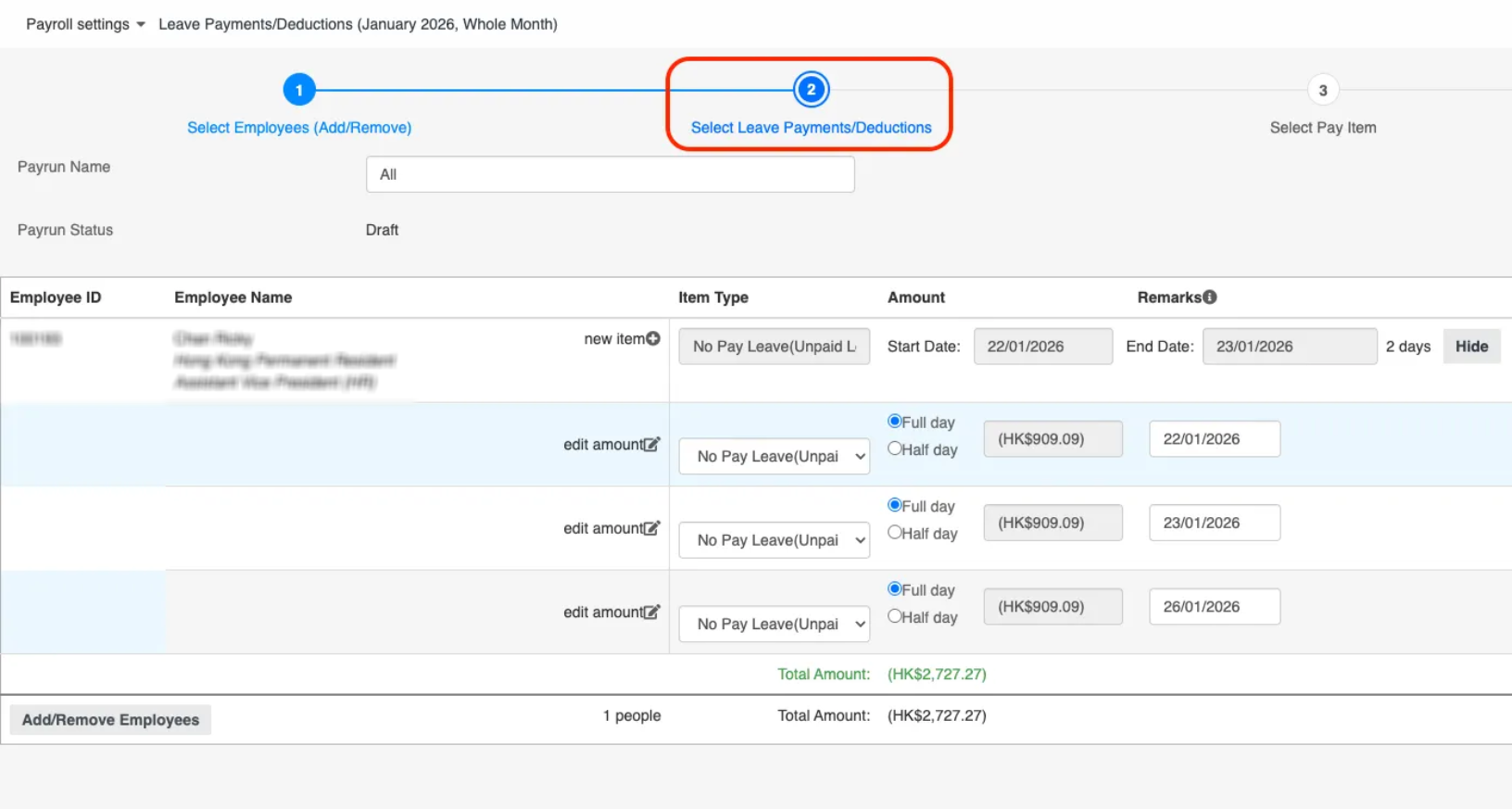
- When unpaid time off exists, the payroll system introduces a new step called Select leave payments / deductions. In this step:
- All unpaid time off dates selected in Omni HR are displayed
- Each date is listed clearly for review
- Dates are shown per employee to maintain traceability
- No-pay leave pay items are automatically created
- A No Pay Leave deduction line is generated for each employee
- The total deduction amount is derived from the selected unpaid time off dates
- Deduction amounts are calculated automatically
- All unpaid time off dates selected in Omni HR are displayed
- Payroll admins can review the generated deductions before proceeding to the next step of payroll processing.
Step 5 — Track unpaid time off processing status on time off request modal
- Once unpaid time off dates are sent to the payroll system for payroll processing, their status becomes visible directly on the time off request in Omni HR.
- When an unpaid time off request is included in a pay run:
- A new section called Payroll status appears on the time off request modal
- This section displays:
- The exact unpaid time off dates sent to the payroll system
- The current payroll state of each date
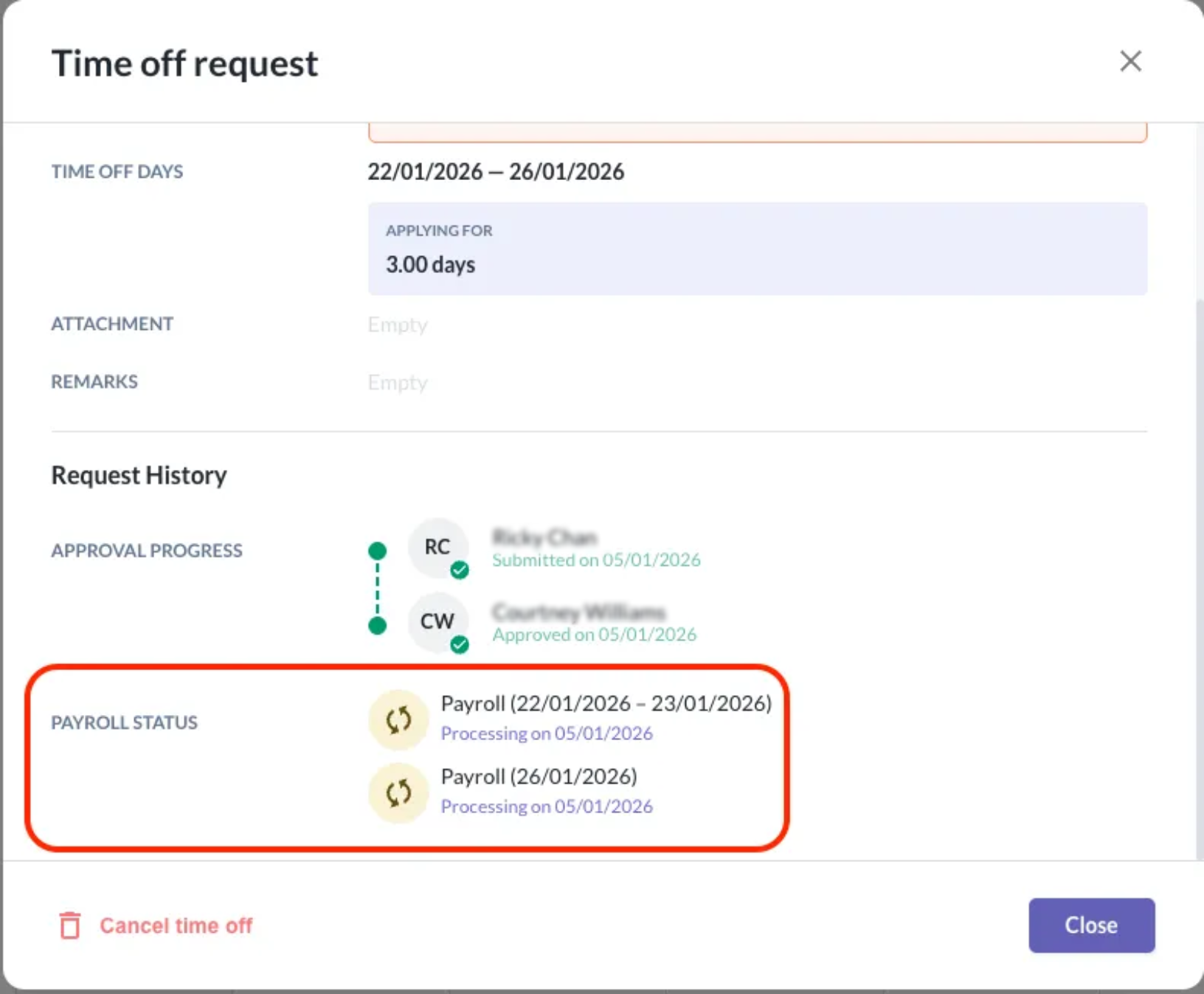
- The payroll status of unpaid time off dates updates automatically:
- Processing → When dates are successfully sent to the payroll system and included in an active pay run
- Processed → When the bank file value date of the associated pay run has been reached
- Once marked as Processed, the status is final and serves as a permanent audit record that a payroll deduction has occurred.
- If the pay run associated with the unpaid time off dates is deleted in the payroll system:
- The corresponding unpaid time off dates are automatically removed from the Payroll status section in Omni HR
- Those dates are no longer considered sent for payroll processing
- They become eligible for selection again in a future pay run
Still Need Help?
Reach out to our support team should you need further assistance.
Was this article helpful?
That’s Great!
Thank you for your feedback
Sorry! We couldn't be helpful
Thank you for your feedback
Feedback sent
We appreciate your effort and will try to fix the article