Overview:
If you need to pay employees for unused leave (leave encashment), you can do this in the payroll system by adding a Leave Pay item under the pay run that was synced from Omni HR.
The encashment amount can be calculated automatically based on the number of days you key in, or you can override the amount directly.
This guide aims to walk you through the steps to take to process via the payroll system.
TABLE OF CONTENTS
How to process leave encashments?
Step 1: Create a pay run from Omni HR to payroll system
In Omni HR, create your pay run as usual and sync it over to the payroll system.
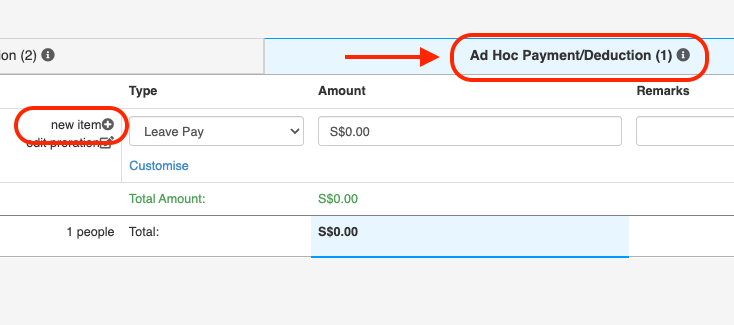
Step 2: Add “Leave Pay” under Ad-hoc Payment/Deduction
In the payroll system, open the relevant pay run.
Go to the Ad-hoc Payment/Deduction tab.
Click Add new pay item.
Select Leave Pay.
Step 3: Customise the number of days to encash
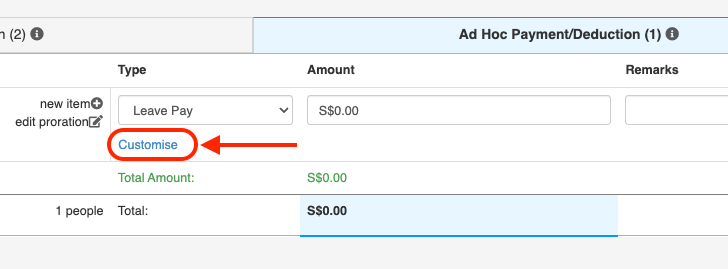
After selecting Leave Pay, click Customise.
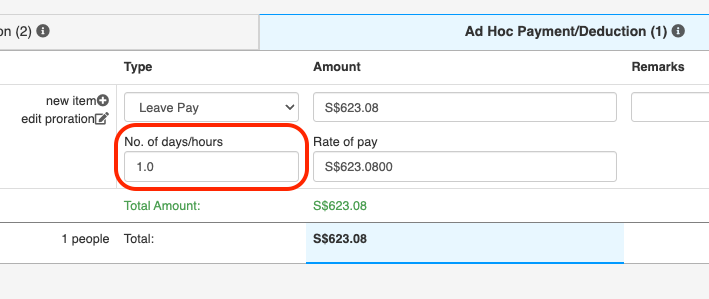
Key in the number of days to encash.
The total amount will be calculated accordingly.
Step 4: Override the encashment amount (optional)
If you prefer not to use “number of days” or have different methods of calculating rate of pay, you can directly override the encashment rate of pay or amount in the same Customise section.
How rate of pay is calculated?
The formula used to calculate leave encashment is:
Leave encashment amount = Daily rate of pay × Number of days encashed
Where daily rate of pay is defined as:
Daily rate of pay = (Monthly basic salary × 12) ÷ 260 working day)
Still Need Help?
Reach out to our support team should you need further assistance.
Was this article helpful?
That’s Great!
Thank you for your feedback
Sorry! We couldn't be helpful
Thank you for your feedback
Feedback sent
We appreciate your effort and will try to fix the article