Overview
Sometimes a document may be accidentally shared with someone who should not have access. This guide explains on how to revoke access and re-share the document with the correct recipients. Following these steps helps protect confidential information and maintain data security.
TABLE OF CONTENTS
- Step 1: Search the Document
- Step 2: Access Sharing Settings
- Step 3: Revoke Access
- Step 4: Re-Share the Document
Steps to Recall a shared Document
Step 1: Search the Document
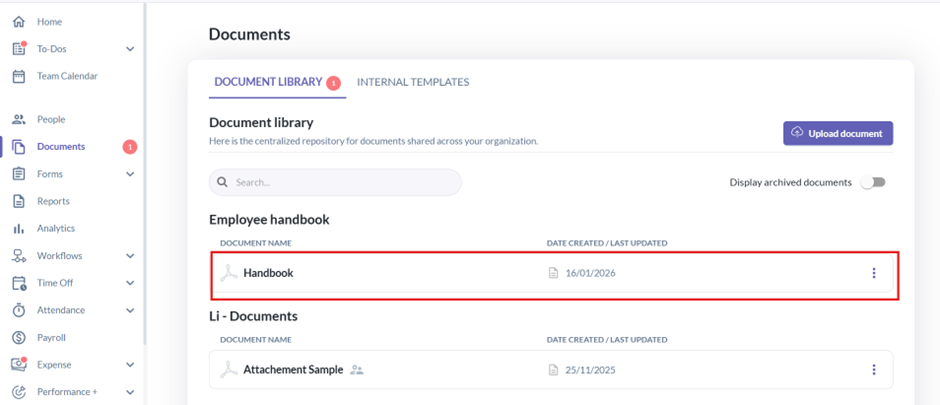
To start, go to Documents > Document Library >
- Go to the document you want to update access for.
Step 2: Access Sharing Settings
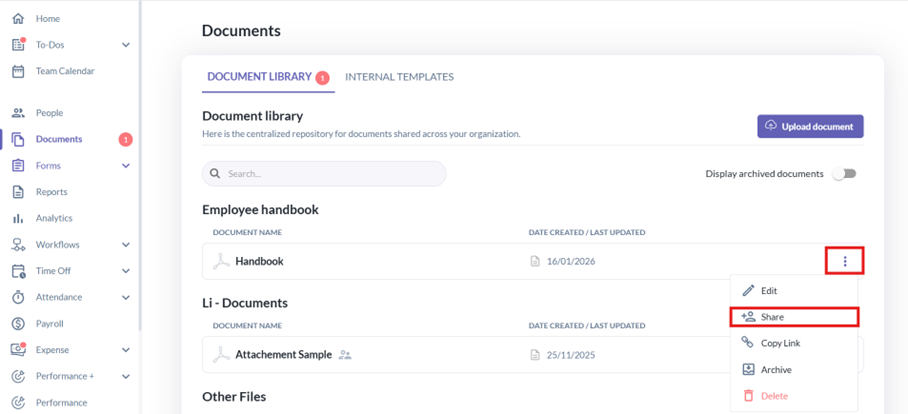
- Click the three-dot menu (⋮) on the top-right corner of the document.
- Select Share.
Step 3: Revoke Access
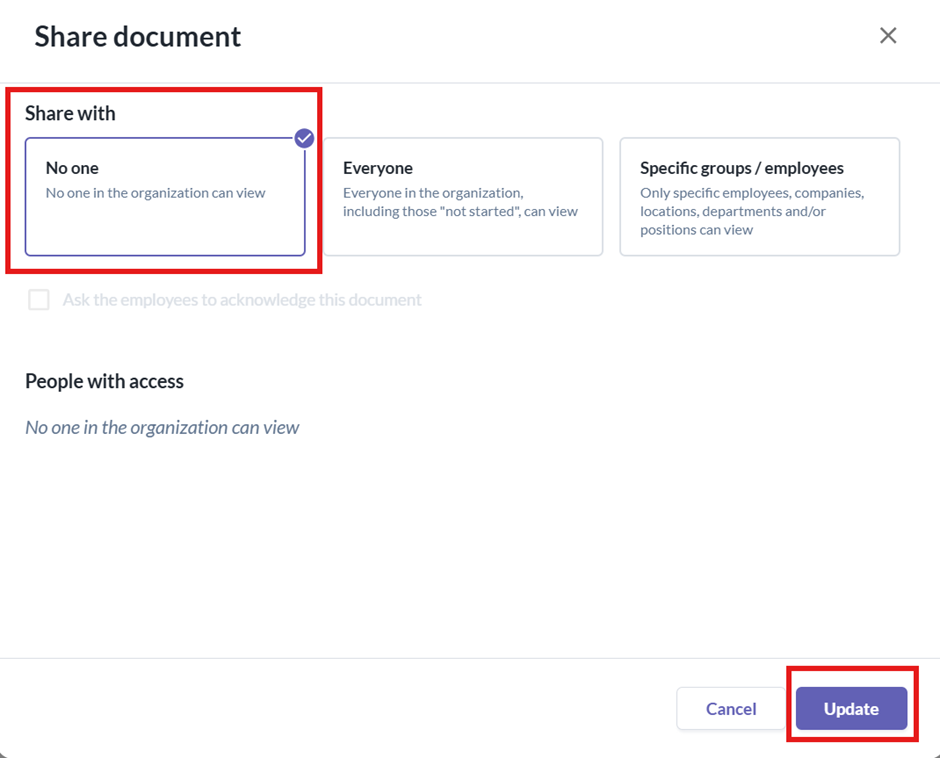
- In the Share Document screen:
- Change Share with to [ No One ].
- Click Update.
- This removes access for all recipients, including anyone who received it by mistake.
Step 4: Re-Share the Document
- After access is revoked, share the document with the correct recipients.
- Follow the guide here: [Uploading and Sharing Documents in Document Library]
Still Need Help?:
Reach out to our support team should you need further assistance.
Was this article helpful?
That’s Great!
Thank you for your feedback
Sorry! We couldn't be helpful
Thank you for your feedback
Feedback sent
We appreciate your effort and will try to fix the article