Overview:
Accidentally assigned a wrong time off to an employee? In this article, we will walk you through on how you can delete the time off from the employee's profile.
Important Note
- Un-assigning or deleting a time off policy from an employee will result in complete removal of employee's time off history and balances tied to that policy. This action cannot be reversed as the data cannot be recovered upon removal of the policy.
- We will only advise un-assigning or deleting time off policies from employees in the event:
- The policies tied to the employees have no historical time off records or balances
- The time off records and balances can be removed along with the un-assignment
Deleting Time Off from Employee's Profile
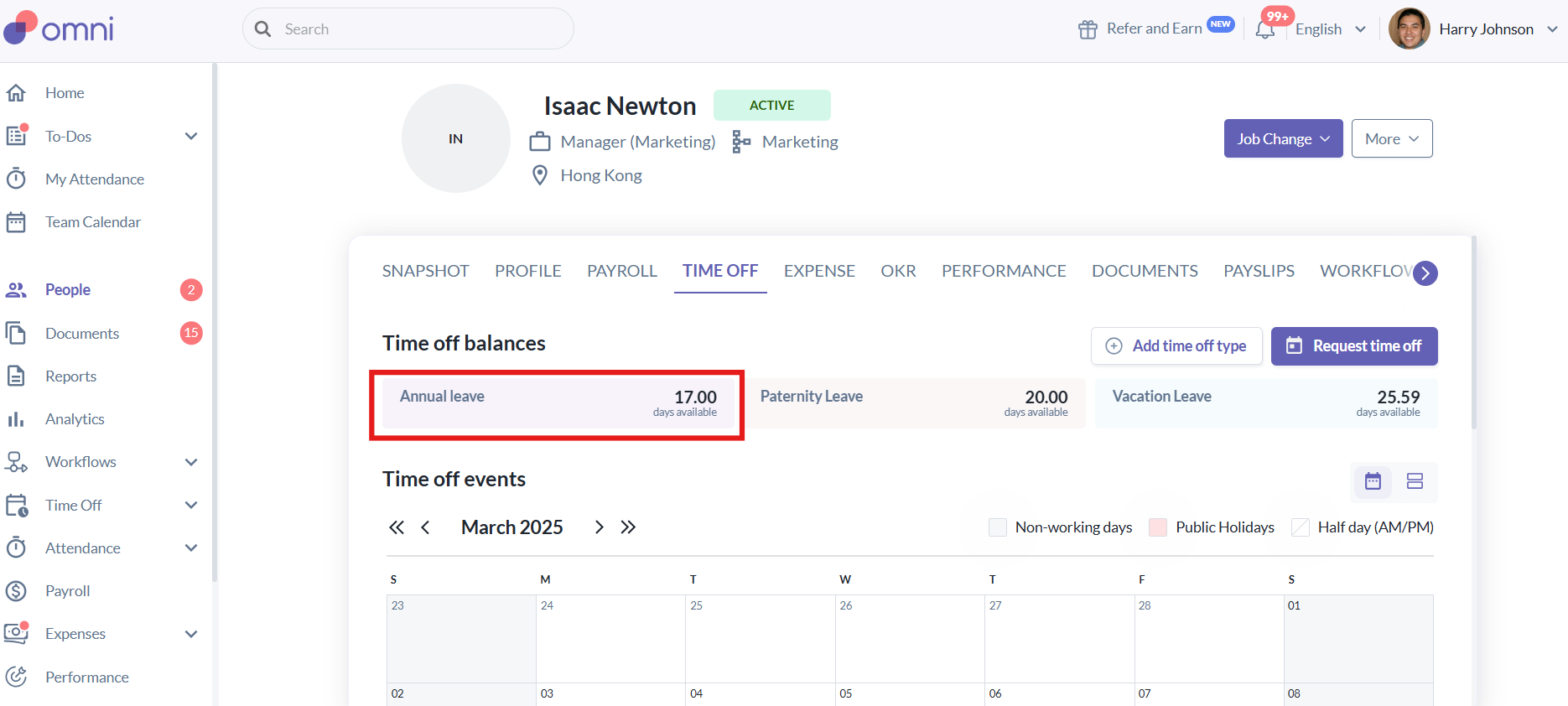
- Go to Employee's Profile > Time Off tab > Click on the time off you wish to remove from employee's profile.
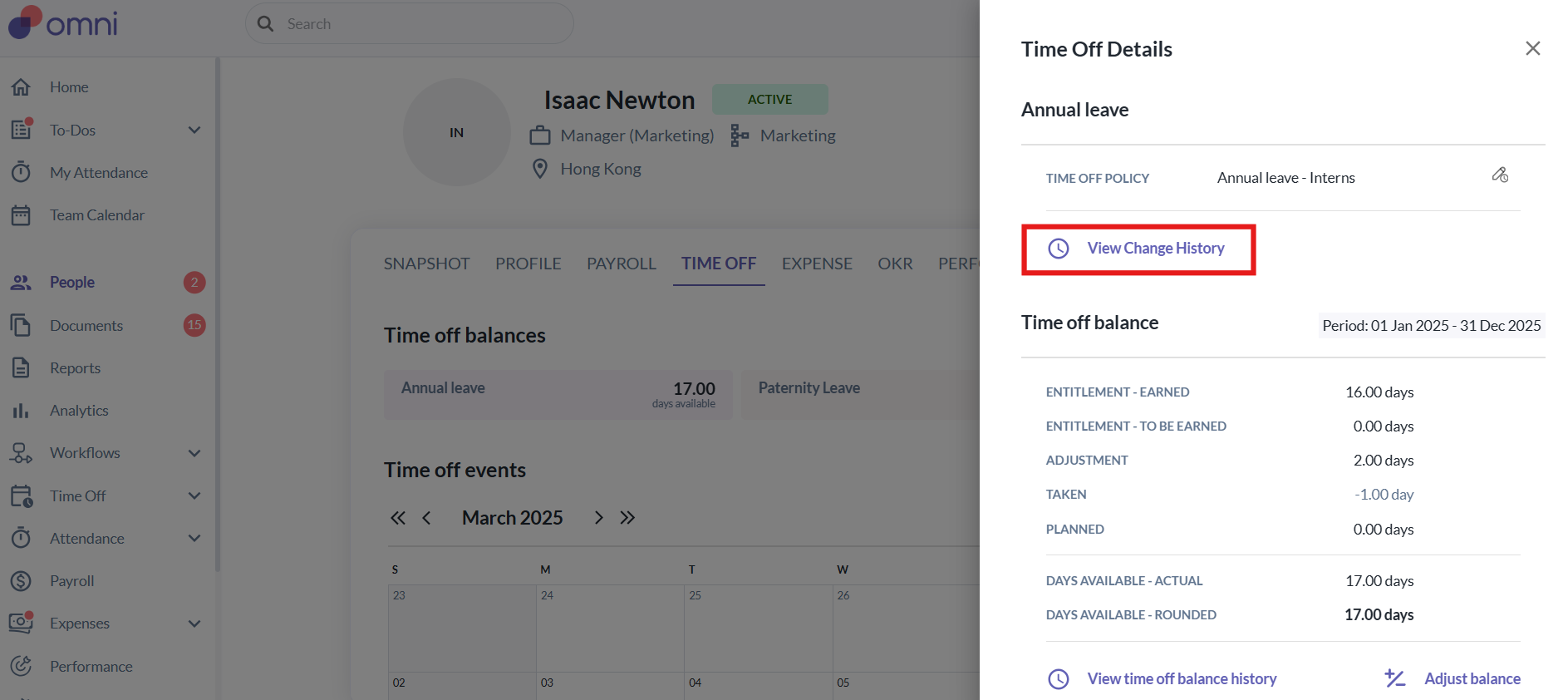
- A pop-up will appear on the right hand side showing the in-depth information of the selected time off. From here, just select View Change History.
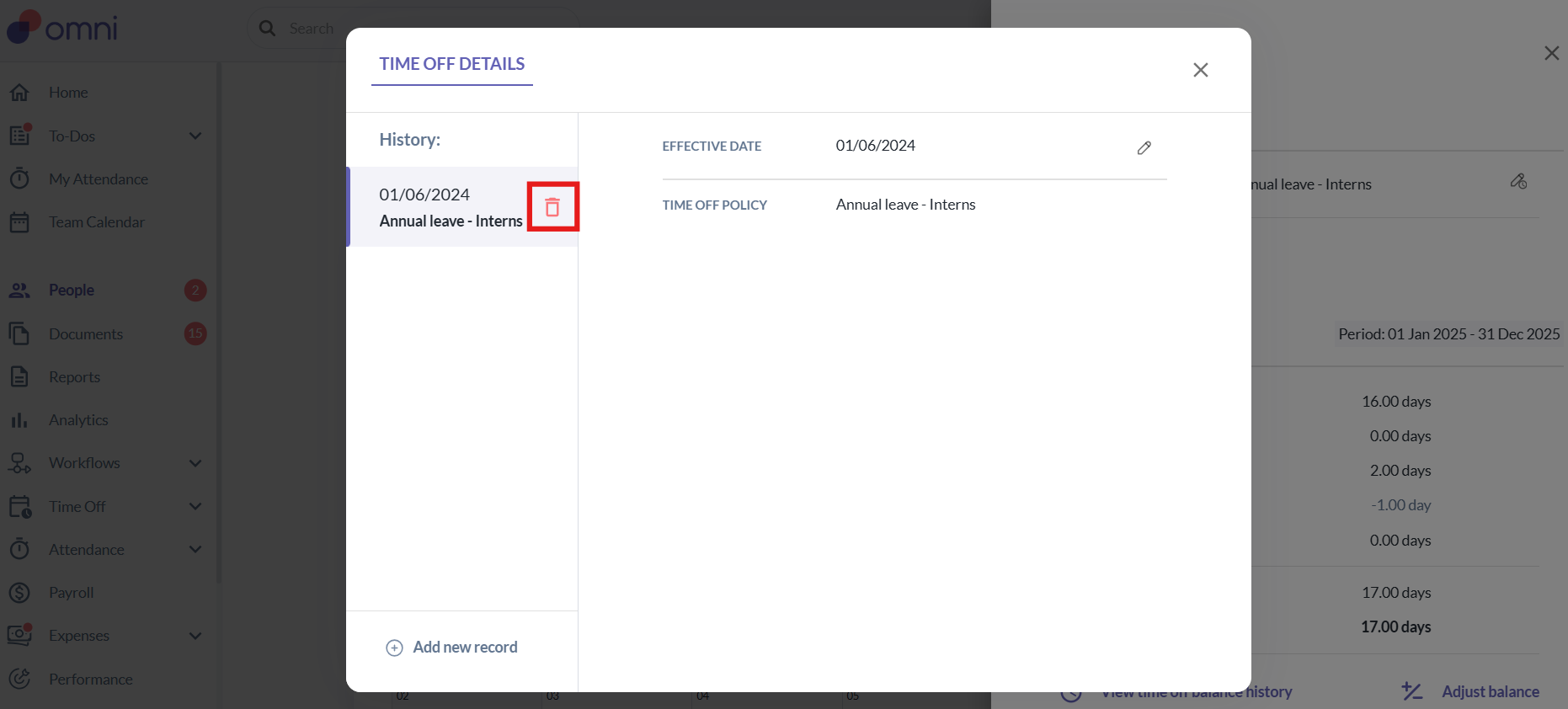
- The time off details will now be showing up on screen. To delete the time off, click on the trash icon.
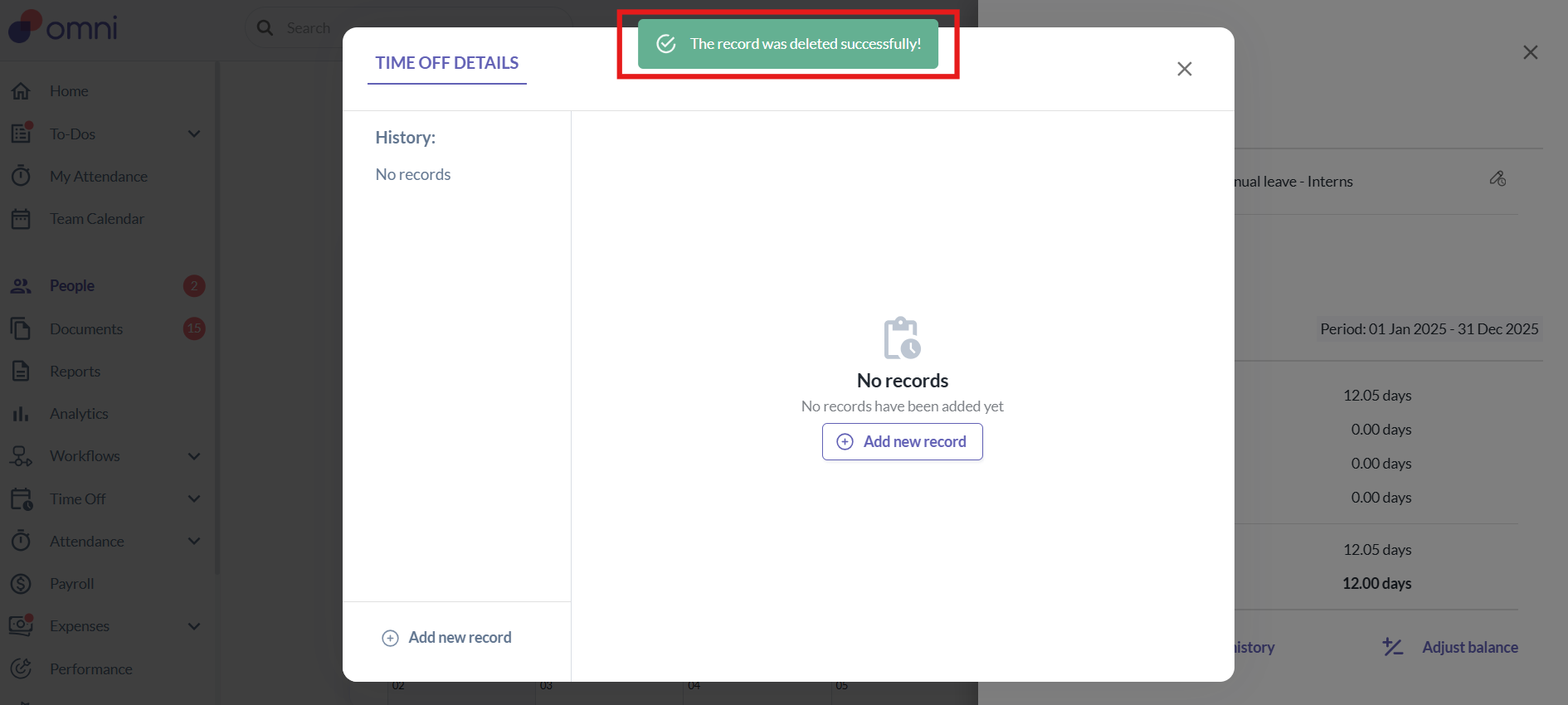
- A prompt will appear stating, 'The record was deleted successfully!'
Still Need Help?:
Reach out to our support team should you need further assistance.
Was this article helpful?
That’s Great!
Thank you for your feedback
Sorry! We couldn't be helpful
Thank you for your feedback
Feedback sent
We appreciate your effort and will try to fix the article