Overview:
Admins can now setup approval flows to allow overtime & timesheet updates to require approval by managers or other users.
This will allow organisations to have better control and tracking of employees attendance and ensure compliance.
TABLE OF CONTENTS
How to setup approval flows for attendance management?
1. Go to Attendance → Settings → Approval Flows → Add Approval Rule
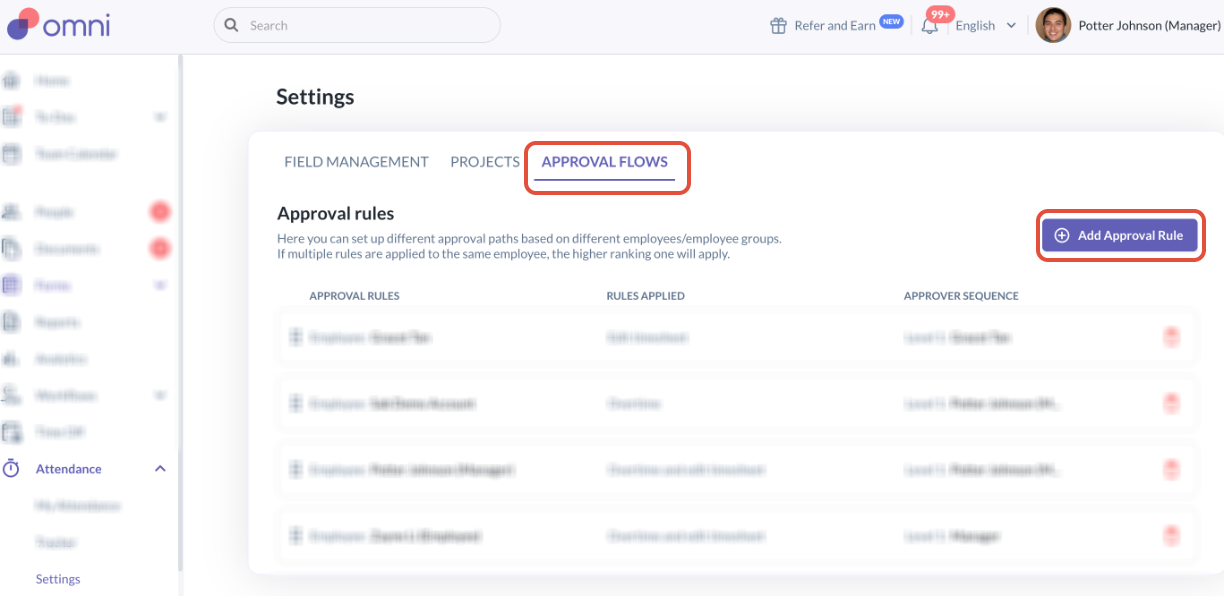
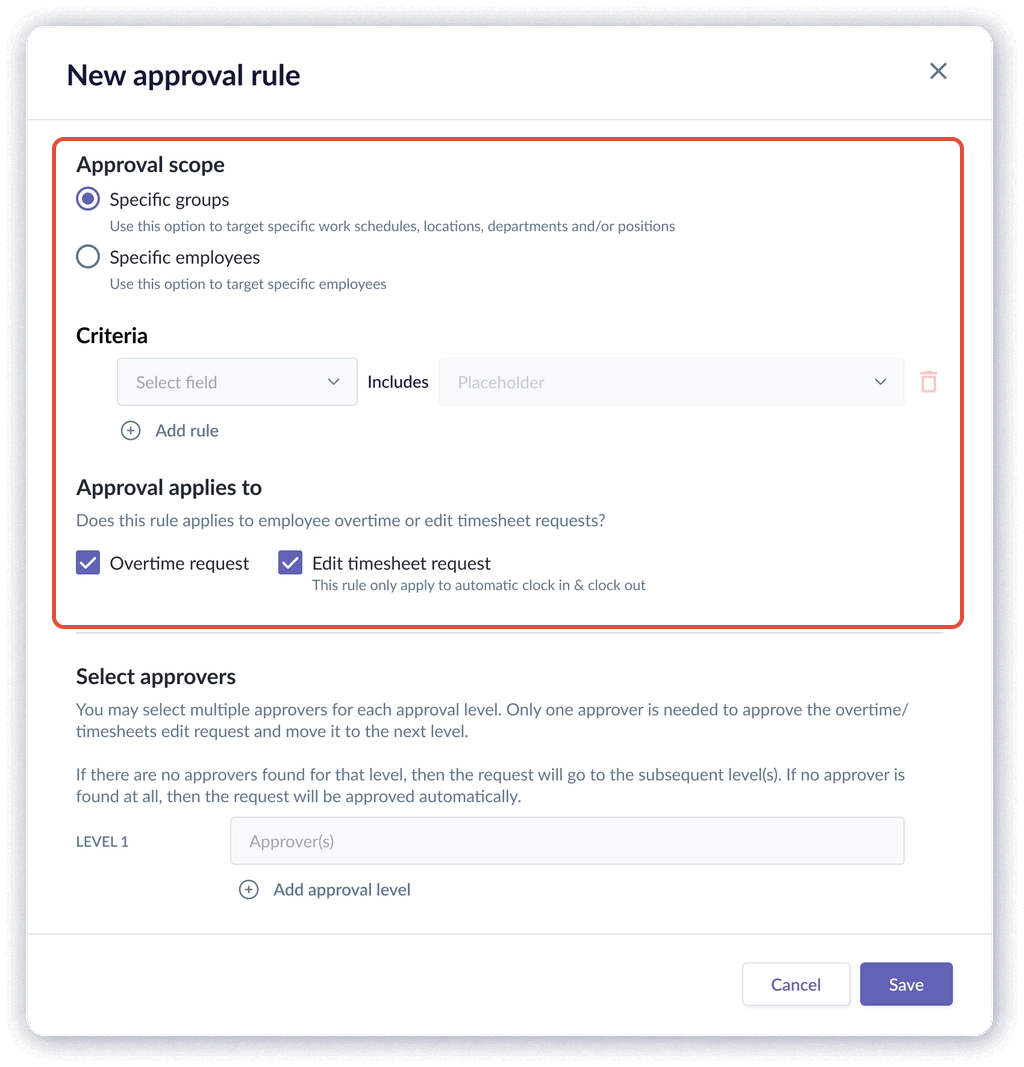
2. You may then setup the:
- Approval scope: Specific groups vs Specific employees
- Criteria: Company, Department, Location, Position or Work Schedule
- You can add multiple criteria rules where required by clicking Add Rule
- Approval Type: Choose whether this approval rule will apply to:
- Overtime requests
- Edit timesheet requests
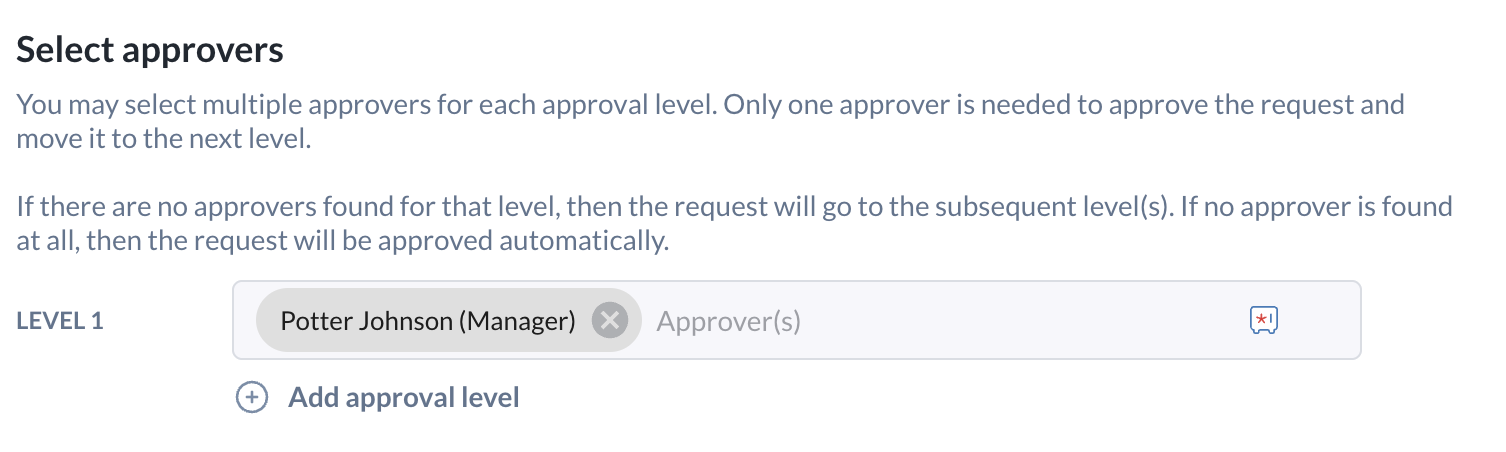
3. You may then select the approvers for the rule:
- Admins can set one or more approval levels (sequential).
- Each level can contain one or more approvers (parallel).
- Admins can add additional levels using Add approval level.
4. After saving, the rule appears in the Approval rules list.
- Admins can choose to add, edit or delete approval rules where required from this Approval rules list.
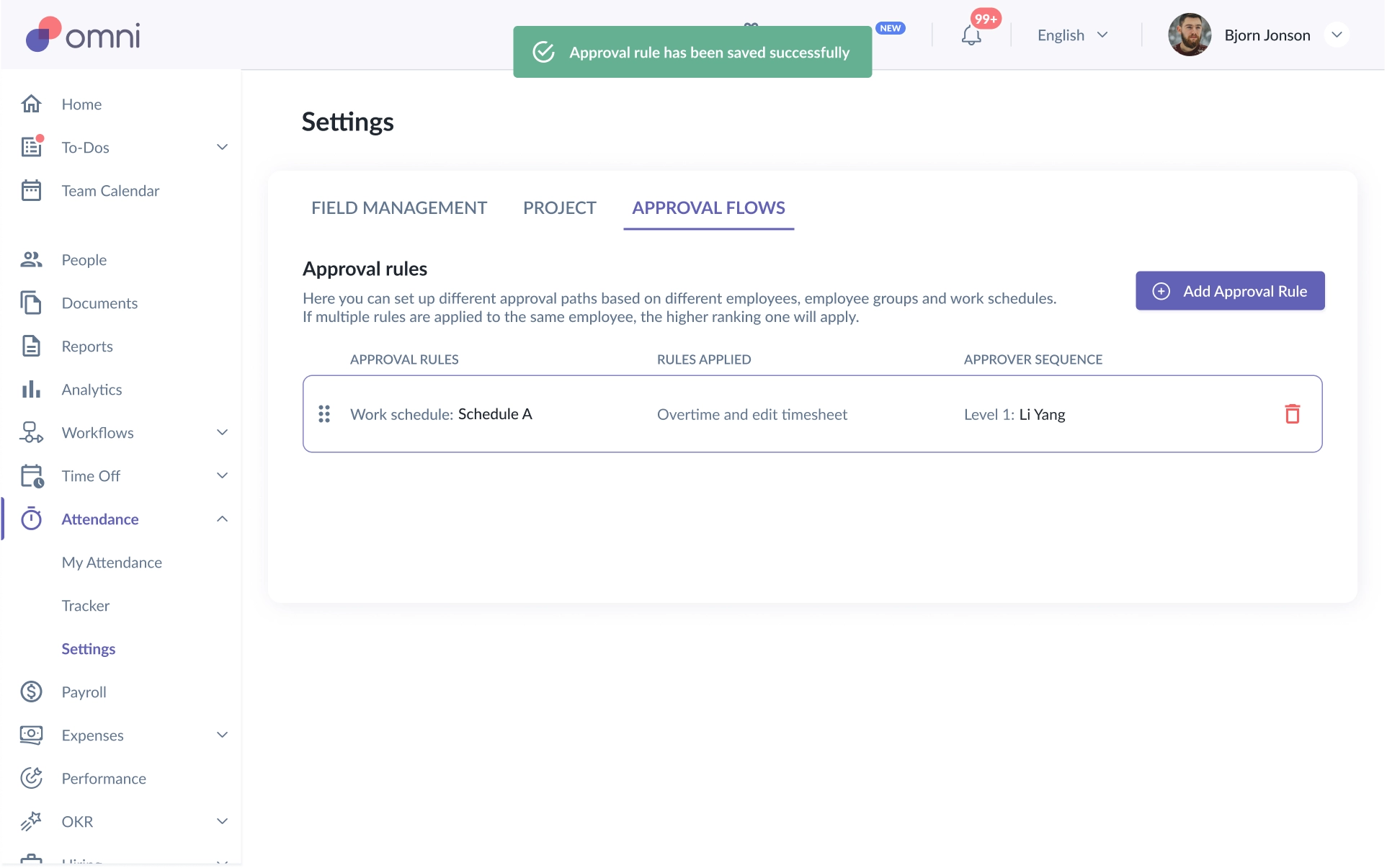
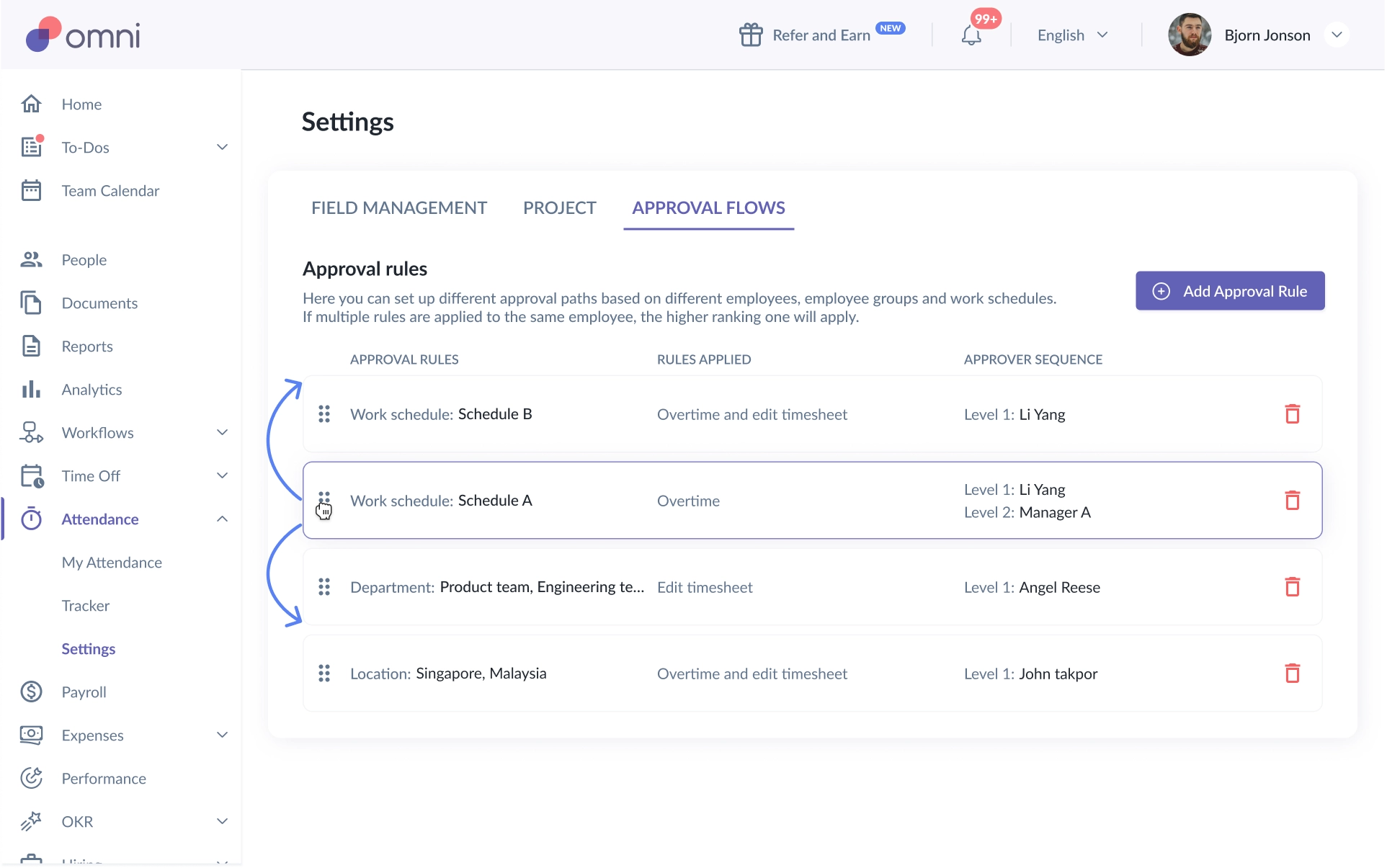
- Admins can also choose to reorder the rule priority by dragging and dropping the rule in the list.
- This allows admins to control which rule takes priority when multiple rules could apply to the same employee.
Important Notes
1. Effect of changing approval rules
- Approval-rule addition, edit or deletion does not update previously submitted attendance requests.
- However, if the approver rules settings changes later, any update to the requests and any new submissions will follow the new set of approval rules.
2. Invalid saved rules after data changes
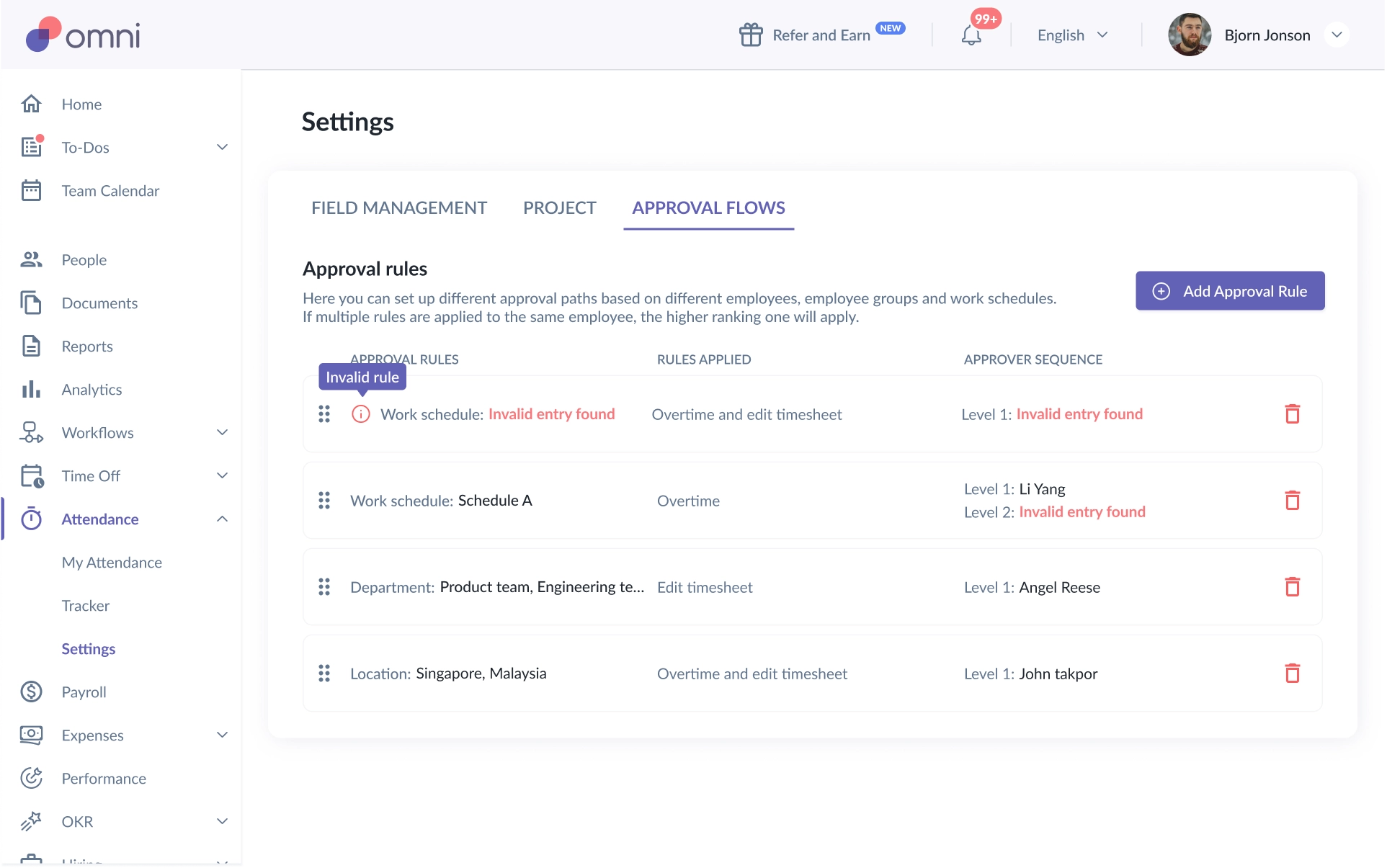
- A previously saved rule may become invalid later if either a specific criteria was removed in the system or an approver was deleted or terminated
- What will happen: The rule may still be displayed, but will be flagged to indicate to an admin that the rule needs to be reviewed and updated.
- If a rule contains multiple values and only one becomes invalid, the rule can still remain valid as long as at least one valid value still exists.
For an example:- if multiple approvers were configured and one is deleted, the rule can still stand
- if multiple approvers were configured and one is deleted, the rule can still stand
Still Need Help?:
Reach out to our support team should you need further assistance.
Was this article helpful?
That’s Great!
Thank you for your feedback
Sorry! We couldn't be helpful
Thank you for your feedback
Feedback sent
We appreciate your effort and will try to fix the article