Overview:
This article will guide you through how to access and navigate your organization chart in Omni.
Prerequisite:
Before you can access to the Org Chart, please ensure you have the permission "View organization chart" under Settings > Access Control > Your Role > Your role's access to system functions > People
If you not see this option in your menu, please contact your HR Admin for assistance.
TABLE OF CONTENTS
Viewing the Org Chart
1. Log in to your Omni account.
2. Go to People > Org Chart
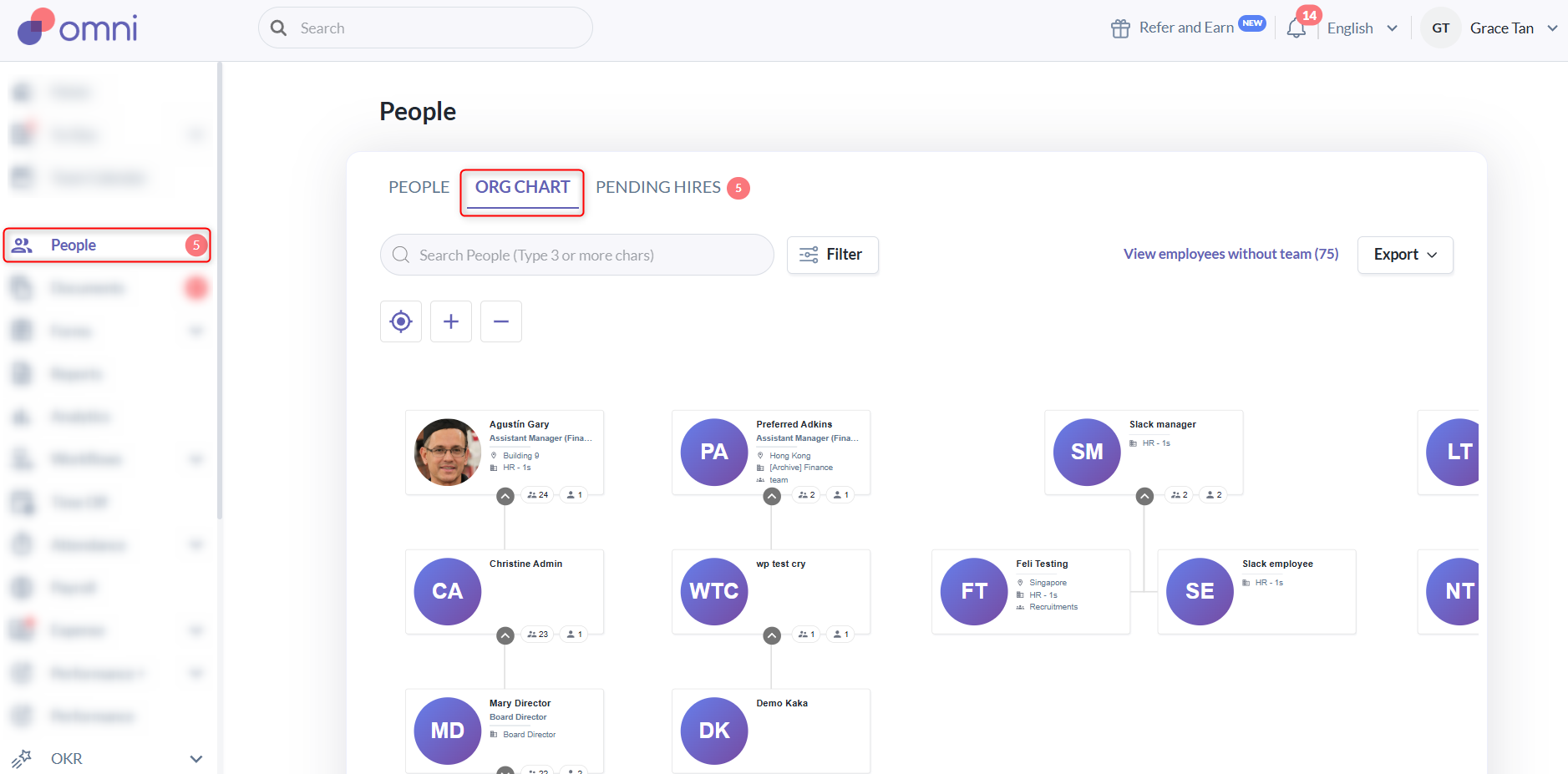
What's New in the Org Chart
We’ve enhanced the Org Chart experience to make it more consistent, flexible, and user-friendly.
A. View the Team Size at a Glance
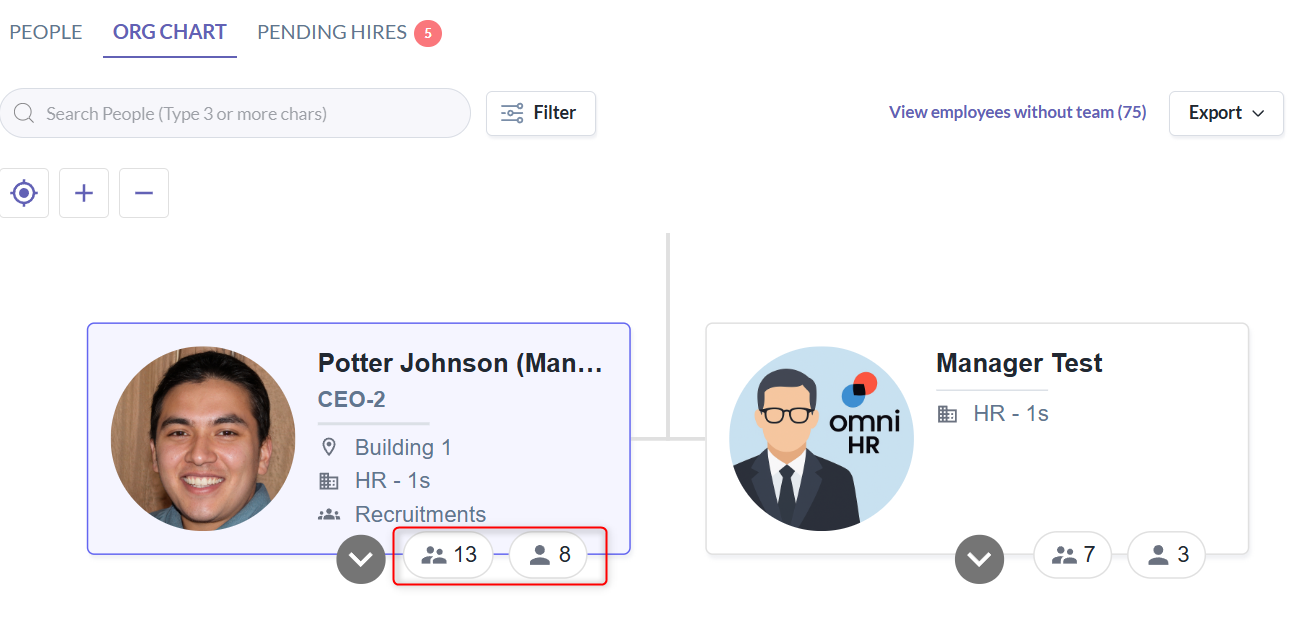
- Each employee card displays the total headcount under their reporting line, including both direct and indirect reports, giving you instant visibility into team structure.
- Group icon (left) - Total headcount of both direct and indirect reports
- Single person icon (right) - Total headcount of direct reports
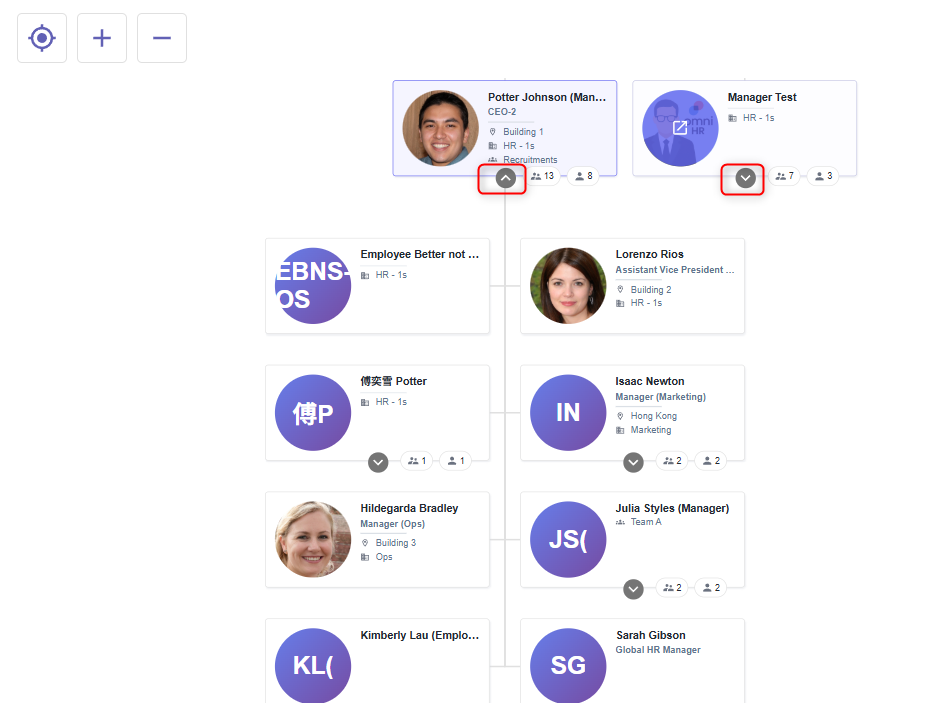
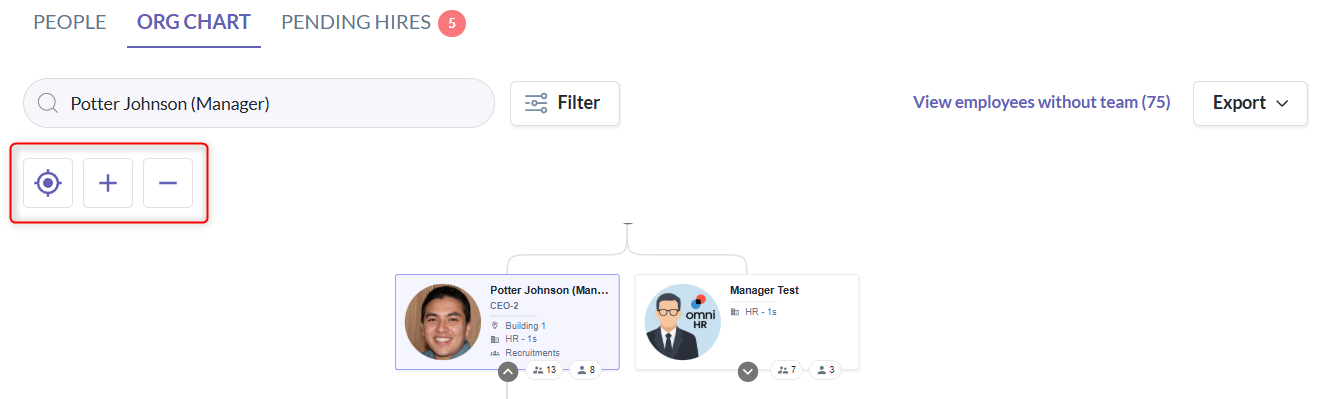
- You can expand or collapse employee cards to view or hide their direct reports.
B. Filter Your Org Chart View
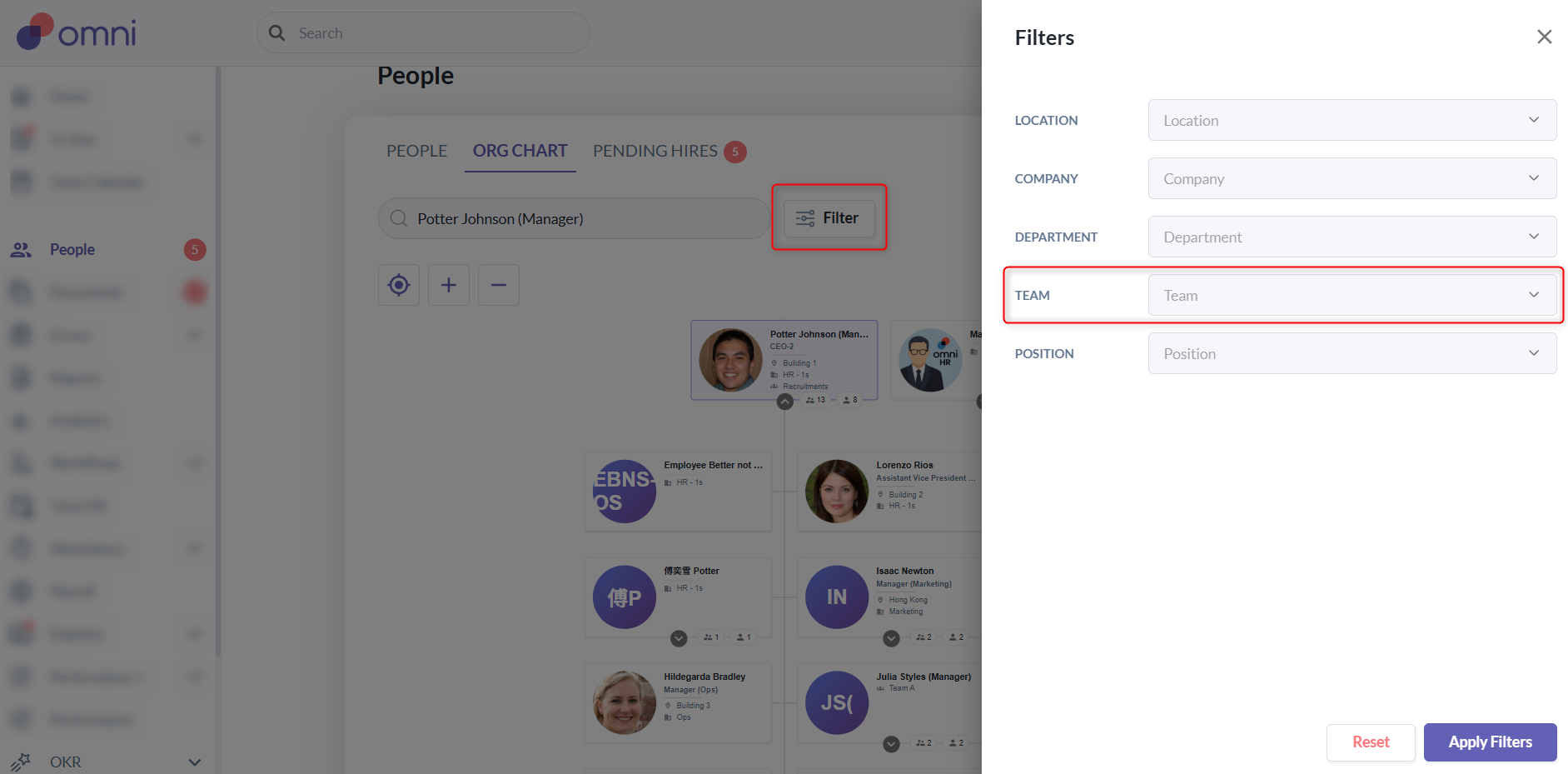
- We've updated the filtering experience to use the standard filter drawer, aligned with other modules across the system.
- You can use the filter function to view the org chart by: Location, Company, Department, Team (New Filter) and Position.
C. Smooth Scrolling and Navigation
- You can move around the org chart freely by clicking and dragging the background — no more relying on horizontal scrollbars.
- You can use the zoom and recenter button to zoom in, zoom out, and quickly return to your own card.
D. Easy Org Chart Export
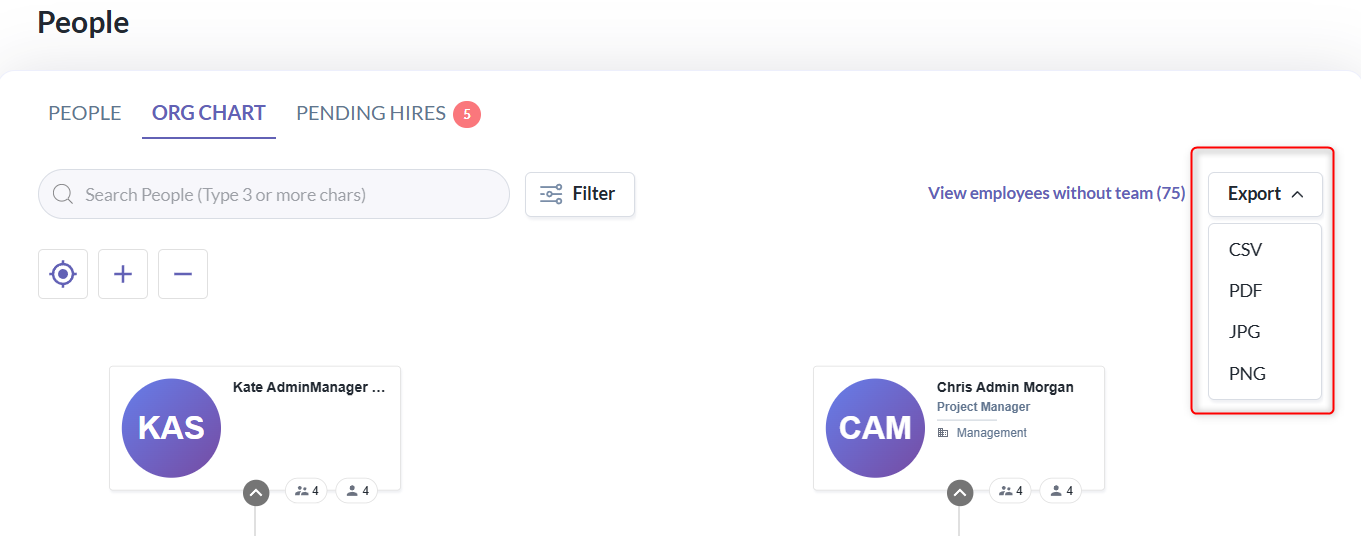
- The Export button styling has been standardized for a consistent experience.
- Export your org chart in CSV, PDF, JPG, or PNG option — all in one click. Perfect for reporting, workforce planning, or deeper analysis.
Still Need Help?:
Reach out to our support team should you need further assistance.
Was this article helpful?
That’s Great!
Thank you for your feedback
Sorry! We couldn't be helpful
Thank you for your feedback
Feedback sent
We appreciate your effort and will try to fix the article