Overview:
If you are unable to view information for terminated employees, this is usually due to access control settings. This article explains how to configure access control to view terminated employees and highlights the most common impacts when access is restricted.
Access Control
If access to terminated employees is not enabled for your role, terminated employee information will not be visible to you.
To check whether you have access to terminated employees, follow the steps below:
1. Go to Settings > Access Control > Select the relevant access role > Scroll to the bottom of the page and check the option “Include Terminated Employees”.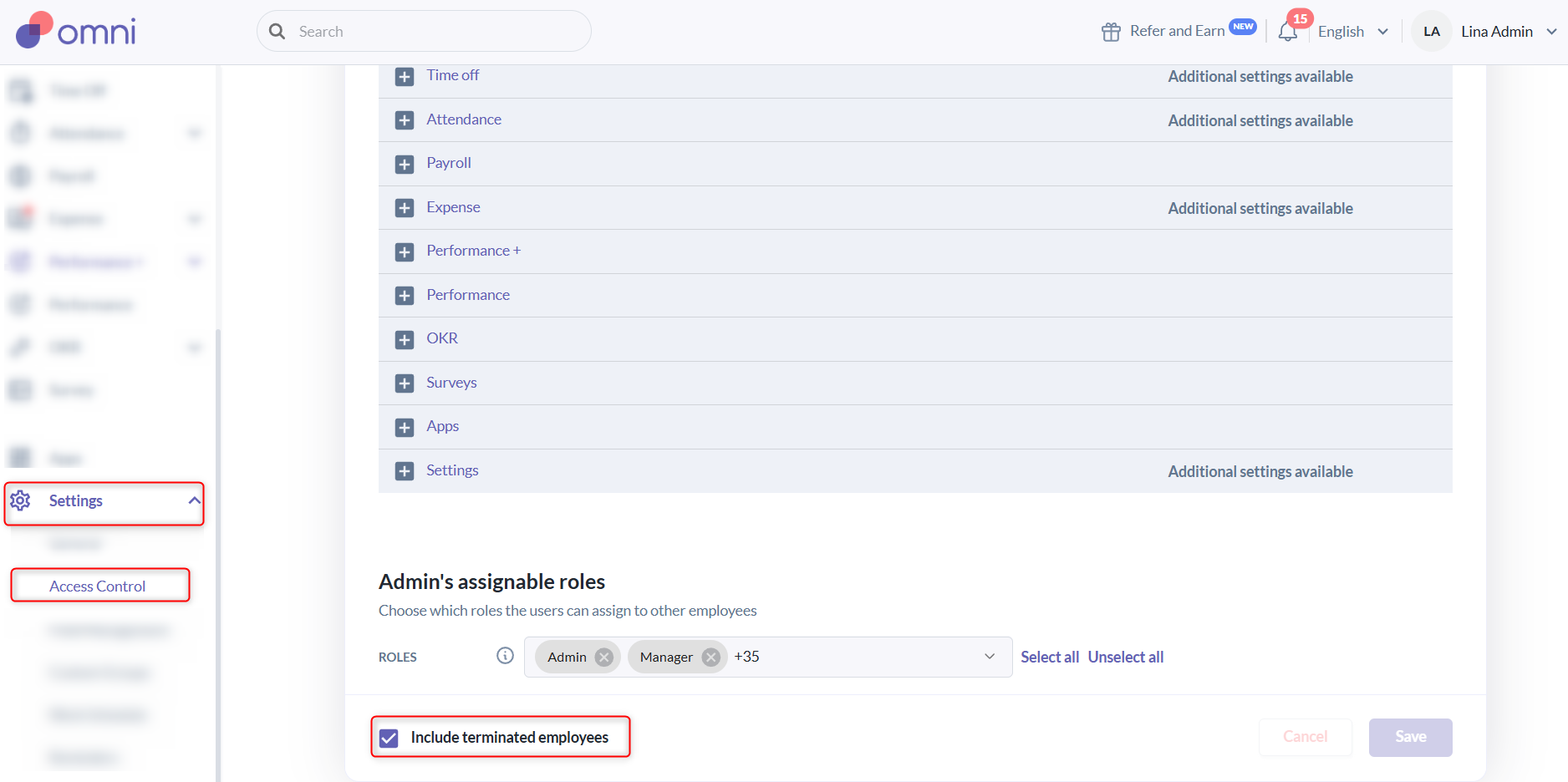
What Happens If “Include Terminated Employees” Is Not Enabled
1. Employee Profile
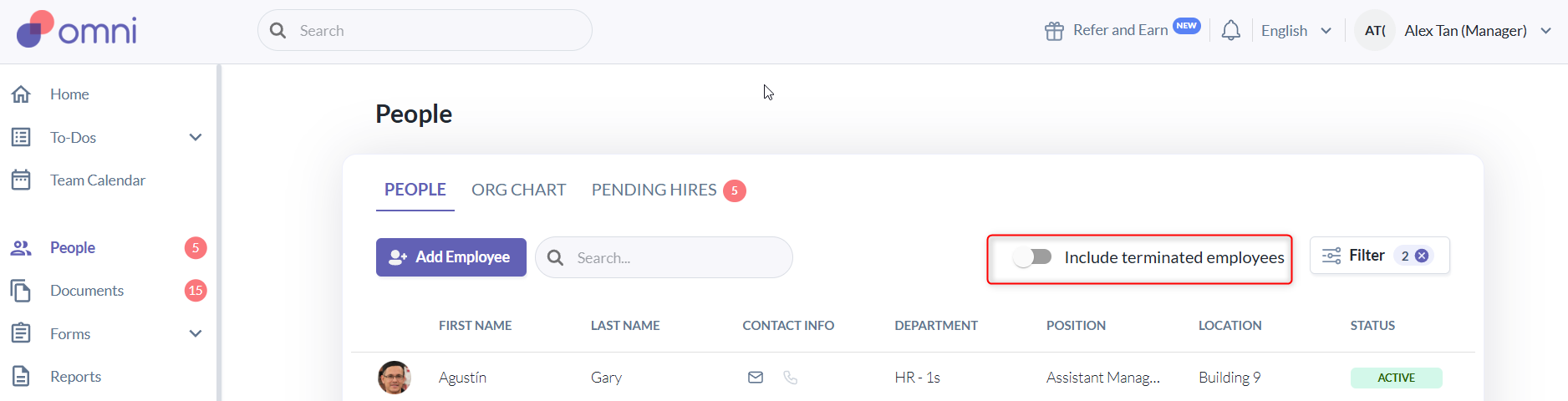
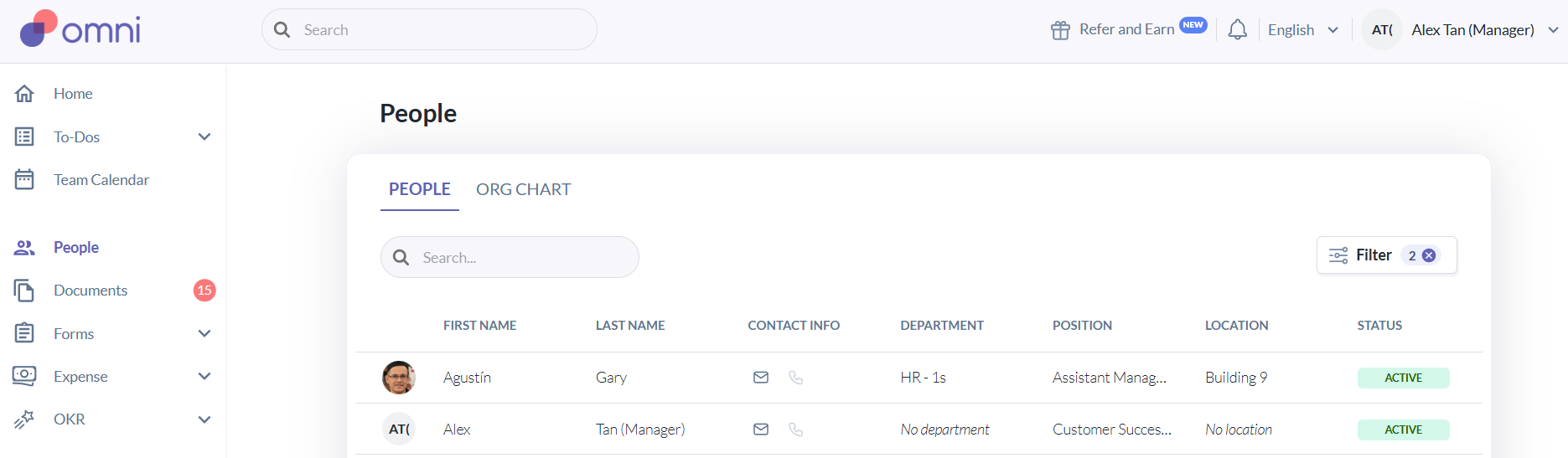
- If your access role does not allow viewing terminated employees, the “Include Terminated Employees” toggle will not be visible.
- Example: Users with access will see the toggle to include terminated employees, while users without access will not.
2. Reports
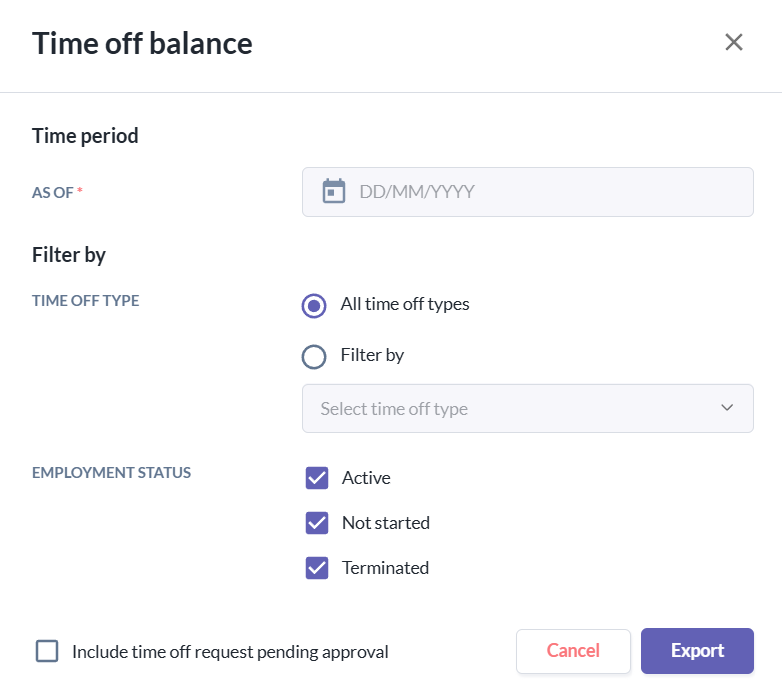
- Even if a report includes an employment status filter for “terminated employees,” users without access to terminated employees will not see them in the report results.
- Examples: Time Off Balance Report, Custom Reports
- If a report does not have an employment status filter for terminated employees, and the user’s role does not allow access to terminated employees, the downloaded report will not include any terminated employee data.
Example: Expense Reports (even if no filter exists for terminated employees).
Still Need Help?
Reach out to our support team should you need further assistance.
Was this article helpful?
That’s Great!
Thank you for your feedback
Sorry! We couldn't be helpful
Thank you for your feedback
Feedback sent
We appreciate your effort and will try to fix the article