This article explains the difference between Ad Hoc Payments and Recurring Payment Items, and provides step-by-step guidance on how to add them for an employee’s payroll.
TABLE OF CONTENTS
- Key Definitions
- How to Add a Recurring Payment Item
- How to Add an Ad Hoc Payment / Bonus
- Viewing Added Pay Items
Key Definitions
Ad Hoc Payments
A one-time payment that is processed in a specific payroll month for an employee.
Examples:
Yearly bonus
One-off incentive
Special reimbursement
Recurring Payment Items
A continuous pay item that is paid to an employee every payroll cycle (usually monthly).
Examples:
Fixed allowances (e.g. travel, phone, housing)
Monthly benefits
How to Add a Recurring Payment Item
Example: Adding a Travel Allowance of SGD 200 per month
Go to the Employee Profile
Navigate to the Payroll tab
Click Add New Recurring Item
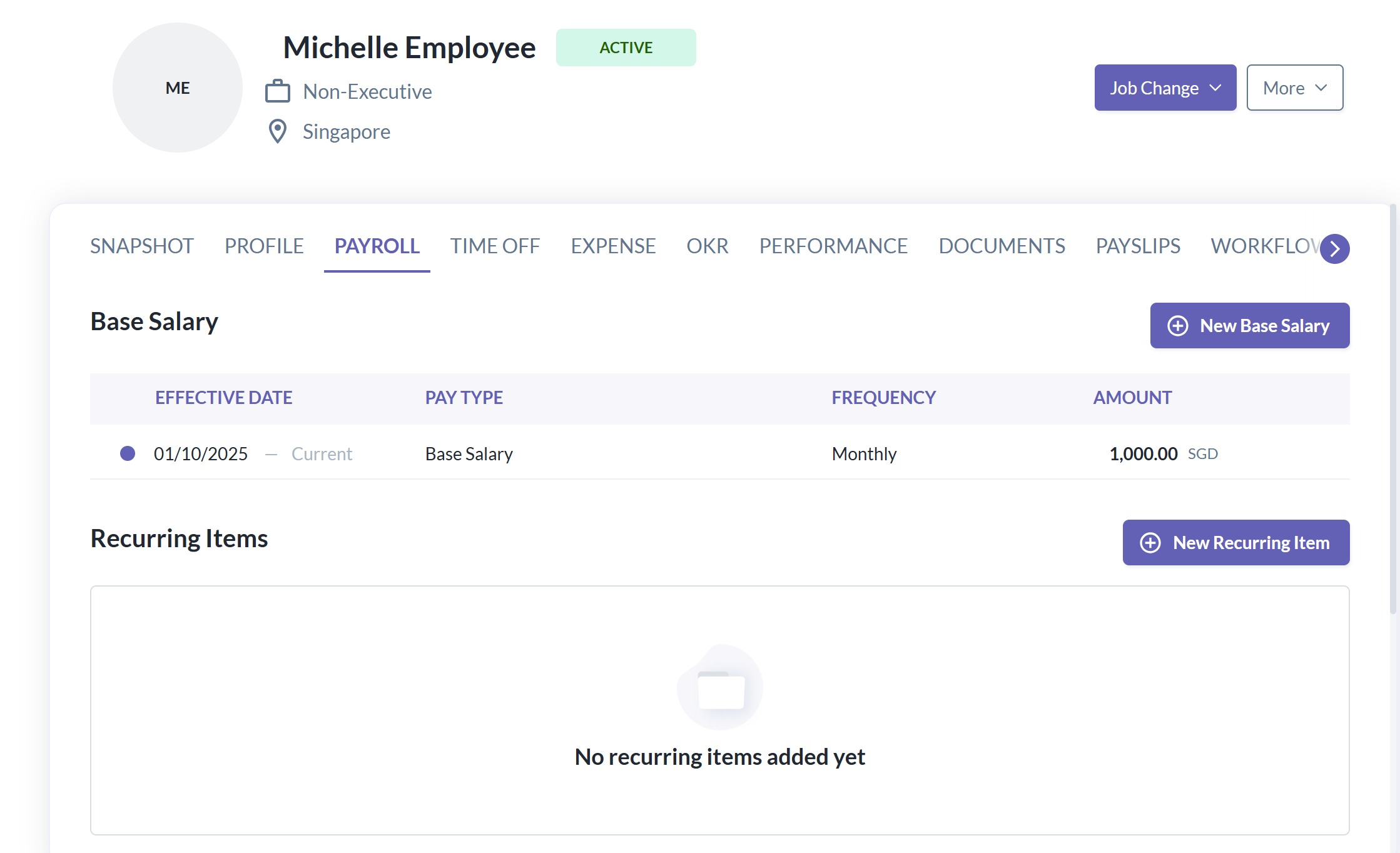
Fill in all required fields:
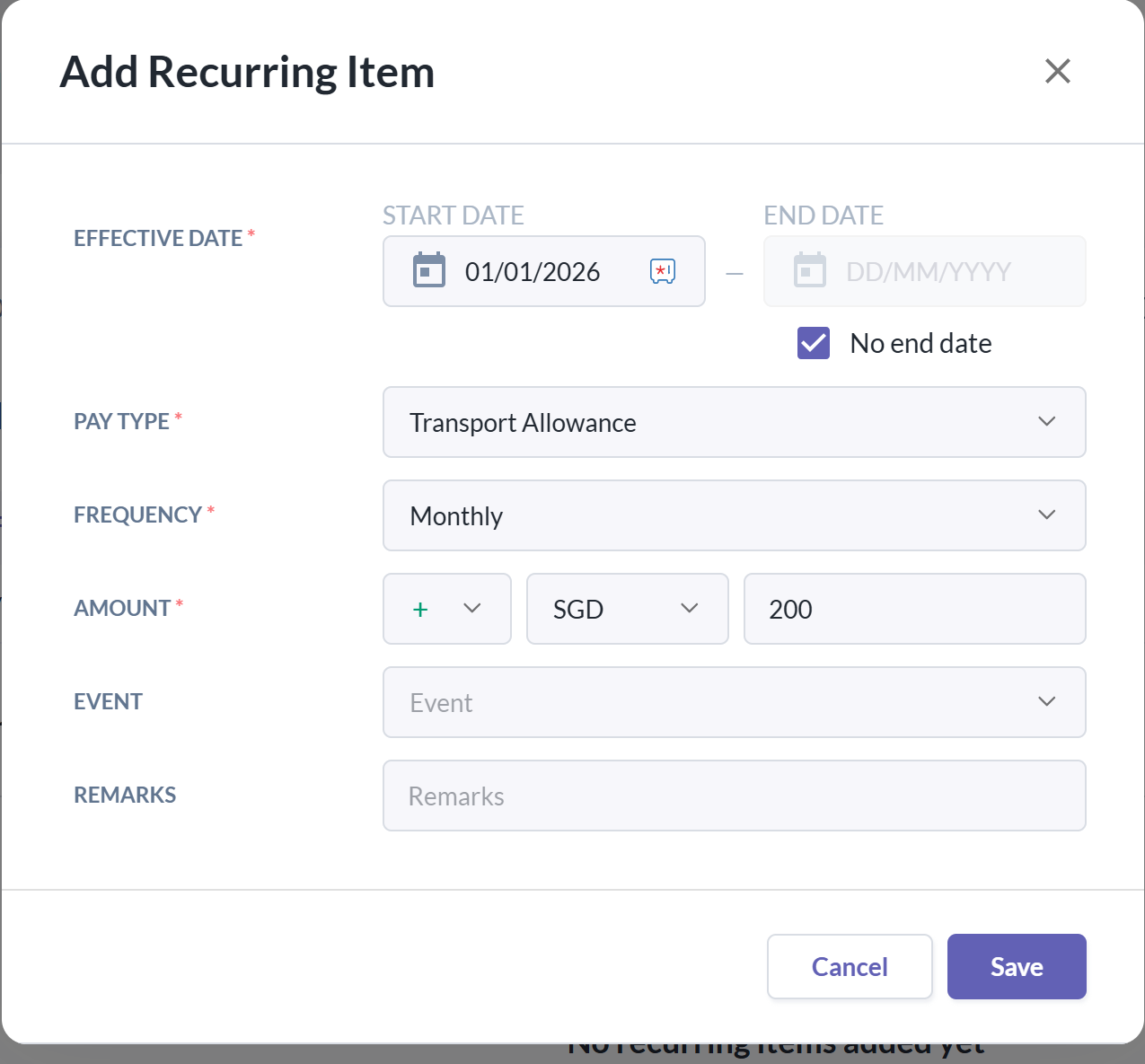
Effective Start Date
End Date (if applicable)
Pay Type (can be any newly created or existing pay type)
Frequency
Amount (e.g. SGD 200)
Event (optional)
Remarks (optional)
Click Save
Once saved, the system will automatically include this recurring payment in each applicable payroll cycle based on the effective dates.
How to Add an Ad Hoc Payment / Bonus
Go to the Employee Profile
Navigate to the Payroll tab
Select Add Ad Hoc Payment
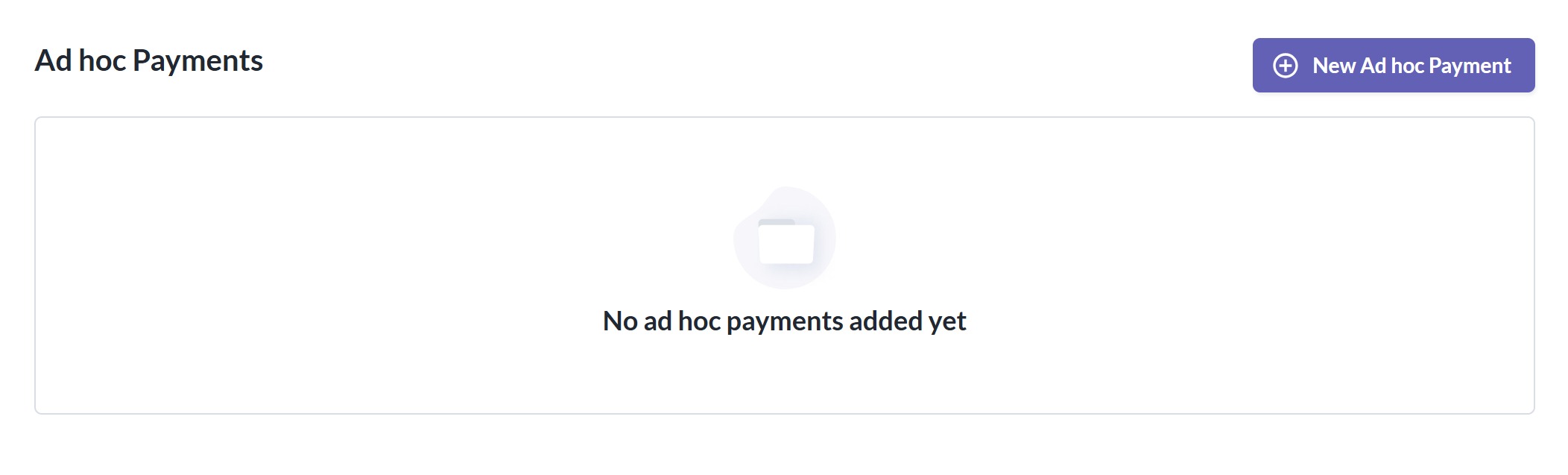
Fill in the required details:
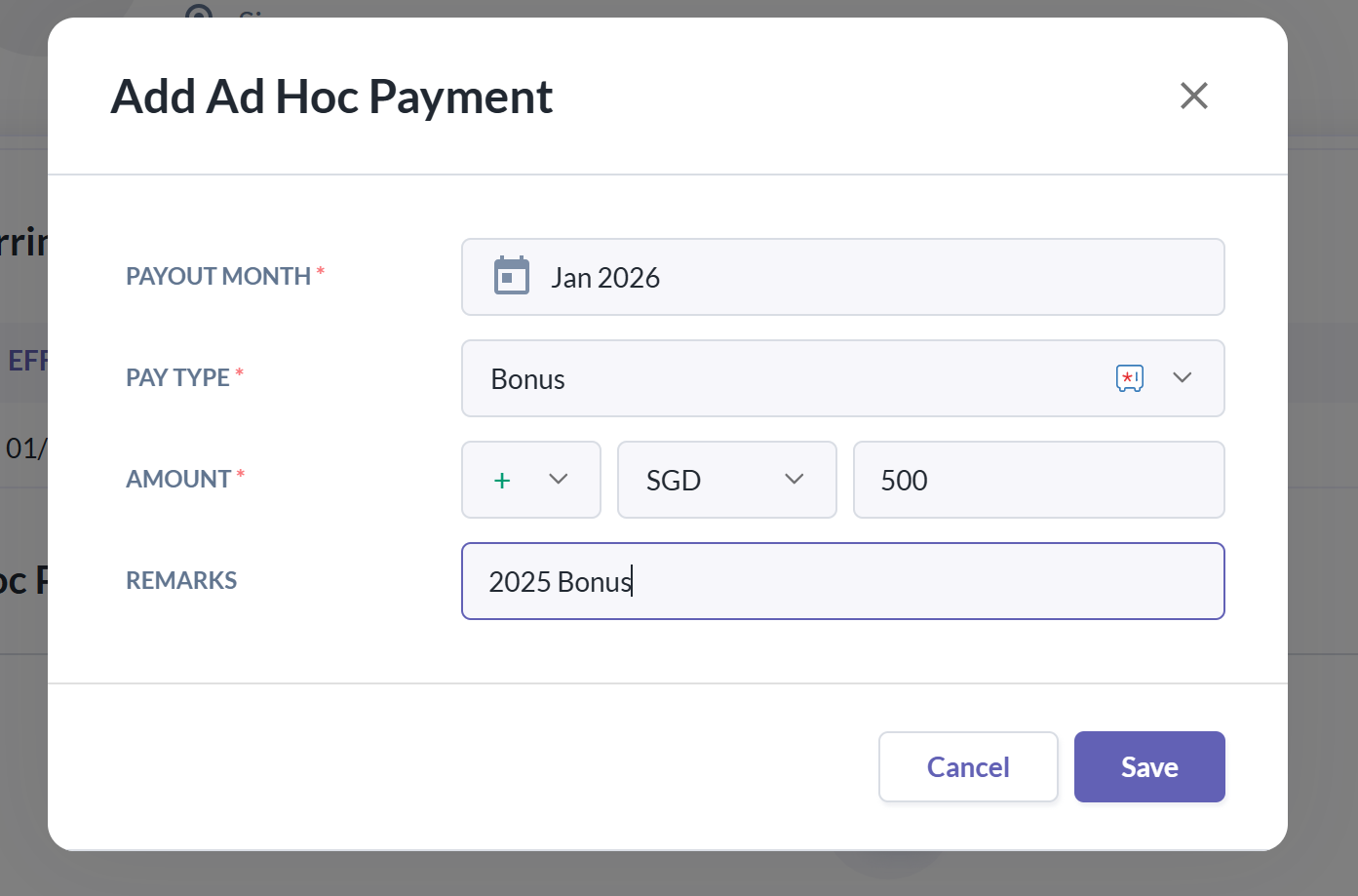
Payout Month (the payroll month the payment should be processed)
Pay Type
Amount
Remarks (optional)
Click Save
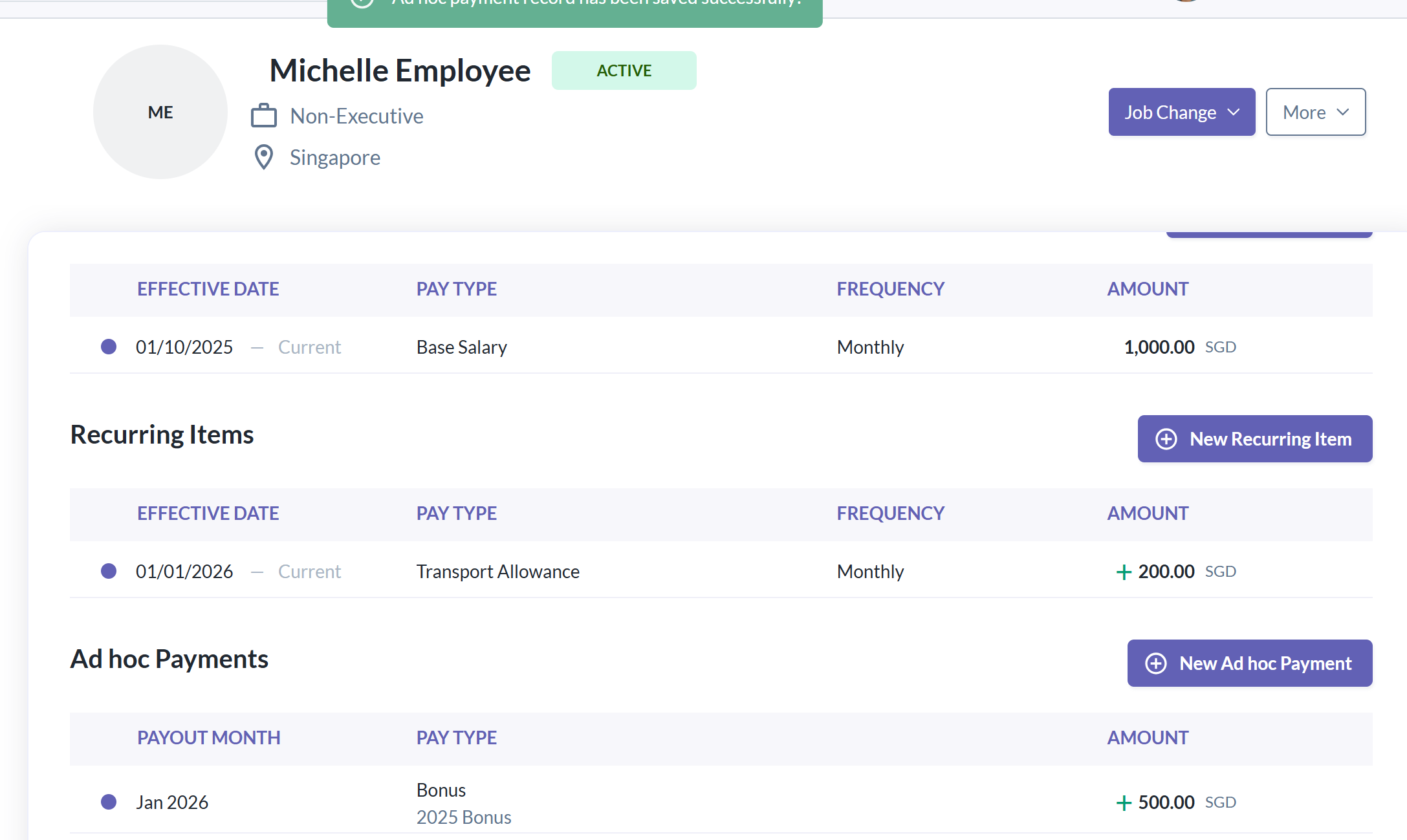
Viewing Added Pay Items
After saving, you will be able to see:
The newly added Recurring Items, and/or
The newly added Ad Hoc Payments
under the employee’s Payroll section.
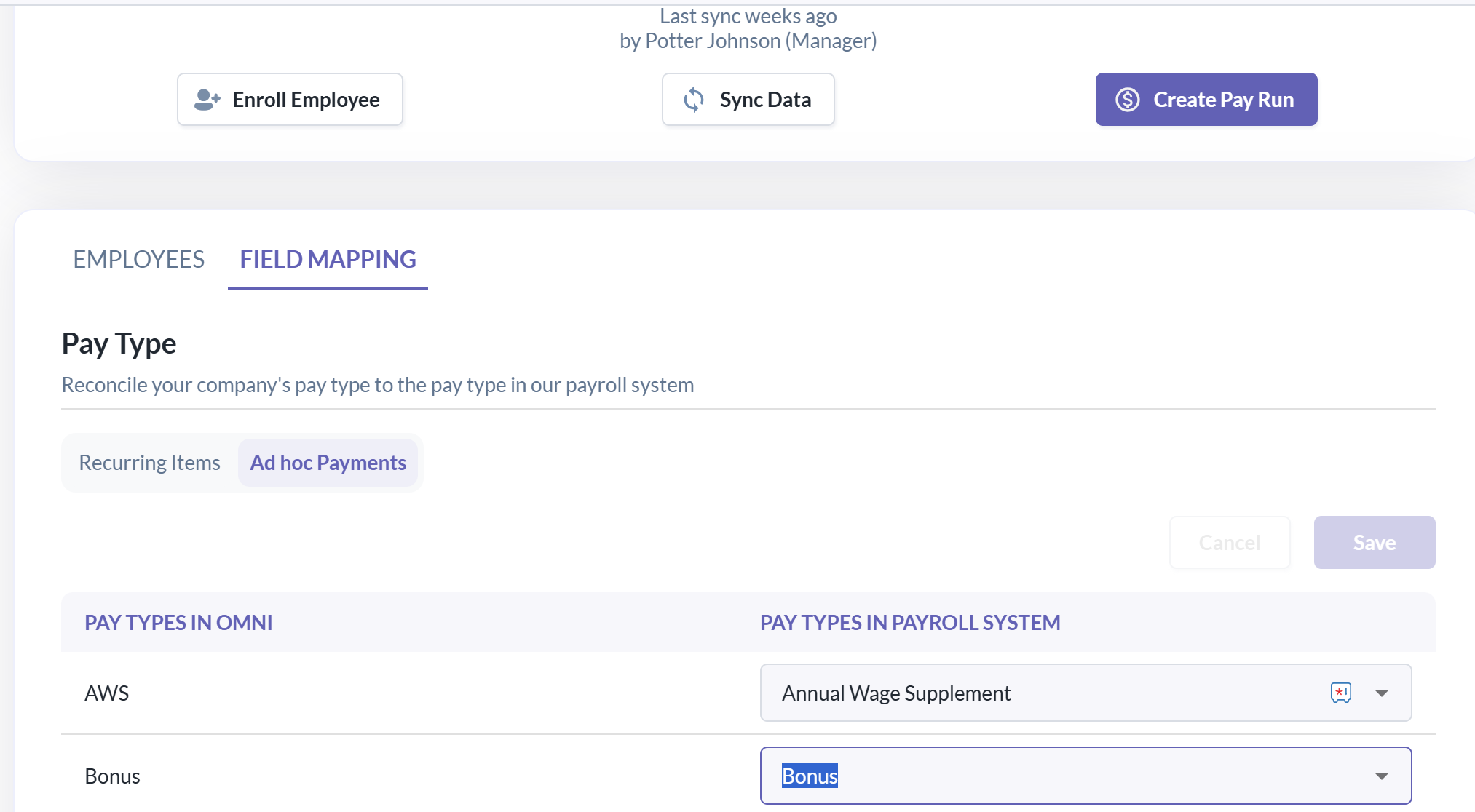
Important: Pay Run Mapping
Once a new pay type or pay item has been created (either recurring or ad hoc), you will need to map the new pay item/pay type during pay run creation to ensure it is reflected correctly in payroll calculations and reports.
Still Need Help?:
Reach out to our support team should you need further assistance.
Was this article helpful?
That’s Great!
Thank you for your feedback
Sorry! We couldn't be helpful
Thank you for your feedback
Feedback sent
We appreciate your effort and will try to fix the article