Overview:
This article explains how to create goals and sub-goals in Performance+ to structure, track, and align objectives effectively.
TABLE OF CONTENTS
- Step 1: Navigate to Goal Setting
- Step 2: Setting goals
- Step 3: Setting sub-goals
- Step 4: Submitting goals
Step 1: Navigate to Goal Setting
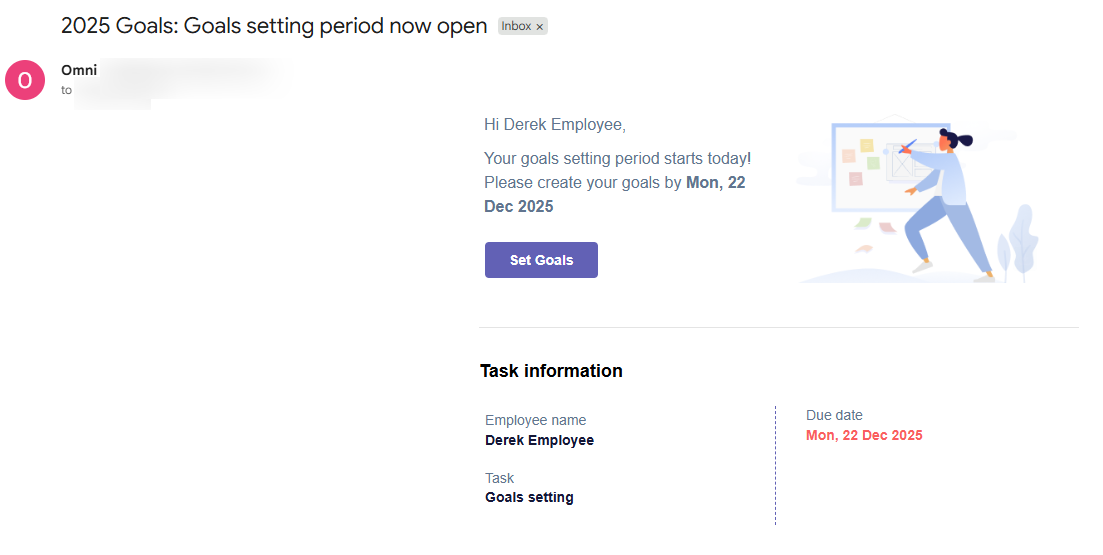
- When the goal setting period launches, participants will receive an email notification notifying them that the goal setting period is now open and they can set their goals.
- They can either:
- Click on the Set Goals button in the email
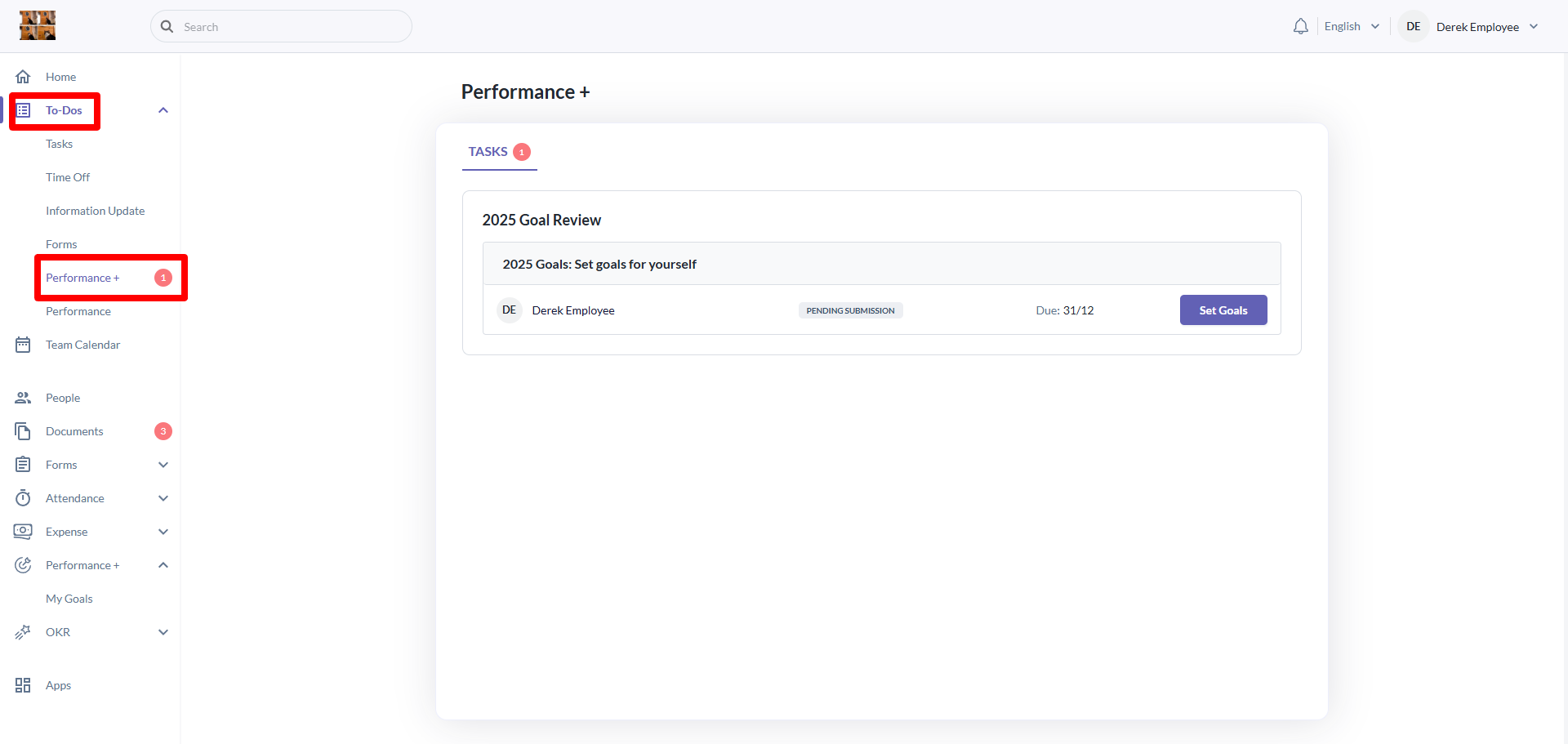
- Navigate to To-Dos > Performance+ > Tasks to do their goal setting.
Step 2: Setting goals
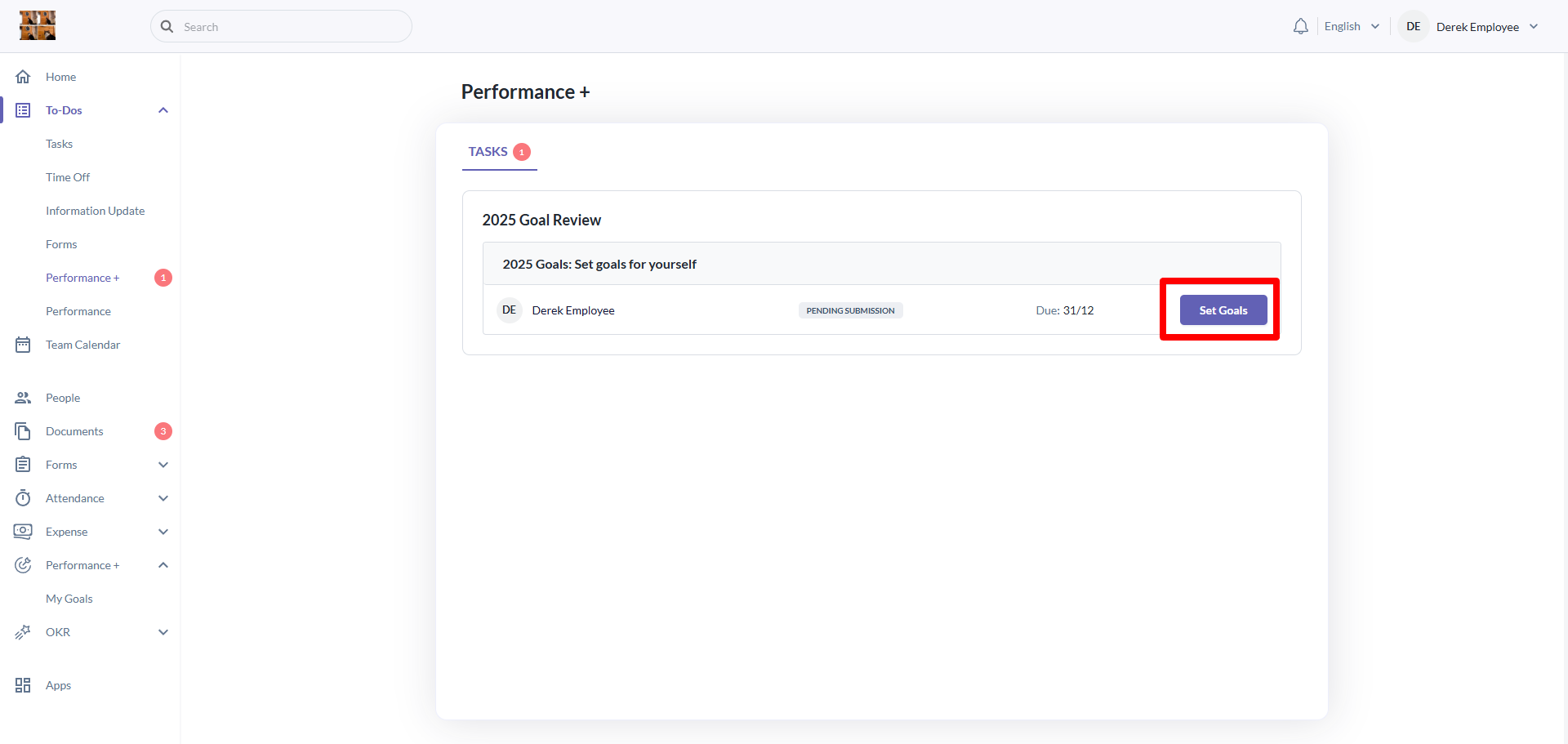
- Click on the Set Goals button
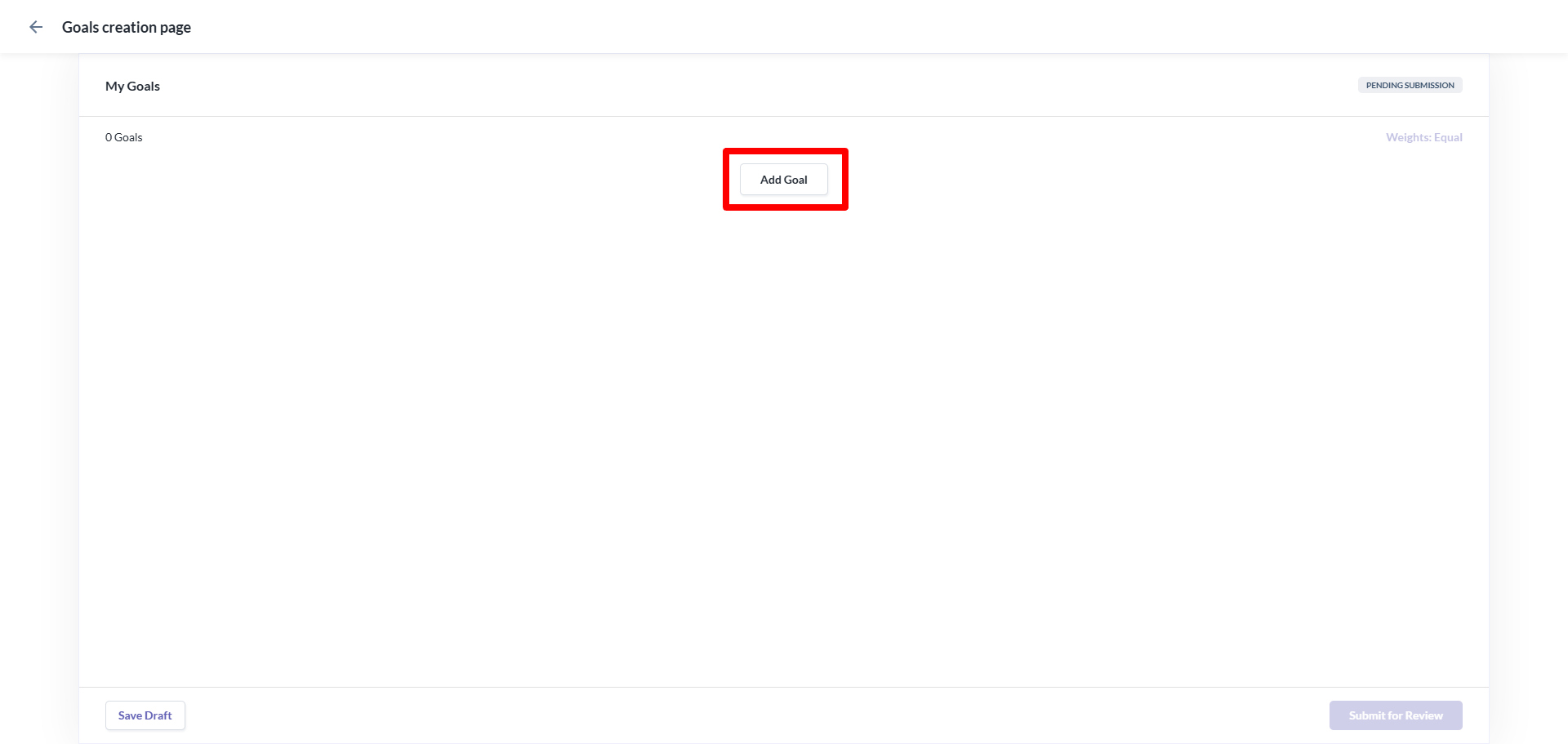
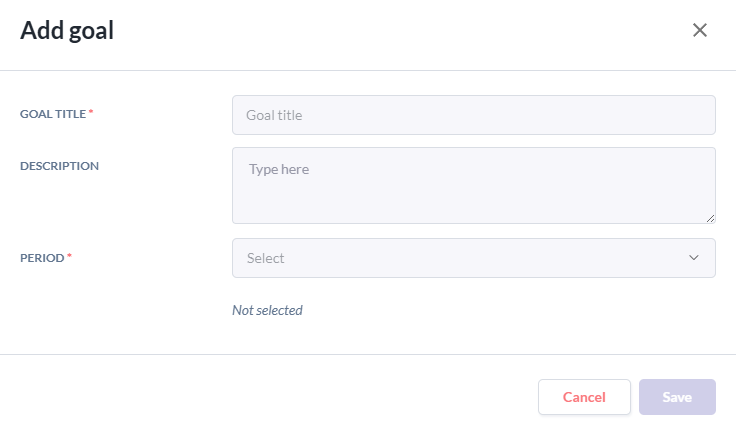
- Click on the Add Goal button. Fill the popup accordingly.
Step 3: Setting sub-goals
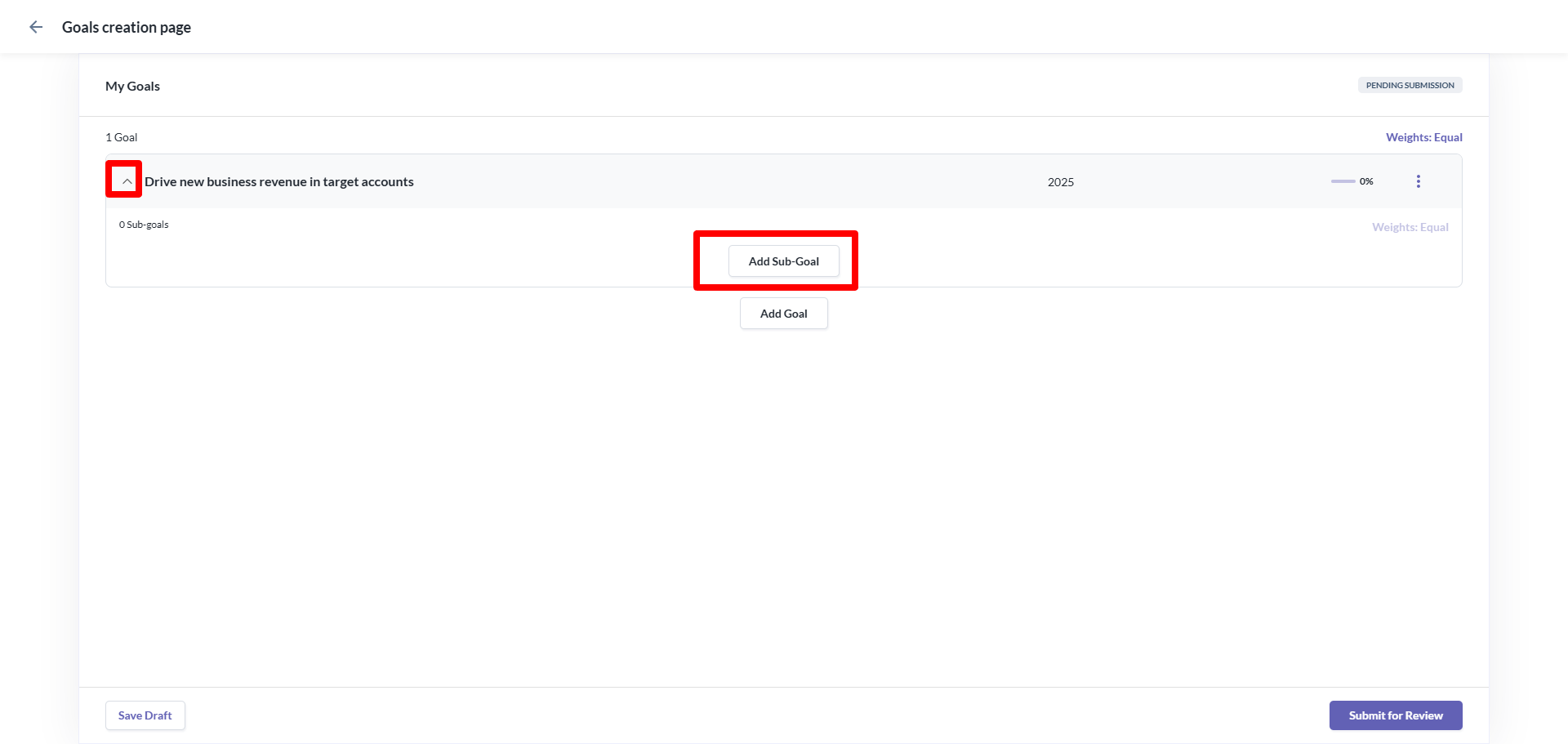
- Click on the arrow button on the left side of the screen as shown in the screenshot
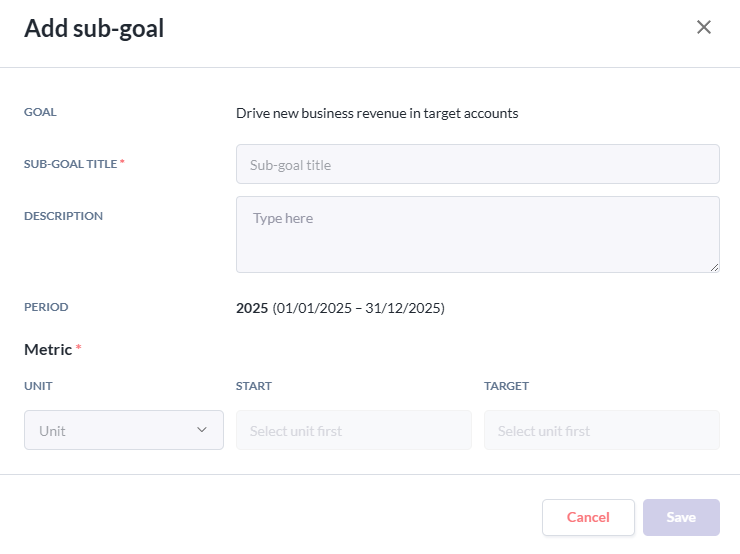
- Click on the Add Sub-Goal button. Fill the popup accordingly.
Step 4: Submitting goals
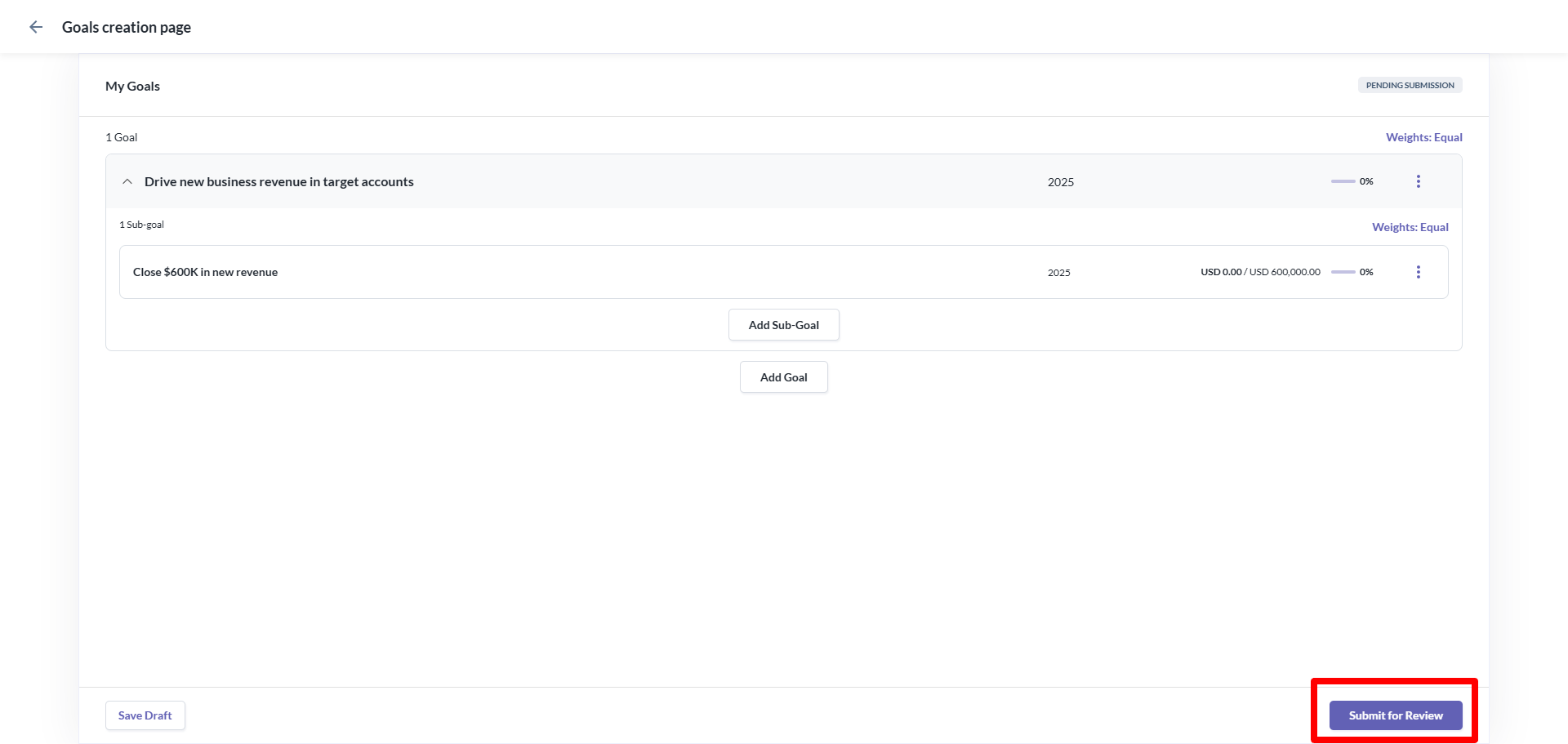
- Once you are done setting your goals and sub-goals, click on the Submit for Review button to submit.
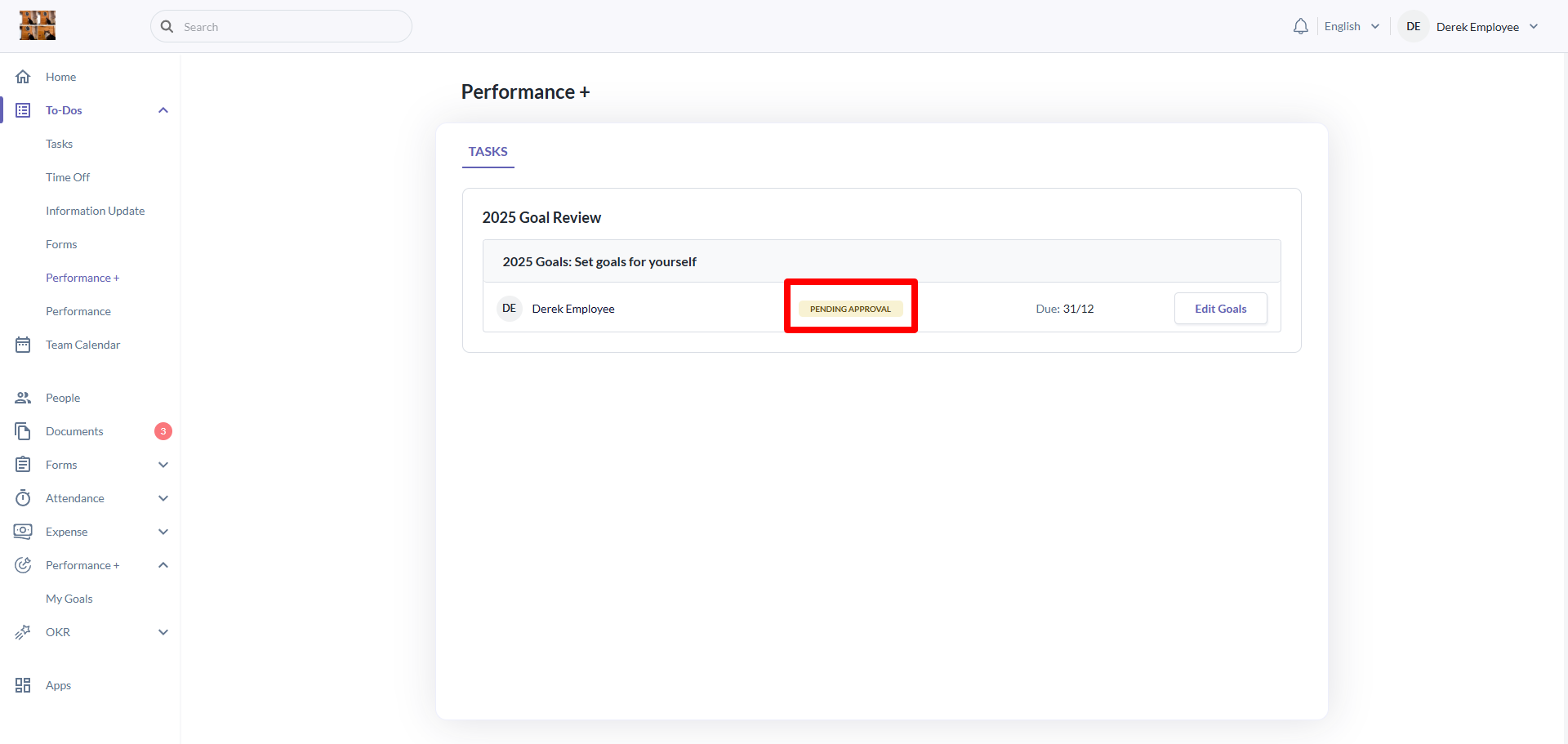
- The status of the goal setting task will now change to Pending Approval
Still Need Help?:
Reach out to our support team should you need further assistance.
Was this article helpful?
That’s Great!
Thank you for your feedback
Sorry! We couldn't be helpful
Thank you for your feedback
Feedback sent
We appreciate your effort and will try to fix the article