Overview:
If you wish to edit and update the weightage of goals & sub-goals you have created, you will be able to do so. You can either configure the weightage to be equal or have a custom weightage setting.
This guide aims to show you the steps to take to manage the weightage of goals & sub-goals.
TABLE OF CONTENTS
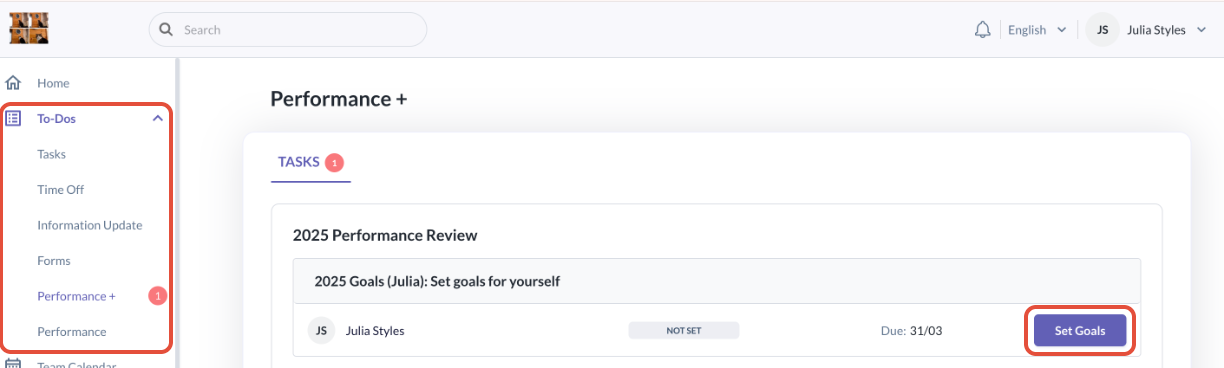
- Step 1: Go to To Do > Performance+ > Tasks
- Step 2: Click on Set Goals or Edit Goals
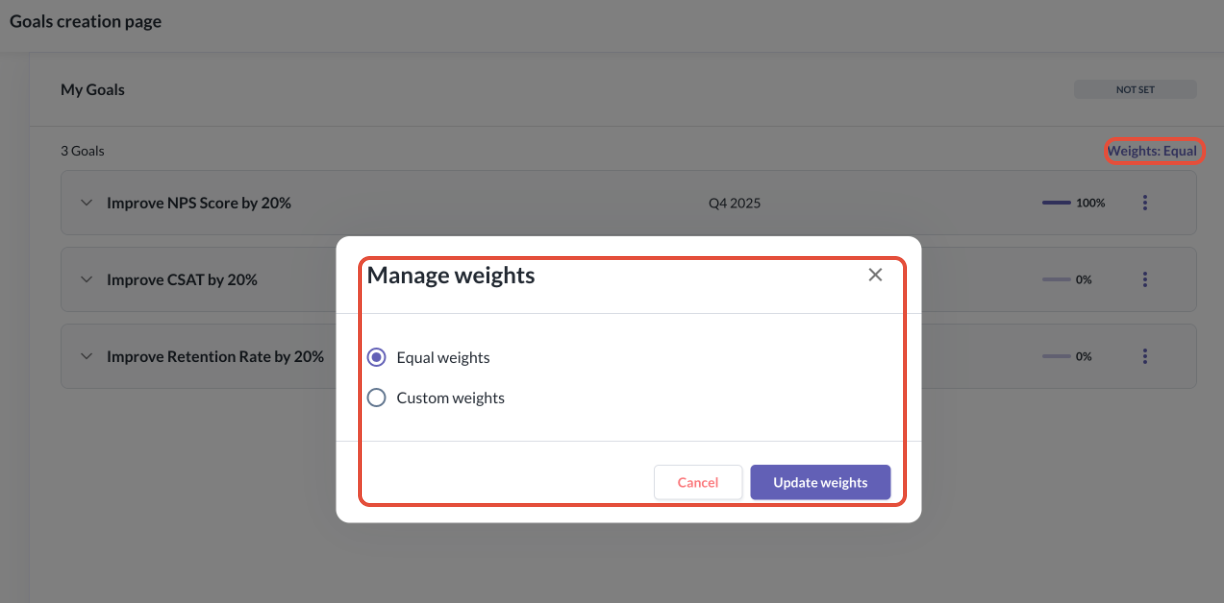
- Step 3: Click on Weights: Equal to pull up the Manage Weightage pop-up
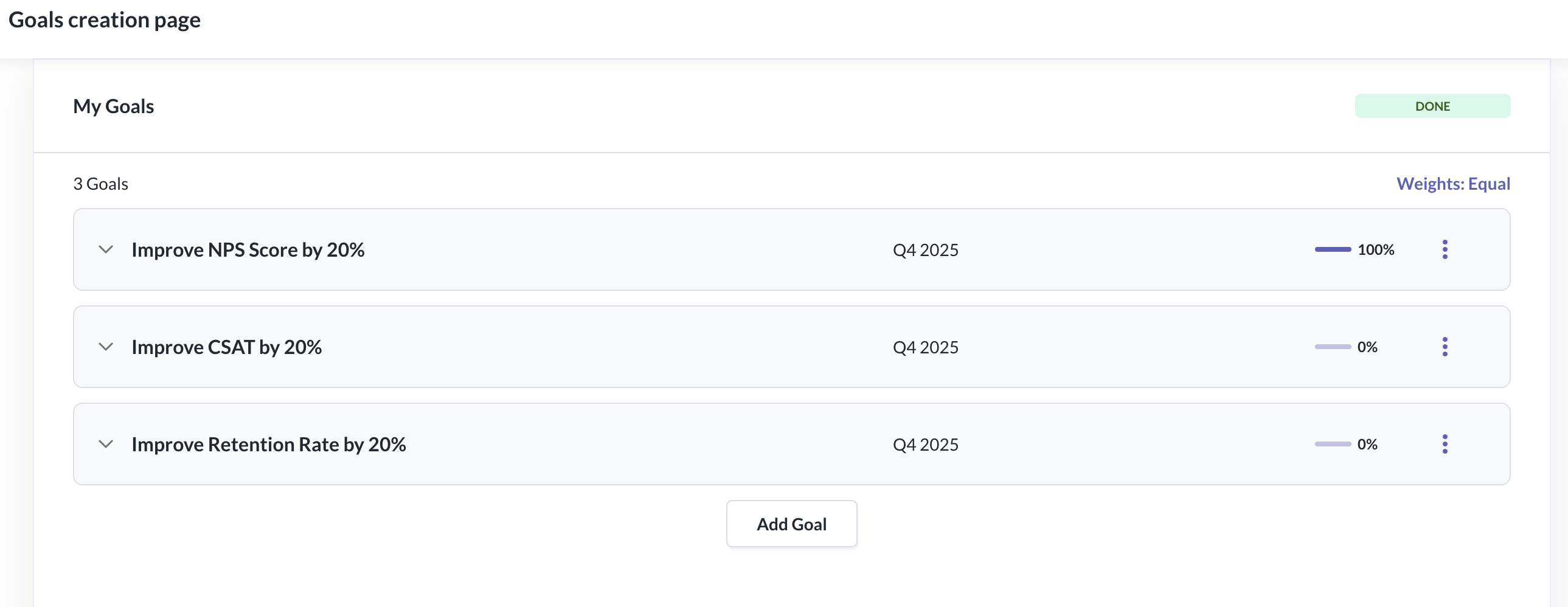
- Step 4: Set Equal Weightage
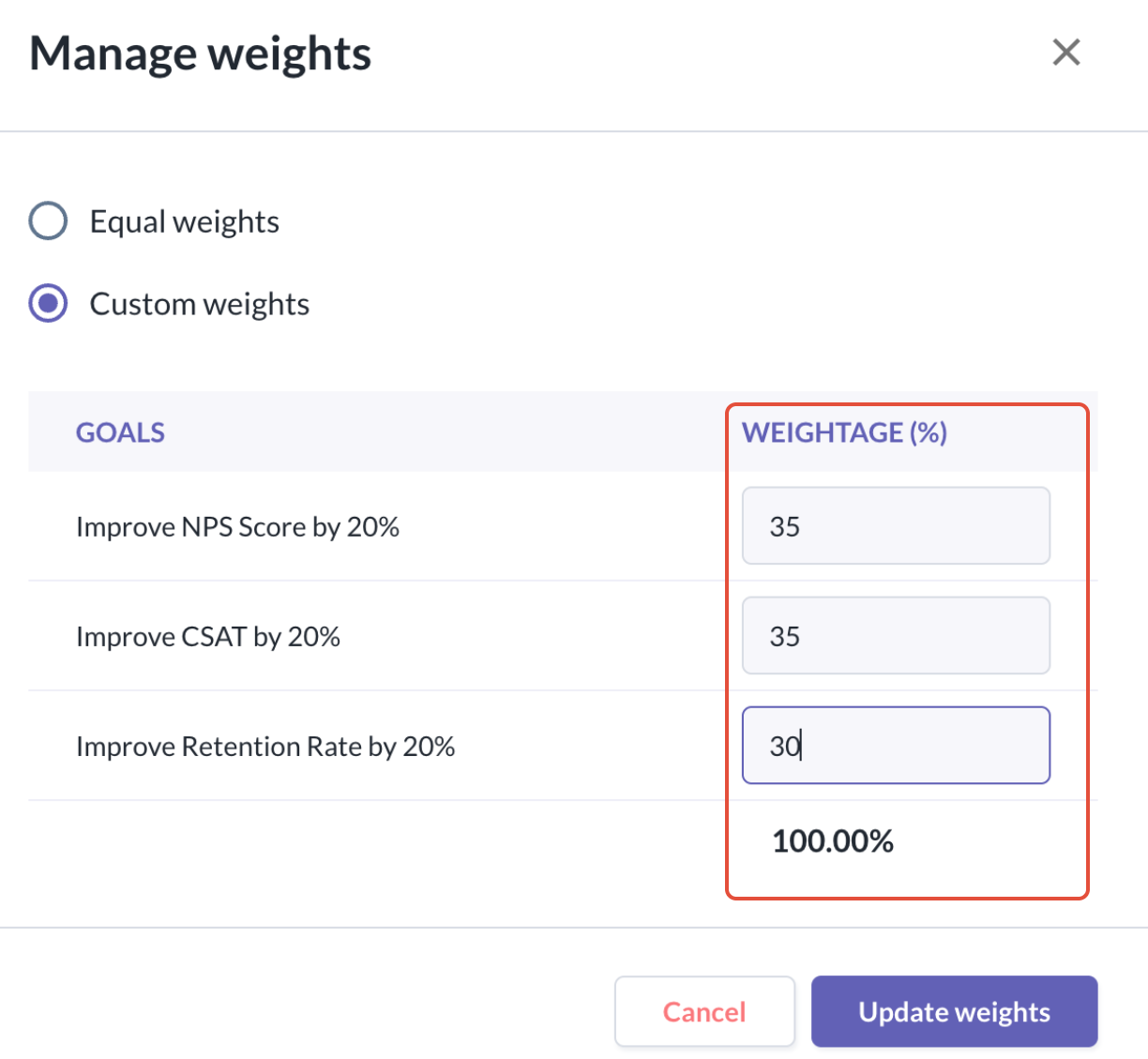
- Step 5: Set Custom Weightage
Step 1: Go to To Do > Performance+ > Tasks
Step 2: Click on Set Goals or Edit Goals
Step 3: Click on Weights: Equal to pull up the Manage Weightage pop-up
Step 4: Set Equal Weightage
- When weightage is set to equal:
- Weights will be distributed equally among the goals & sub-goals
- If any goals or sub-goals are added or removed, the system will auto-distribute the weights again
Step 5: Set Custom Weightage
- When weightage is customise:
- The weights manually inputted for each goal or sub-goal needs to equal 100%. The system will not allow you to progress if this does not tally to 100%
- Click Update weights to confirm the configuration
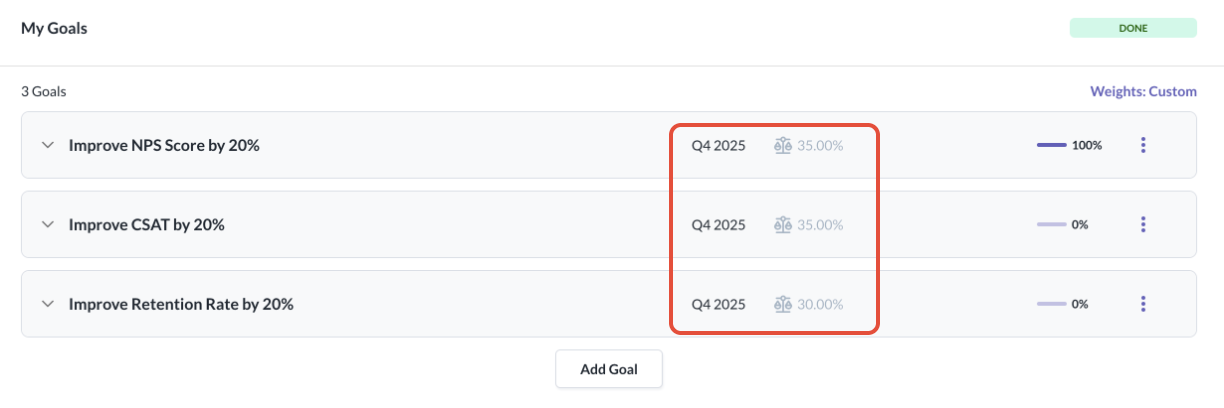
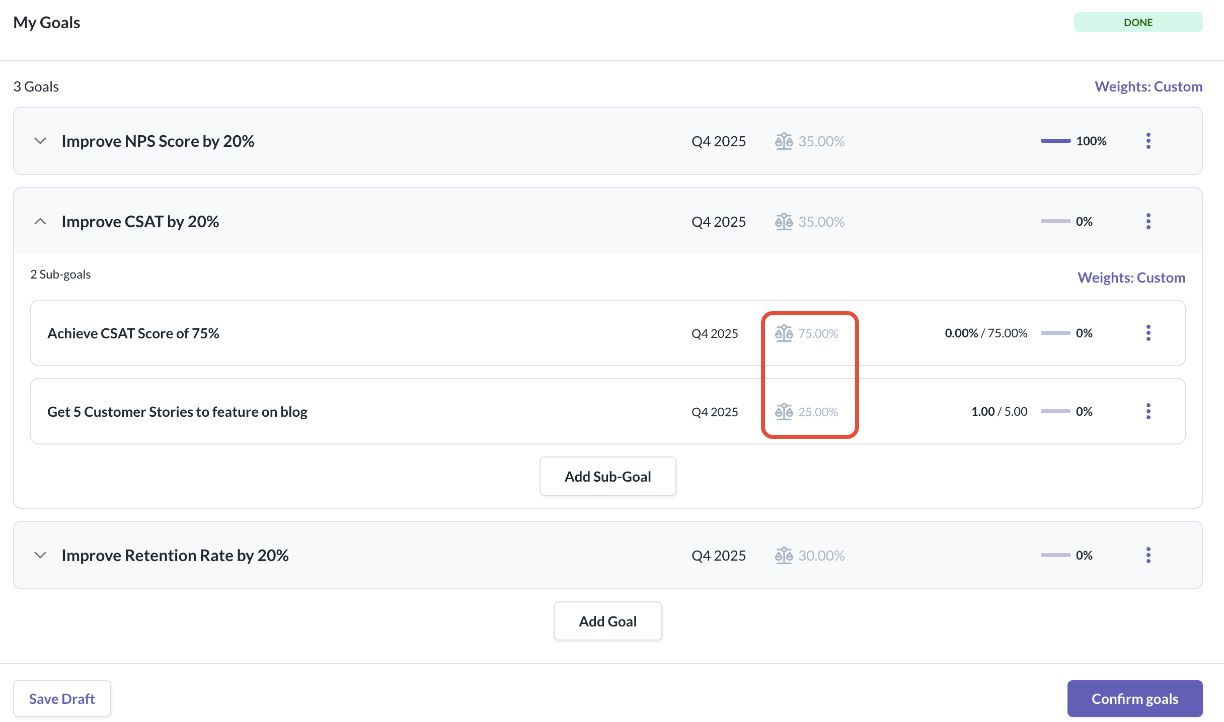
- Make sure to then click on Confirm Goals or Submit for Review after updating the weightage.
Still Need Help?
Reach out to our support team should you need further assistance.
Was this article helpful?
That’s Great!
Thank you for your feedback
Sorry! We couldn't be helpful
Thank you for your feedback
Feedback sent
We appreciate your effort and will try to fix the article