Overview:
This guide helps employees and managers understand how goal editing, revision, approval, and notifications work in Performance+ during a Goal Phase.
Depending on whether a Goal Phase requires manager approval, the experience and goal statuses will differ.
TABLE OF CONTENTS
Employee POV
Revising & Resubmitting Goals (with Approval Flow)
- Employees are allowed to revise goals even after they have been approved, as long as the Goal Setting Period is still open.
- To do that, employees can navigate to To-Dos > Performance+ > Edit Goals
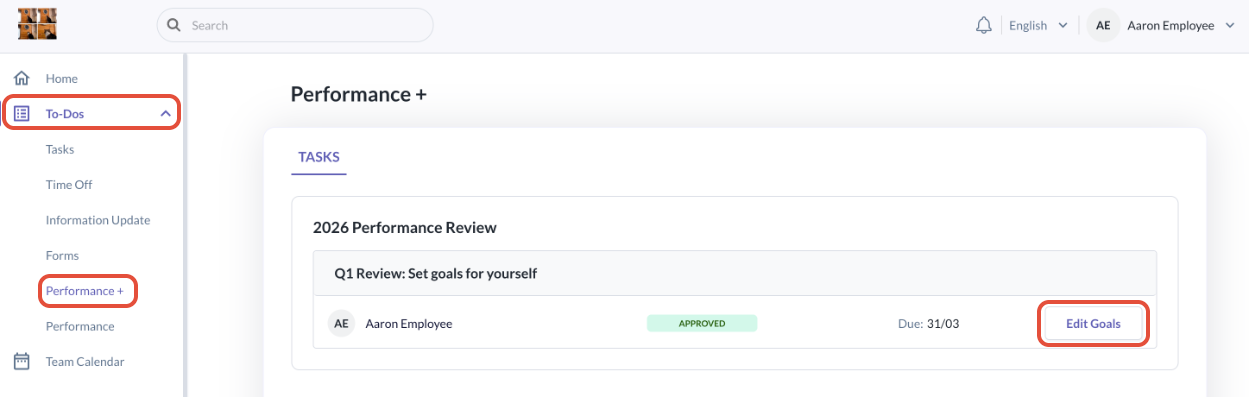
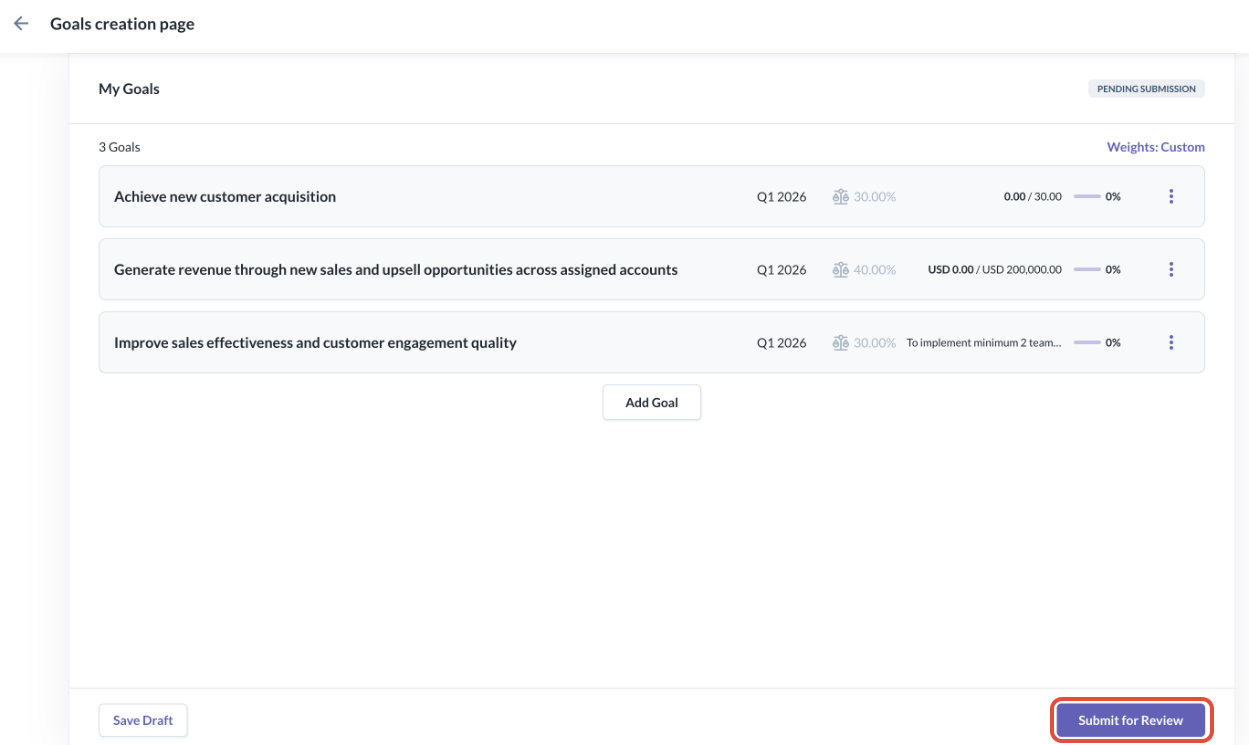
When employees edit a goal, subgoal or change the weightage, the goal status will reset the goal status to Pending Submission and employee must resubmit the goals for manager approval again
Once any edit has been made, the status has changed to Pending Submission in the below image. The employee will need to select the Submit for Review for the manager's approval
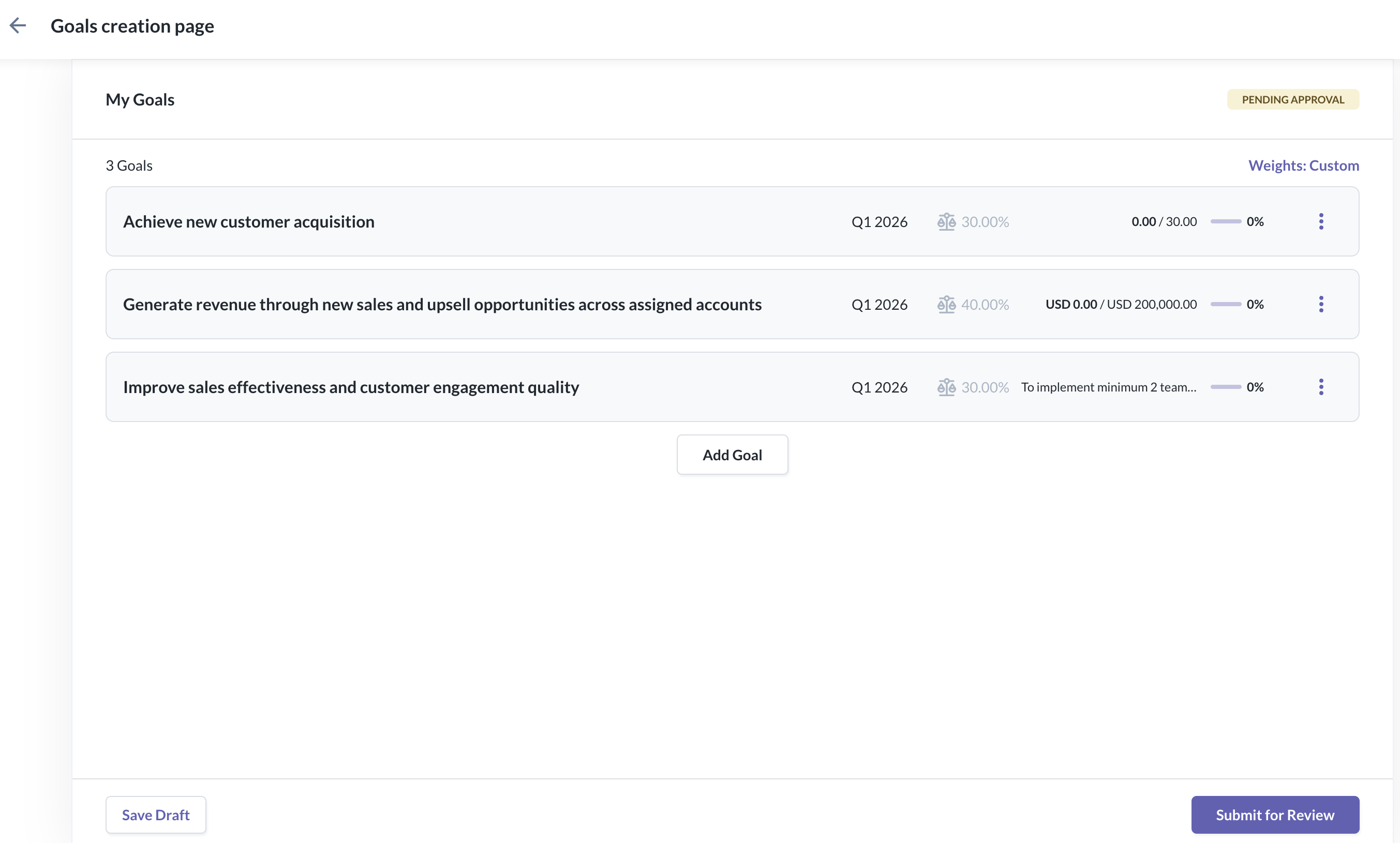
- The Goal status will revert to Pending Approval as below
Pending Revision of Goals (with Approval Flow)
If a manager sends goals back for revision:
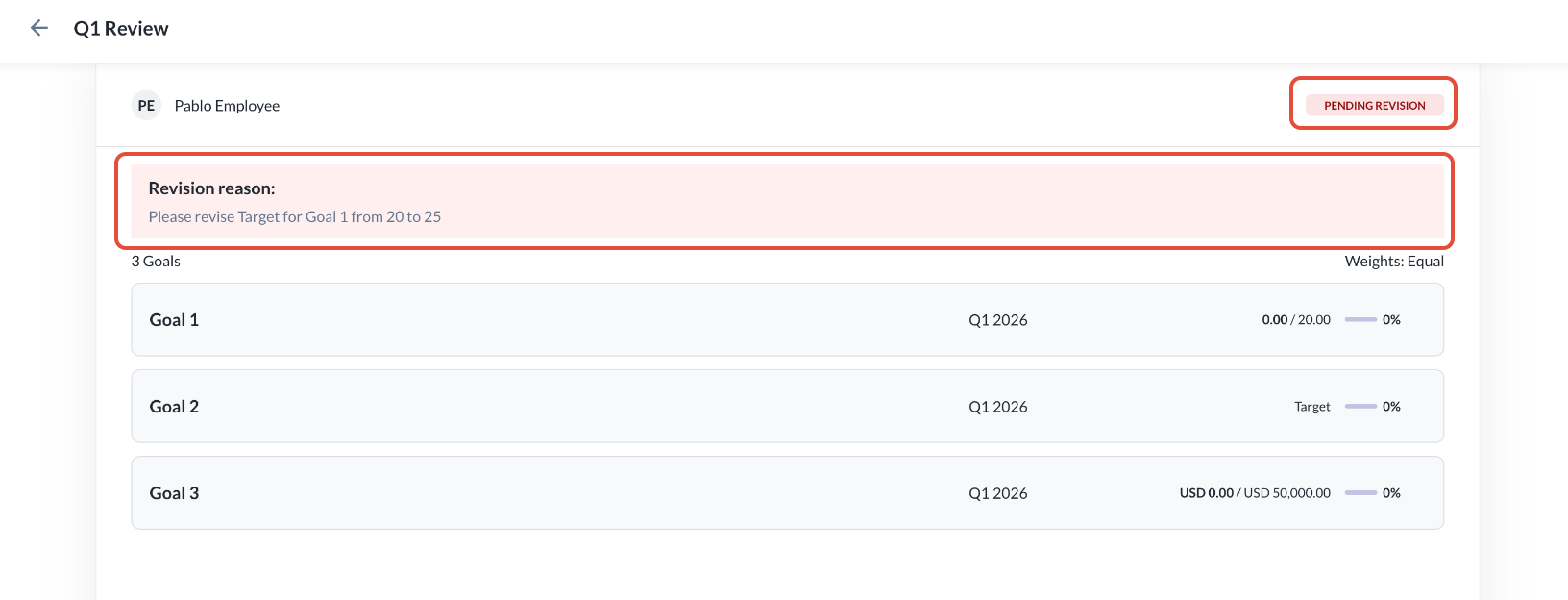
Status changes to Pending Revision
Employee will see the revision reason from the manager
Employee will need to update the goals and resubmit
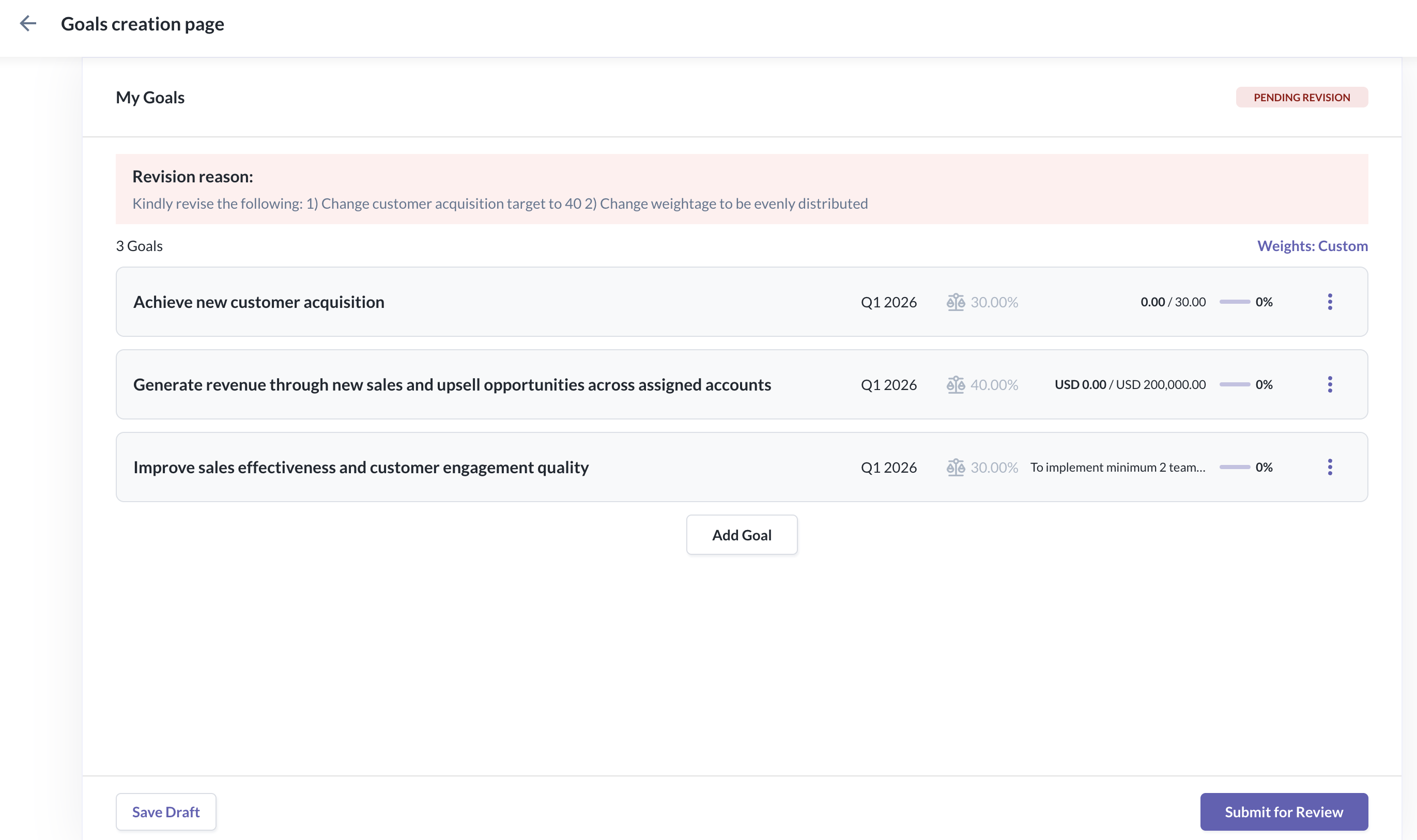
- Once the employee makes the revision to the Goals, the status will reset to Pending Submission. After the employee resubmits, the status will change Pending Approval.
- The revision reason will be visible while the Goal status is Pending Revision, Pending Submission and Pending Approval
- Once the Goal has been Approved, the revision reason will be hidden
Editing Goals (No Approval Flow)
When approval flow is disabled, goal editing is simpler and does not require manager approval.
Edits that Do Not reset goal status:
Editing goals
Editing sub-goals
Editing weightage
Actions that Do reset goal status from Done to Not Set:
Deleting a goal or sub-goal in Custom Weight mode
Deleting all sub-goals under a parent goal in two-level goal mode, causing the parent goal to have no sub-goals
Employees will need to reconfirm their goals
Manager POV
Reviewing Employee Goals (With Approval Flow)
- Upon clicking Review Goals for a direct report, Managers will land on the Goal Review Page
- They will be able to see:
- Status Tag (Pending Approval/Pending Revision/Approved)
- Weightage (Equal/Cucstom)
- List of Goals (read only)
- Lock options depending on the status of the goal
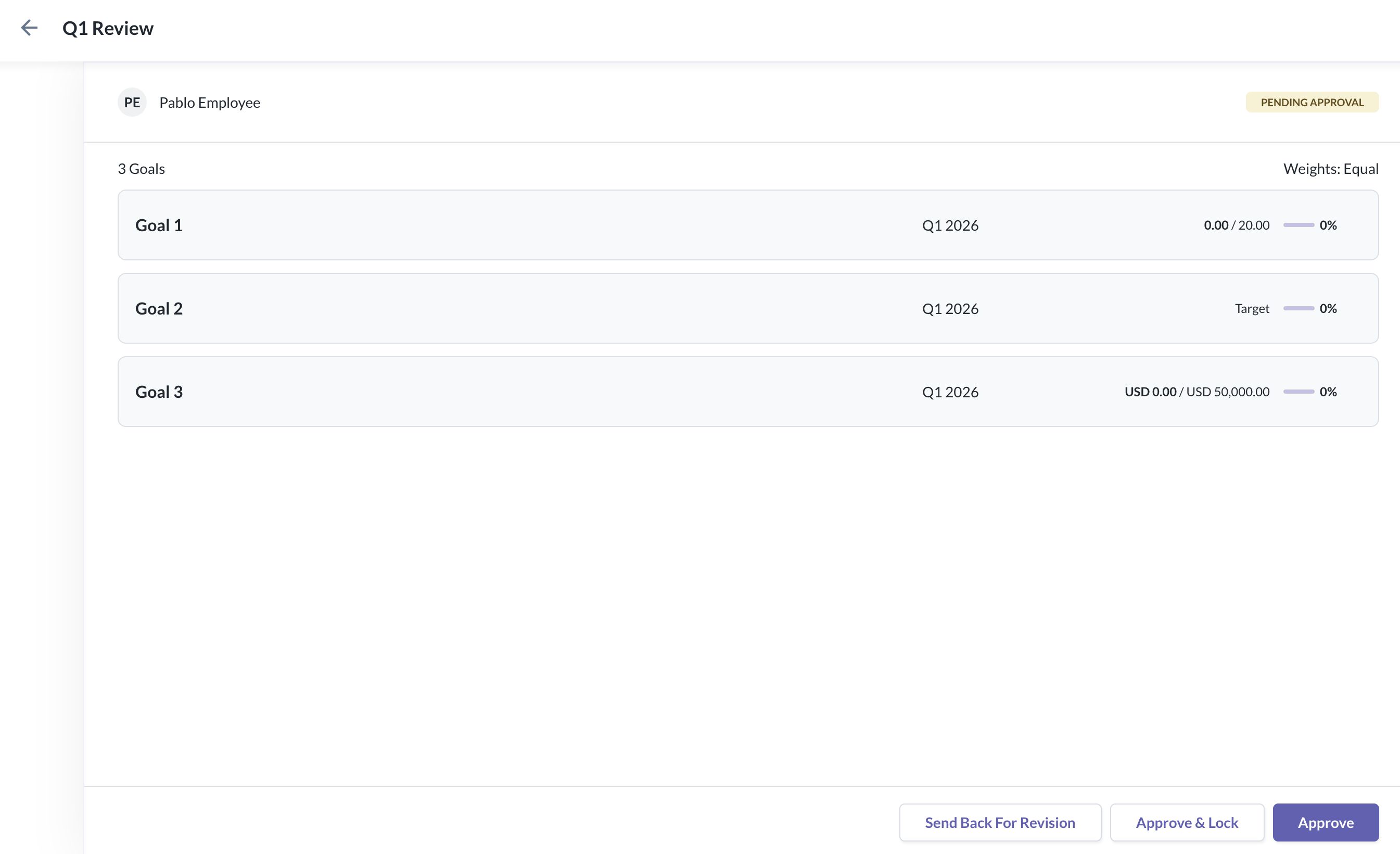
Pending Approval - Manager Actions (With Approval Flow)
- Once the Employee submits their goals, the status will appear as Pending Approval
- Under the Goal Review Page, these are the actions the Manager will be able to perform:

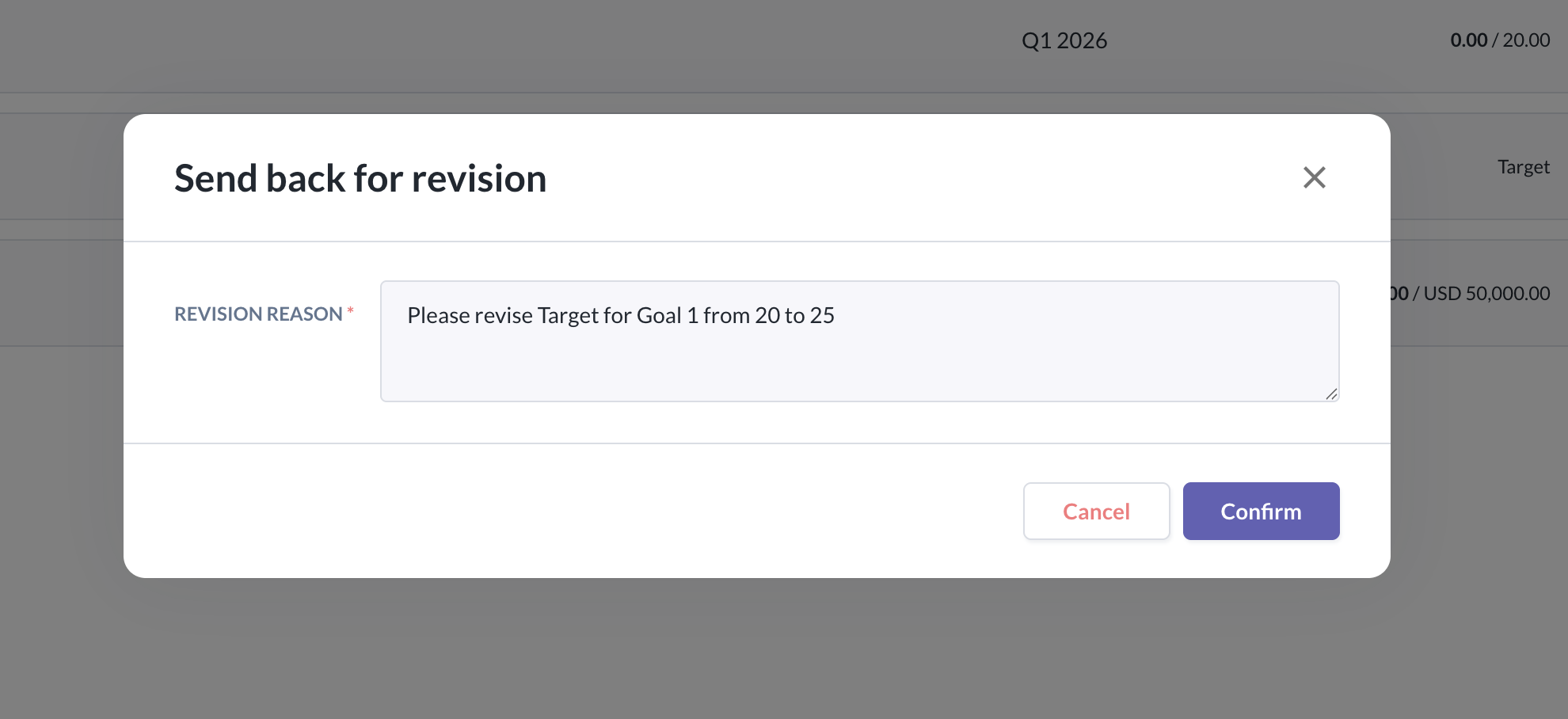
- If the Manager would like to Send Back for Revision, they must enter a Revision message and can click Confirm
- The status will change to Pending Revision and the Manager will be able to view the sent Revision Reason which is highlighted at the top of the Employee's Goal
- Employee's will receive a To-Do notification for Performance+ and will need to revise and resubmit to the Manager
Approve (With Approval)
- Once the Manager approves the Employee Goals, under the Goal Review Page the status will be shown at the top right and the only action the Manager can do is to Lock
- Manager can also choose to Not Lock or Lock the Goals later
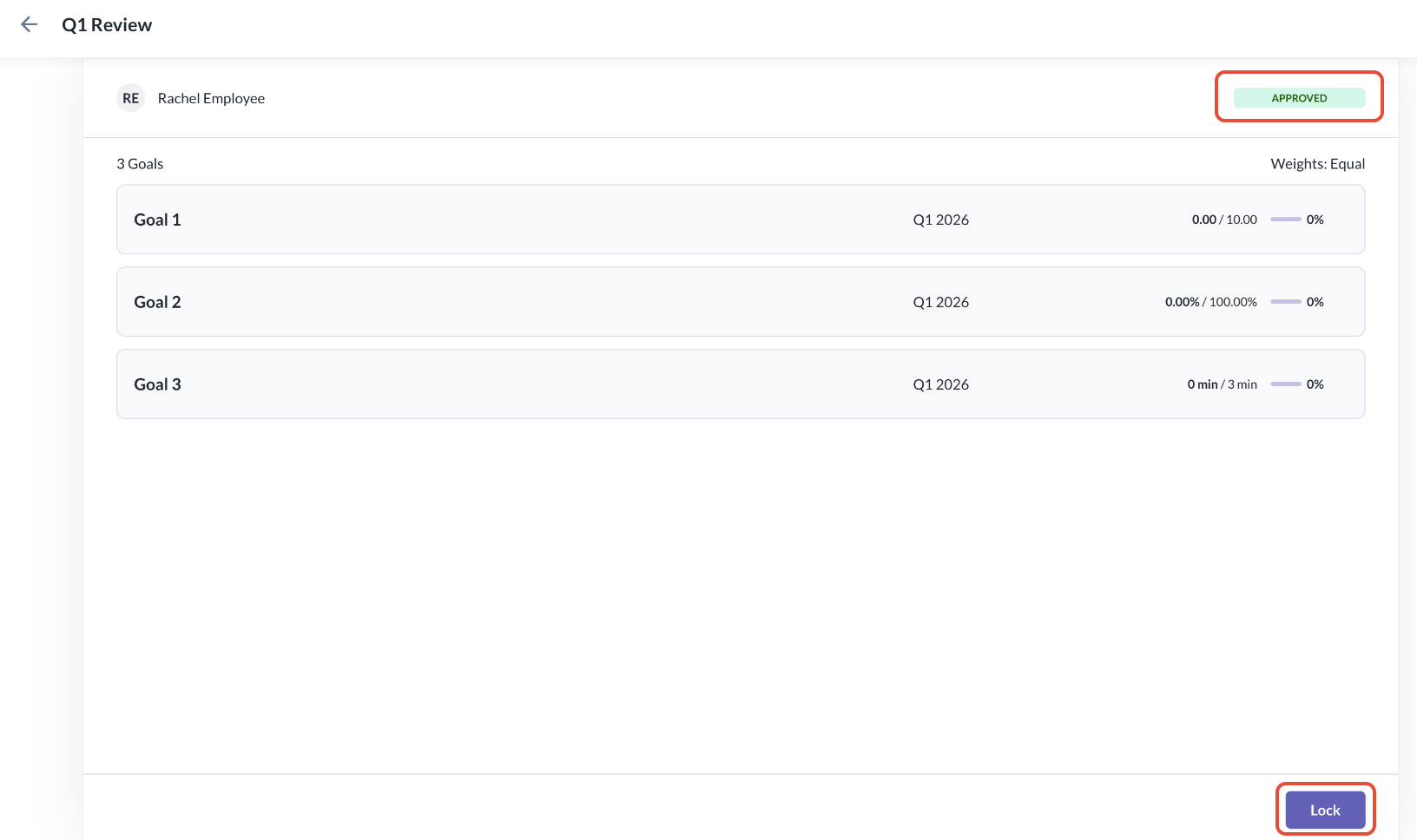
Approve & Lock (With Approval)
- If the Manager clicks Lock on the Employee's Goal, it will immediately lock and the Lock icon will also appear beside the Goal status
- Manager's can choose to Unlock and Re-lock the Goal anytime until the Goal Phase ends
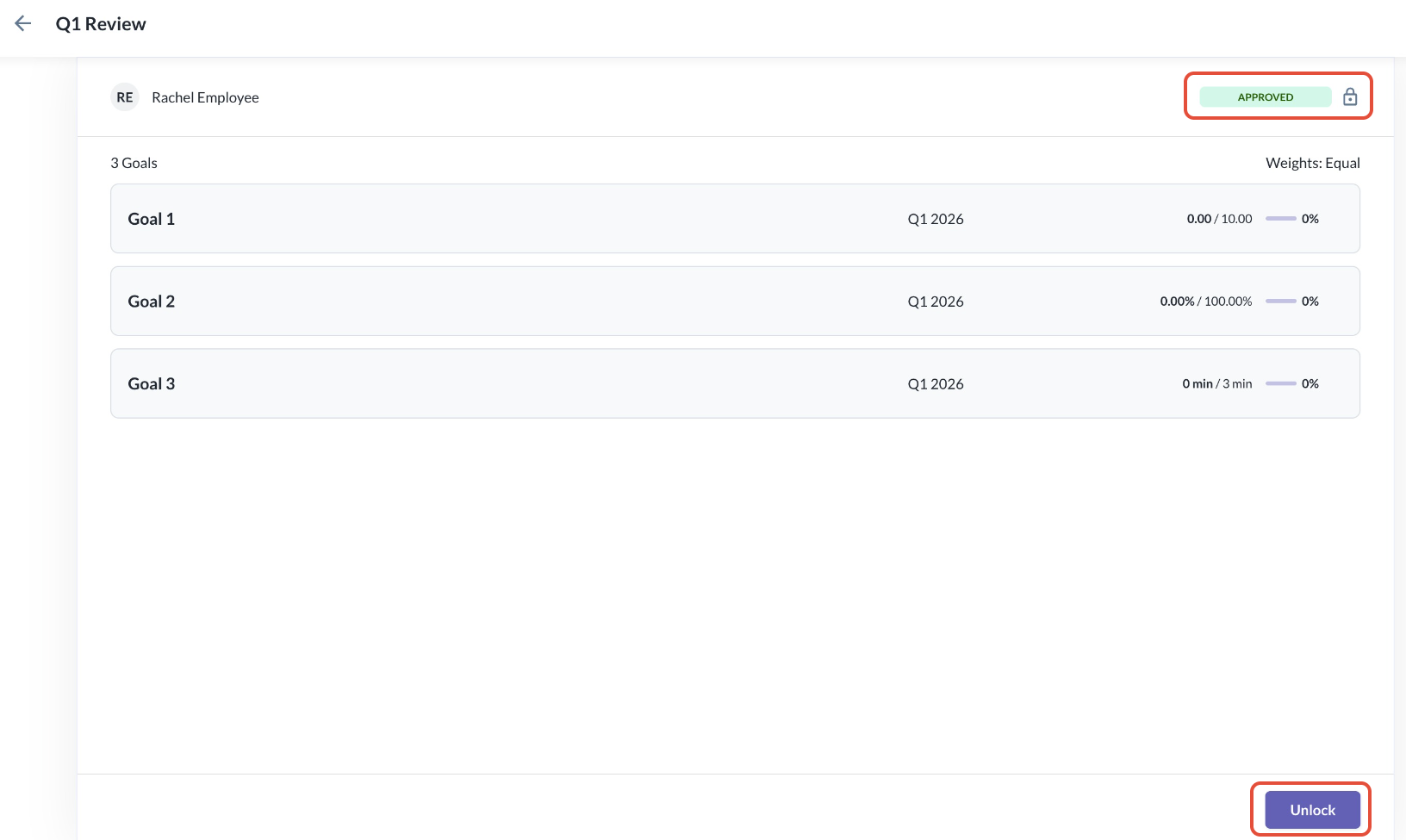
- If Manager's click Unlock, Employee's regain permission to edit their Goals
- Locking & Unlocking does not change the Goal status but only controls the edit permission for the Employee
Notifications of Revisions to Employees
Employees receive notifications whenever a manager takes action on their submitted Goals
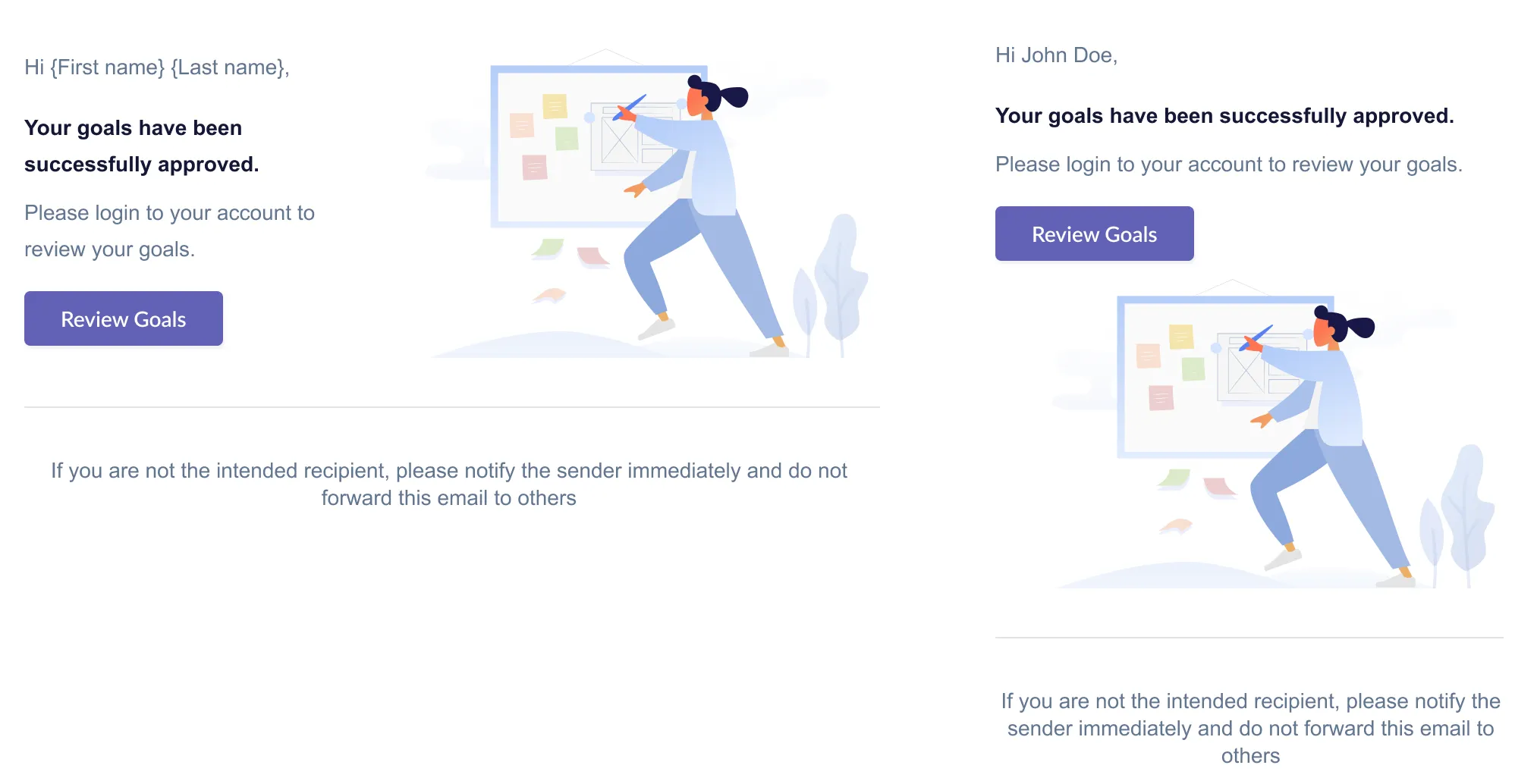
When Goals are Approved
- Trigger: Manager clicks Approve or Approve & Lock
- Only Employees will receive a notification as below. Managers will NOT receive this Notification
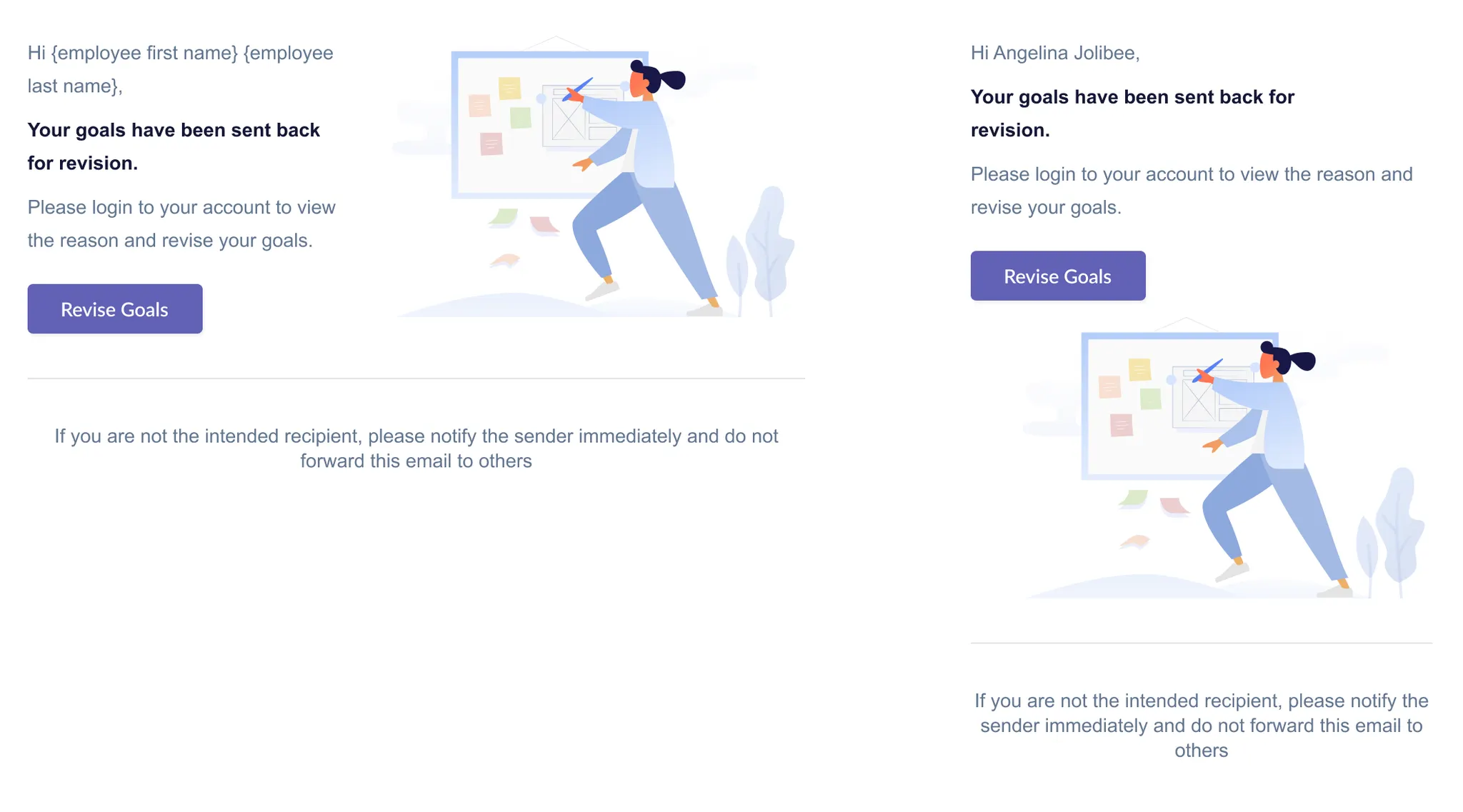
When Goals are Sent Back for Revision
- Trigger: Manager clicks Send Back for Revision and submits comments
- Only Employees will receive a notification as below. Managers will NOT receive this Notification
Still Need Help?:
Reach out to our support team should you need further assistance.
Was this article helpful?
That’s Great!
Thank you for your feedback
Sorry! We couldn't be helpful
Thank you for your feedback
Feedback sent
We appreciate your effort and will try to fix the article