Overview:
Employees can update their progress on their goals & sub-goals via the My Goals tab.
This guide will show you the steps to do so whether there are 1-Level Goals or 2-Level Goals.
TABLE OF CONTENTS
- Step 1: Go to My Goals to view your goals
- Step 2: Click on the update progress icon on either the goal or sub-goal level
- Step 3: Update progress in the pop-up
- Step 4: View goal progress & update history
- Things to note:
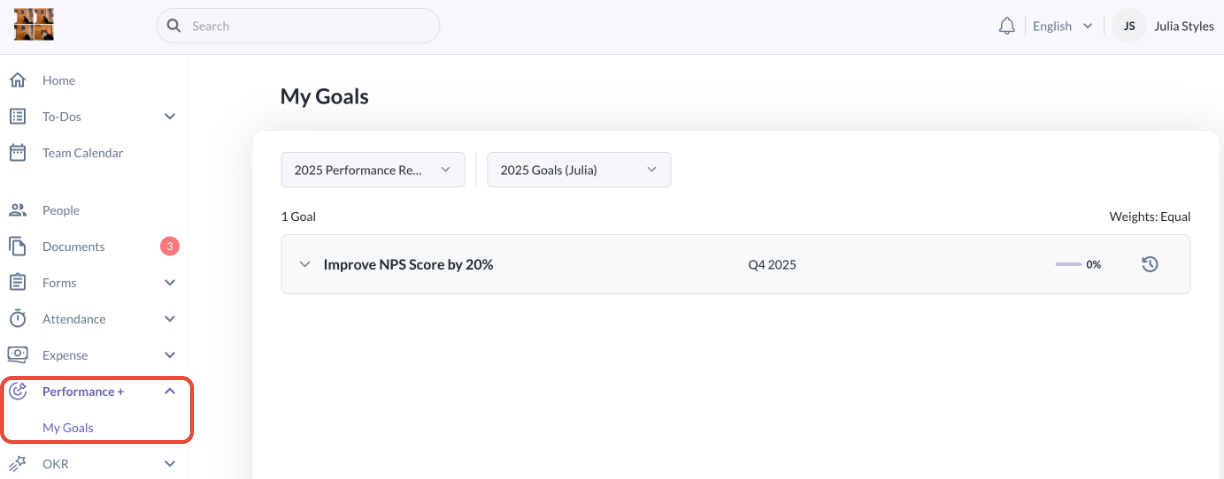
Step 1: Go to My Goals to view your goals
- Go to Performance+ > My Goals
Step 2: Click on the update progress icon on either the goal or sub-goal level
- Julia has a 2-Level goal, thus, she will need to update her progress on the sub-goal level by clicking on the update progress icon next to the sub-goal.
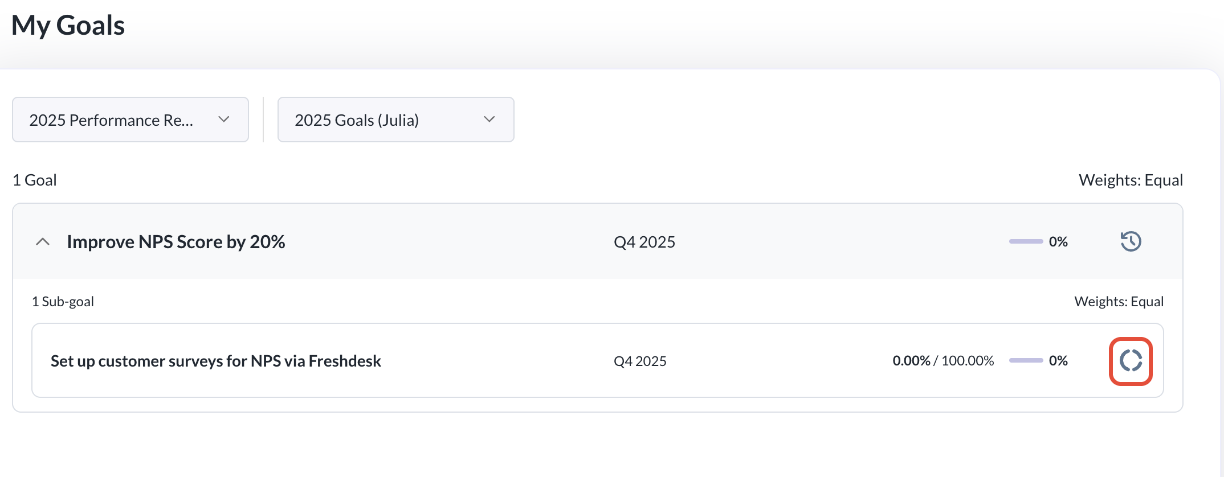
- If Julia has 1-Level goal, she will be updating the progress on the goal level, rather than the sub-goal level.
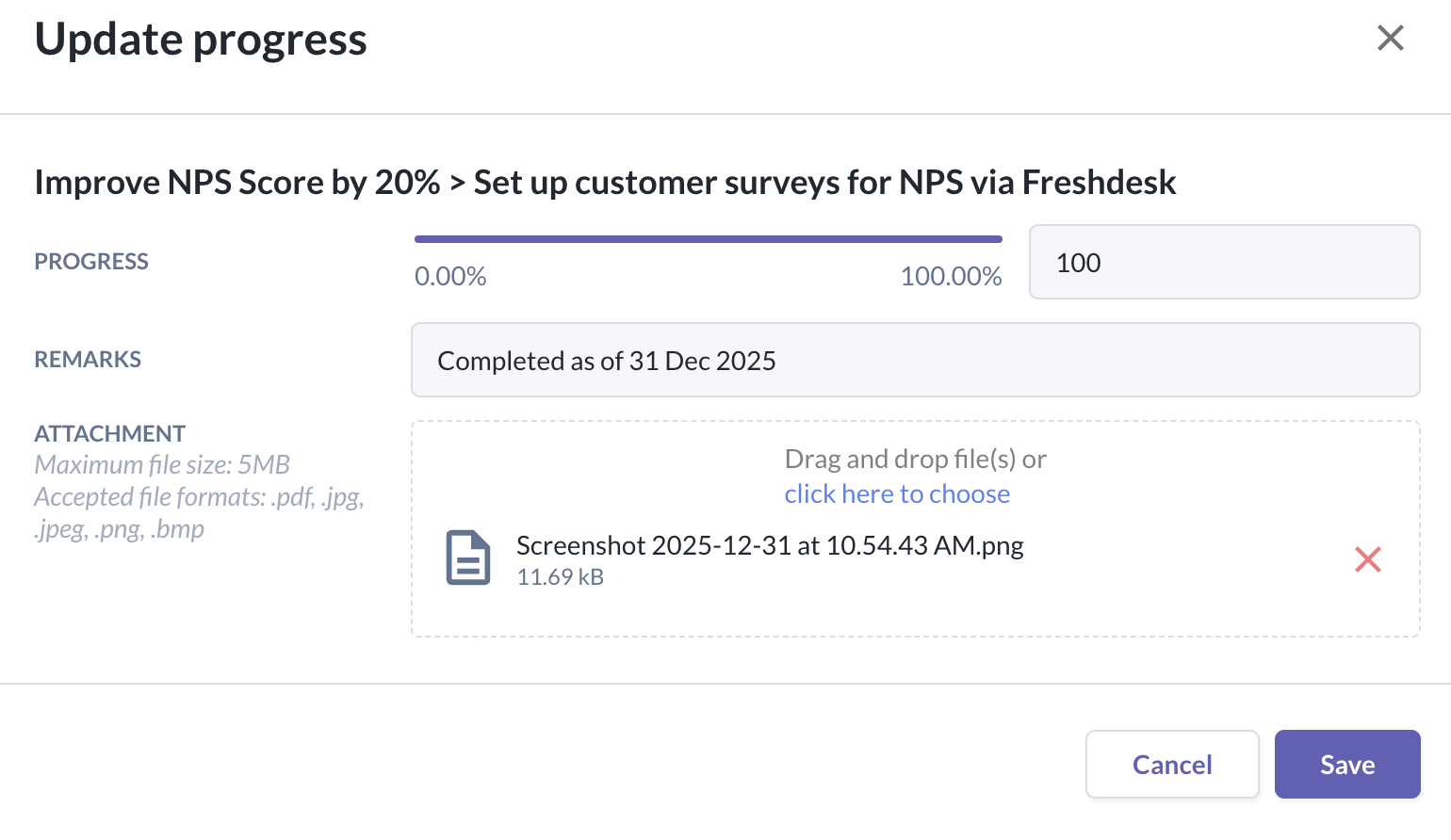
Step 3: Update progress in the pop-up
- To update the progress, fill in the fields such as the progress value, remarks & any attachments to support the update.
- Click Save once done
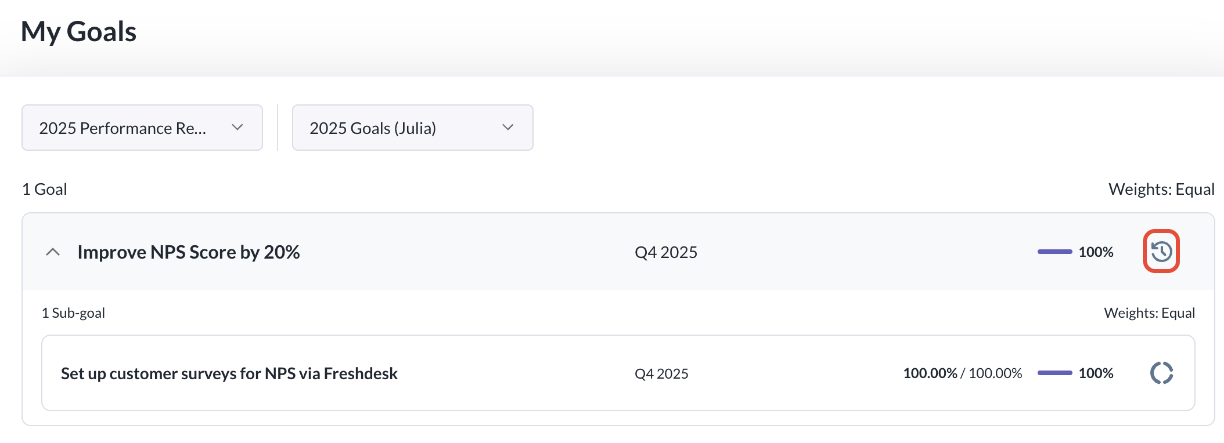
Step 4: View goal progress & update history
- In a 2-Level goal phase, when you update progress on the sub-level, the goal level progress will be auto calculated and displayed.
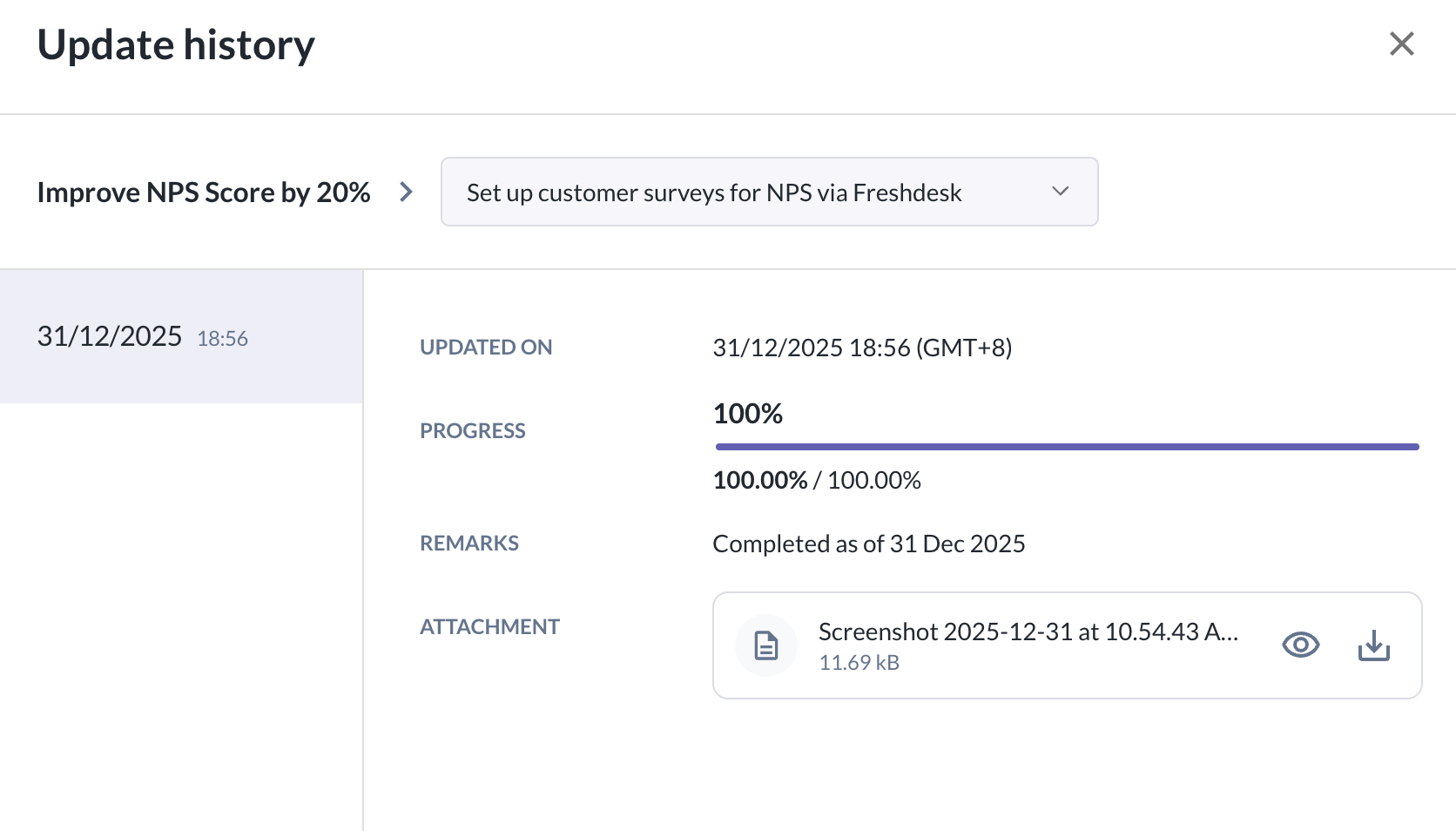
- You can click on the clock icon to view the history of all the progress updates done for the particular goal & sub-goal.
Things to note:
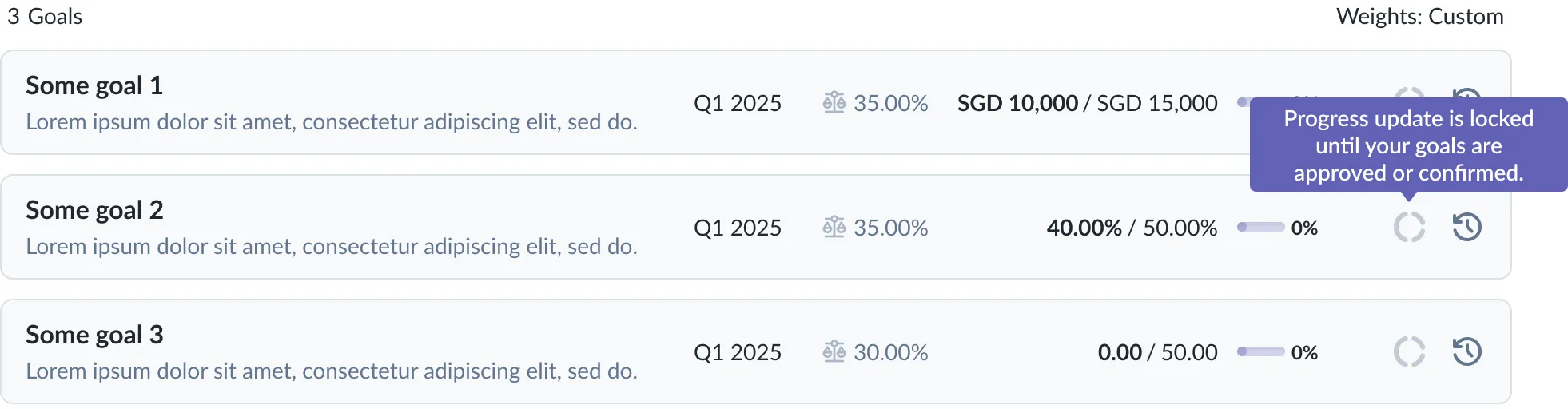
- Employees can only update progress for goals when they are confirmed by the employees or approved by managers
- If the goal status are: Not set, Pending submission, Pending approval, Pending revision, the Update progress action will not be available as shown below.
Still Need Help?:
Reach out to our support team should you need further assistance.
Was this article helpful?
That’s Great!
Thank you for your feedback
Sorry! We couldn't be helpful
Thank you for your feedback
Feedback sent
We appreciate your effort and will try to fix the article