Last Updated: January 12, 2026
Overview:
Admins can invite users to access Recruitment and assign the appropriate recruitment role. This controls what users can see and do within Recruitment.
TABLE OF CONTENTS
- Inviting a new user
- Updating a user’s recruitment role
- Removing a user’s access
- What happens after a user is invited
Inviting a new user
You can invite a user to access Recruitment from Settings.
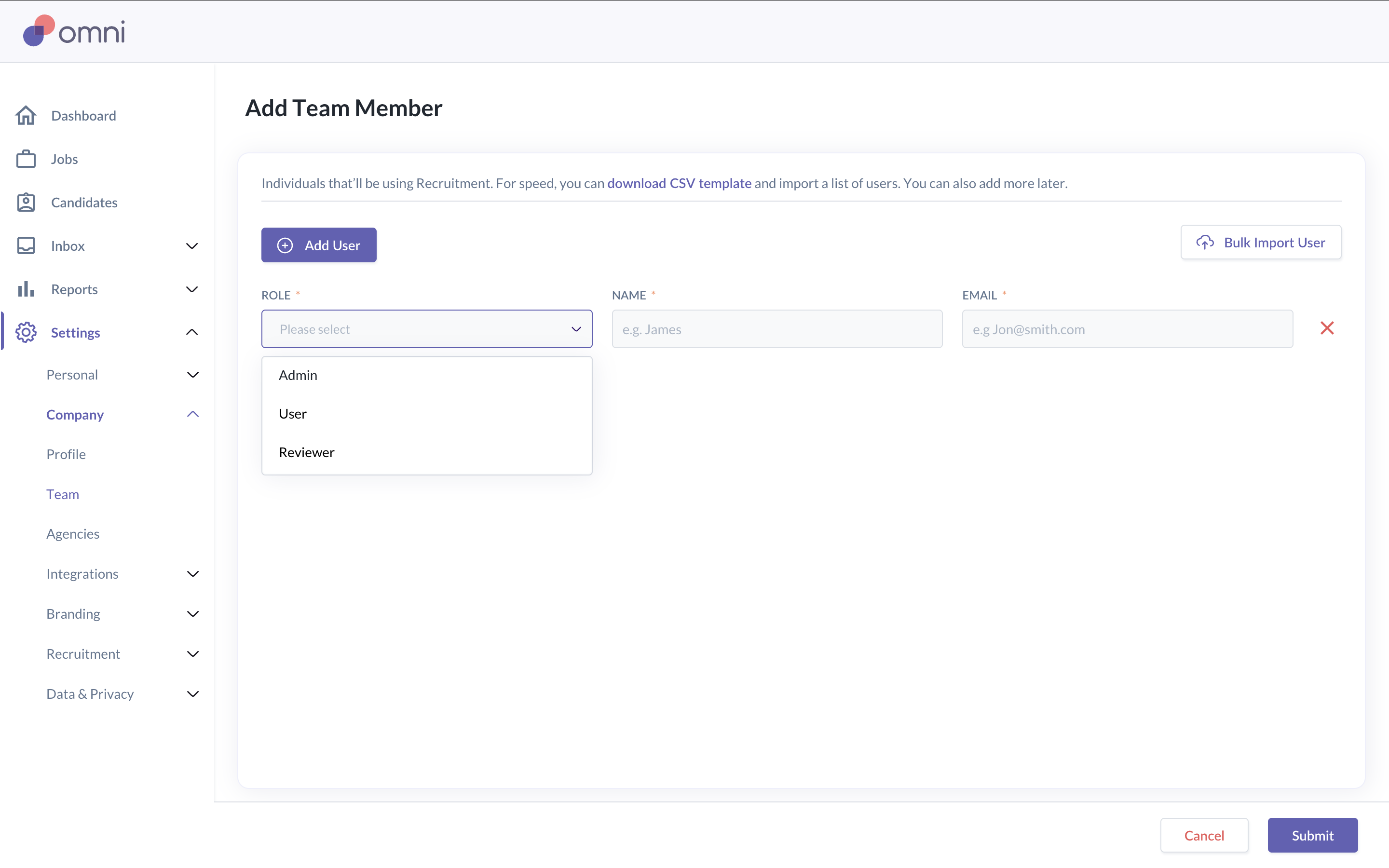
Go to Settings > Company > Team
Click Add user
Enter the user’s name and work email. Make sure the person's work email matches with that inside the Omni HR main platform
Assign a recruitment role: Admin, User, or Reviewer
The selected role determines the user’s access to jobs, candidates, and settings.
Click Invite
The user will receive an email invitation to access the Recruit module.
Updating a user’s recruitment role
You can update a user’s recruitment role at any time.
Go to Settings > Company > Team
Select the user
Update the recruitment role: Admin, User, or Reviewer
Save changes
Removing a user’s access
You can remove a user’s access to the Recruitment if they no longer need it.
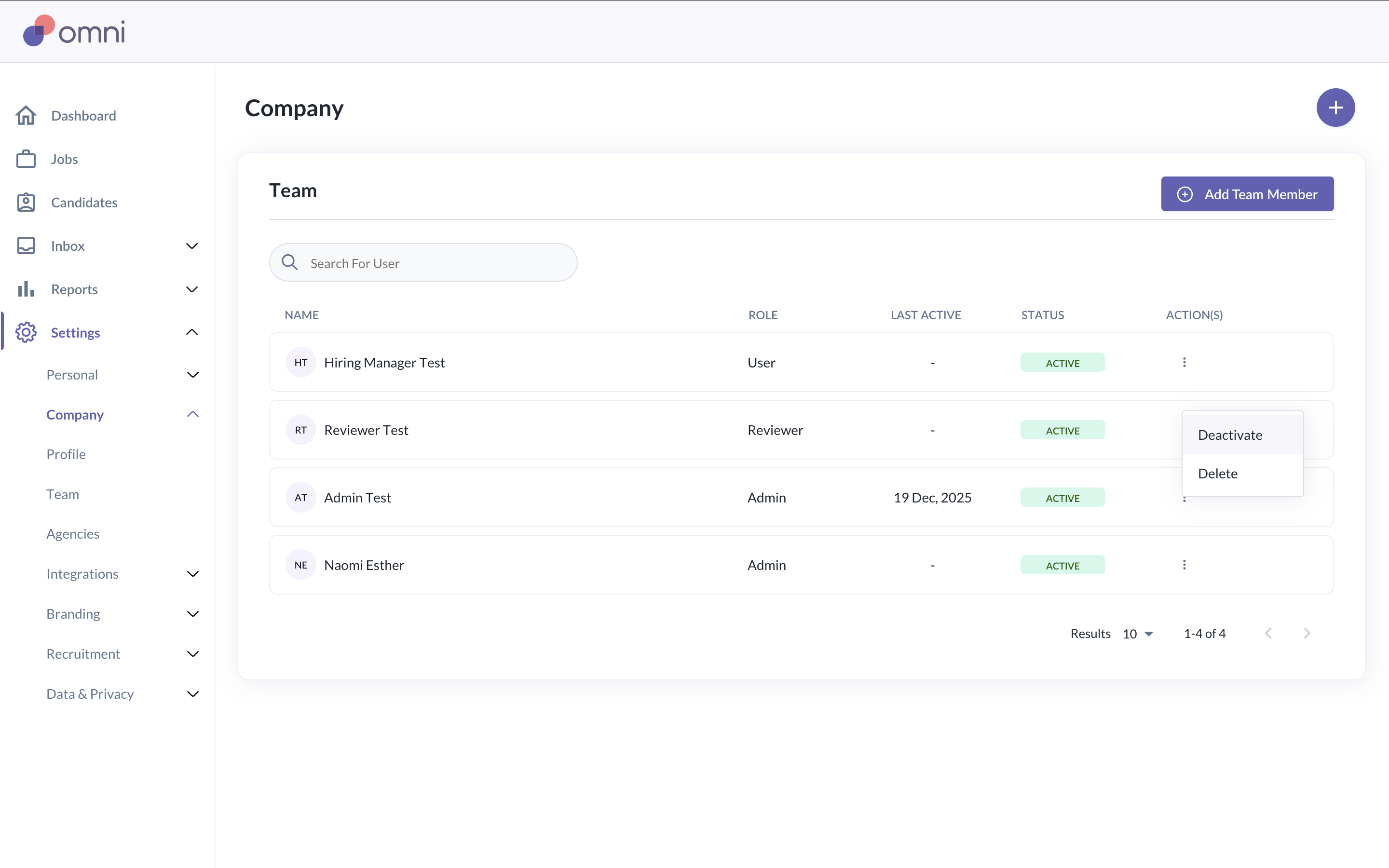
Go to Settings > Company > Team
Click on the three-dot button
Select to remove or deactivate the user
Once removed, the user will no longer be able to access the Recruit module.
What happens after a user is invited
The user will receive an email invitation to access the Recruit module.
Upon logging into Omni HR, they will see a new Recruit menu on the left hand side. Clicking on it will open the Recruit module in a new tab
Related Article(s):
Still Need Help?
Reach out to our support team should you need further assistance.
Was this article helpful?
That’s Great!
Thank you for your feedback
Sorry! We couldn't be helpful
Thank you for your feedback
Feedback sent
We appreciate your effort and will try to fix the article