Last Updated: January 12, 2026
Overview:
Before participating in hiring activities such as reviewing candidates or scheduling interviews, you will need to complete a one-time setup of your hiring profile. This ensures candidate emails, interview scheduling, and notifications work correctly.
TABLE OF CONTENTS
- Connecting your work email
- Connecting your calendar (via Cronofy)
- Connecting a video conferencing tool
- (Optional) Connecting Slack
- Setting your interview availability
- Setting up your email signature
- Managing notification preferences
Connecting your work email
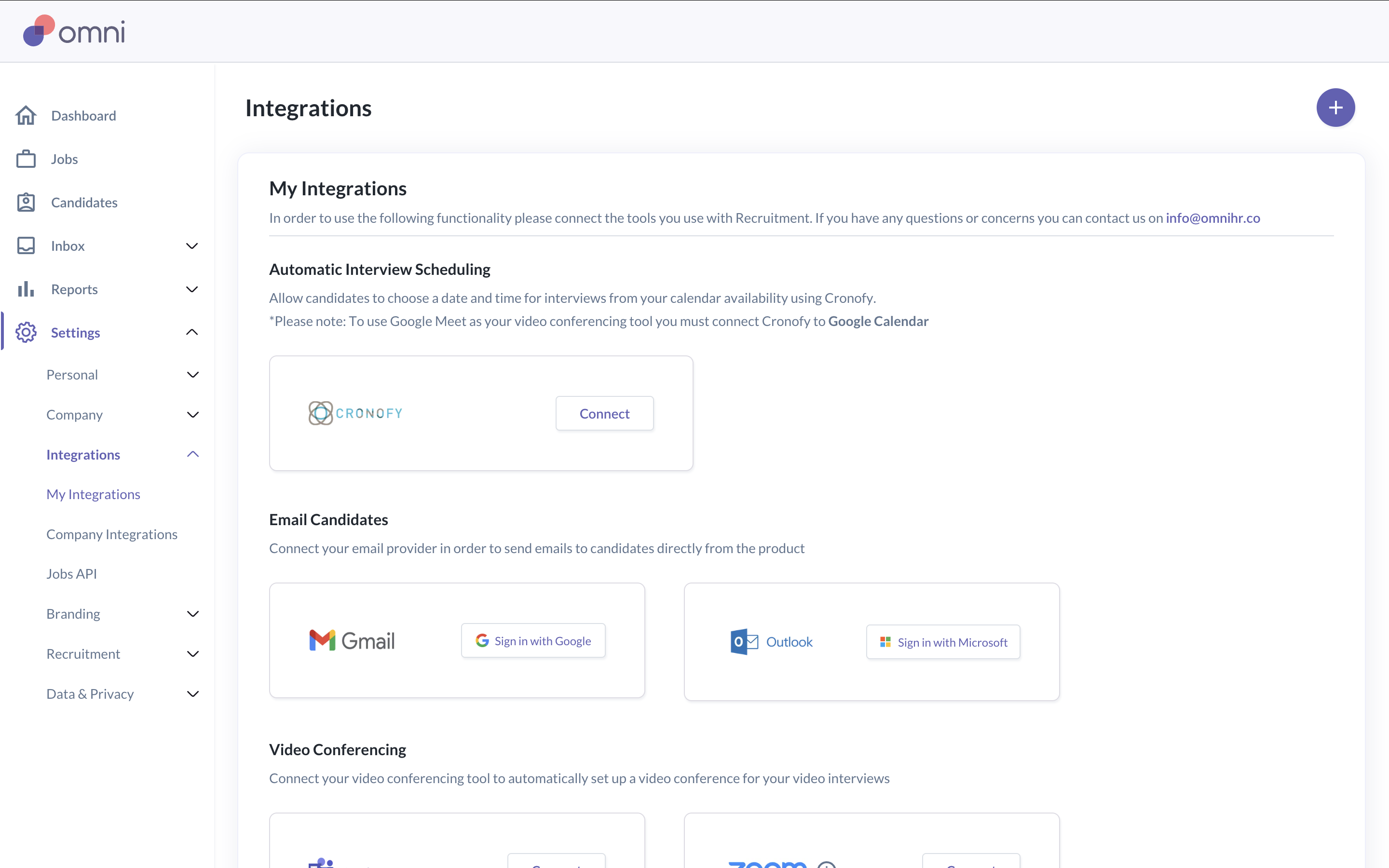
Connecting your work email allows Omni to send candidate emails using your email address.
- Go to Settings > Integrations > My Integration
- Connect your email provider (Google or Microsoft)
- Complete the authentication process
Connecting a video conferencing tool
You can connect a video conferencing tool to automatically create meeting links for video interviews. Supported tools include Zoom, Microsoft Teams, and Google Meet.
- Go to Settings > Integrations > My Integration
Connect your preferred video conferencing tool
Note: If no tool is connected, video interviews will need to be set up manually.
Connecting your calendar (via Cronofy)
Connecting your calendar enables interview scheduling.
- Go to Settings > Integrations > My Integration
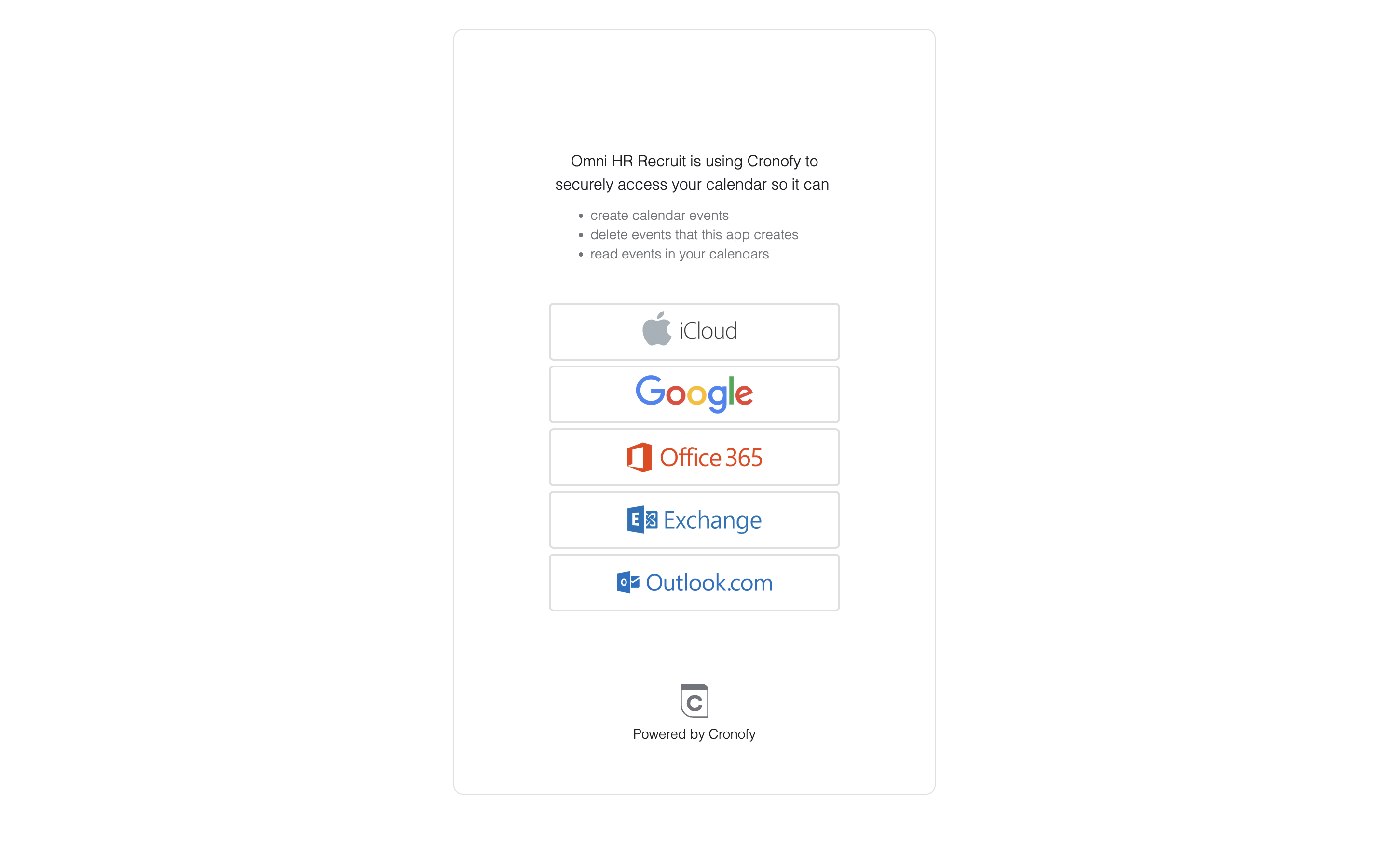
- Connect Cronofy
- Sign in using your work calendar account
Note: If you are using Microsoft for work, select Office 365. Please note that shared inboxes / calendars are not supported.
(Optional) Connecting Slack
- If your company uses Slack, you can receive recruitment notifications in Slack.
- These include interview updates, scorecard reminders, and job approval notifications.
- Slack notifications can be managed from Settings > Personal > My Notifications.
Setting your interview availability
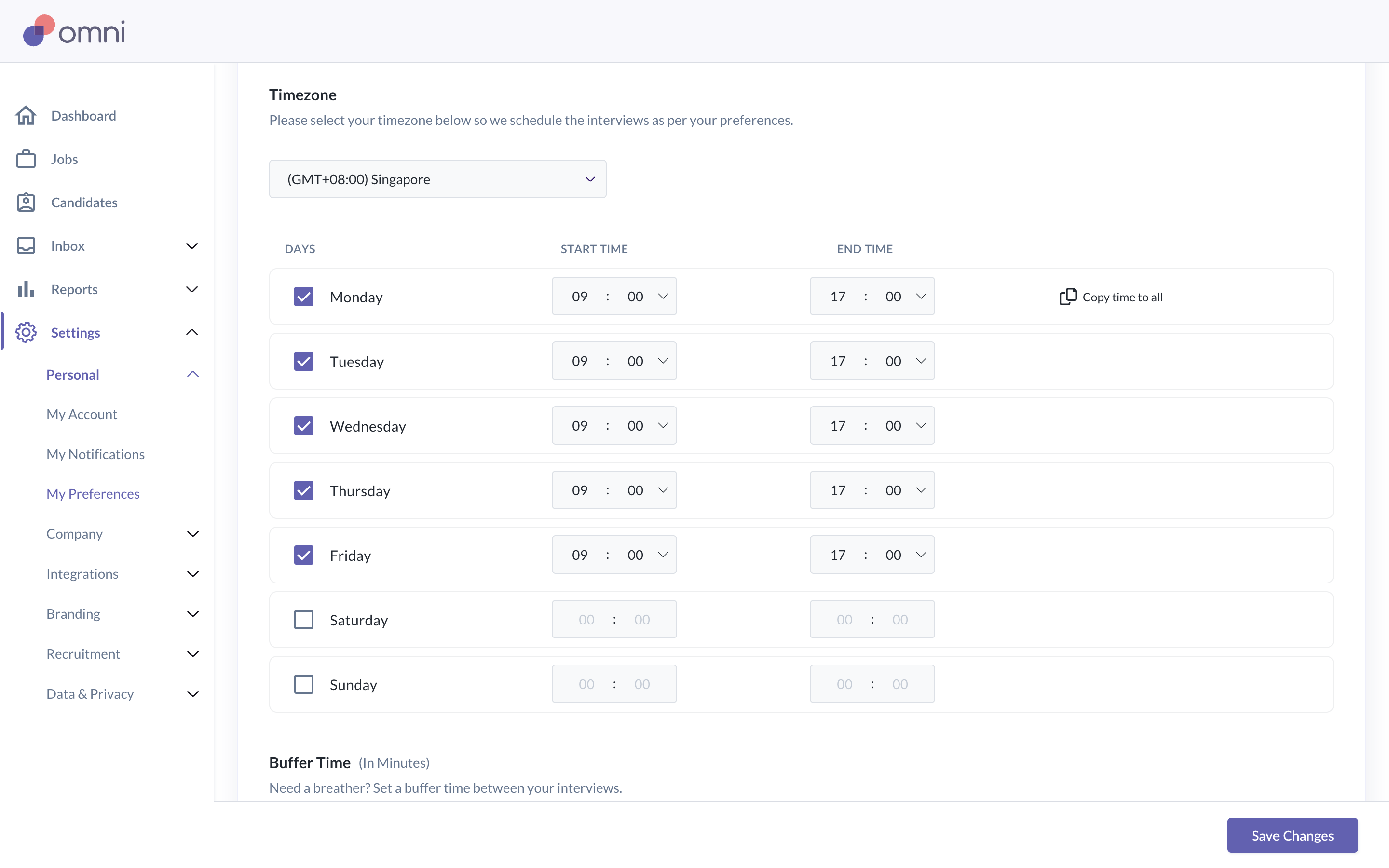
After connecting your calendar, you need to set your interview availability. Interview slots will only be offered within your availability and when you are free on your calendar.
- Go to Settings > Personal > My Preferences
Set your time zone
Select your available days and interview hours
Add buffer time between meetings if required
Setting up your email signature
Your email signature will appear in emails sent to candidates.
- Go to Settings > Personal > My Account
Add or update your email signature
Note: Keep formatting simple. When copying content, paste within the same browser.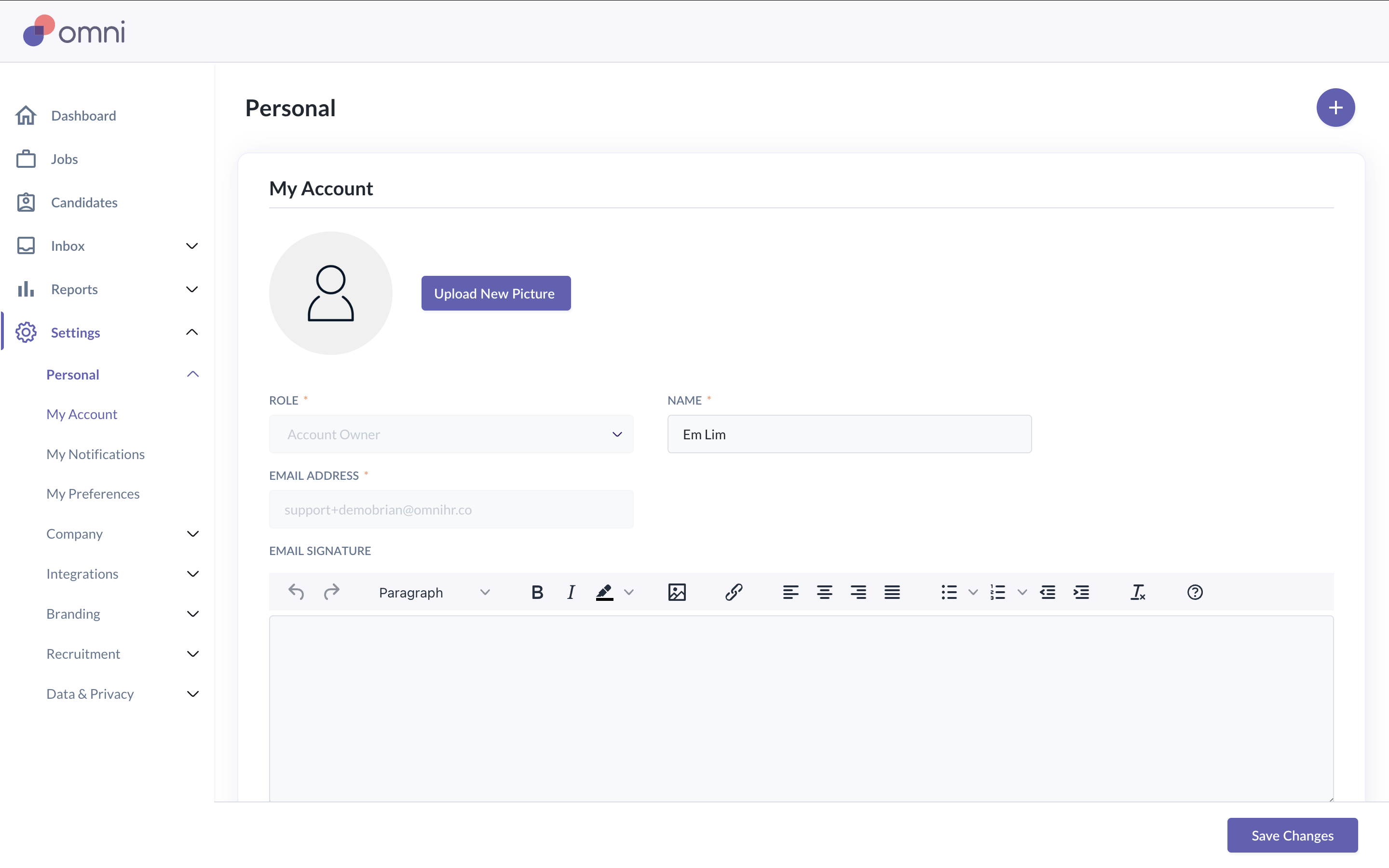
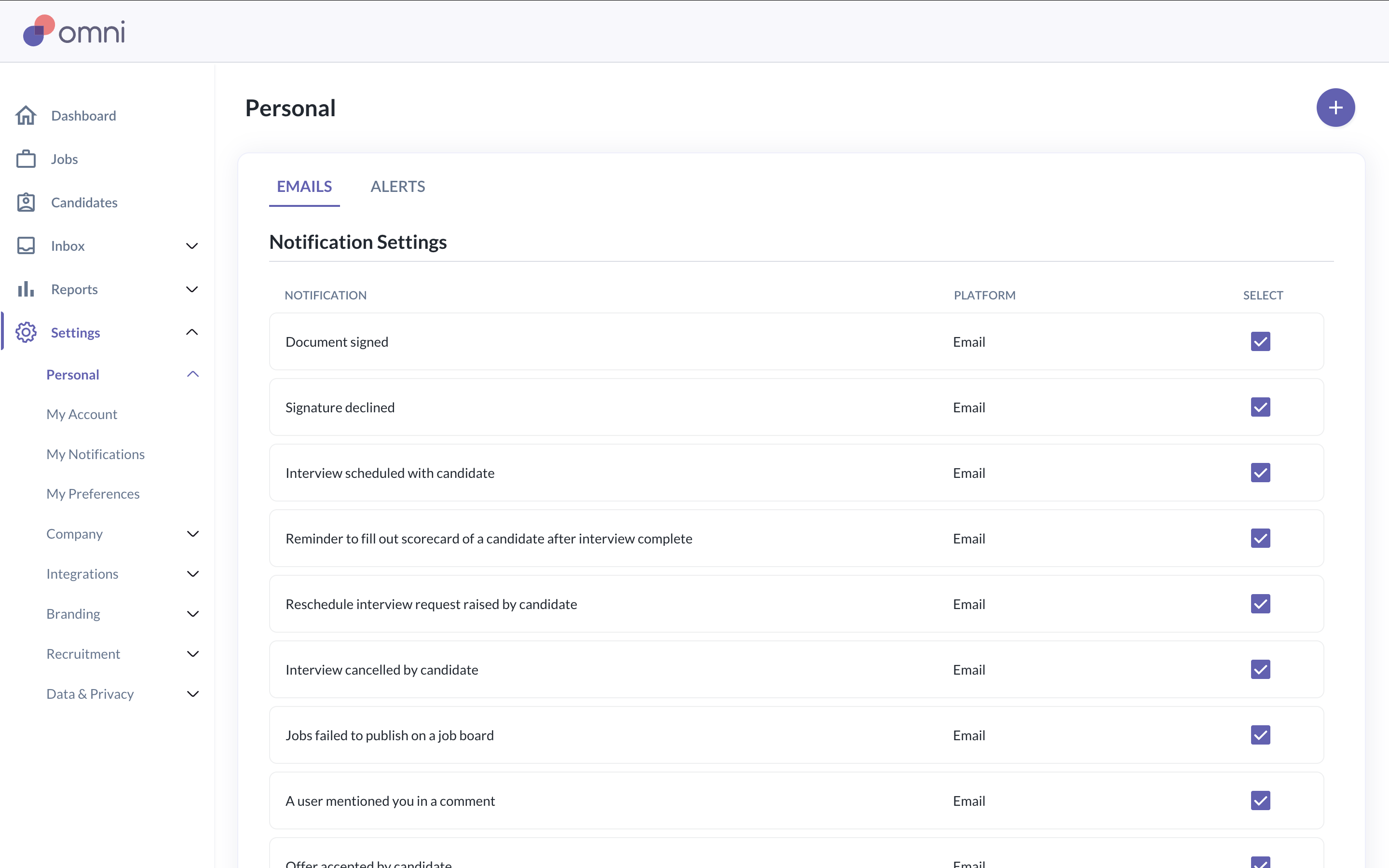
Managing notification preferences
You can control how you receive recruitment-related notifications.
- Go to Settings > Personal > My Notifications
Review and update your notification preferences
Was this article helpful?
That’s Great!
Thank you for your feedback
Sorry! We couldn't be helpful
Thank you for your feedback
Feedback sent
We appreciate your effort and will try to fix the article