Overview:
This article covers the updated form submission features available to you as an employee, including how to view, manage, and delete your submissions, as well as improvements to the rejection email experience.
TABLE OF CONTENTS
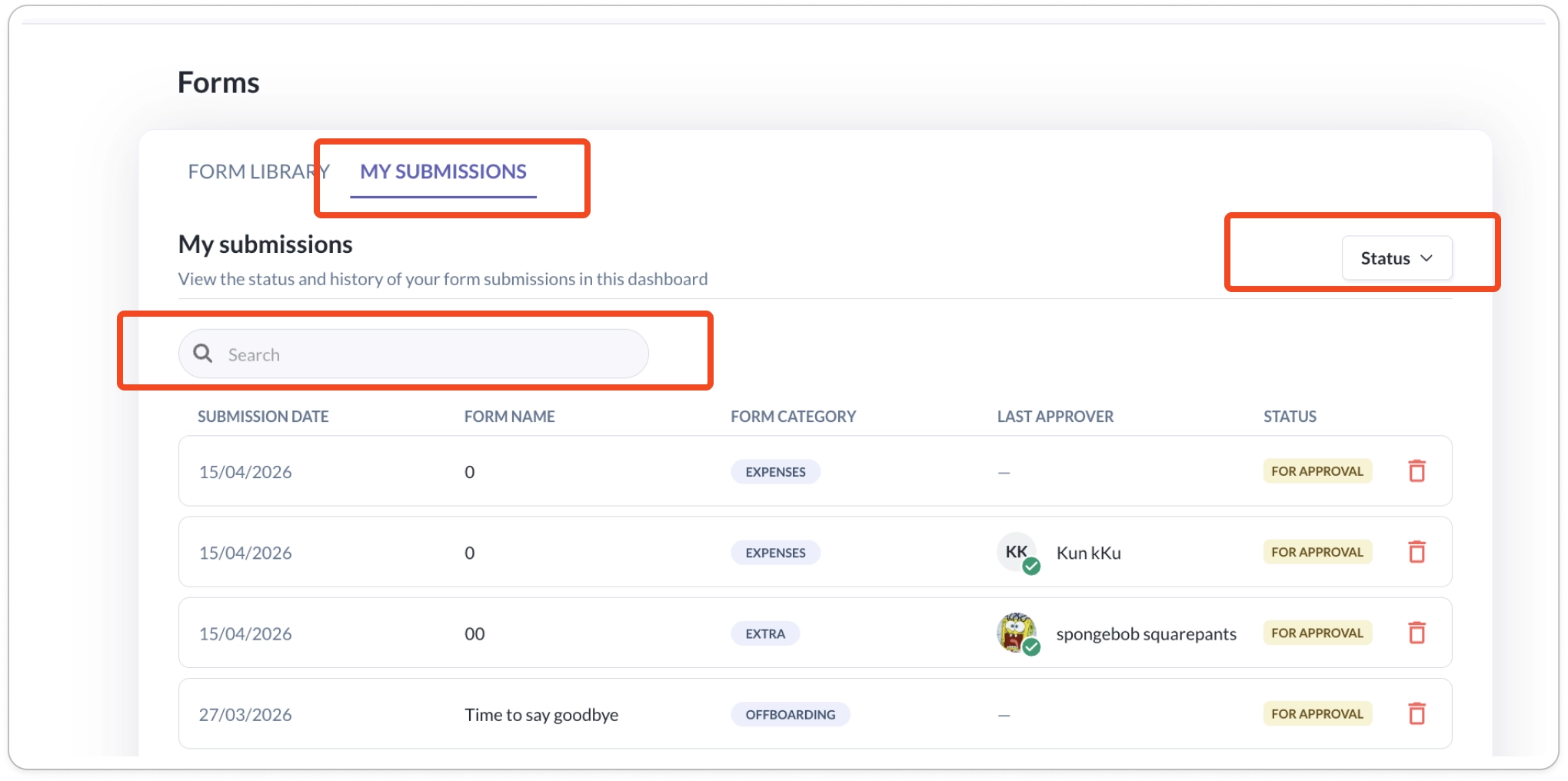
My Submissions Tab
A new My Submissions tab has been introduced, giving you a dedicated place to track all your form submissions.
Available controls:
- Search — Find a specific submission quickly by keyword
- Status filter — Filter your submissions by their current status
Viewing a Submission
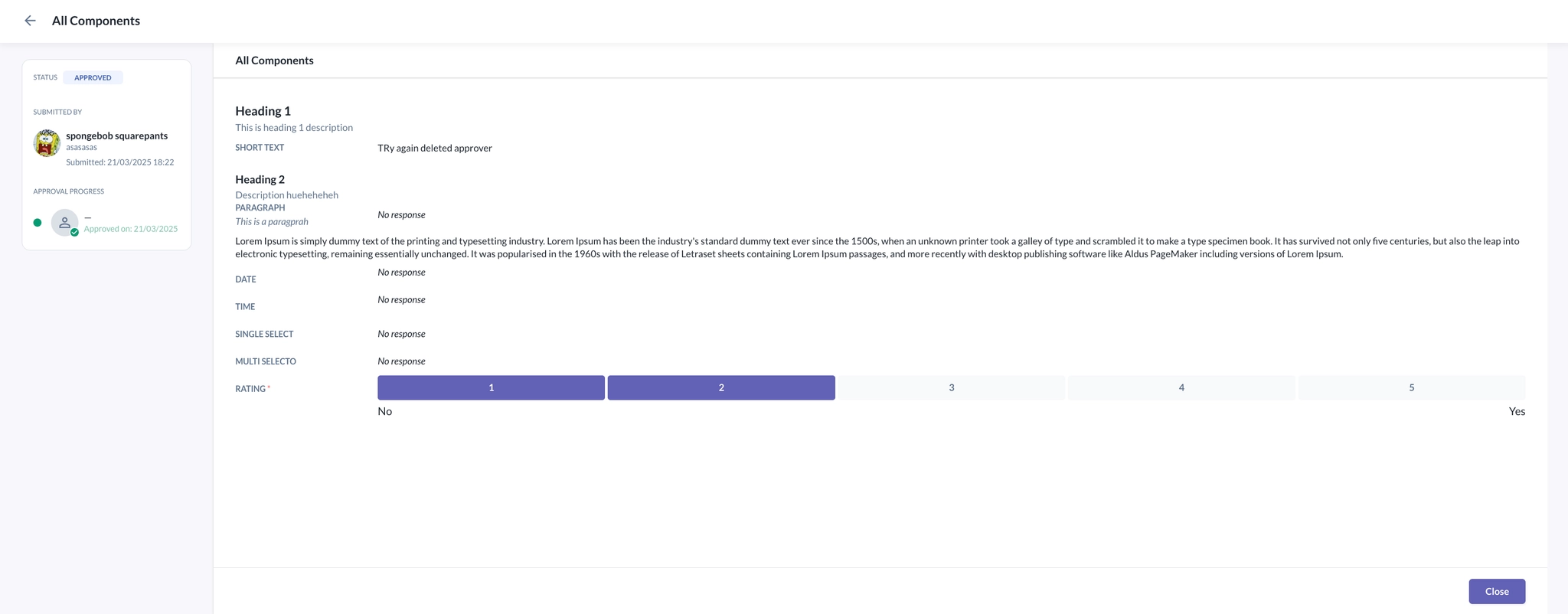
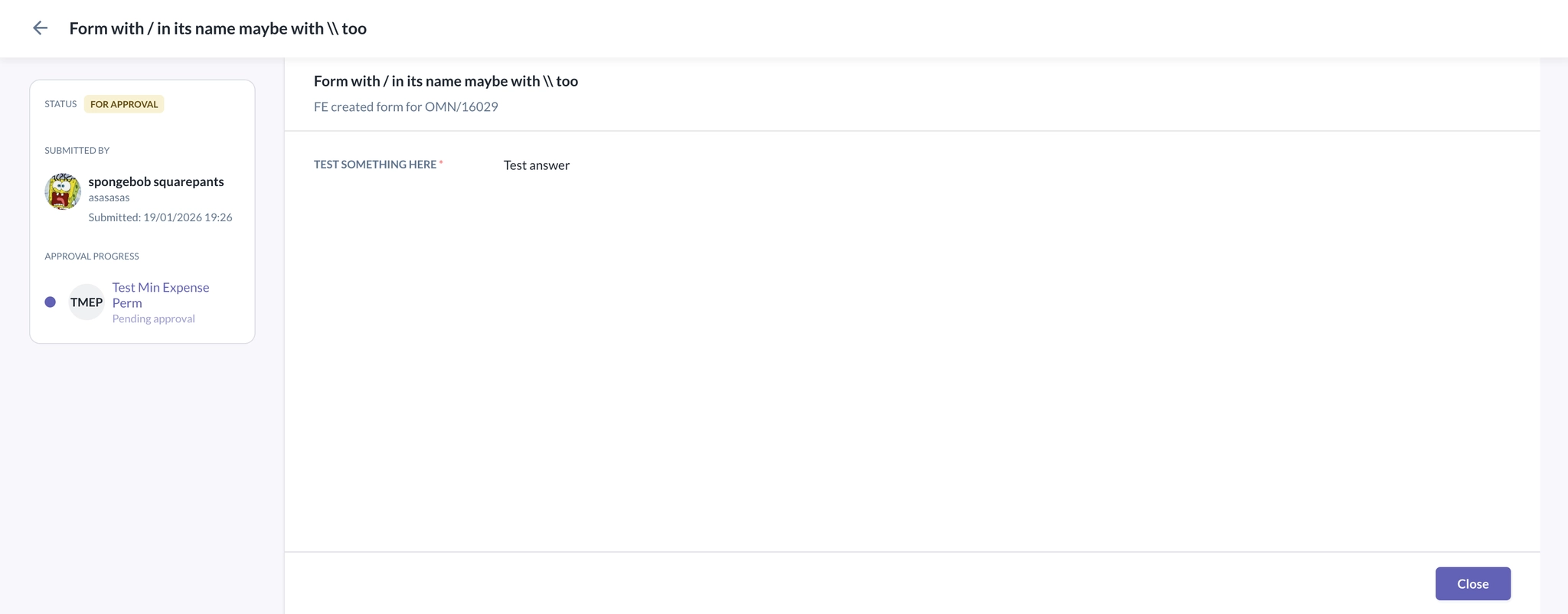
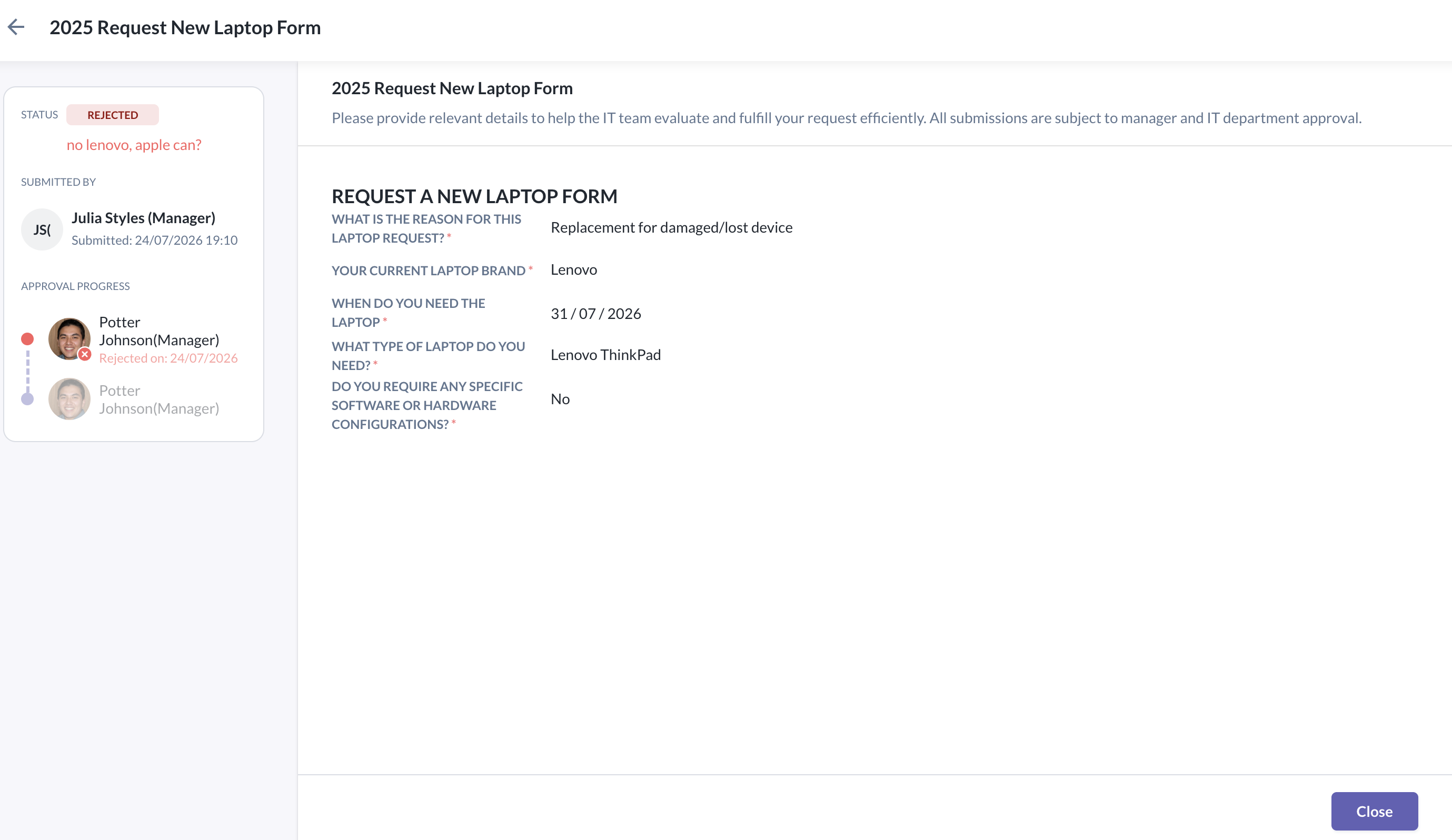
Clicking on any submission opens the full form view. From here, you can see:
- Your submitted responses
- The current status of the submission
- The rejection reason, if your submission has been rejected
Deleting a Submission
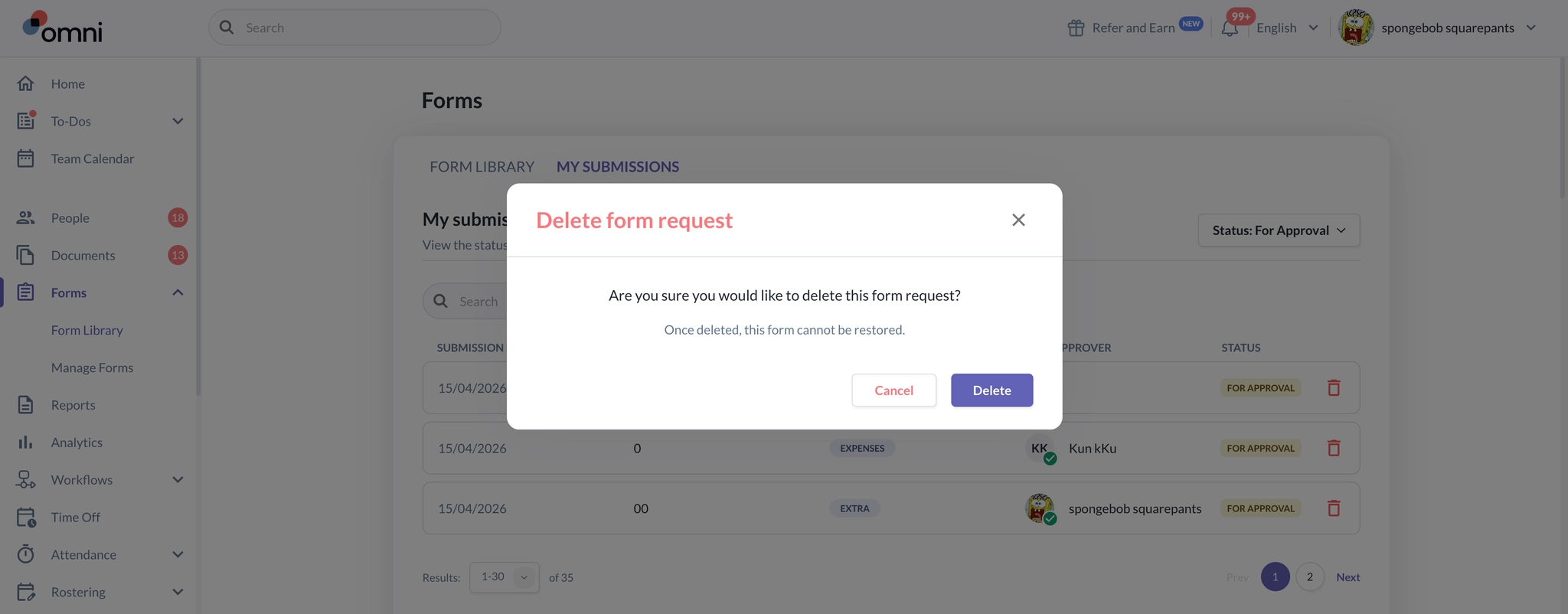
You can delete a submission only if it is in For Approval status.
What happens when you delete a submission:
- The submission is removed from your view
- It is no longer visible to your approver or in any reports
- The record is retained on the backend and can be restored on request if needed
Note: Only submissions with a For Approval status can be deleted. Submissions in any other status cannot be deleted.
Rejection Email Redirection
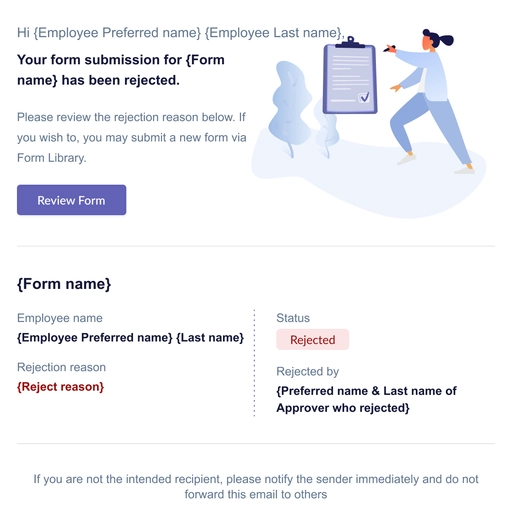
When your submission is rejected, you will receive a notification email with a Review Form button. It will take you directly to your rejected submission, so you can review it straight away without any extra steps.
Still Need Help?:
Reach out to our support team should you need further assistance.
Was this article helpful?
That’s Great!
Thank you for your feedback
Sorry! We couldn't be helpful
Thank you for your feedback
Feedback sent
We appreciate your effort and will try to fix the article