Overview
Mino AI (Mino) is a smart assistant built right into Omni HR. Instead of digging through reports, you can simply type a question in plain, everyday language, and Mino will generate a chart, share key insights, and even suggest follow-up questions — all without leaving the platform.
You're always in control: you can switch how the results are displayed, peek behind the scenes to see exactly how an answer was put together, and even ask Mino to explain its work in simple terms.
Important Notice:

This is an early version of Mino AI, so things may still be evolving.

Want access? Just email us at support@omnihr.co or reach out to your account manager — access isn't automatic and depends on your subscription's eligibility.
TABLE OF CONTENTS
What can Mino AI do right now?
- What data it can look at — for now, Mino can only answer questions about basic employee information and job details as shown below:
| Category | Fields |
|---|---|
| Identity | Name, Preferred Name, Legal name, Employee ID, System ID, Email |
| Demographics | Age, Gender, Date of Birth, Nationality, Marital Status |
| Job | Department, Position, Team, Employment Type, Company, Location |
| Status | Employment Status (Active / Terminated / Future Hire), Start Date, Termination Date |
| Probation | Probation Status, Probation End Date, Notice Period, Confirmation Date |
- Who can see what — Mino follows the same access rules already set up in your system. So if someone isn't normally allowed to see certain employee details, Mino won't show that information either.
How to turn it on for your team
Please ensure you have gained access to the module before proceeding with the steps below. Write in to support@omnihr.co for assistance.
- Go to Settings > Access Control.
- Select the relevant Role i.e. Admin
- Go to System Permissions > Analytics.
- Turn on Access AI Insights.
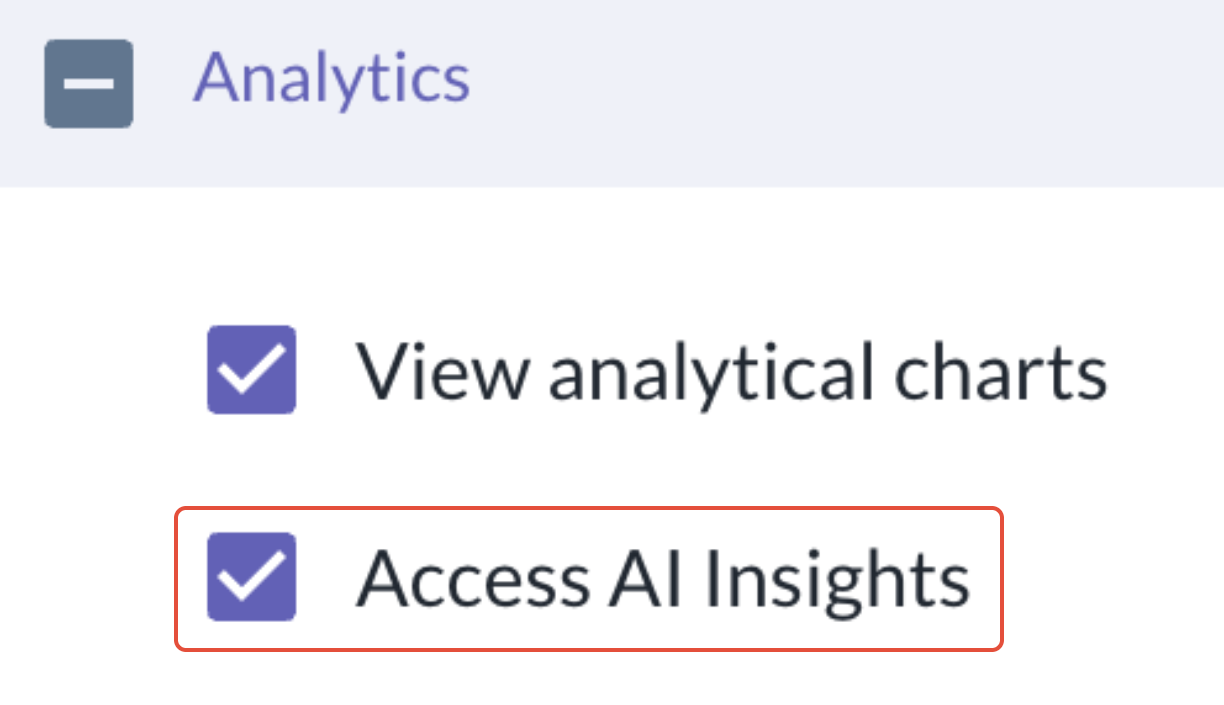
That's it — anyone with that role will now be able to use Mino.
How to use Mino AI
- Go to Analytics > AI Insights > Mino
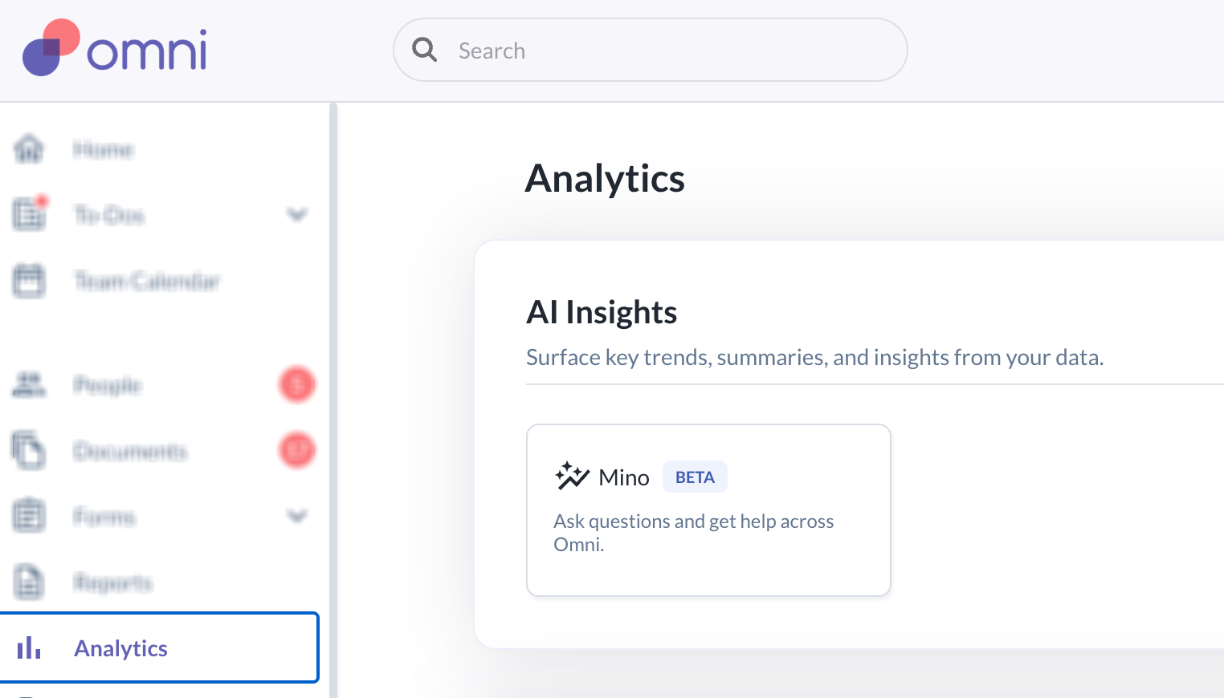
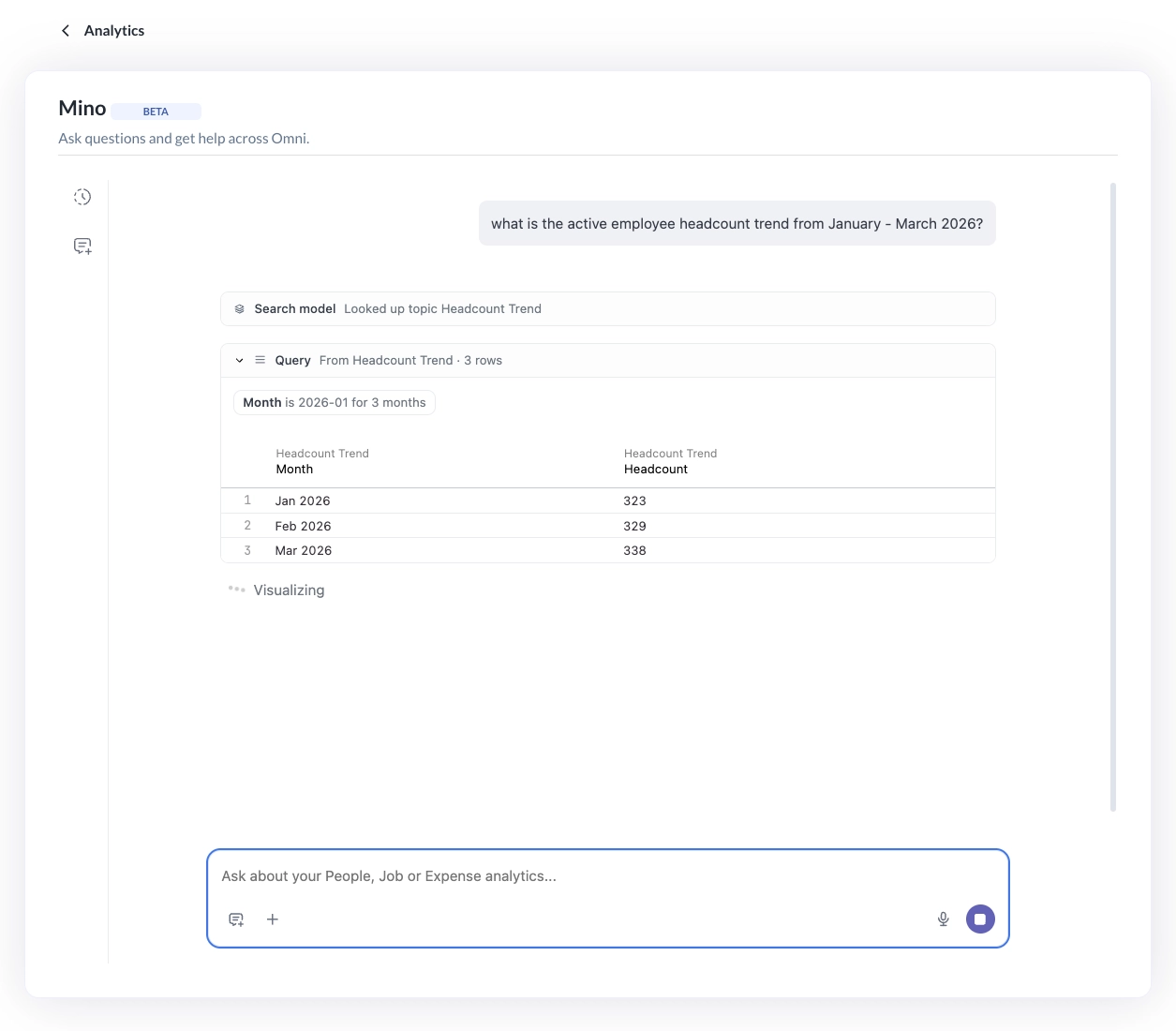
- Type your question in plain language — no special formatting needed.
- Mino will pull the relevant data and generate a chart along with helpful insights. Curious how it got there? You can see exactly how the answer was built.
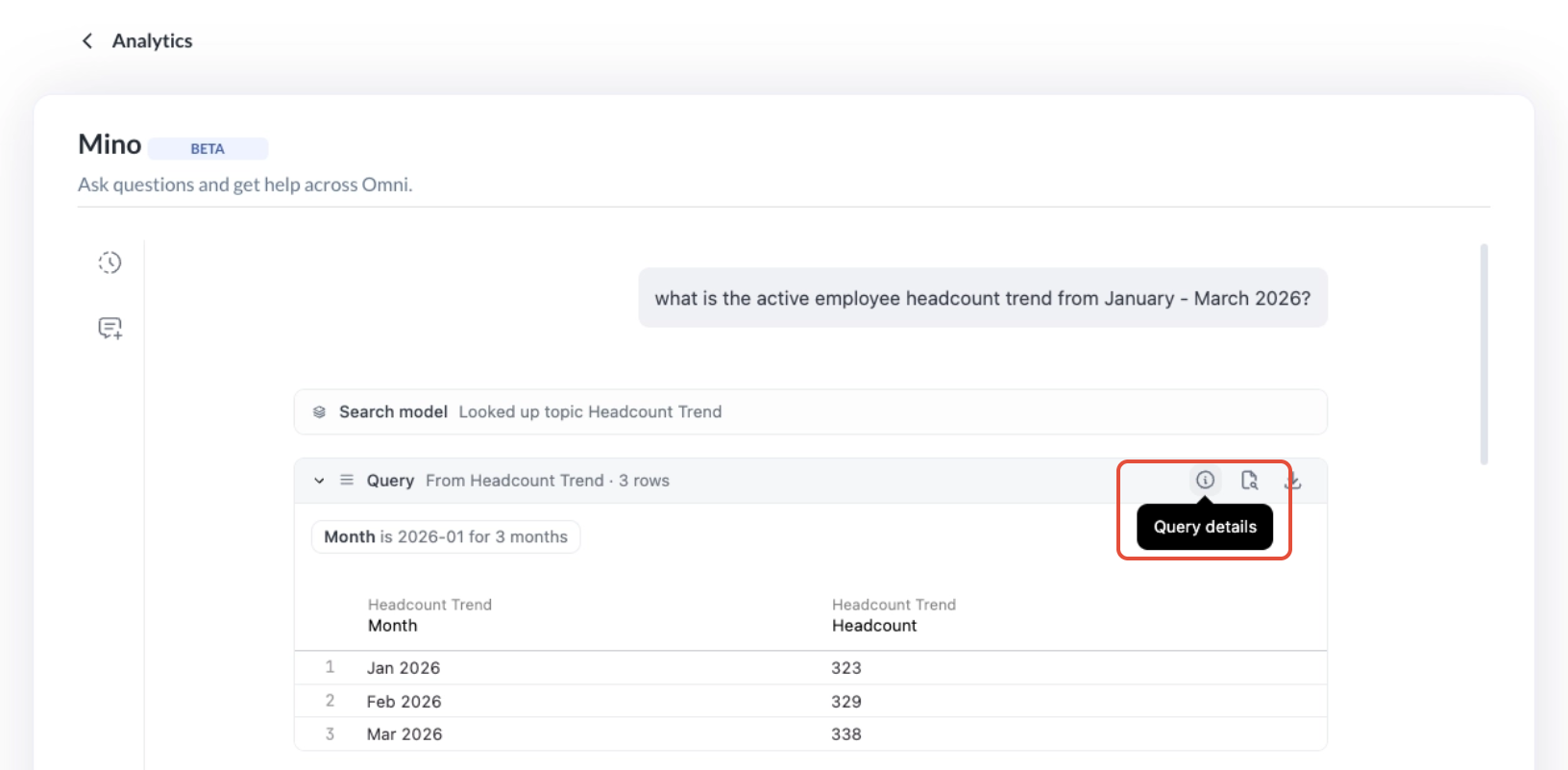
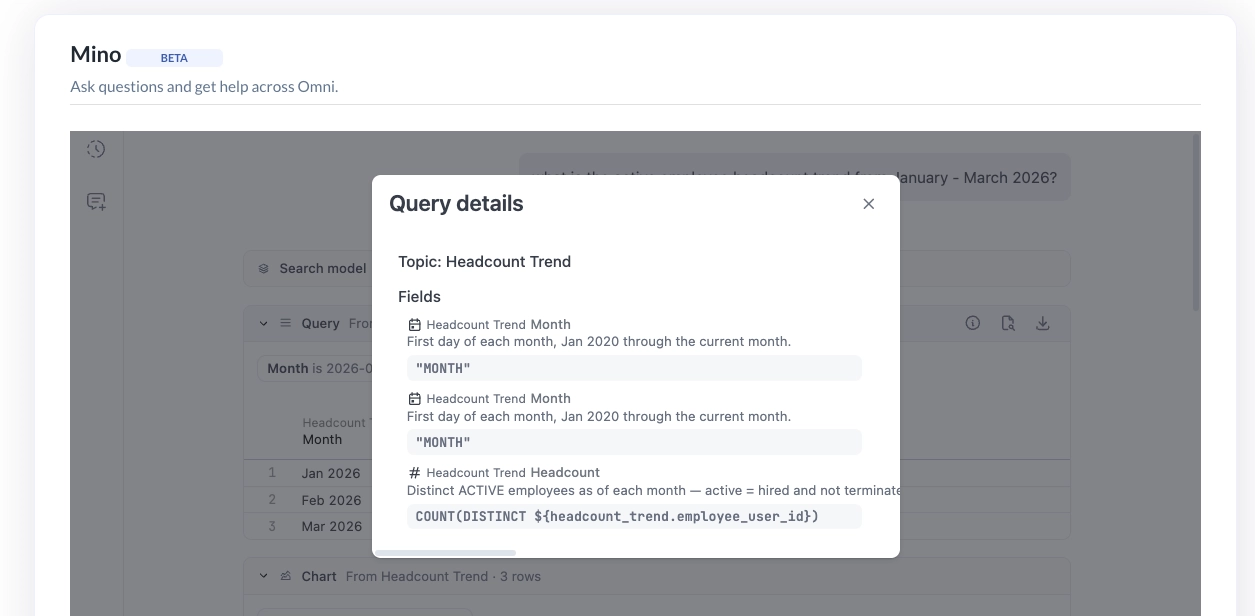
- You can also ask Mino to explain how it got you the data
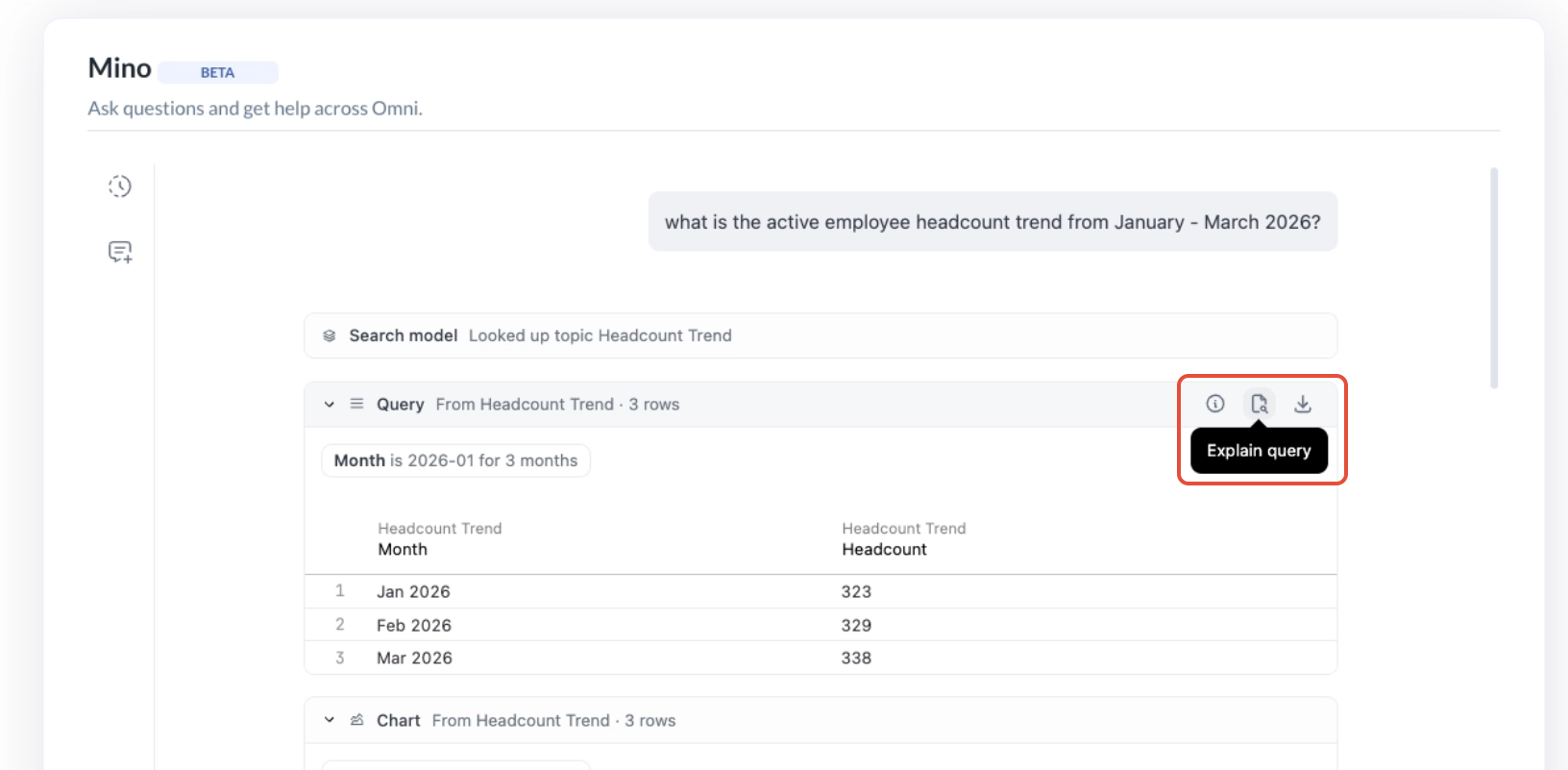
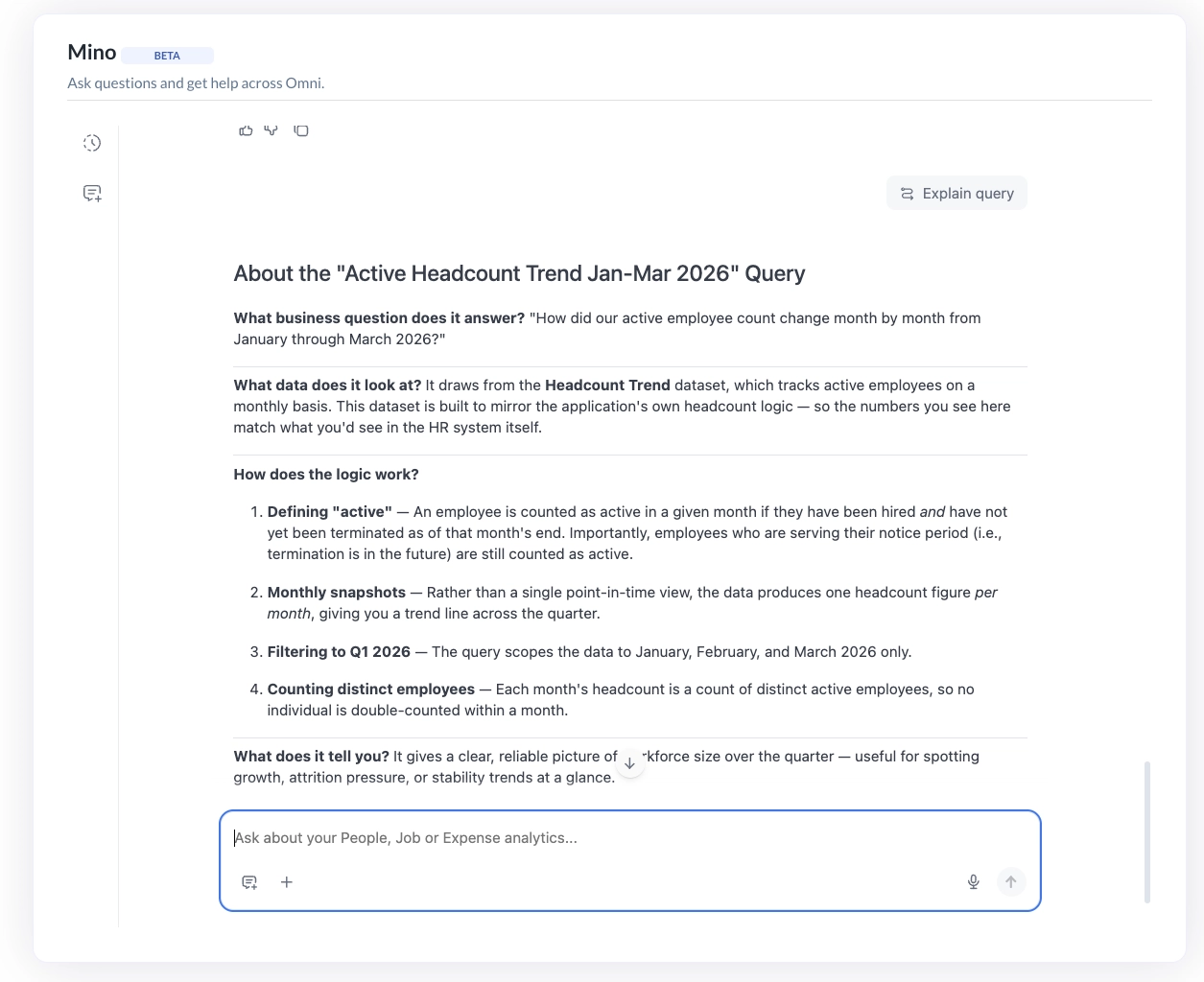
- Not happy with the chart type? Feel free to switch it to a different view.
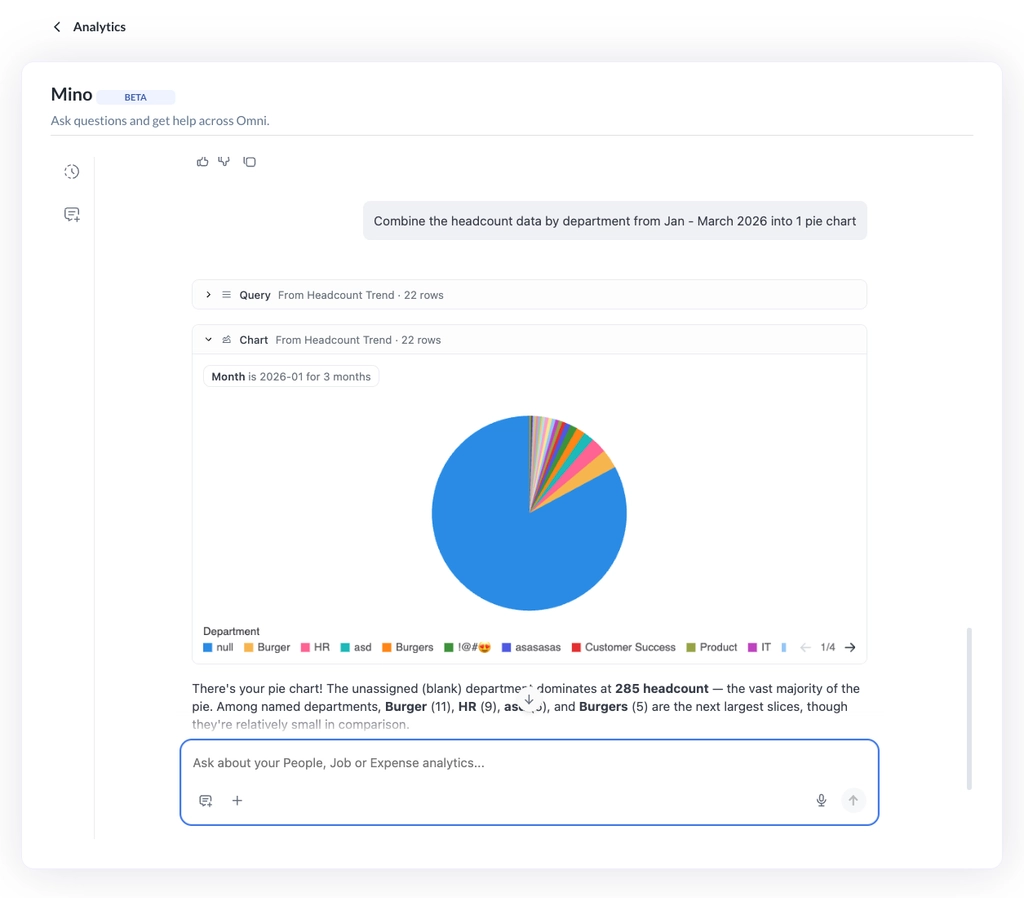
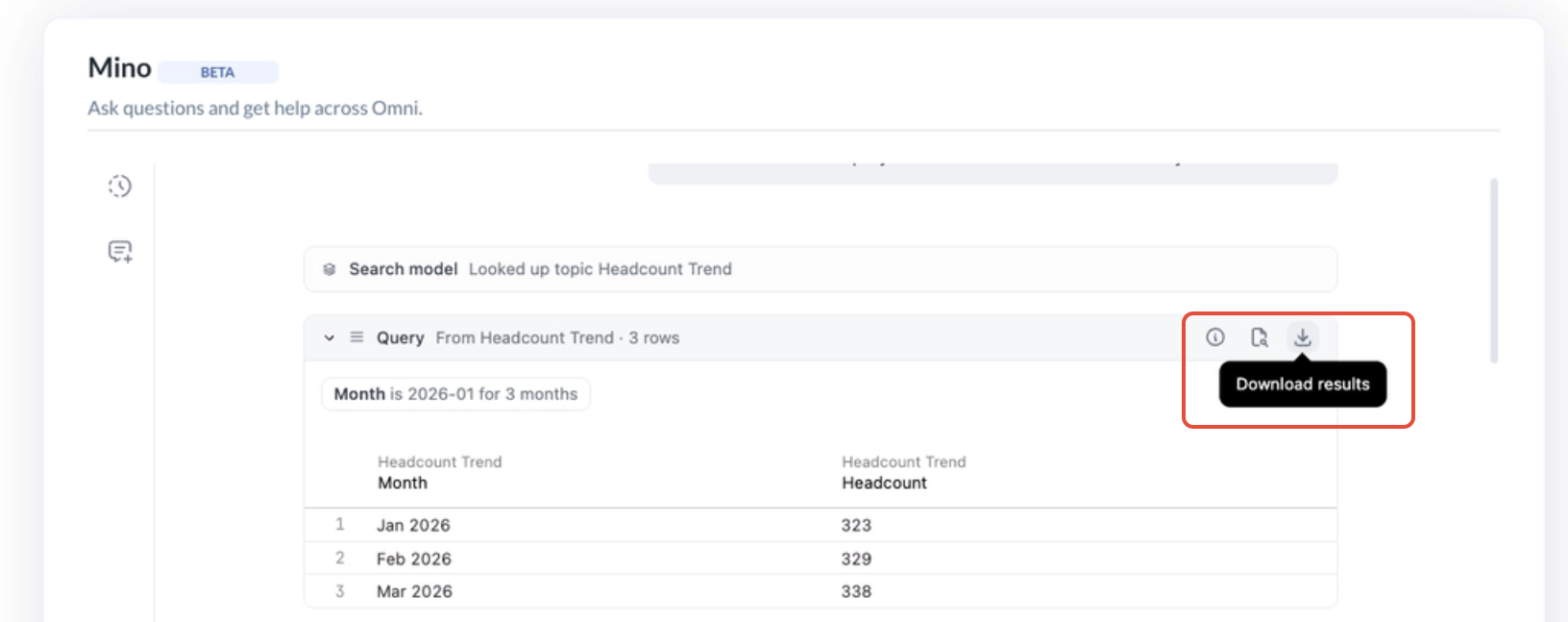
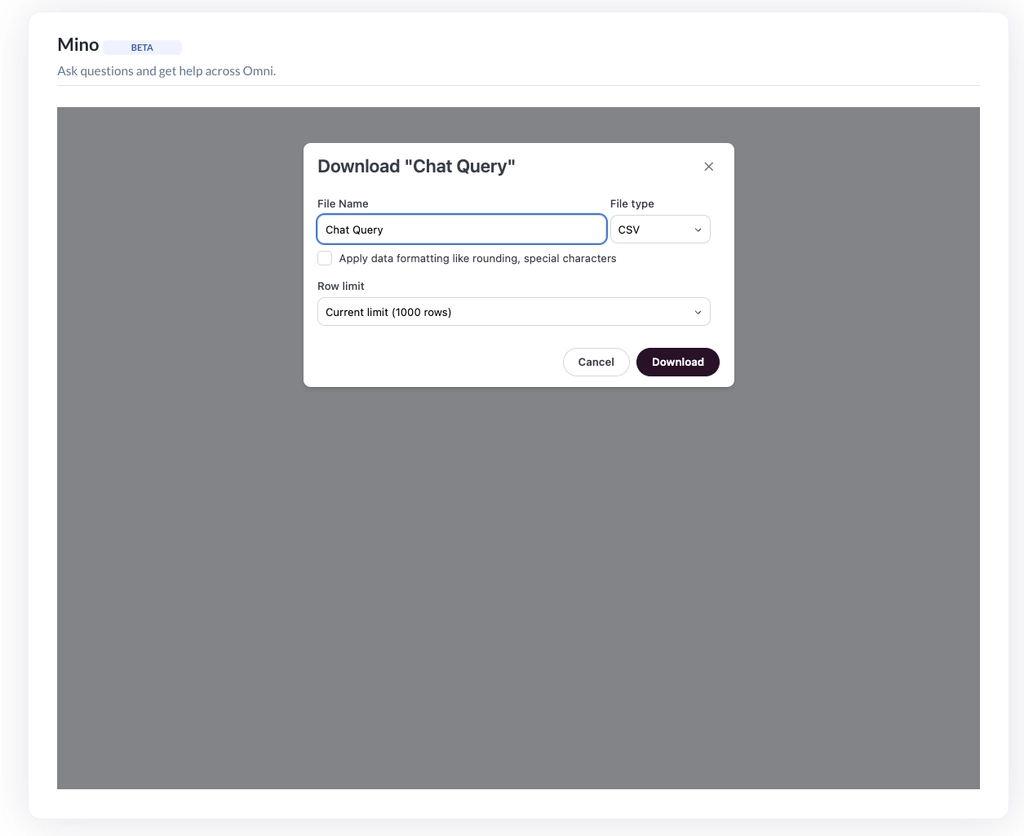
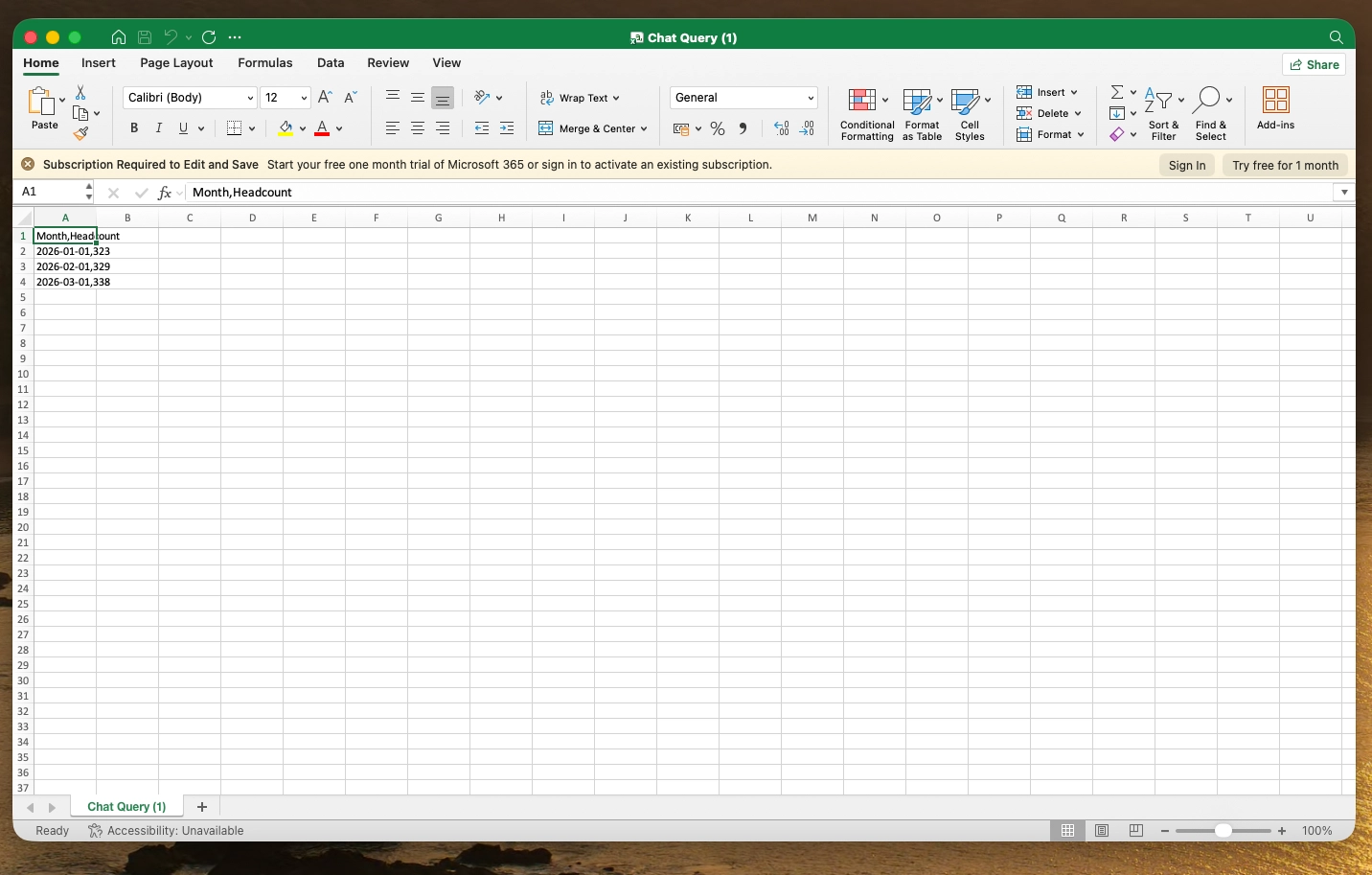
- Need the raw numbers? You can download the result for your own use.
Important Notes
| Topic | What you need to know |
|---|---|
| Data refresh | Data updates about once a day [8 AM (GMT +8)], not instantly. So if you change someone's access or there has been new updates to employee data, it may take up to a day to fully take effect. |
| AI accuracy | Like any AI tool, Mino can occasionally get things wrong or give slightly inconsistent answers — always double-check important results. |
| Saving dashboards | Dashboards created through chat can't be saved or pinned just yet. You would need to refer to historical chats and copy and paste the same prompt if you wish to generate a similar request. |
| Data coverage | Some information isn't available yet, including manager history, personal identity details (like visa info), contact details, expense data, and compensation. These are planned for a future update. |
Still Need Help?:
Reach out to our support team should you need further assistance.
Was this article helpful?
That’s Great!
Thank you for your feedback
Sorry! We couldn't be helpful
Thank you for your feedback
Feedback sent
We appreciate your effort and will try to fix the article