Last updated: 24 September 2026
Overview
Custom Pay Items allow you to configure earnings or deductions that are specific to your organisation's payroll requirements. Pay Items can be created for payments that are:
- Recurring, such as a monthly allowance; or
- Ad-hoc, such as a one-time bonus, adjustment, or deduction.
Each Pay Item contains settings that determine how the item is treated during payroll, including whether it forms part of gross or net pay, whether withholding tax applies, whether statutory contributions should be calculated on it, and when the item should be included in a semi-monthly pay run.
It is important to configure these settings correctly, as they can affect the employee's taxable income, statutory contribution calculations, payroll totals, and payslip presentation.
TABLE OF CONTENTS
- Overview
- Create custom pay item in Omni
- Create custom pay item in Payroll
- Map newly created custom pay items
Create custom pay item in Omni
You can create new custom pay item in Omni by going to any employee profile's payroll tab, and click into either +New Recurring Item or +New Adhoc Payment (depending on the type of pay item you are looking to create). In the pop-up modal, click into Pay Type > Add New Pay Type.
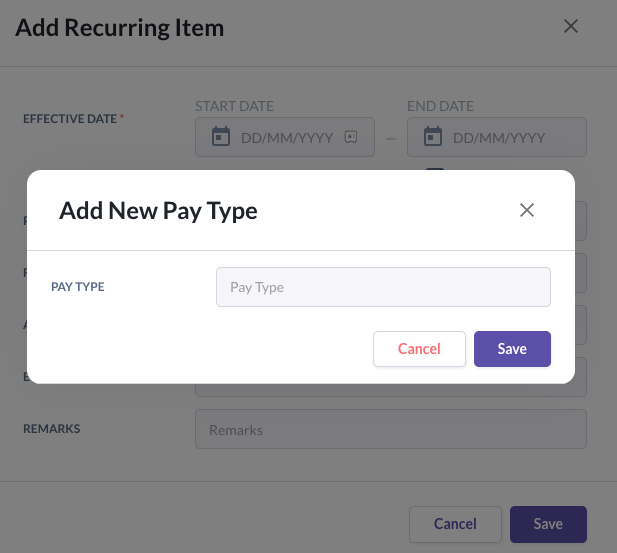
Name your new pay type and click Save. This new pay type will then be ready for Field mapping that will be covered later in the article.
Create custom pay item in Payroll
You can access the payroll system by clicking on the payroll entity you are configuring > Go to Payroll System. This will re-direct you to the payroll system. Then, click on Settings > Pay Items.
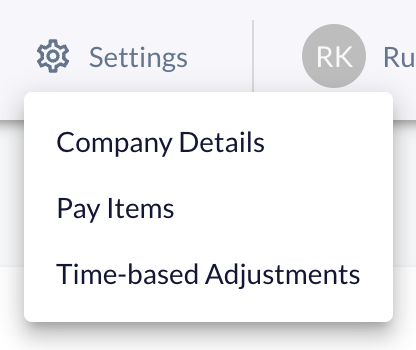
You can create and configure new pay items which are either Recurring or Ad-hoc in nature. Each pay item have various unique settings that controls its taxability and requirement to contribute to statutory contributions.
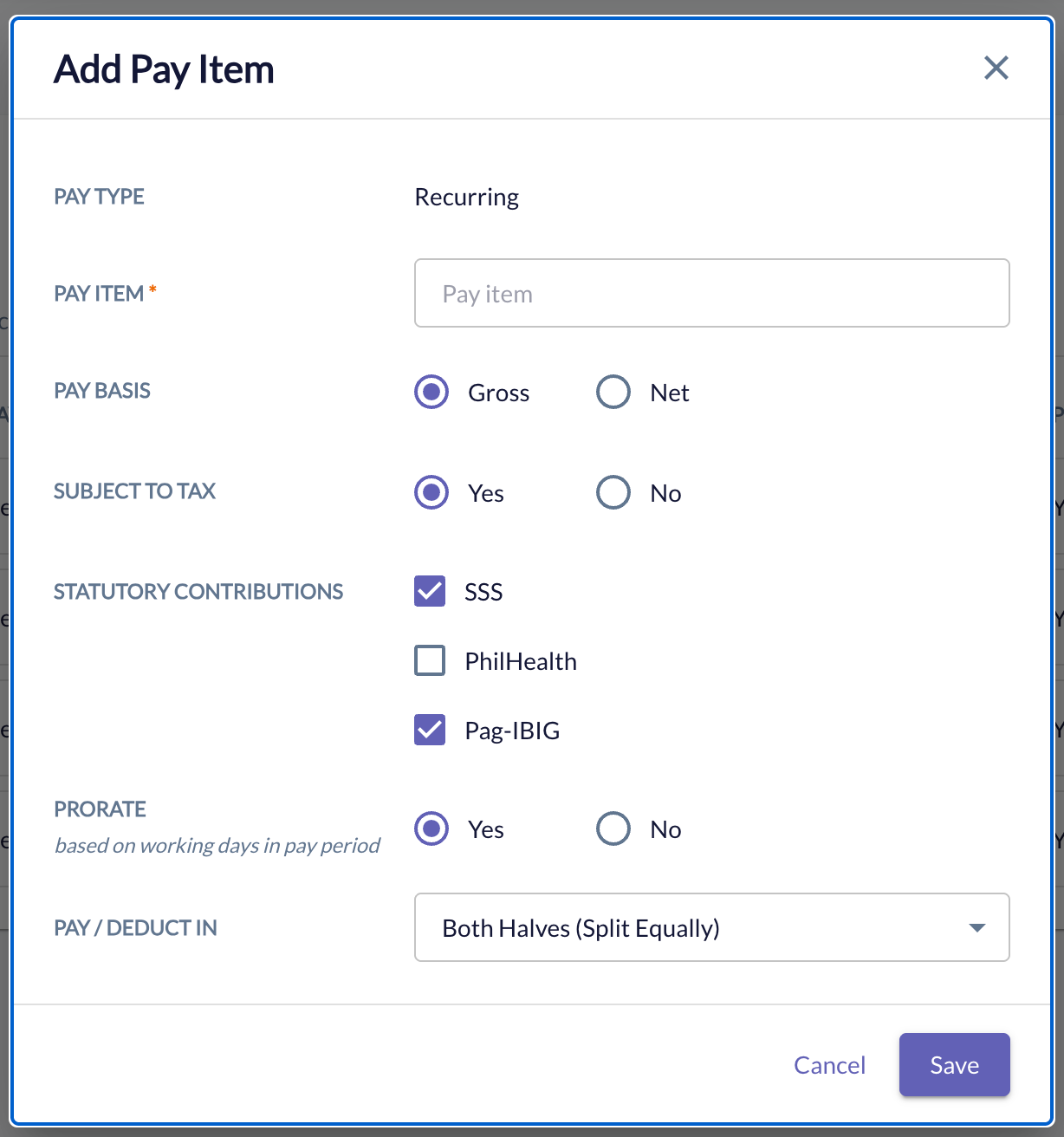
Pay Item Name
This setting allows you to name the pay item. This name will also appear on user's payslips when generated. It has a character limit of 256.
Pay basis
The Pay Basis determines whether the Pay Item contributes towards the employee's gross pay or is applied against the employee's net pay. This setting affects where the Pay Item is included within the payroll calculation.
Pay Basis alone does not determine whether an item is taxable or subject to statutory contributions. These are controlled separately using the Withholding Tax and Statutory Contributions settings.
Withholding tax
The Withholding Tax setting determines whether the value of the Pay Item should be included when calculating the employee's taxable compensation for payroll withholding purposes.
The appropriate tax treatment depends on the nature of the payment and the applicable tax rules.
Statutory contributions
The Statutory Contributions settings determine whether the Pay Item should be taken into account when calculating applicable statutory contributions. Depending on the Pay Item, this may affect calculations relating to:
- SSS
- PhilHealth
- Pag-IBIG
For example, where an earning is treated as part of the employee's contributable compensation, the relevant statutory contribution setting should be enabled. If the item should not form part of the contribution basis, the setting should be disabled.
The correct treatment depends on the nature of the Pay Item and the applicable statutory rules.
Prorate based on working days in pay period
The Prorate setting determines whether a recurring Pay Item should be reduced when the employee is only entitled to the item for part of the relevant pay period.
Pay / Deduction schedule
The Pay / Deduction Schedule determines which semi-monthly pay run the Pay Item should be included in.
Philippines payroll currently supports two pay runs per month:
First Half
Second Half
You can configure the Pay Item to apply in:
First Half
Second Half
Both Halves
First Half
The Pay Item is included only in the First Half pay run. For example, a recurring monthly ₱2,000 allowance configured for First Half would be included in the employee's First Half payroll only.
Second Half
The Pay Item is included only in the Second Half pay run. This may be useful for items that the organisation normally pays or deducts at the end of the payroll month.
Both Halves
The Pay Item is applied across both the First Half and Second Half pay runs. The treatment will depend on how the Pay Item itself is configured.
For example, a monthly recurring amount may be allocated across the two pay runs according to the applicable payroll configuration. Employers should select the schedule that reflects when the payment or deduction is intended to appear in payroll.
Map newly created custom pay items
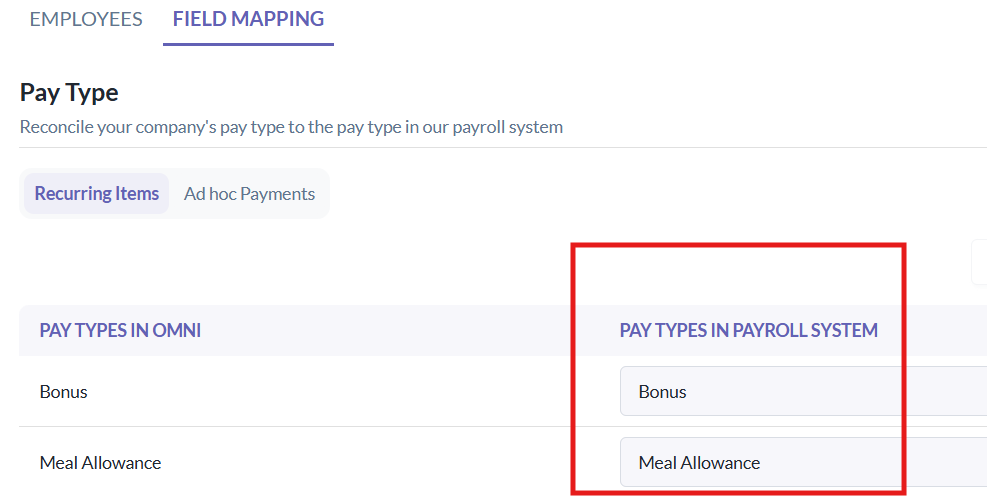
Once configured, your custom pay item is ready to use. Return to the Omni HR platform, select the entity again, and then select Field Mapping.
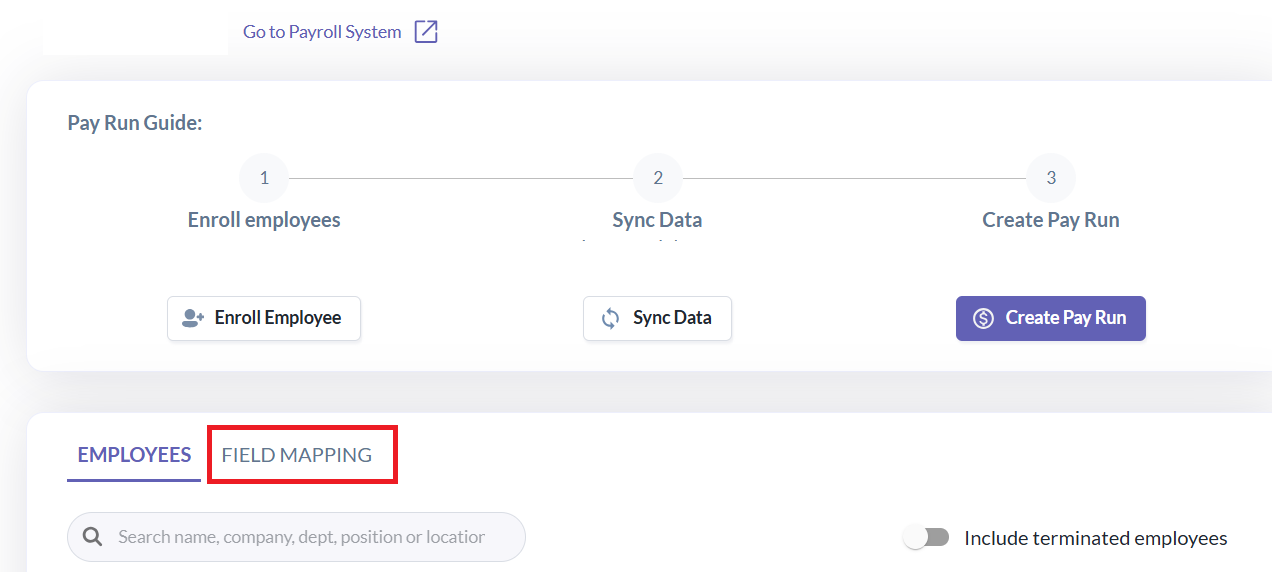
Under Pay Type in Omni, map the pay type created in Omni to the custom pay item you created in the payroll system.
Was this article helpful?
That’s Great!
Thank you for your feedback
Sorry! We couldn't be helpful
Thank you for your feedback
Feedback sent
We appreciate your effort and will try to fix the article