Overview:
This article guides Admins on configuring reminders for goal phases so that employees and managers receive notifications to submit, revise, approve or confirm their goals before the Goal Phase end date. Reminders covered include emails and notifications in the system.
TABLE OF CONTENTS
Creating Reminder
- Navigate to Settings > Reminders > Add Reminder
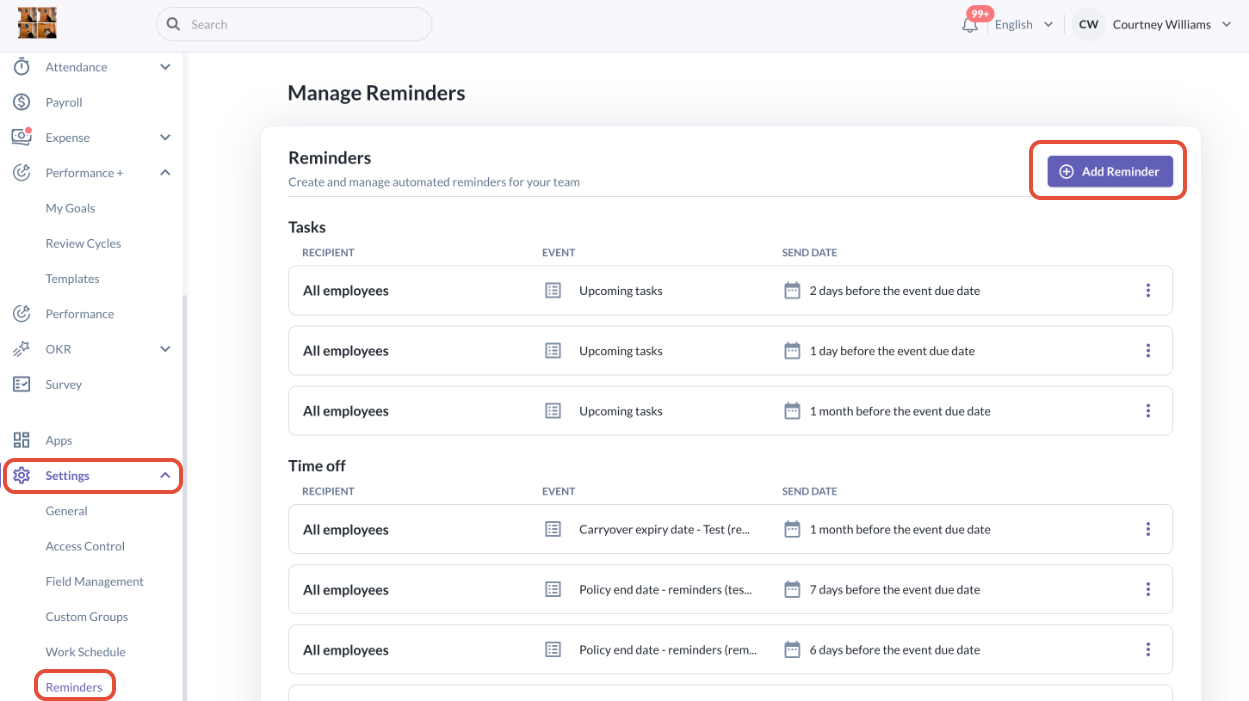
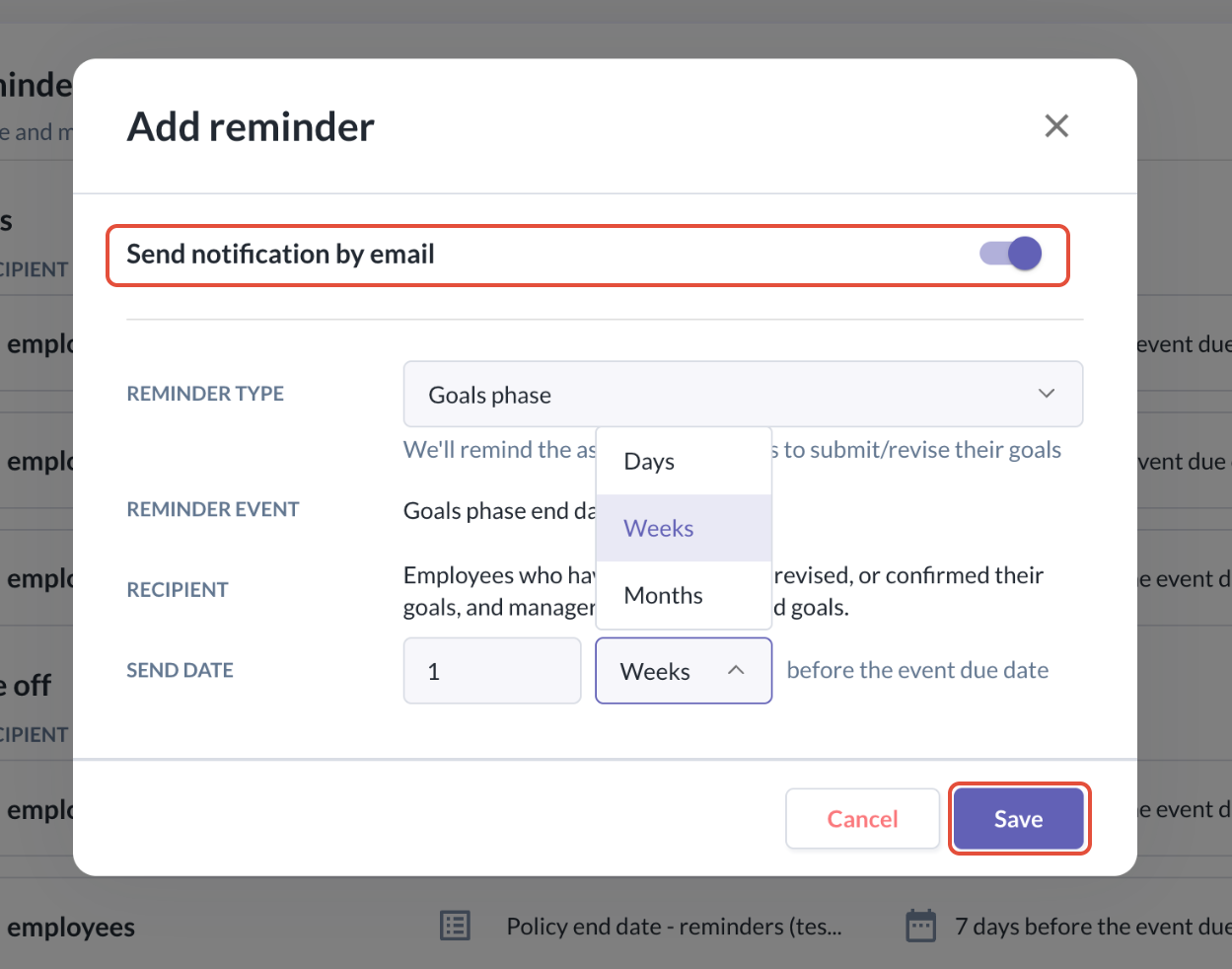
- Under the Reminder Type, click the drop down and select Goal Phase
- Under the Send Date, type in the time configuration based on the units of Days/Weeks/Months. Event due date refers to the Goal Phase end date.
- If you want the employees and managers to receive a reminder through email notification, you will need to ensure the Send notification by email is toggled On.
- Click Save
- Who will receive the notifications?:
- Employees who have not submitted their Goals (with approval flow)
- Employees who have Goals under pending revision (with approval flow)
- Managers who have not approved the pending Goals (with approval flow)
- Employees who have not confirmed their Goals (no approval flow)
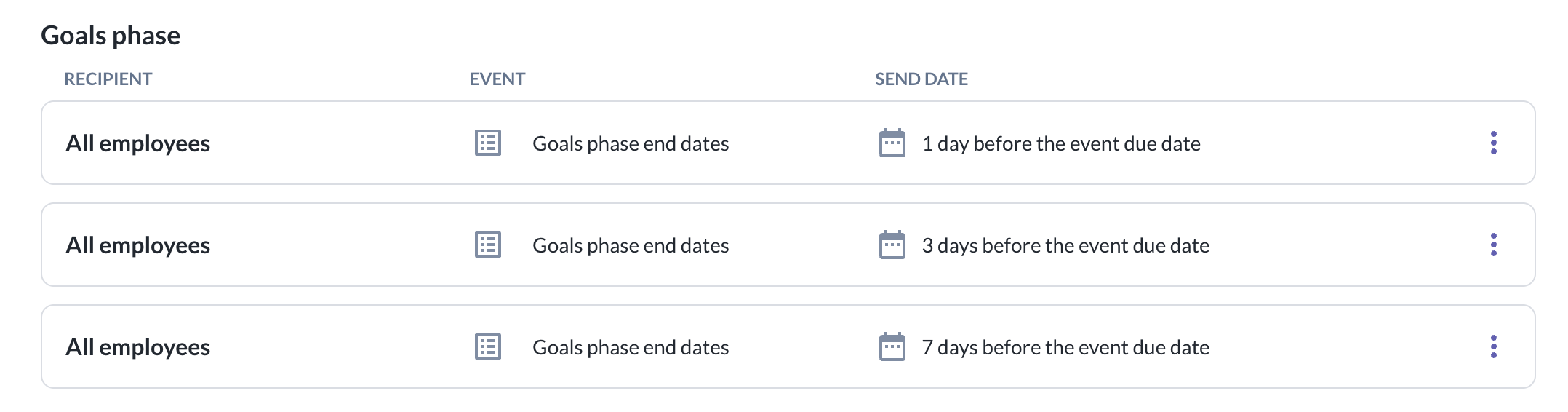
- Admins can also set up multiple reminders for the same Goal Phase as per the example below:
Editing or Deleting Reminder
- Admins can always edit the reminder by click onto the 3 dots at the right side and click on Edit
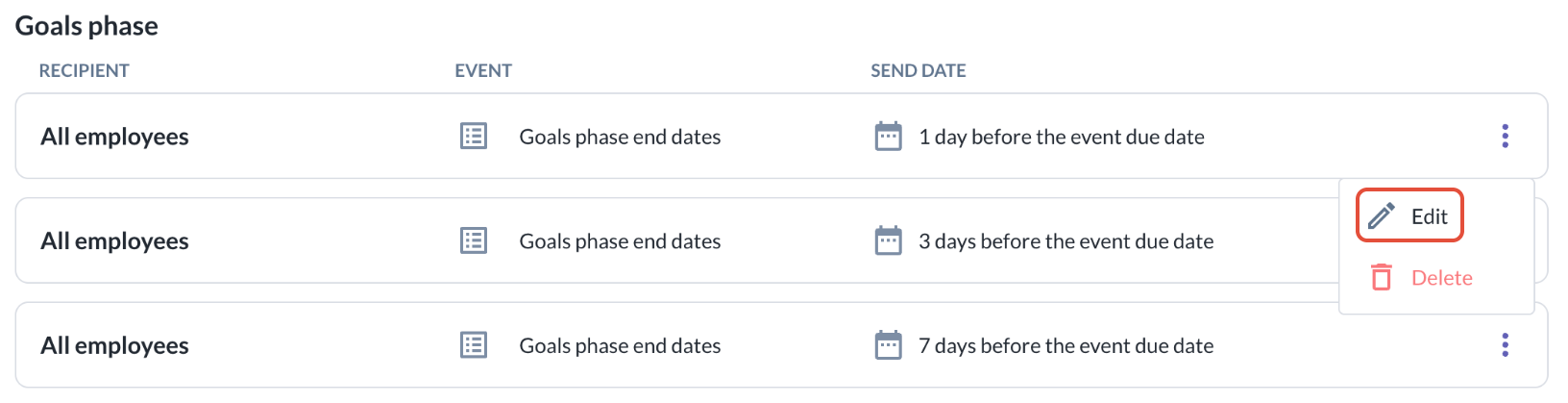
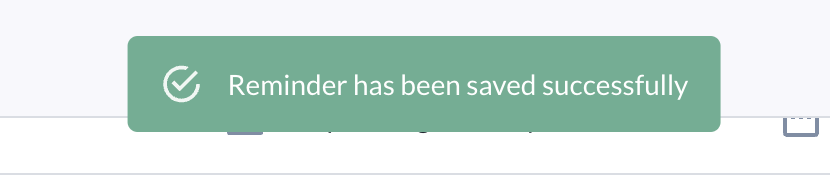
- After saving the edit, admins will be able to see a banner pop up to notify that the Reminder has been saved successfully
- By clicking on the 3 dots at the right side of the reminder, admins can also choose to delete the reminder
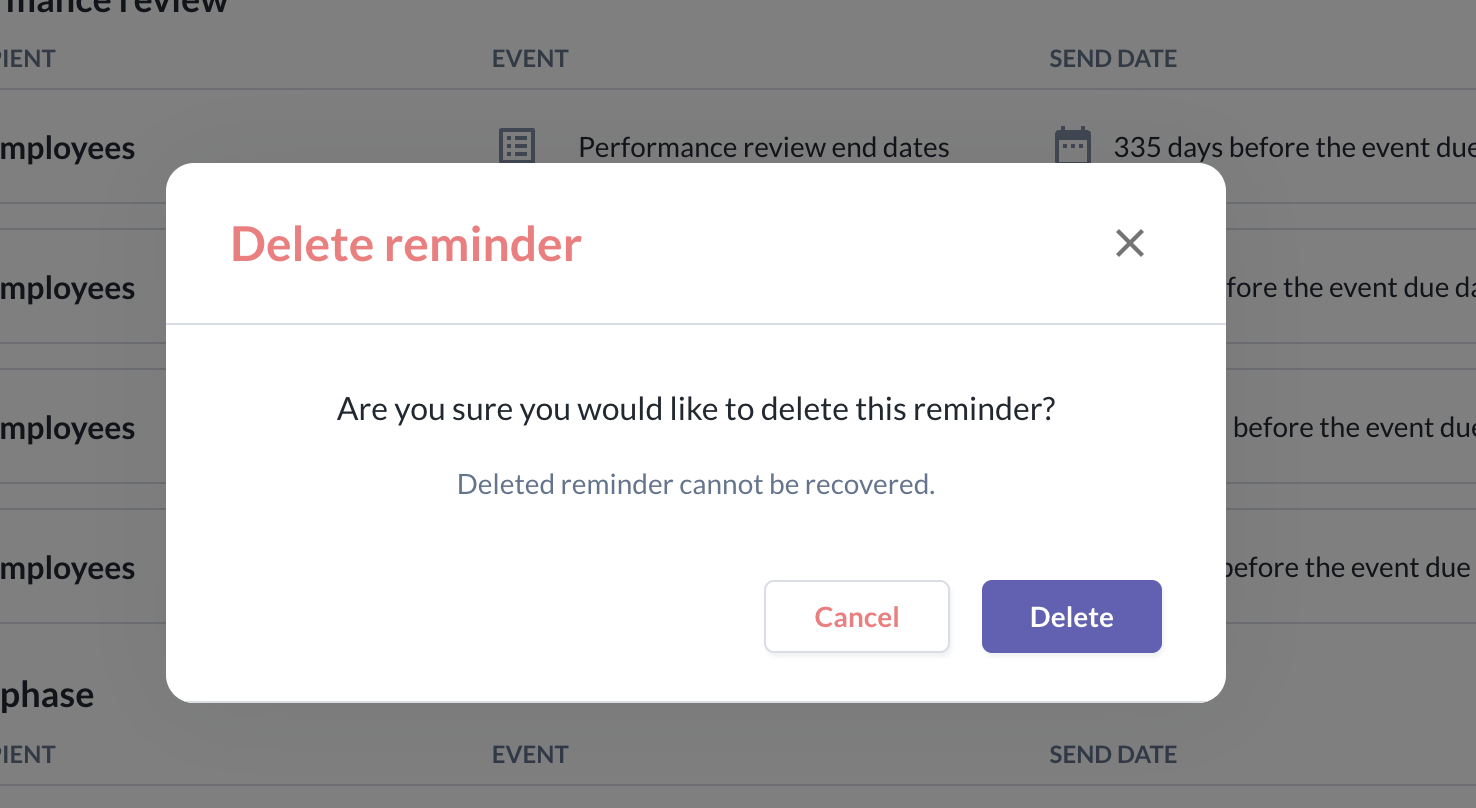
- Upon clicking the Delete, a pop up will appear to re-confirm on the deletion of the reminder
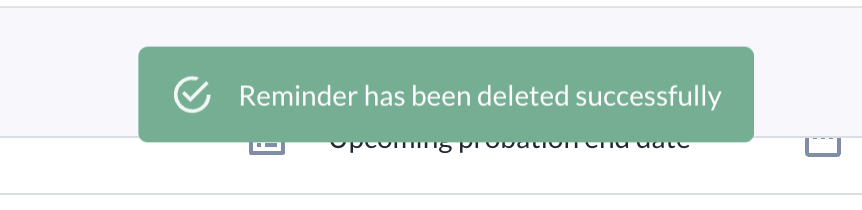
- After clicking Delete, the reminder will be removed from the list and there will also be a banner showing that the Reminder has been deleted successfully
Email Notifications
- You will need to first ensure the Send notification by email is toggled on
- At 00:00hrs SGT on each configured reminder date, the system sends emails to:
1) Employees who has not submitted their Goals, have Goals under pending revision or if they have not confirmed their Goals; and
2) Managers who have not approved pending Goals will also
For Employees (with Approval Flow)
- This is an example of the email notification received by employees who has not submitted their Goals, have Goals under pending revision or if they have not confirmed their Goals
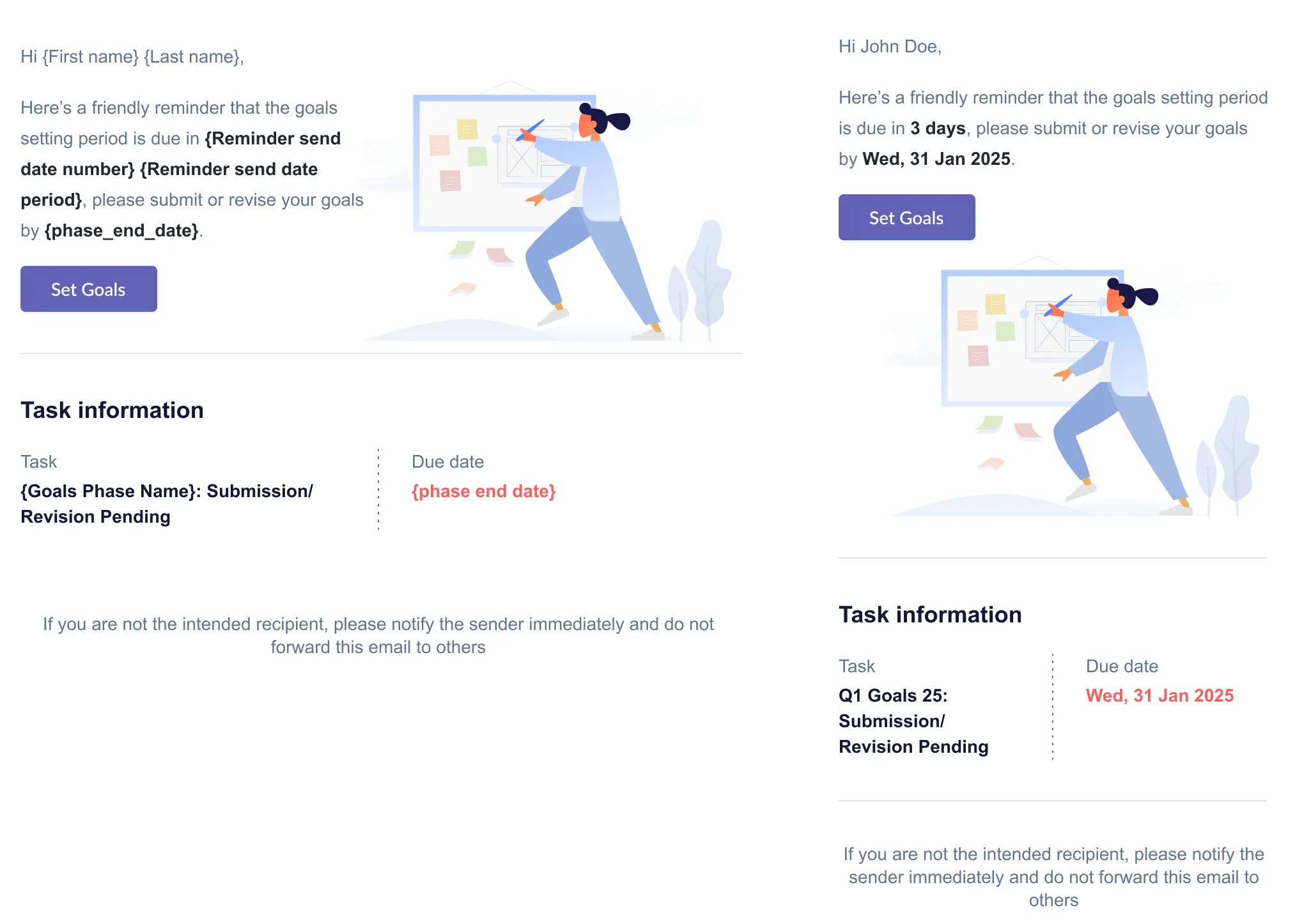
- When the employee clicks "Set Goals", it will direct them immediately to To-Dos → Performance → Tasks → Set/Edit Goals
For Managers (with Approval Flow)
- This is an example of the email notification received by managers who have not approved pending Goals
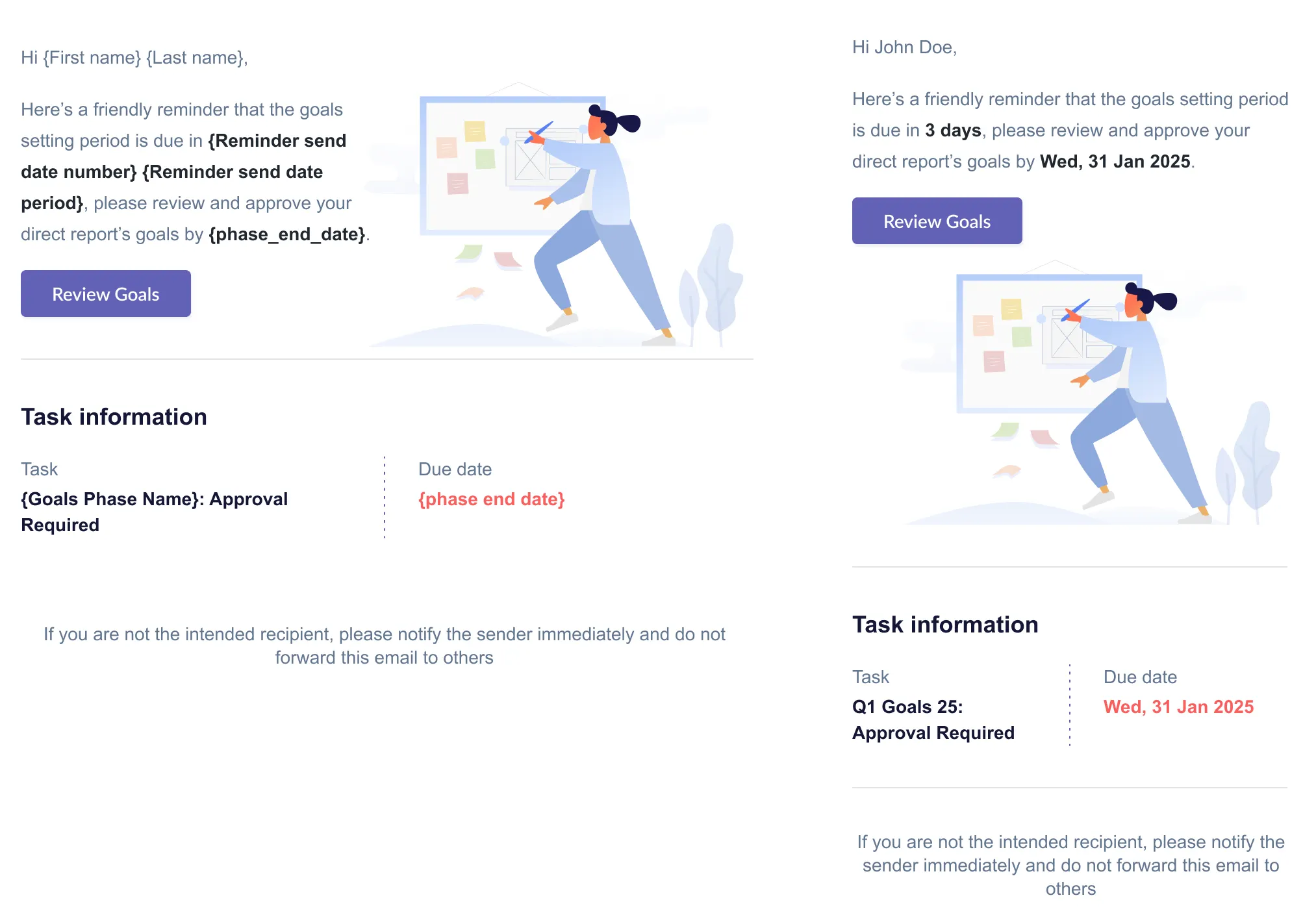
- Only one email per manager per goal phase reminder date will be sent from the system, even if multiple directs are pending approval.
- When the manager clicks "Review Goals", it will direct them immediately to To-Dos → Performance → Tasks → Set/Edit Goals
For Employees (no Approval Flow)
- This is an example of the email notification received by employees who has not submitted their Goals, have Goals under pending revision or if they have not confirmed their Goals
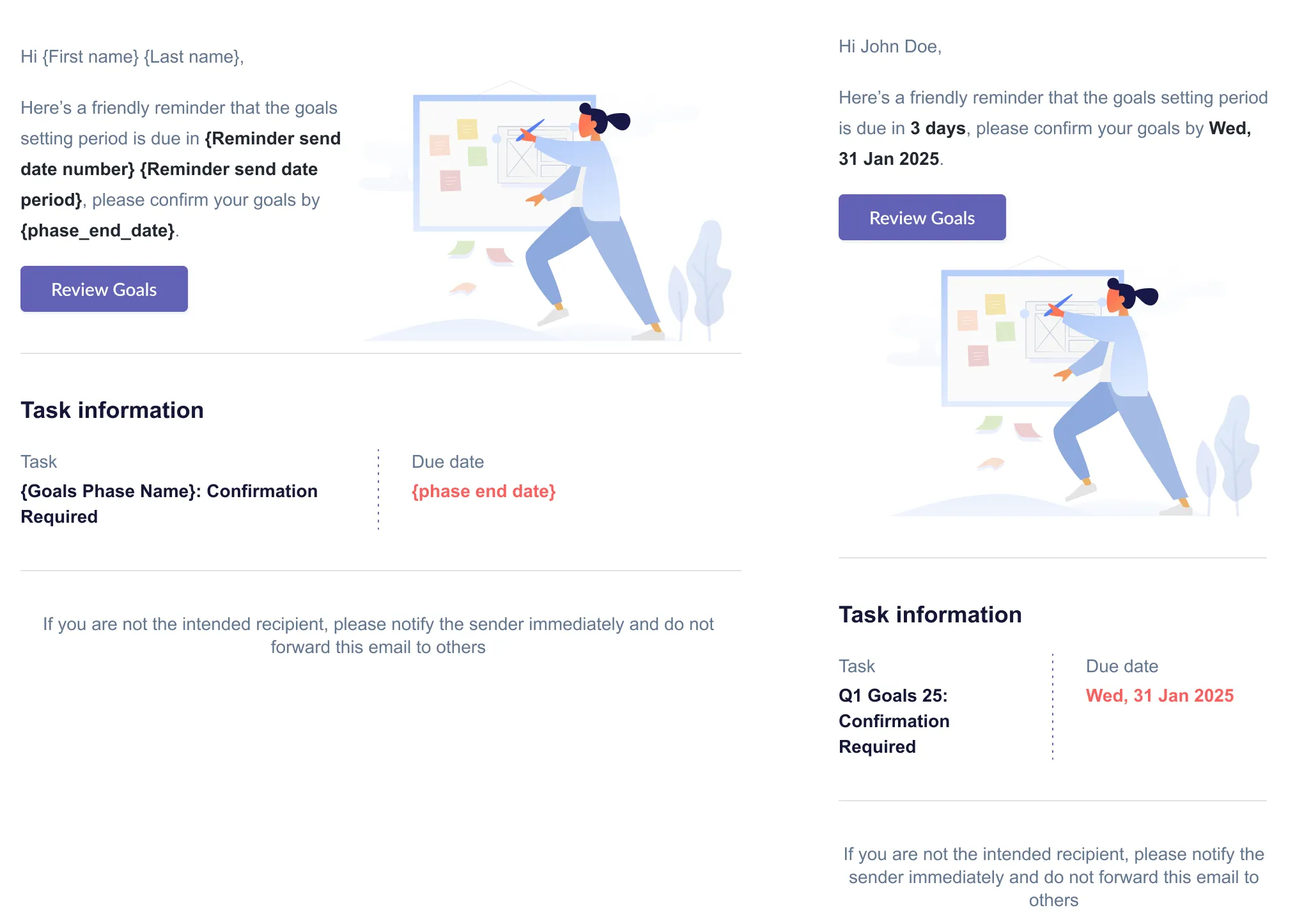
- When the employee clicks "Review Goals", it will direct them immediately to To-Dos → Performance → Tasks → Confirm Goals
Omni System Notifications
- At the same 00:00hrs SGT time, the system also creates in-app notifications for the same audience and conditions as email notifications above
For Employees or Managers
- The notifications will appear at the bell icon at the top right of the employee profile

- Below are some samples of the notifications:

- Employees will only receive one notification per reminder and not per goal to avoid having too many notifications
- When the employee clicks on the notifications, it will direct them immediately to To-Dos → Performance → Tasks
Still Need Help?:
Reach out to our support team should you need further assistance.
Was this article helpful?
That’s Great!
Thank you for your feedback
Sorry! We couldn't be helpful
Thank you for your feedback
Feedback sent
We appreciate your effort and will try to fix the article