Overview:
Admins can export a consolidated Goals Report for any goal phase as an Excel (.xlsx) file, delivered via email once ready.
How to export
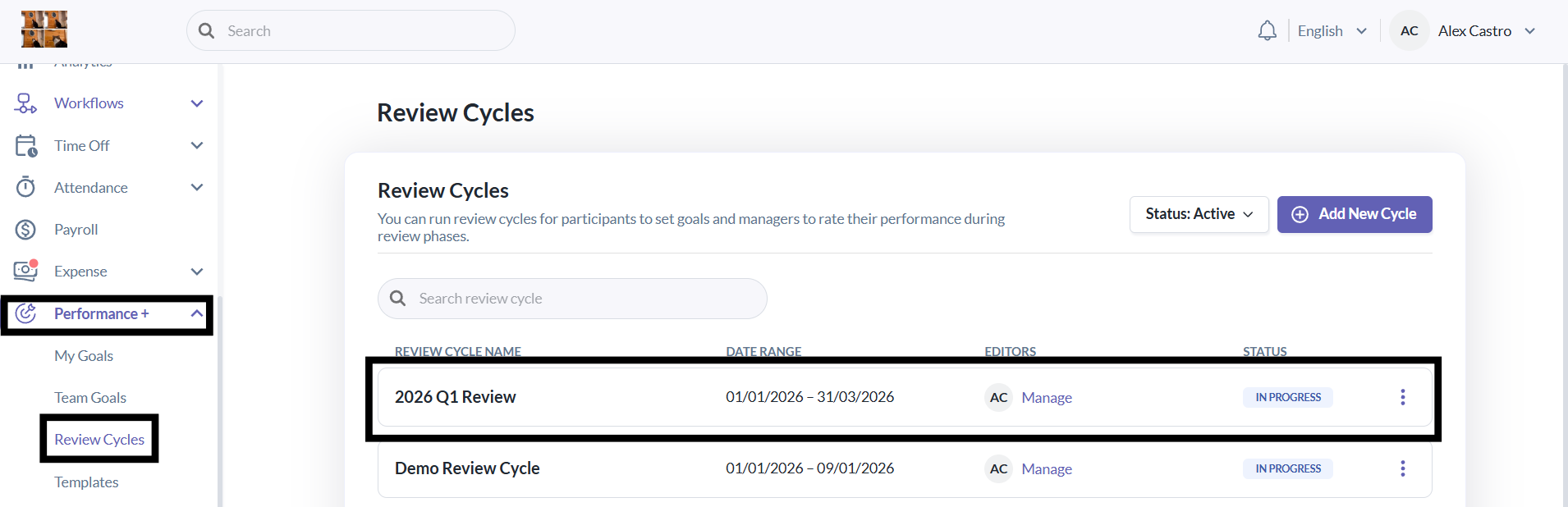
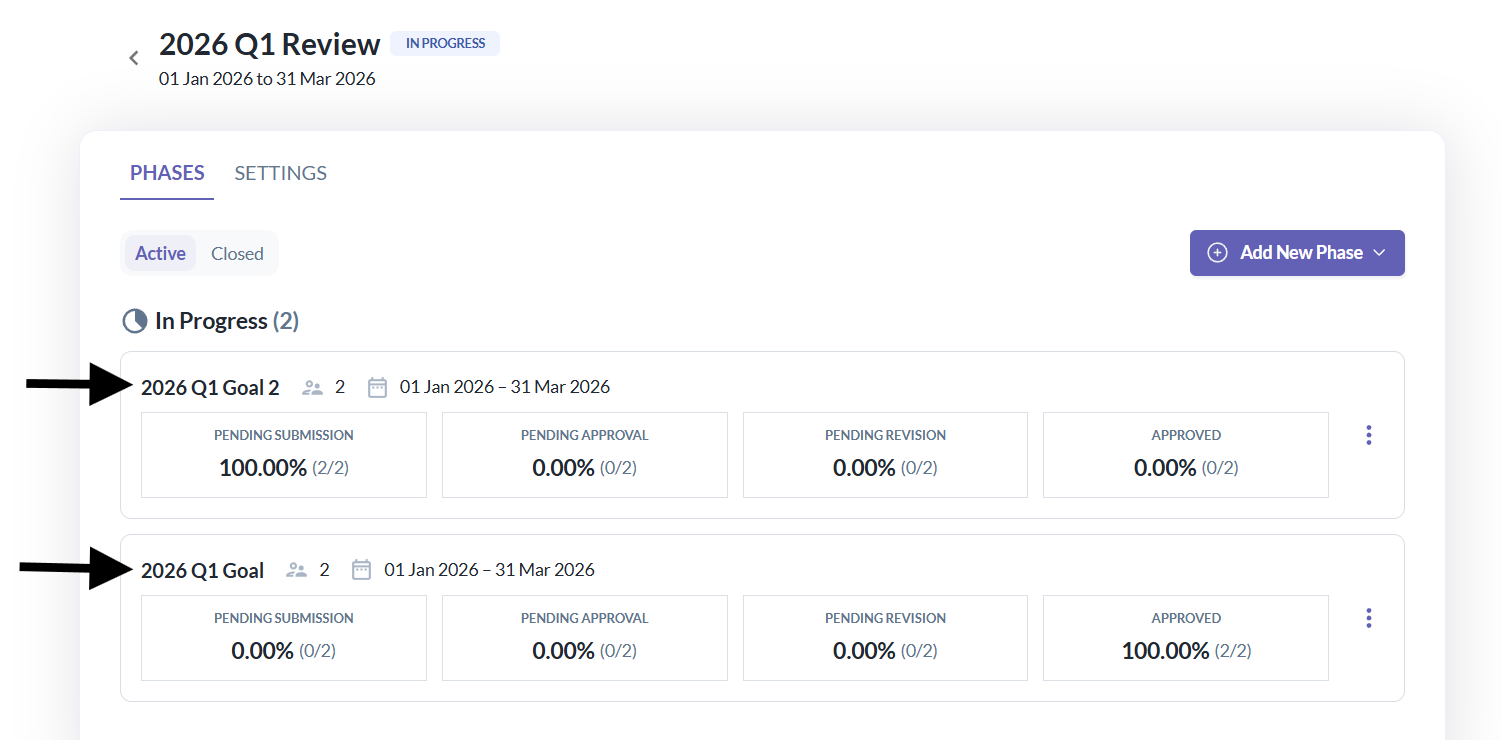
1. Go to Performance+ > Review Cycle > Click the Review Cycle Name > And choose the Goal Phase
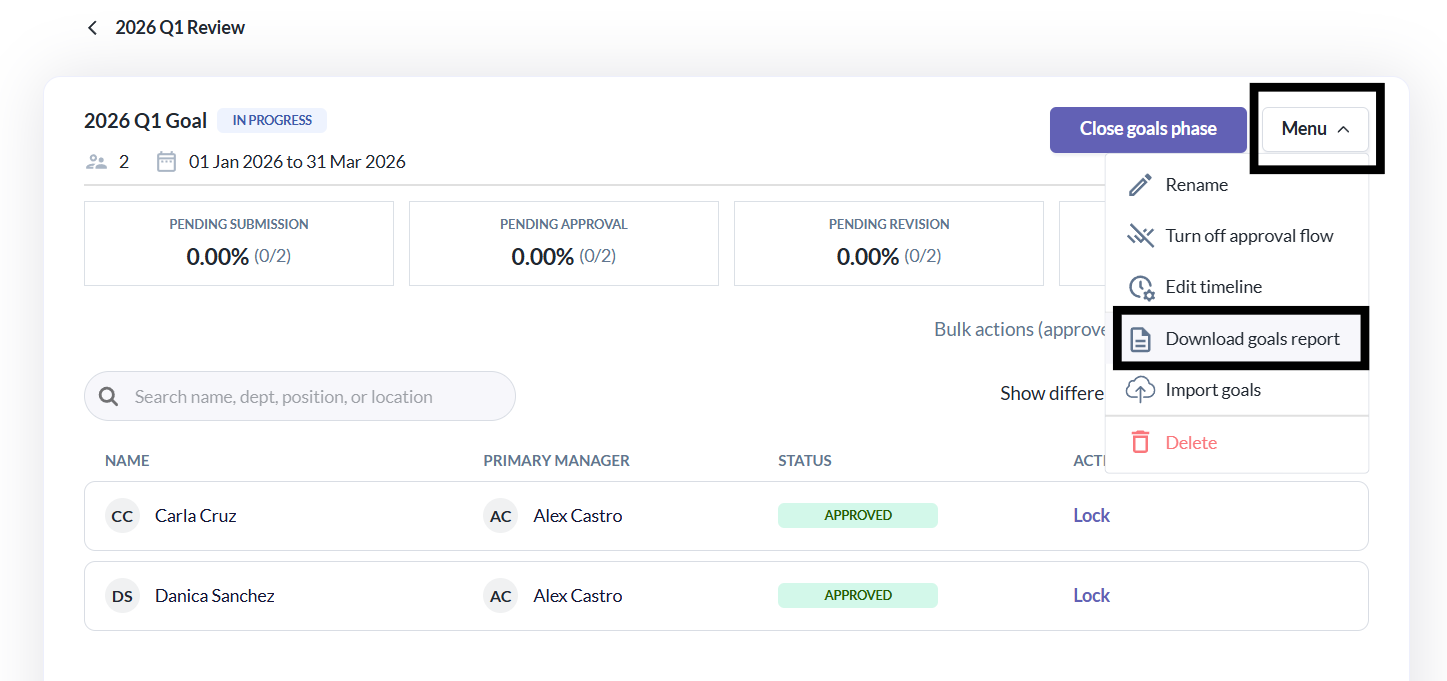
2. Click Menu > Download goals report
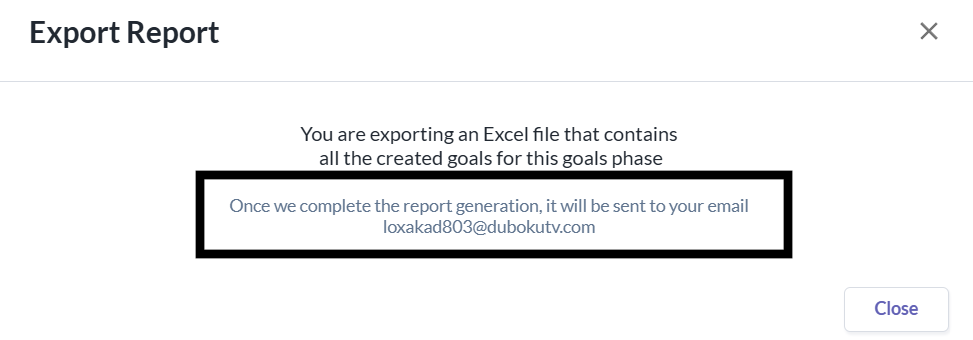
3. Confirm to the export modal > A notification will appear indicating the report will be emailed to the email address indicated.
4. Admin receives the Excel file with the format: [Goal phase name] generated on DD_MM_YYYY.xlsx

Note:
- Included in the downloaded report: Goals that have status Pending Approval, Pending Revision, Approved, Done
- Excluded in the downloaded report: Goals that have status Not Set, Pending Submission
Still Need Help?
Reach out to our support team for further assistance.
Was this article helpful?
That’s Great!
Thank you for your feedback
Sorry! We couldn't be helpful
Thank you for your feedback
Feedback sent
We appreciate your effort and will try to fix the article