Overview:
Goal Phases define when employees can create, edit, confirm, and update their goals within a Review Cycle.
Admins can configure multiple goal phases to support flexible planning across the year.
This guide aims to share the steps to take to create a goal phase within a review cycle.
TABLE OF CONTENTS
- Step 1: Accessing Goal Phase Setup
- Step 2: Setup the Goal Phase Details
- Step 3: Select participants
- Step 4: Review and Launch
- Step 5: View goal phase created
Step 1: Accessing Goal Phase Setup
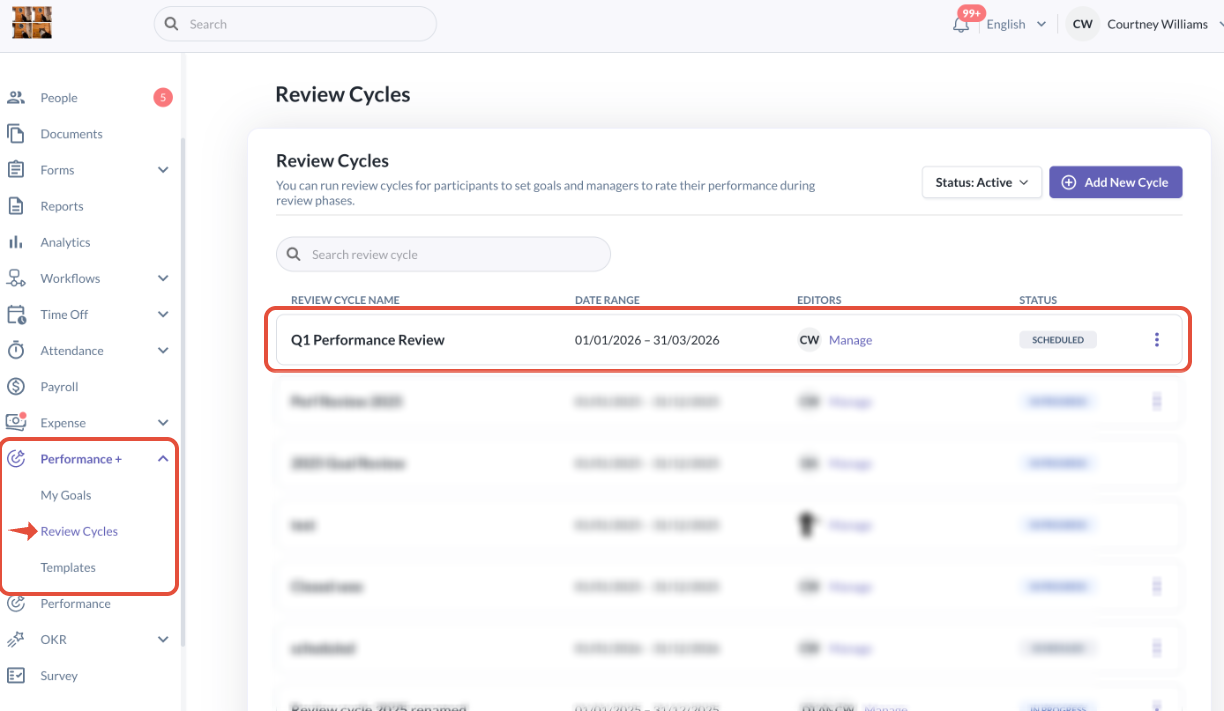
- Go to Performance+ > Review Cycles
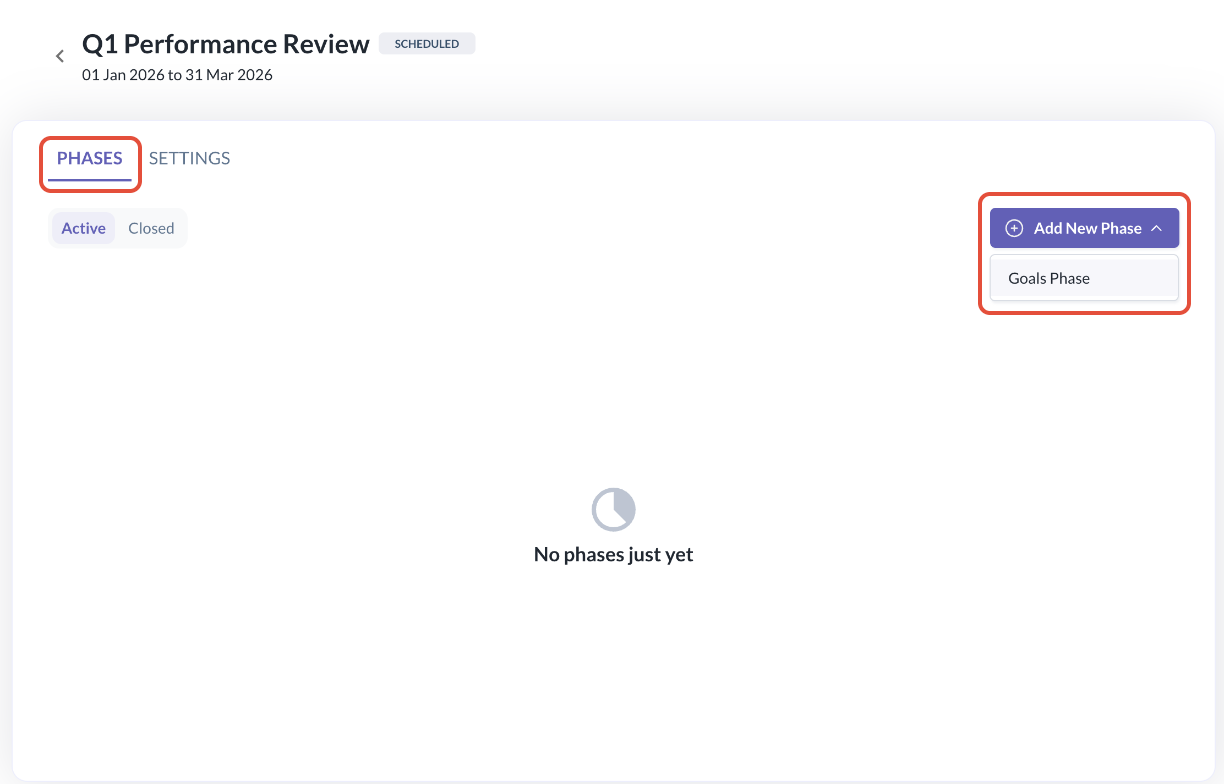
- Inside any Review Cycle i.e. Q1 Performance Review, admins can now open the Phases tab and select Add New Phase > Goal Phase.
Step 2: Setup the Goal Phase Details
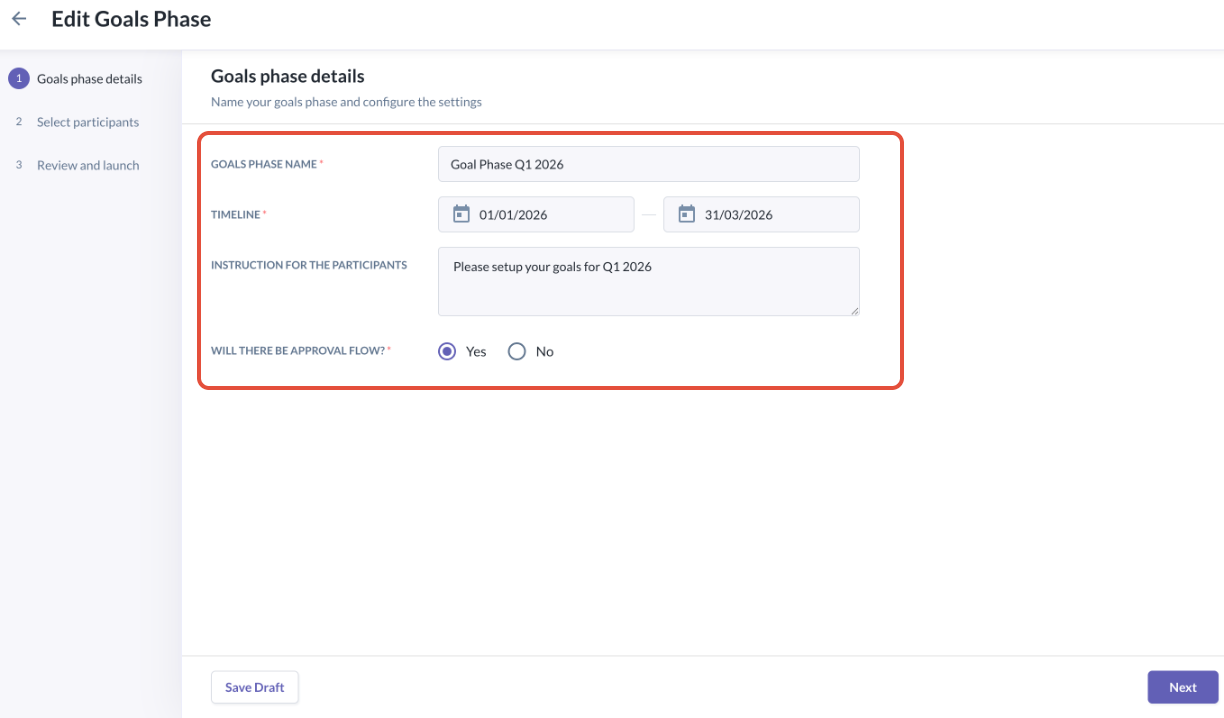
- Fill in and configure the below fields:
- Goals phase name
- Timeline (Start Date & End Date define when employees can set or edit goals)
- Instruction for the participants (optional - This instruction will be displayed to goal phase participants when they are setting up their goals)
- Will there be approval flow? (Optional toggle if you require manager to review and approve goals set by participants)
Step 3: Select participants
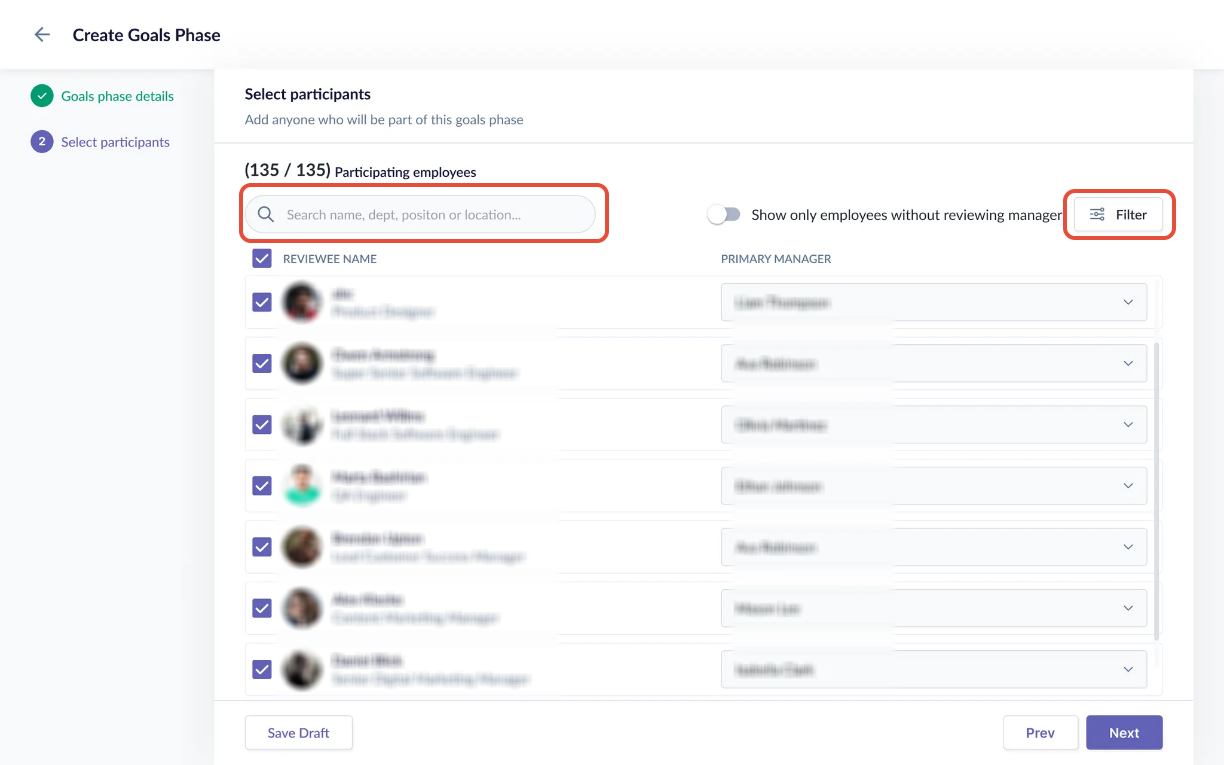
- Admins have a few options to select participants for this goal phase:
- Add employees one by one
- Bulk-select from employee list
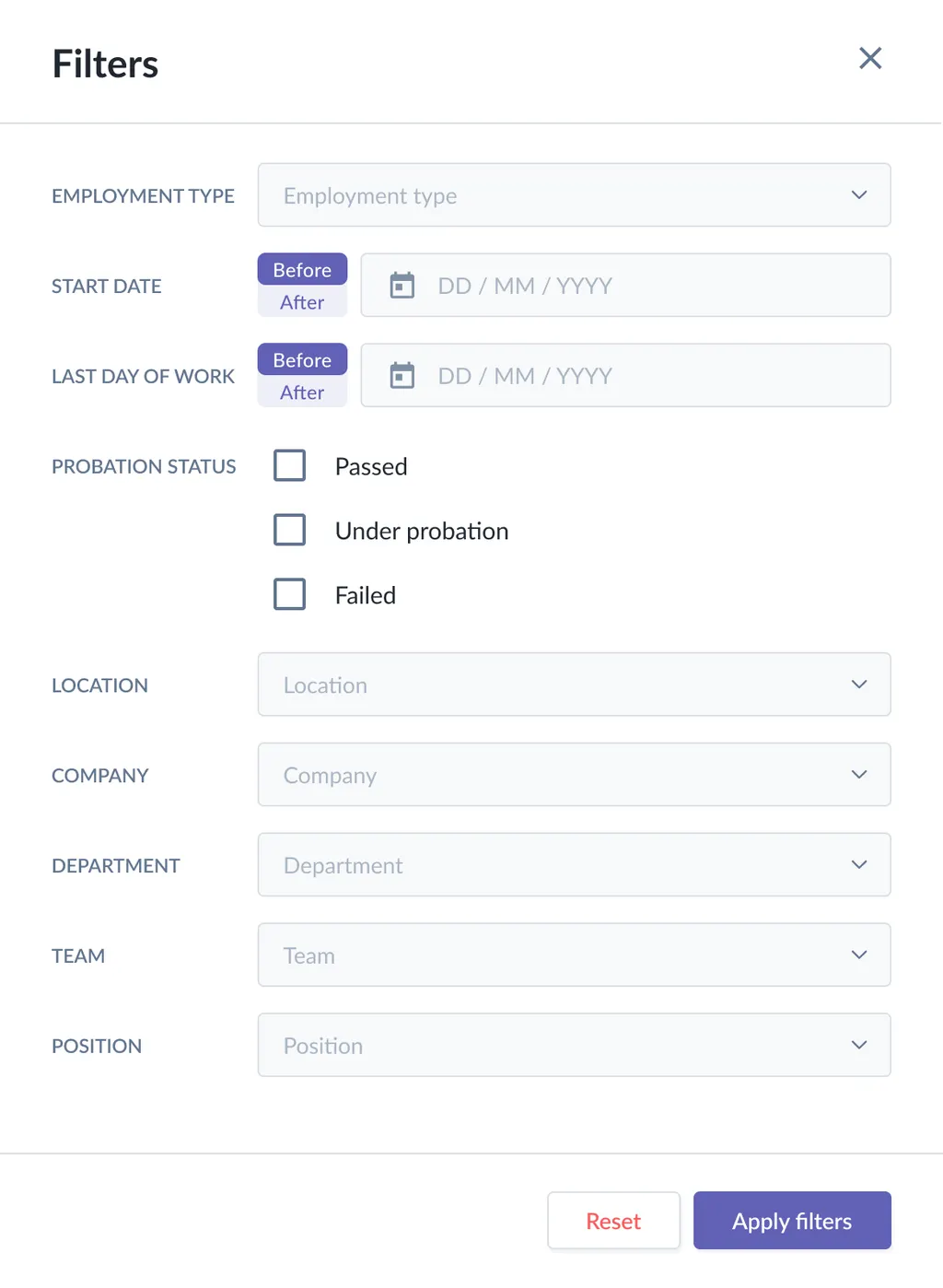
- Filter by employment type, start date, last day of work, probation status, location, company, department, team, position
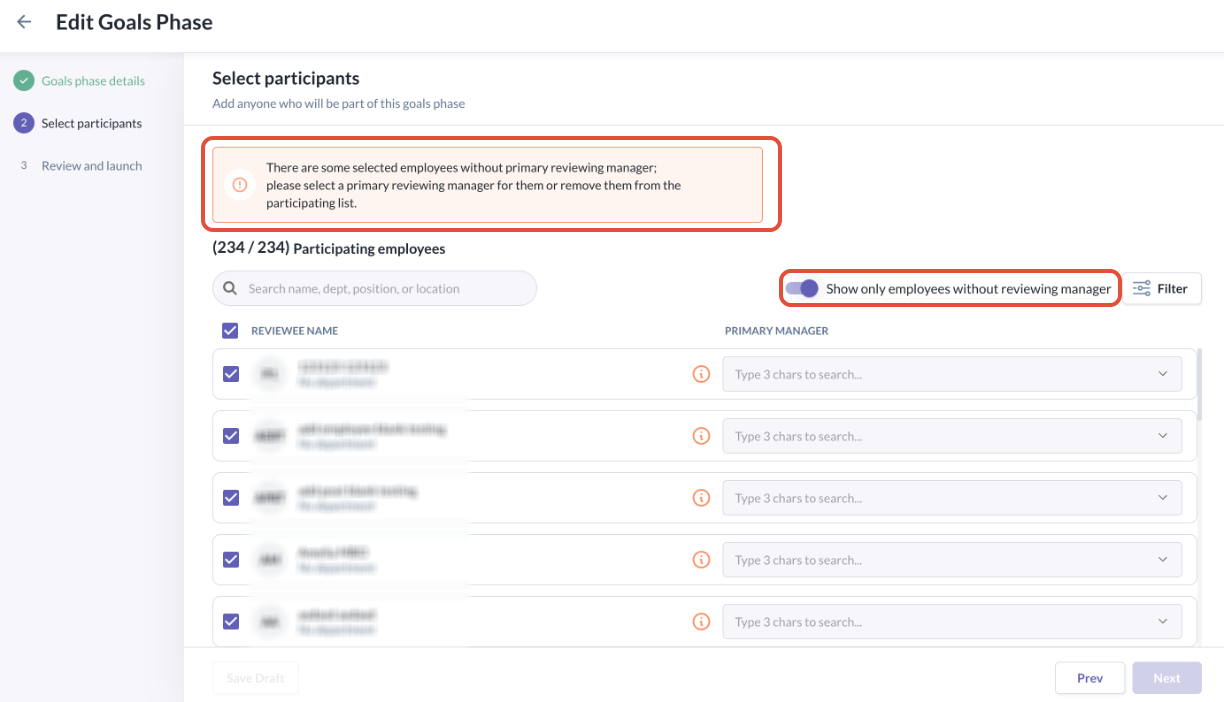
- If approval by manager is toggled on, the system will also prompt admins to review and add primary managers or remove the participants from the selection. Admins can easily toggle Show only employees without reviewing manager to do this.
Step 4: Review and Launch
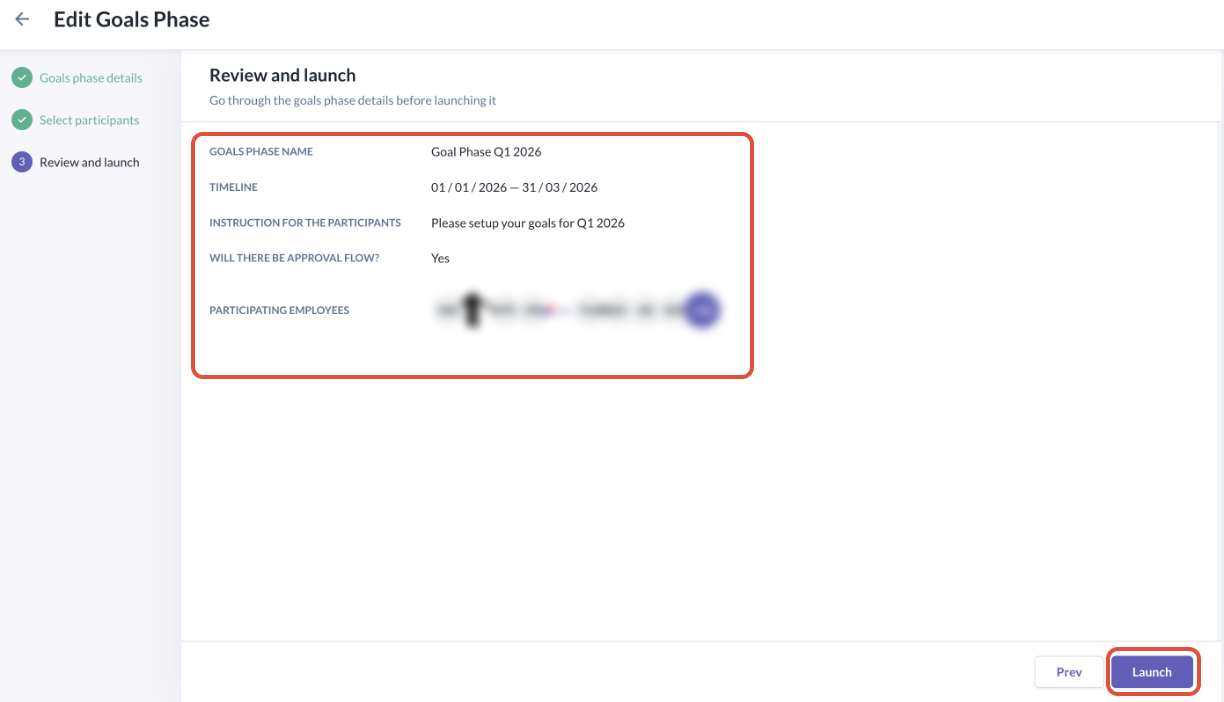
- A confirmation screen summarises:
- Phase name
- Timeline
- Instruction for the participants
- Approval(if required)
- Count of participants
- Admins can click Launch to finalise.
Step 5: View goal phase created
- Admins can view the goal phase created under the Phases + Active view:
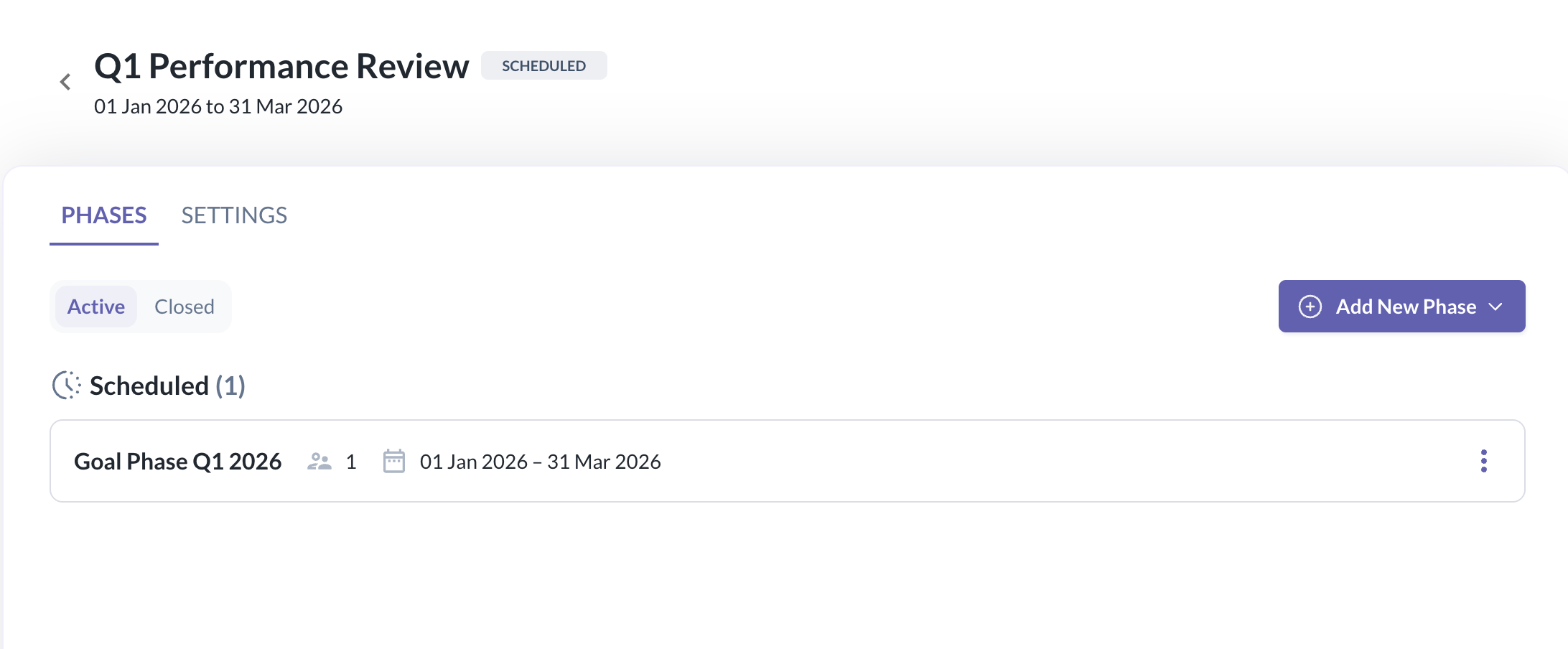
- As the goal phase is set for the future, the status of the phase is set as Scheduled.
- Other available statuses for Goal Phases include:
- Active: In Progress (with approval flow)
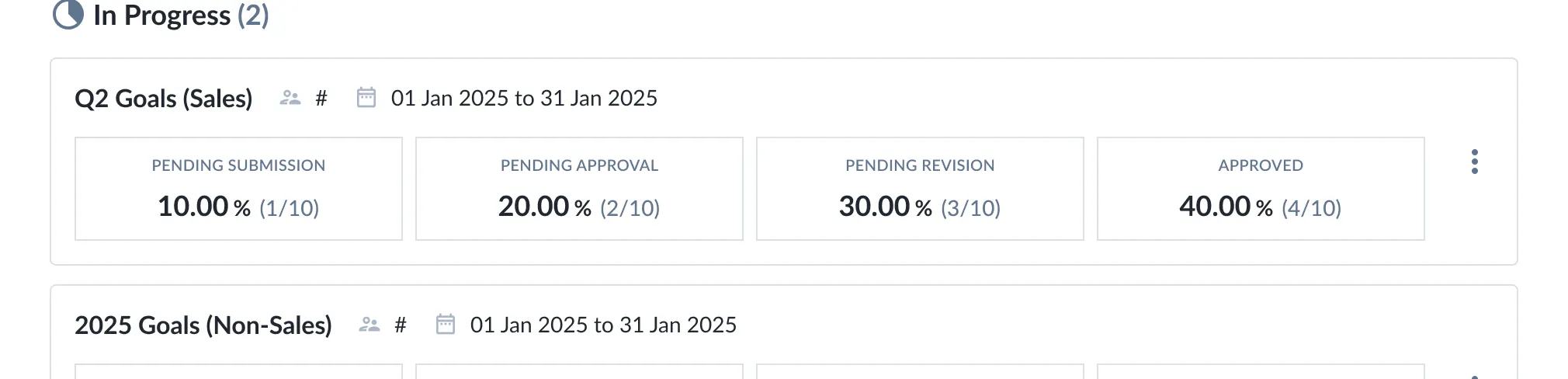
- Active: In Progress (with no approval flow)
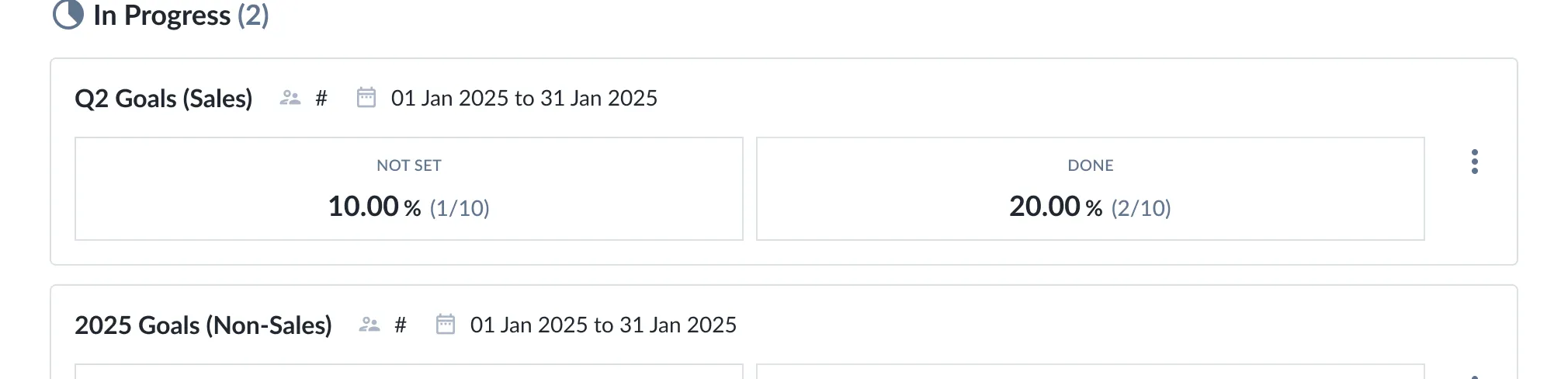
- Active: Draft
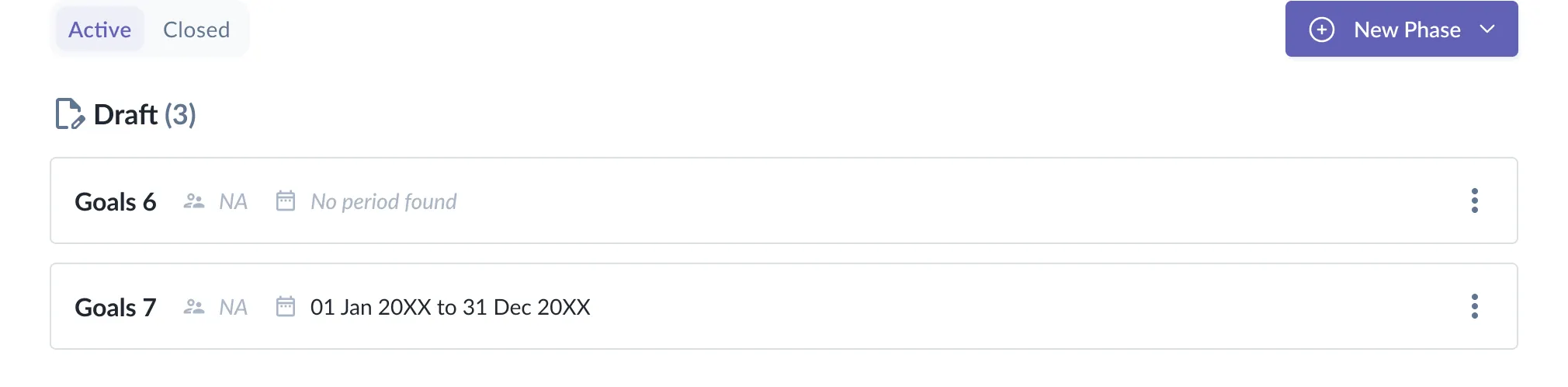
- Closed: Completed (with approval flow)
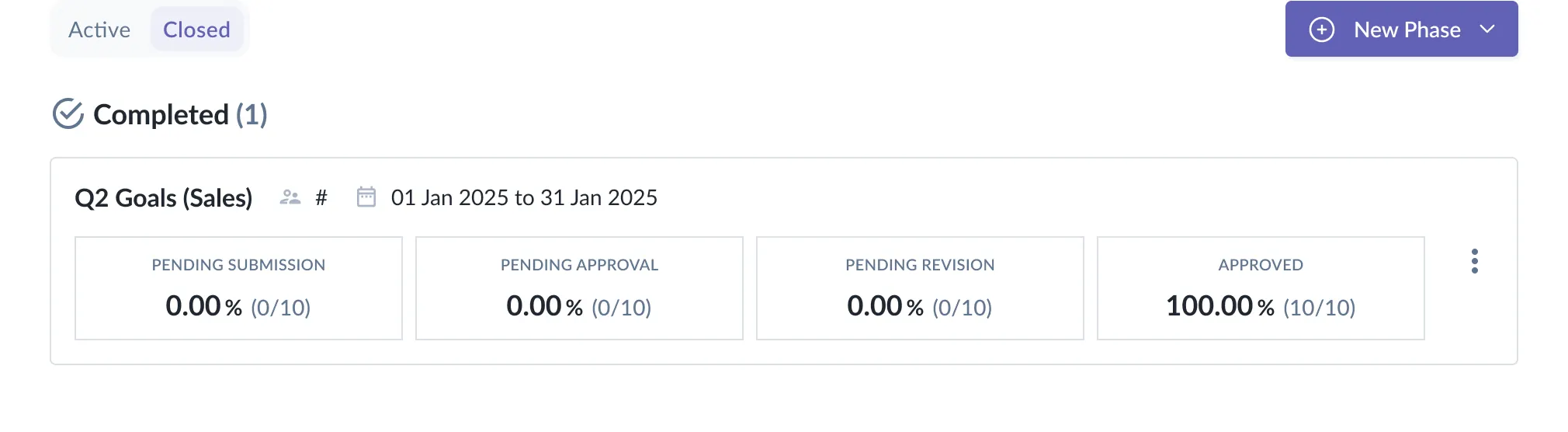
- Closed: Completed (with no approval flow)
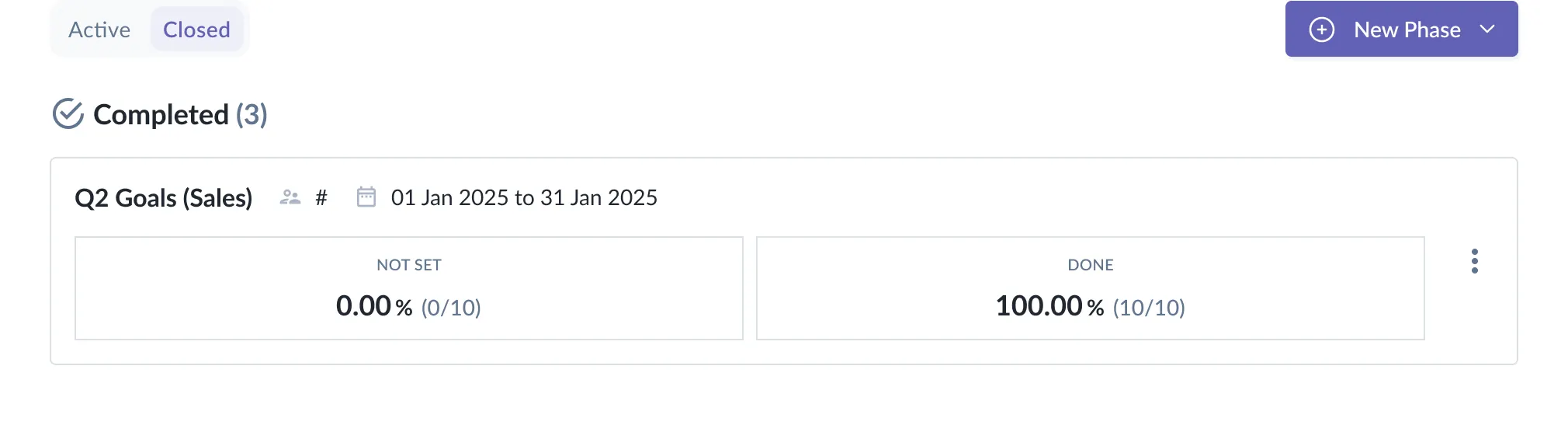
- Active: In Progress (with approval flow)
Still Need Help?
Reach out to our support team should you need further assistance.
Was this article helpful?
That’s Great!
Thank you for your feedback
Sorry! We couldn't be helpful
Thank you for your feedback
Feedback sent
We appreciate your effort and will try to fix the article