Overview:
This article explains how to view and manage Review Cycles, configure settings, assign editors, and perform administrative actions such as renaming or deleting a cycle.
TABLE OF CONTENTS
Viewing the Review Cycle details page
- The Review Cycle details page provides a complete overview of a cycle's configuration and allows authorised users to make updates via the Settings tab.
How to Access
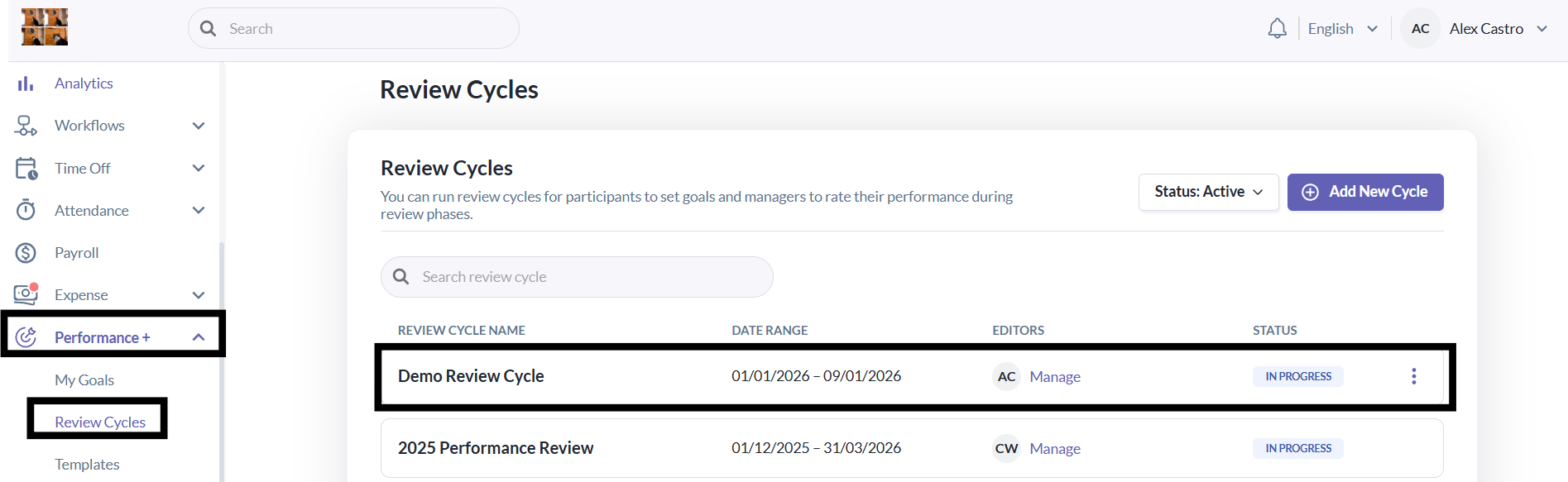
1. Go to Performance+ > Review Cycle
2. From the list, click the Review Cycle.
Note: Cycle editors can only view cycles where they are assigned as editors.
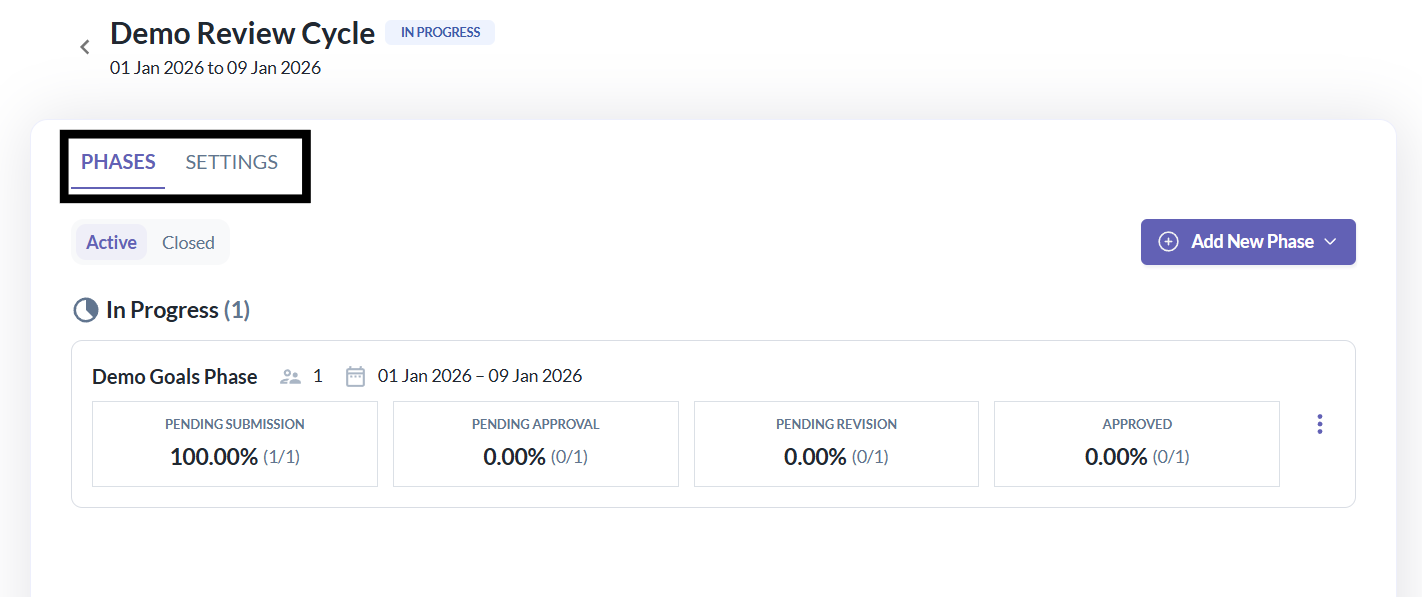
Once opened, you can navigate between:
- Phases
- Settings
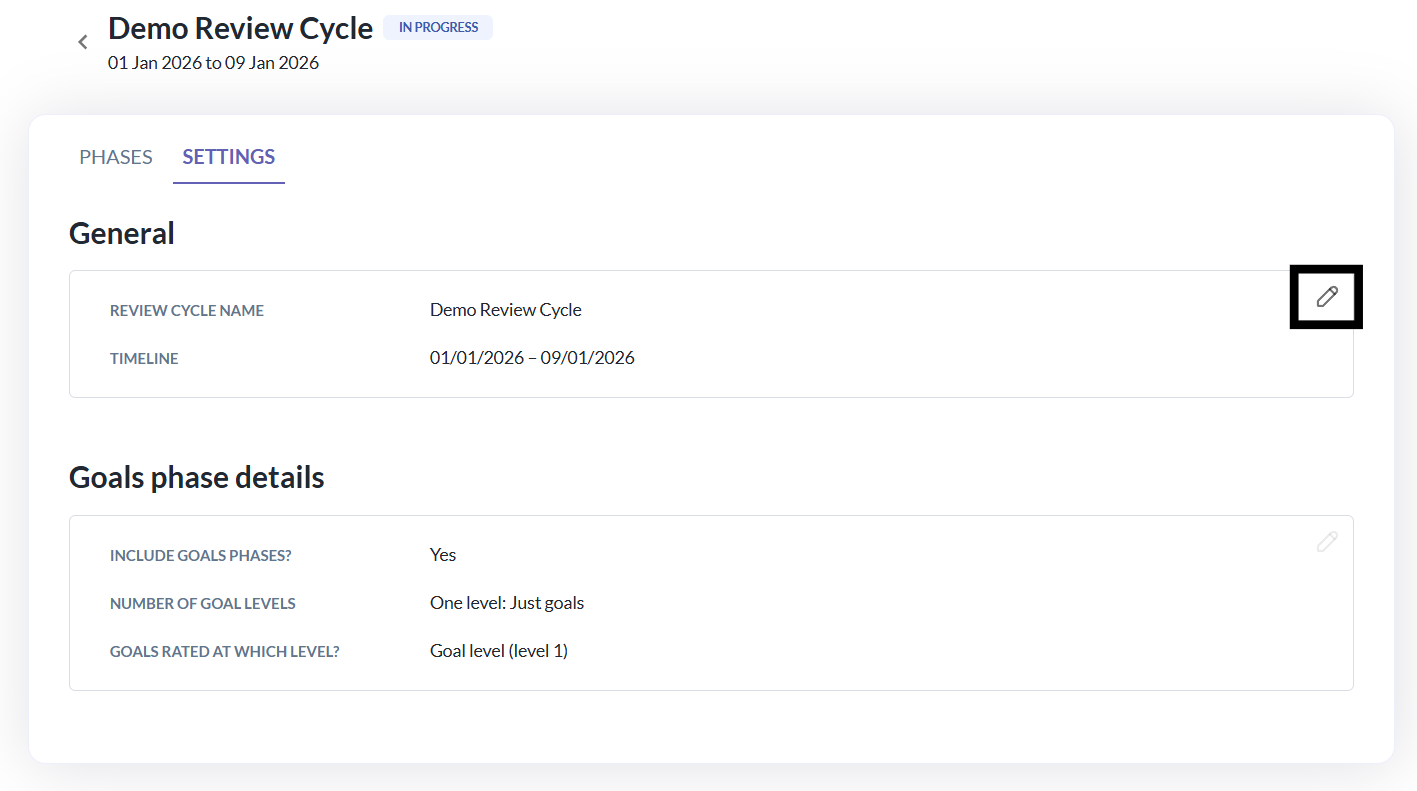
Settings Tab Overview
- The Settings tab contains the core function of a Review Cycle and is divided into two sections:
A. General Information
This section displays:
- Review Cycle name
- Timeline
Editing Rules
- Admins always have access to the Edit option
- General Information can be edited at any time, regardless of
- Cycle Status
- Whether goal or review phases already exist
The system automatically manages any downstream validations when changes are made.
B. Goal Phase Details
This section shows:
- Whether goal phases are included
- Number of goal levels (one-level or two-level)
- Rating level (goal-level or sub-goal-level)
| Condition | Can Edit Goal Settings? |
|---|---|
| No goal phases created yet | ✅ Yes, all settings can be modified |
| At least one goal phase exists | ❌ No, goal settings are locked |
Note: Once goal phase is created, the goal structure cannot be changed. This ensures consistency for all participants in the cycle.
Managing Review Cycle Editors
- Each Review Cycle can have one or more Cycle Editors, who act as owners of that cycle.
How Editors are Assigned
Editors can be granted access in two ways:
- Via the role permission:
"View all created review cycles and manage cycle editors"
2. Via per cycle assignment as a Cycle Editor
Both can manage editors, but with different scopes.
Who can Manage Cycle Editors?
A user can add or remove cycle editors if they:
- Have the permission "View all created review cycles and manage cycle editors" (can manage editors for all cycles), or
- Are Already a Cycle Editor for that specific cycle (can manage editors for that cycle only)
Accessing the Manage Editors Modal
1. Go to Performance+ > Review Cycles.
2. In the Review Cycles list, locate the Editors column.
3. Click Manage for the desired cycle.
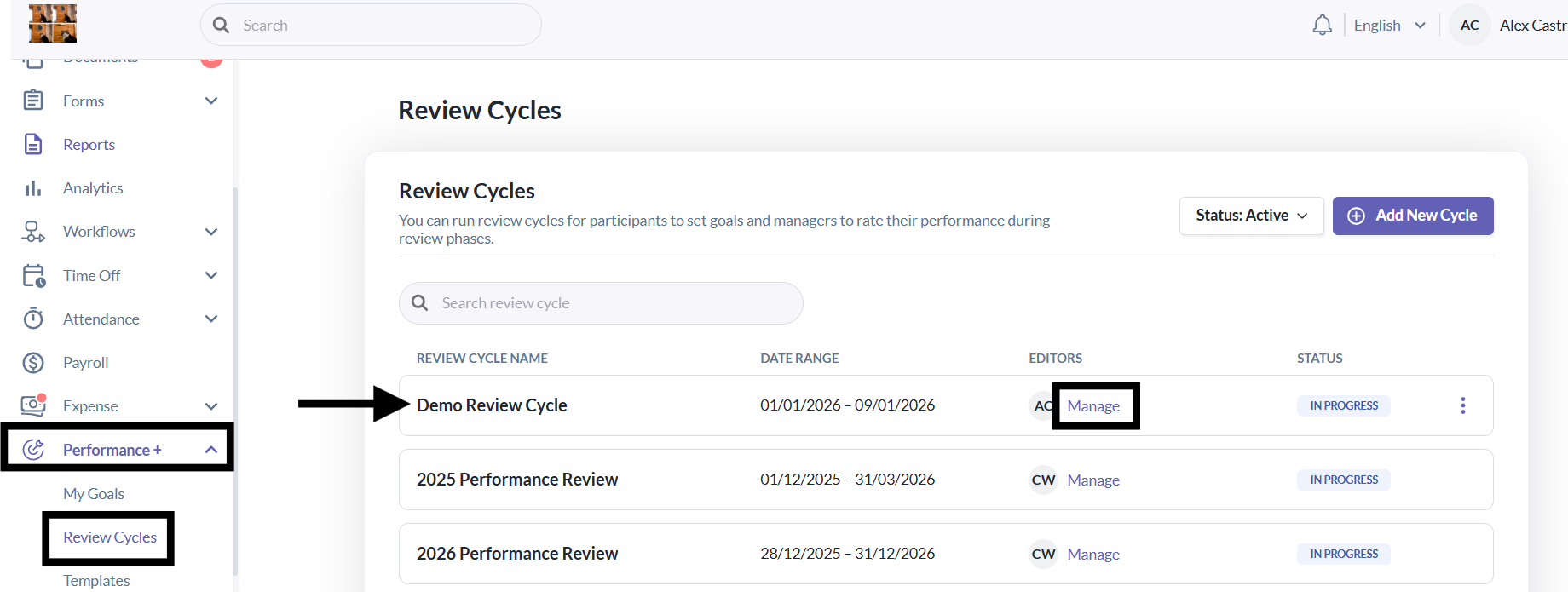
Note: The Manage link is only visible to users with the appropriate access.
Adding and Removing Editors
In the Manage Editors modal:
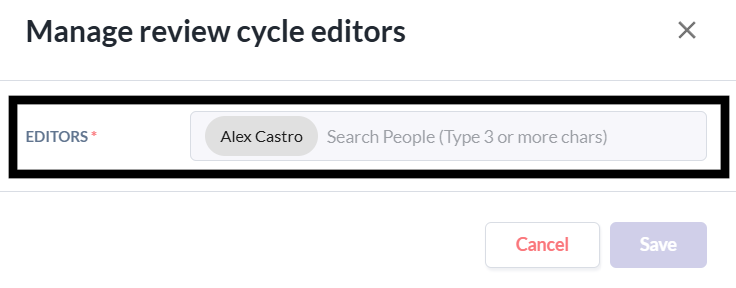
- Use the search field to find employees
- Add one or more users as editors
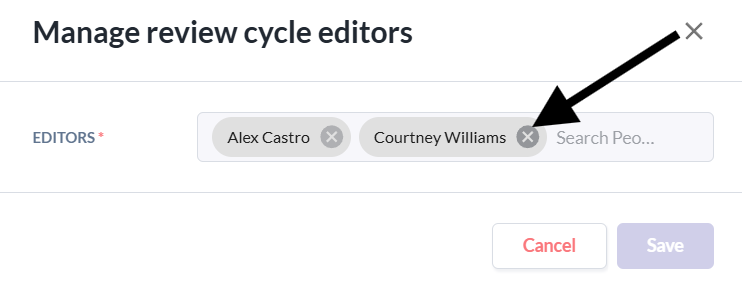
- Remove existing editors by clicking the X next to their name
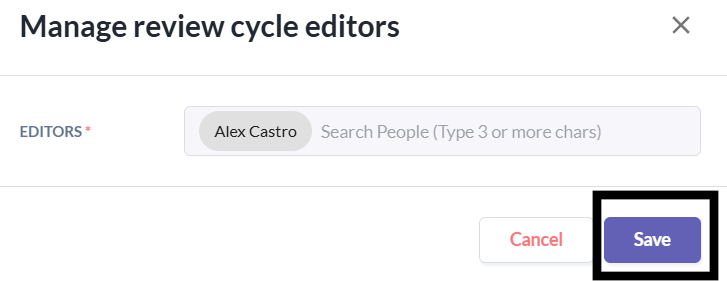
- Click save to apply changes
Renaming and Deleting a Review Cycle
Rename Review Cycle
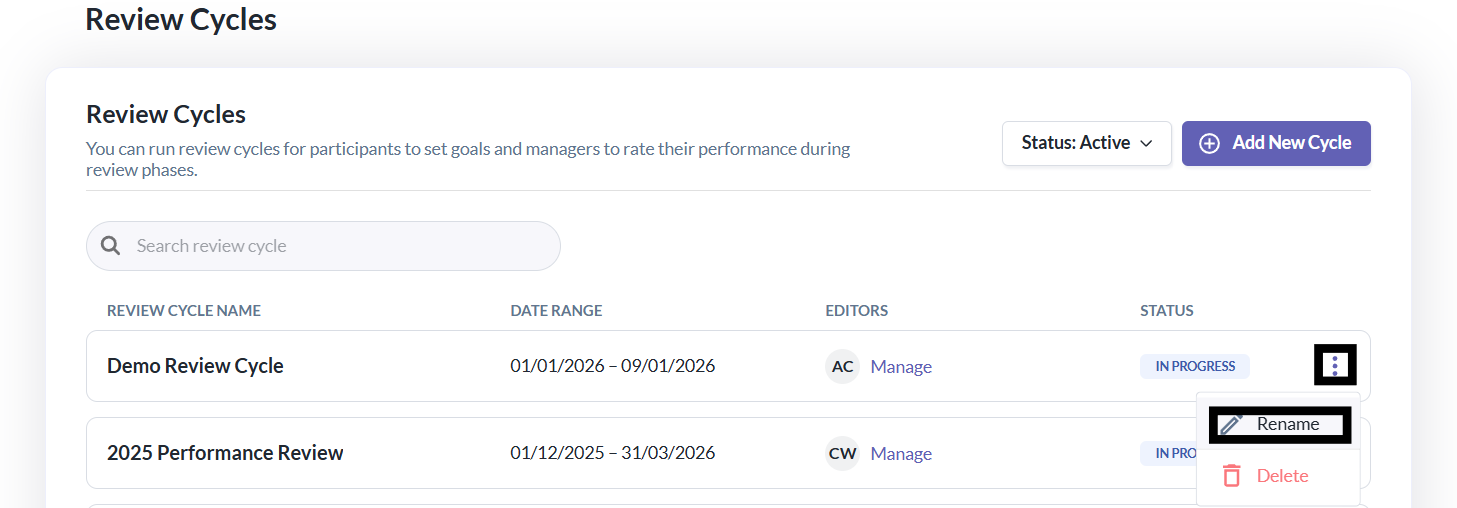
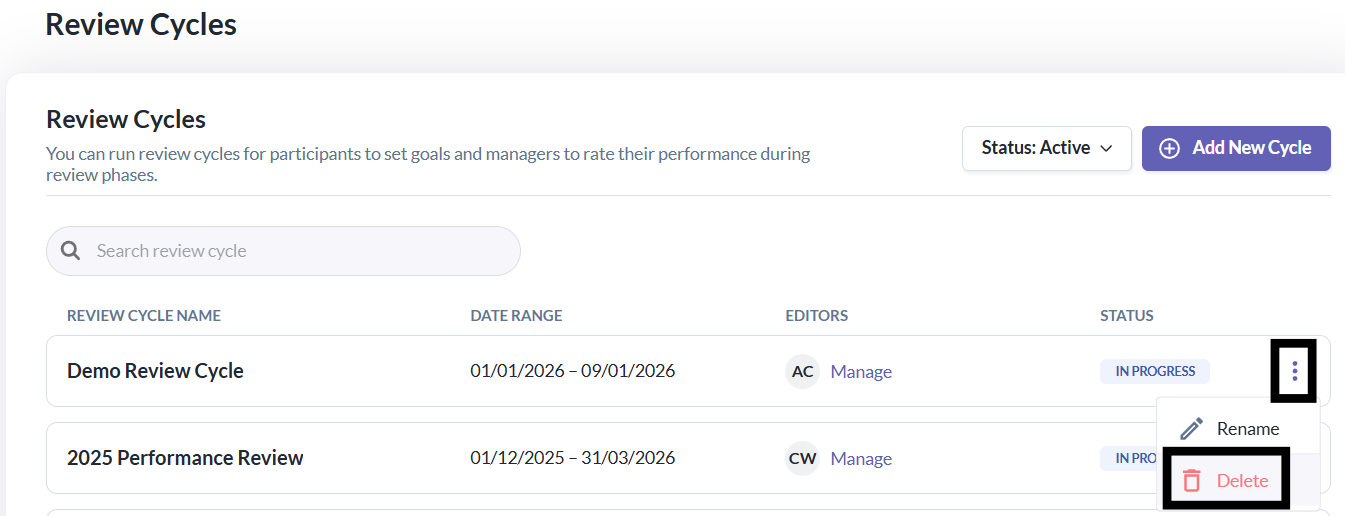
- Admins and Cycle Editors can rename a Review Cycle from the three-dot menu > Rename.
Note:
- The name cannot be empty
- The name must be unique and not duplicate another Review Cycle
Deleting Review Cycle
- Deleting a Review Cycle permanently removes:
- The cycle itself
- All associated goal phases
- All associate review phases
- Access this action via three-dot menu > Delete.
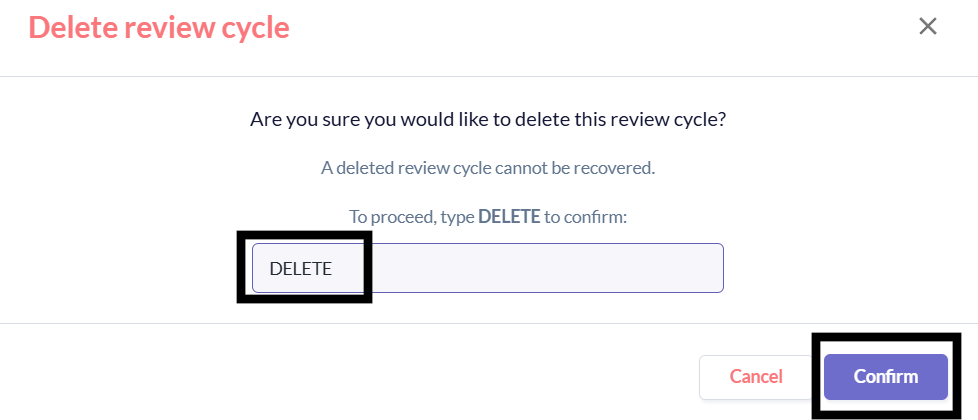
To confirm deletion:
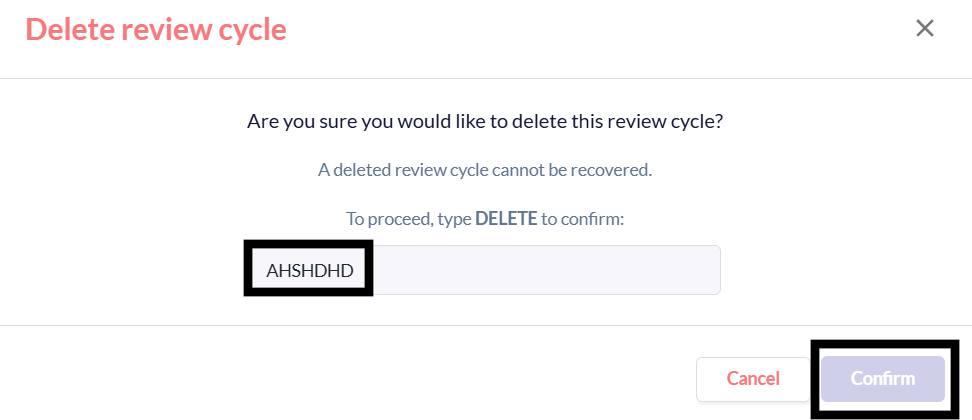
- The admin must type the exact word DELETE
- If the text does not match, the Confirm button remains disabled
⚠️ This action is irreversible. Deleted cycles and phases cannot be recovered.
Still Need Help?
Reach out to our support team for further assistance.
Was this article helpful?
That’s Great!
Thank you for your feedback
Sorry! We couldn't be helpful
Thank you for your feedback
Feedback sent
We appreciate your effort and will try to fix the article