Overview:
During the early stages of system launch, administrators may later discover that some historical Time Off transactions were not included during data migration.
If only a small number of records are missing, admins may choose to manually add these records directly into the system. This article outlines the recommended workaround to ensure historical time off is recorded without triggering employee notifications or approval issues.
Important: This process should only be used for already approved, historical time off. It is not intended for future or pending requests.
TABLE OF CONTENTS
How to Configure?
Step 1: Temporarily Update the Employee’s Email Address
Go to Employee Profile > Profile > Contact – Email > Edit
Replace the employee’s email address with a dummy or placeholder email (e.g., 2emilyemployee67@gmail.com)
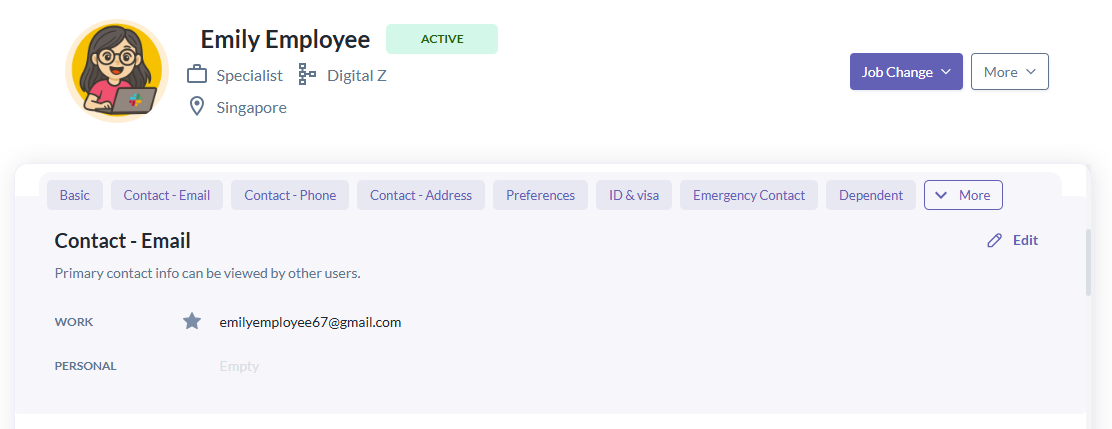
- Since you are submitting an already approved time off on behalf of the employee, you will want to prevent notification emails from being sent.
- This prevents the system from sending time off request or approval notifications during this process.
Step 2: Temporarily Assign Yourself as Manager (If Required)
Go to Employee Profile > Team > Schedule a Change
Set the Effective Date to today’s date
Enter your name as the Manager
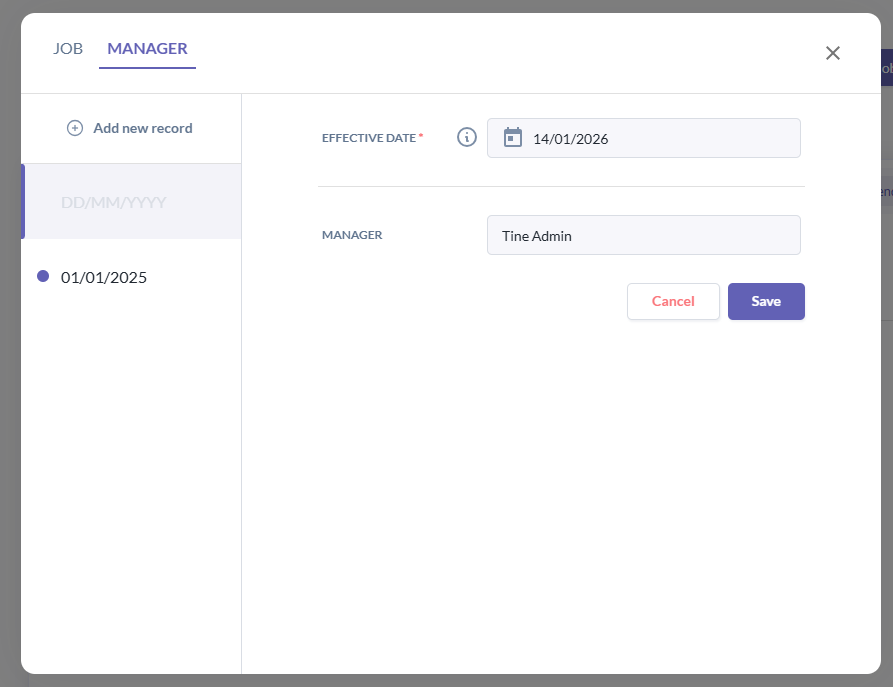
- This is for Approval Flow consideration:
- If your Time Off Approval Flow is set (by default) to route approvals to the employee’s Manager, this step is required.
- If approvals are routed differently (e.g., via HR or a custom approver), you may need to: Create a temporary Time Off policy that routes approvals to you
- Refer to the article “How to Configure the Time Off Approval Flow” for guidance on setting up or modifying approval routing.
- Refer to the article “How to Configure the Time Off Approval Flow” for guidance on setting up or modifying approval routing.
Step 3: Submit the Time Off Request
Go to Employee Profile > Time Off > Request Time Off
Submit the historical time off based on the actual dates and time off type
Follow the steps outlined in Requesting Time Off
Step 4: Approve Time Off Immediately
On the same screen, click the newly submitted time off request > Select Approve on behalf
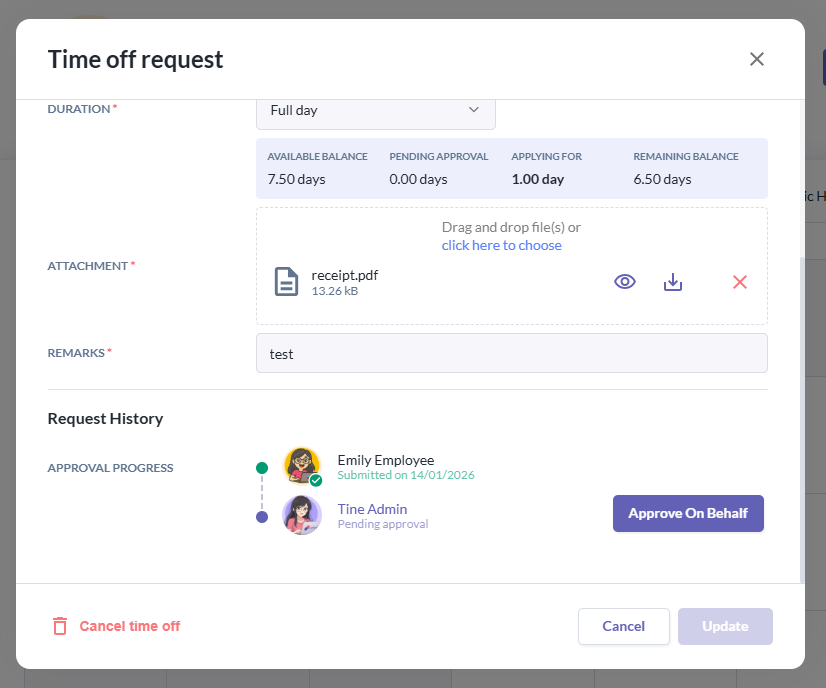
- This finalizes the historical record and reflects it correctly in balances and reports.
Step 5: Revert All Temporary Changes
After approval, do not skip this step.
Revert the employee’s actual email address
Remove yourself as Manager/Approver (restore the correct Manager)
Why this matters:
Failing to revert these changes may result in:
Missed email notifications for future requests
Incorrect approval routing
When is this useful?
- This process is intended as a temporary workaround for a small number of historical records. For larger data gaps, we strongly recommend coordinating with your implementation or support team to explore bulk or automated solutions.
Still Need Help?
Reach out to our support team should you need further assistance.
Was this article helpful?
That’s Great!
Thank you for your feedback
Sorry! We couldn't be helpful
Thank you for your feedback
Feedback sent
We appreciate your effort and will try to fix the article