Overview:
If you are unable to edit your timesheet, it is usually because your Admin or Manager has locked the timesheet for that period.
This article explains the limitations you may experience when your timesheet has been locked.
Once a timesheet is locked, you will no longer be able to make changes to attendance records for the locked period.
What Happens When a Timesheet is Locked?
When your timesheet is locked, certain actions are restricted for that period. You will not be able to:
- Edit existing attendance entries
- Create new attendance entries
- Clock in for dates within the locked period
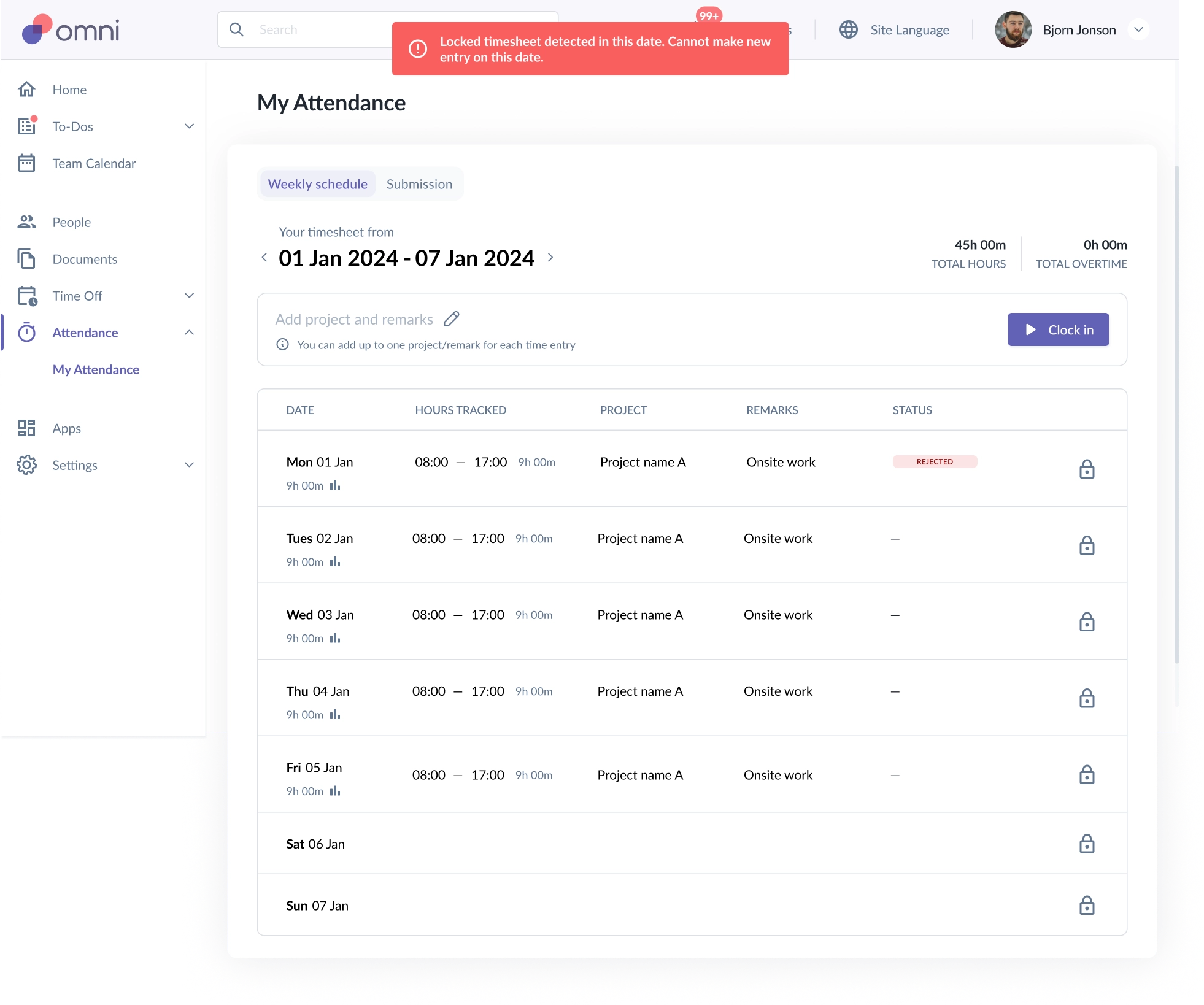
Automatic Attendance
If your organisation uses Automatic Attendance, the following restrictions apply when a timesheet is locked:
You cannot adjust or edit existing entries within the locked period
You cannot clock in for a locked date
If you attempt to clock in, the system will block the action and display a locked-timesheet validation message
Manual Attendance
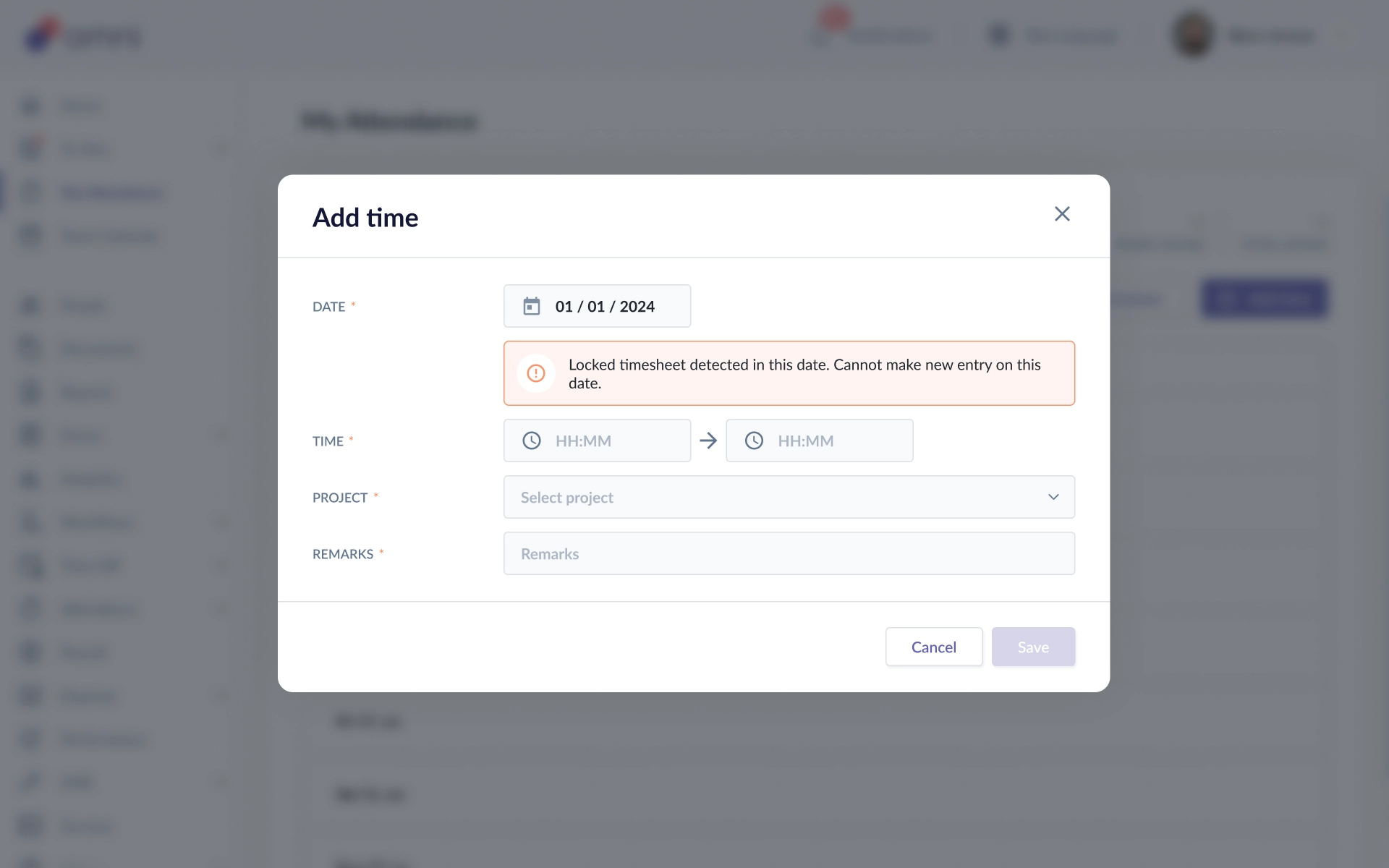
If your organisation uses Manual Attendance:
You cannot create new manual time entries for dates within the locked period
If you attempt to add a time entry, the system will block the save and display a locked-timesheet validation message
What Should You Do?
If you encounter these limitations, please contact your Direct Manager or Admin (depending on your organisation’s permissions) for assistance.
Your Manager or Admin will need to unlock the timesheet before any edits or entries can be made for that period.
Still Need Help?:
Reach out to our support team should you need further assistance.
Was this article helpful?
That’s Great!
Thank you for your feedback
Sorry! We couldn't be helpful
Thank you for your feedback
Feedback sent
We appreciate your effort and will try to fix the article