Overview:
This article aims to explain the different visibility settings available when setting up a particular review phase. In this release, admins will have more control on when and what information is displayed to different users for each review type.
For each review type, the admin can configure settings such as:
- Visibility Timing
- Visibility Details
- Ratings Display
TABLE OF CONTENTS
- Where are the visibility settings for a review phase setup?
- What settings are there and what do they mean?
- What if I need to reset it to default options?
Where are the visibility settings for a review phase setup?
- Go to Step 5: Review Visibility Settings in your draft review phase
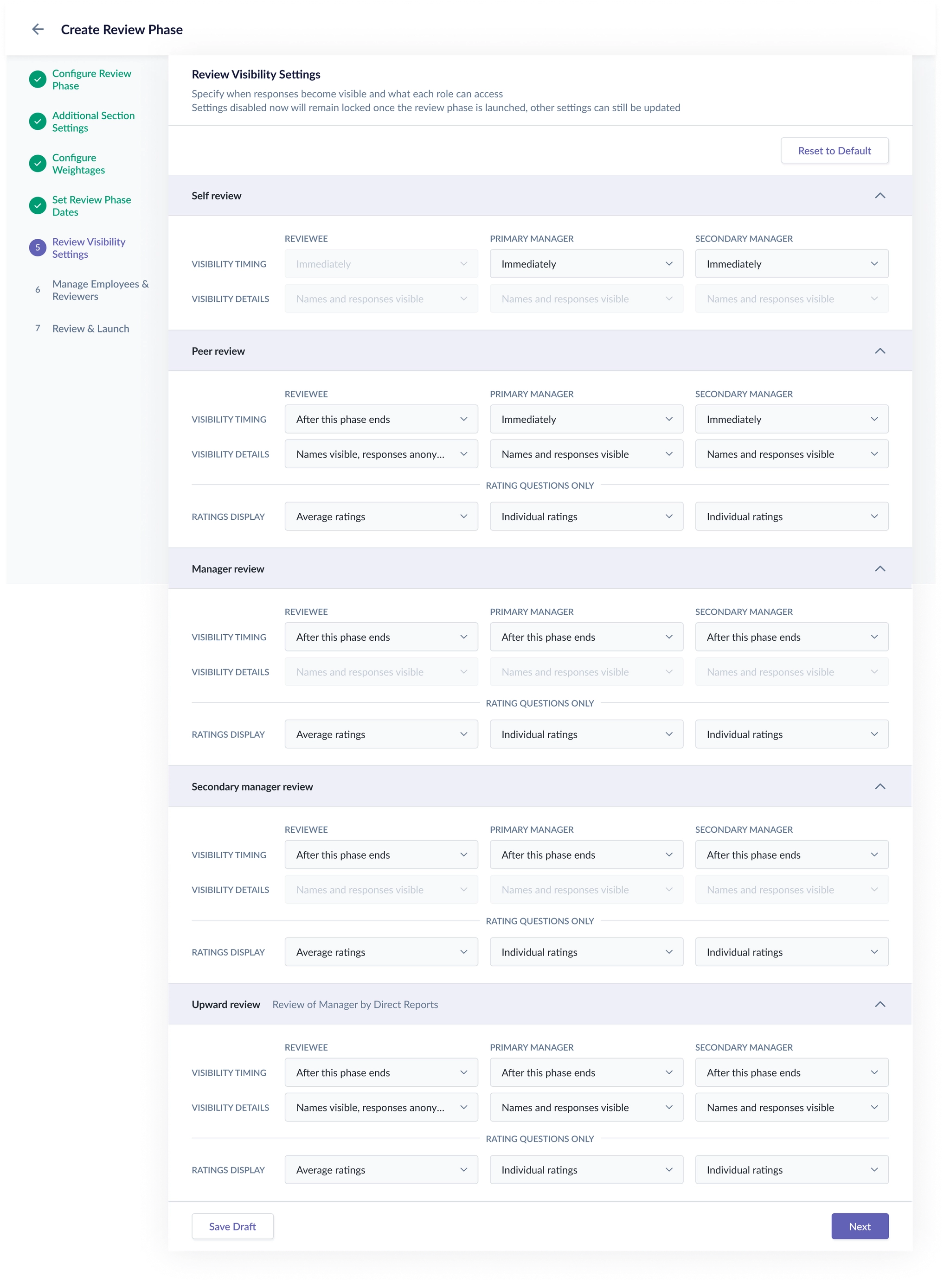
- The above view shows the default visibility settings for the review types setup
- You can choose your preferred settings for each review type based on your organisation policies.
What settings are there and what do they mean?
1. Visibility timing
- This controls when the review response becomes visible.
- Depending on the review type, visibility timing may include options such as:
- immediately
- after this phase (i.e. self review) ends
- after the review phase ends
- not shared
2. Visibility details
- This controls what details are shown once the review becomes visible.
- Depending on the review type, this may include options such as:
- names and responses visible
- names hidden, responses anonymous
- reviewer count only, responses visible
- hidden
3. Ratings display
- Where applicable, the admin can also decide how ratings should be shown:
- Individual ratings
- Average ratings
This gives the organisation flexibility to support either a more transparent review process or a more confidential one, depending on internal policy and the sensitivity of the review type.
What if I need to reset it to default options?
- If after making some changes, you wish to reset the settings to default, you may click on the button shown, and the settings will revert accordingly.

Still Need Help?:
Reach out to our support team should you need further assistance.
Was this article helpful?
That’s Great!
Thank you for your feedback
Sorry! We couldn't be helpful
Thank you for your feedback
Feedback sent
We appreciate your effort and will try to fix the article