Last updated: 18 August 2026
Overview
Once payroll has been processed, you can generate bank files directly from the payroll system to facilitate salary payments to your employees. The system consolidates payments across the relevant pay runs within the payroll cycle and allows you to generate the appropriate GIRO or FAST bank file, depending on your company's bank setup and the payment method supported by your bank. The downloaded file can then be uploaded to your bank's corporate banking portal for review, approval and payment processing.
TABLE OF CONTENTS
- How do I set up which bank my company uses and the format of the bank files I export?
- How can I export bank files once payroll is processed?
How do I set up which bank my company uses and the format of the bank files I export?
Company bank details are usually set up for you once during your initial implementation. However, if the bank you use changes in the future, you may follow the steps below:
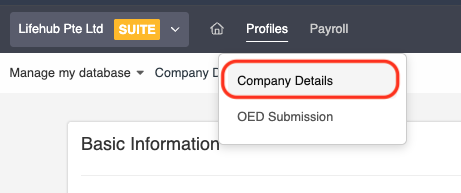
1. Click on Profiles > Company Details.
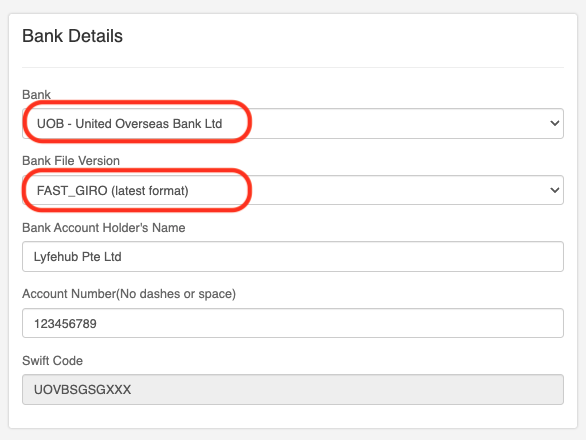
2. Under the Bank Details section, choose the desire bank and bank file that you would like to use. Our system supports most local mainstream banks.
How can I export bank files once payroll is processed?
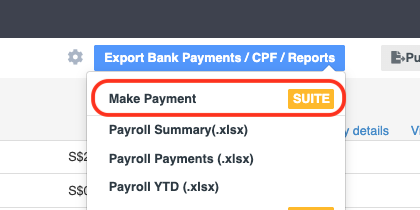
1. At the monthly payroll dashboard, click on Export Bank Payments / CPF / Reports at the top-right corner. Select Make Payment.
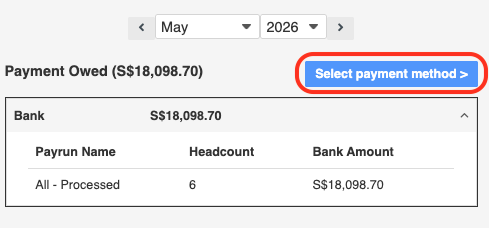
2. You will see an overview of all payments owed to employees during this payroll cycle, consolidated all pay runs. Click on Select payment method.
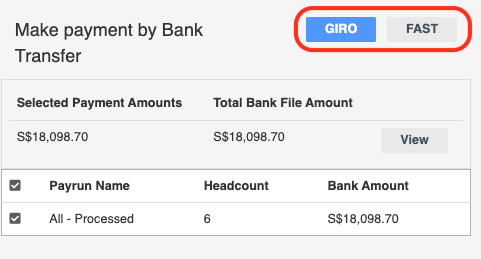
3. Select the relevant pay runs that you would like to export a bank file for. By default, all pay runs within the payroll cycle that has not been paid will be checked. After which, click on either GIRO or FAST, depending on what bank file you would like to export.
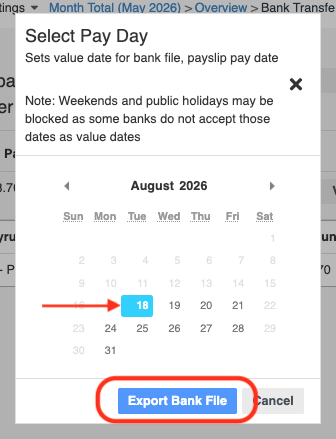
4. Select the value date for the bank file. The dates that are available for selection may vary based on the bank you are using. Some banks may not allow for same-day processing via a GIRO file upload.
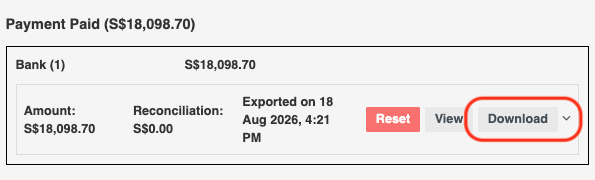
5. Click on Download to download the bank file. You may use this file to upload into your bank portal for the necessary approvals.
Was this article helpful?
That’s Great!
Thank you for your feedback
Sorry! We couldn't be helpful
Thank you for your feedback
Feedback sent
We appreciate your effort and will try to fix the article