Overview:
This article guides Admins on how to configure, edit, and manage Approval Flows within Goal Phases in Performance+.
Approval Flows help ensure that employee goals are reviewed, revised (if needed), and formally approved by managers before being confirmed. The article will cover:
How to enable or disable Approval Flows when creating a Goal Phase
How goal statuses behave when Approval Flows are turned on or off
How Admins can switch Approval Flows on or off while a Goal Phase is already in progress
Understanding this behaviour is important, especially when changes are required mid-cycle due to business or operational needs.
TABLE OF CONTENTS
Configuring Approval Flow When Creating Goal Phase
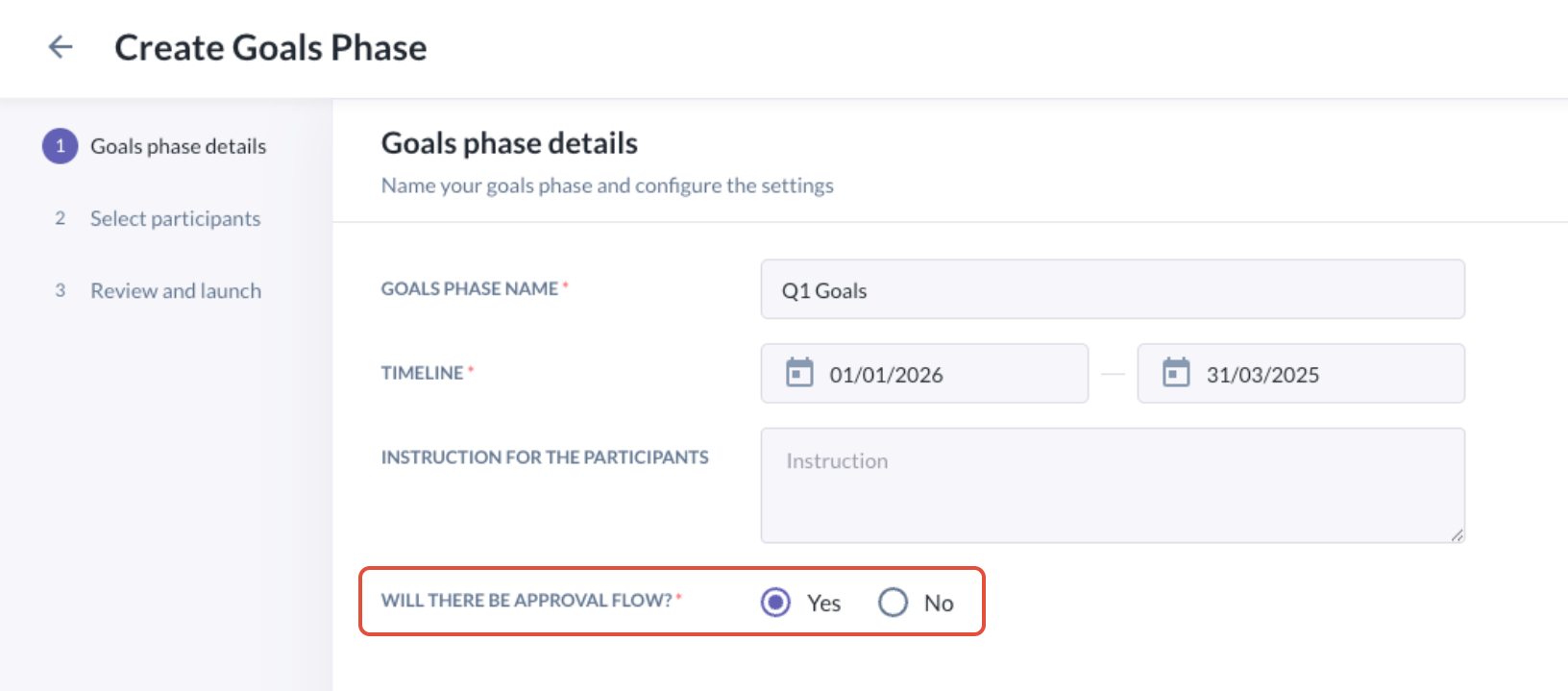
- When creating a Goal Phase, Admins can decide whether an Approval Flow is required.
Under Goal Phase Details, locate the option:
“Will there be Approval Flow?”Select Yes or No based on your desired workflow.
When Approval is Enabled (Yes)
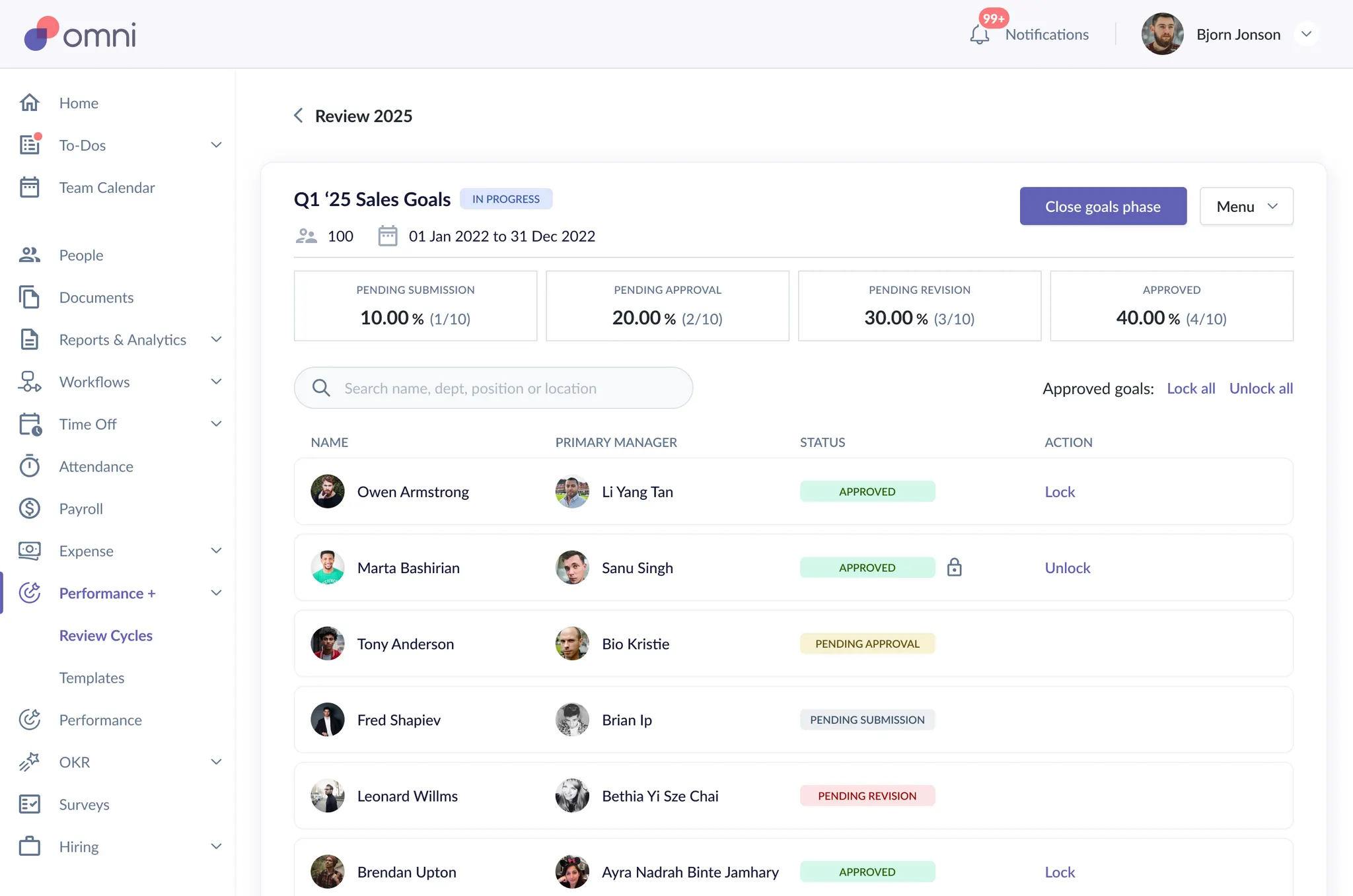
- Once the Goal Phase has started, you will see four goal statuses:
Pending Submission: Employees have not yet submitted their goals.
Pending Approval: Employees have submitted their goals and are awaiting manager approval.
Pending Revision: Managers request for revisions, and the employee must update and re-submit their goals.
Approved: Goals have been reviewed, approved, and confirmed by the manager.
Locking & Unlocking Goals
Lock/Unlock actions are only available when Approval Flow is enabled
Admins can:
Lock/Unlock goals individually
Perform bulk Lock/Unlock actions
Only Approved goals can be locked or unlocked
You may refer to the Locking and Unlocking Goals (Admin/Manager) article for further details
When Approval is Disabled (No)
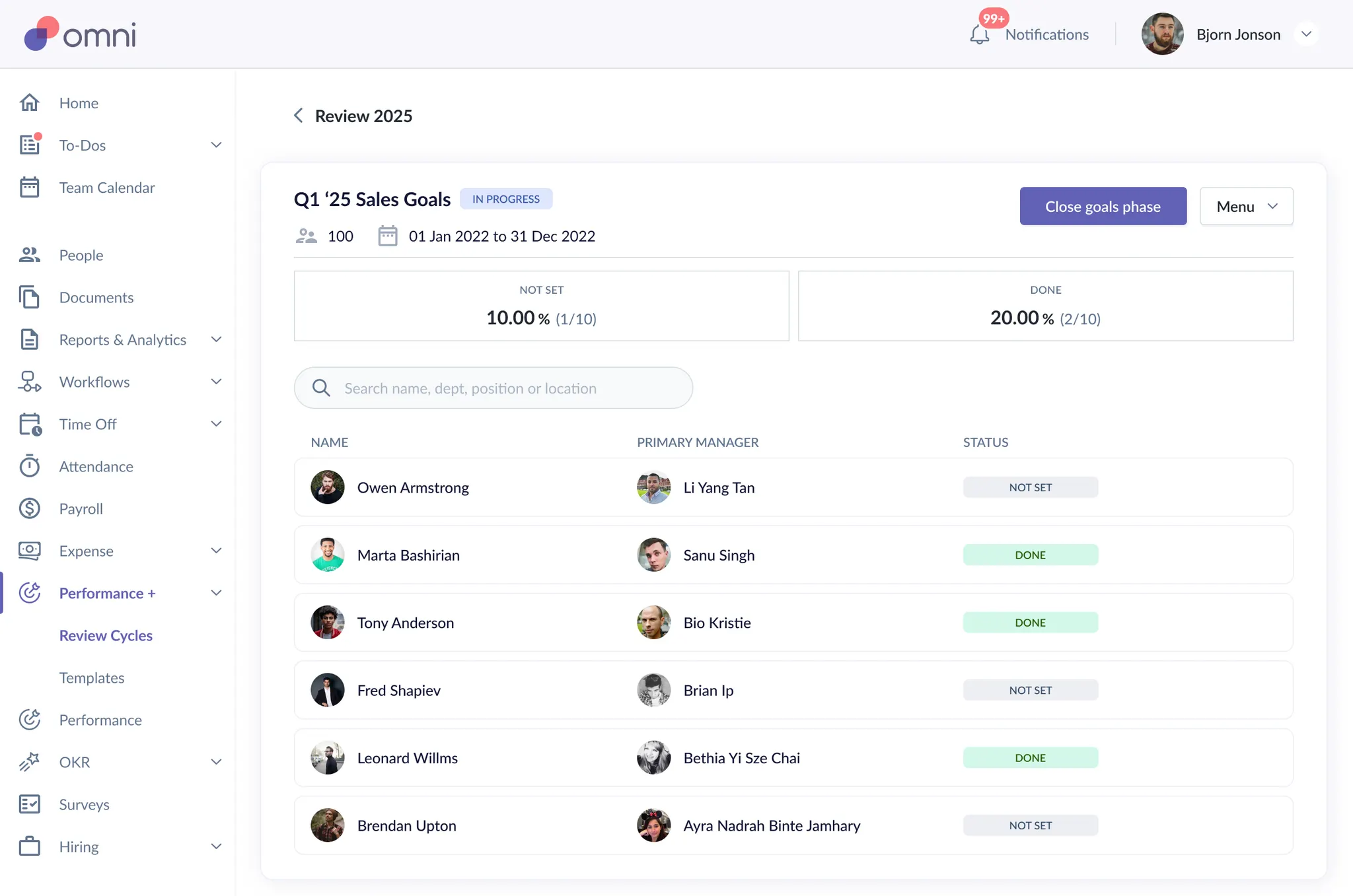
- When Approval Flow is turned off, the Goal Phase will display two statuses only:
Not Set: Employees have not yet confirmed their goals.
Done: Employees have confirmed their goals.
Editing Approval Flow
- Admins are allowed to update the Approval Flow setting even while a Goal Phase is in progress.
Approval Flow can be toggled in two ways:
Turn OFF Approval Flow (On → Off)
Turn ON Approval Flow (Off → On)
Important Notes
Lock/Unlock actions are available only when Approval Flow is turned on
Any existing Lock/Unlock states will persist, even if Approval Flow is turned off and later turned back on
Accessing Approval Flow Settings
- To update the Approval Flow setting:
Click into the relevant Goal Phase
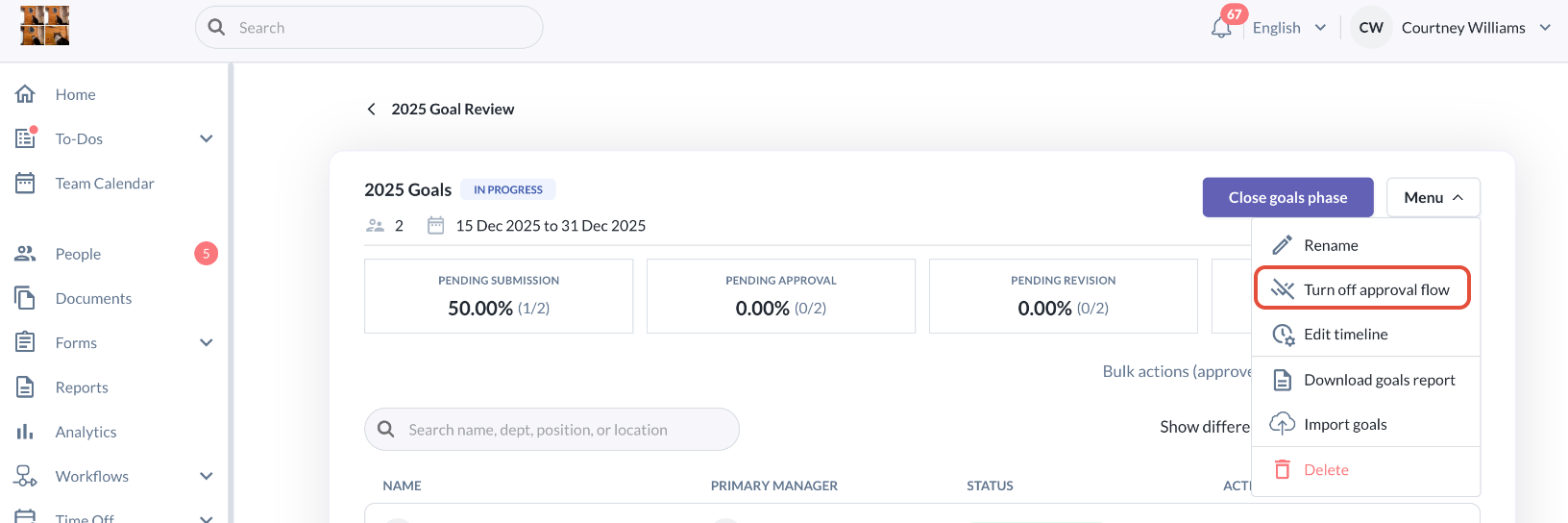
Navigate to the Menu (upper-right corner)
Select one of the following options (based on current configuration):
Turn off approval flow
Turn on approval flow
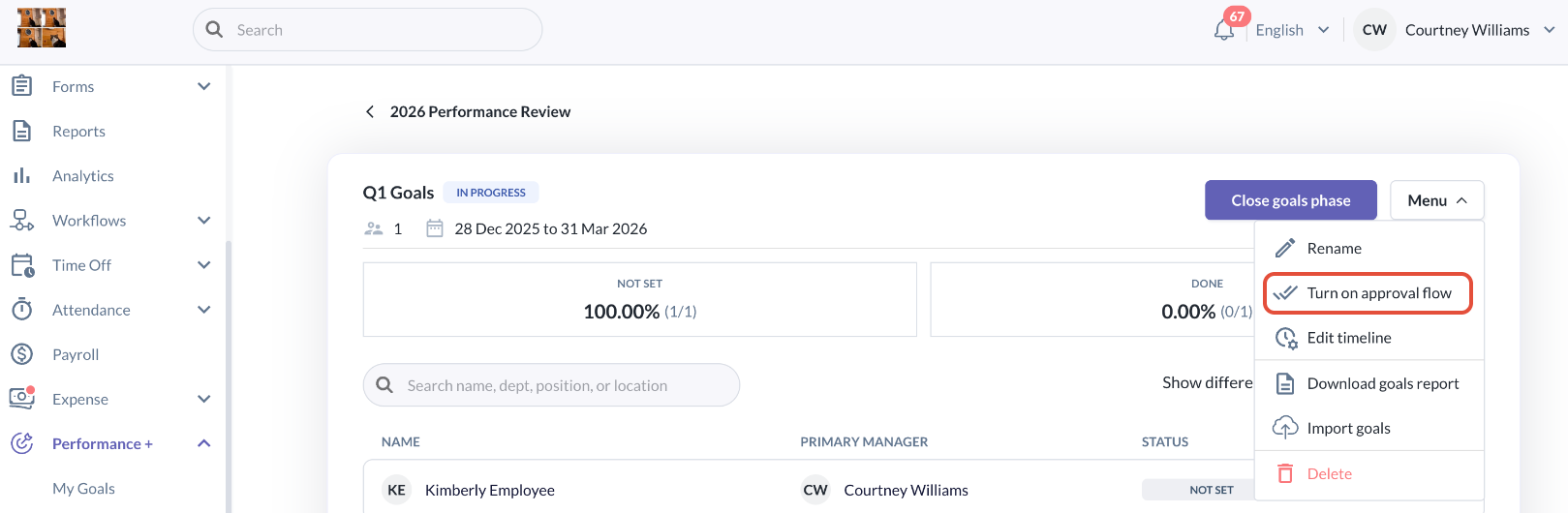
Turning Approval Off (On → Off)
Click “Turn Off Approval Flow” from the Goal Phase menu
A confirmation pop-up will appear, explaining how goal statuses will change
Click Confirm to proceed
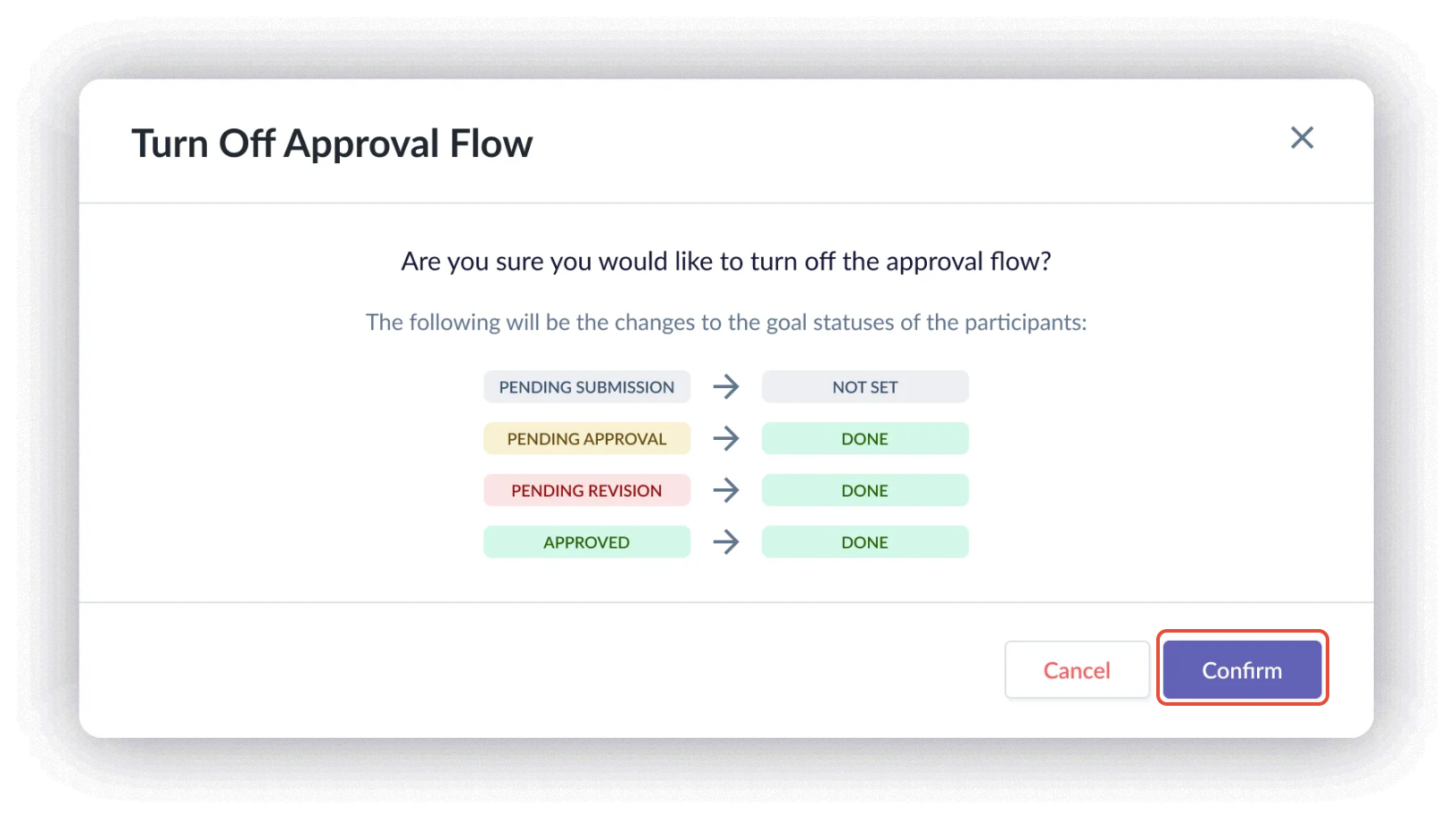
- After confirming, the status cards will reduce from having Pending Submission, Pending Approval, Pending Revision & Approved to only Not Set & Done


- Lock/Unlock actions will no longer be visible
Turning Approval On (Off → On)
Click “Turn On Approval Flow” from the Goal Phase menu
A confirmation pop-up will appear, outlining the status changes
Click Confirm to proceed
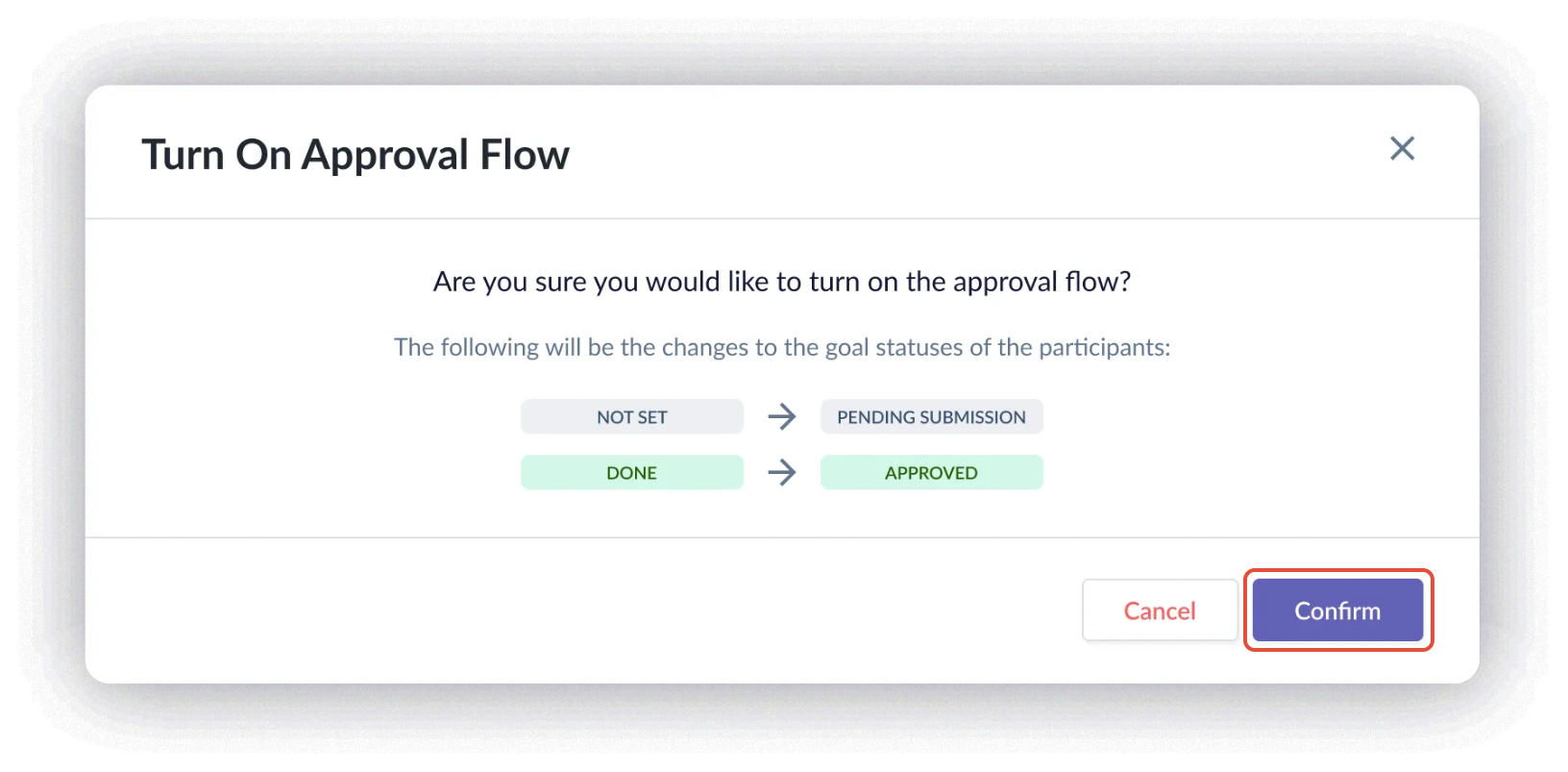
- After confirming, the status cards will revert to the full approval set to include Pending Submission, Pending Approval, Pending Revision and Approved

Lock/Unlock actions will reappear for Approved goals
If goals were previously locked or unlocked before Approval Flow was turned off, their original Lock/Unlock states will be restored
Still Need Help?:
Reach out to our support team should you need further assistance.
Was this article helpful?
That’s Great!
Thank you for your feedback
Sorry! We couldn't be helpful
Thank you for your feedback
Feedback sent
We appreciate your effort and will try to fix the article