Overview:
Admins may need to update the goal phase’s timeline. For example, to extend the submission window.
The Edit Timeline action is available from the Goal Phase Details page via the Menu dropdown.
Admins will be able to edit the timeline for submission for All or Selected Participants.
This guide aims to walk you through the steps to take to edit the timeline for all or selected participants.
TABLE OF CONTENTS
- Step 1: Accessing the Edit timeline feature via Goal Phase Menu
- Step 2: Editing the timeline of a goal phase
Step 1: Accessing the Edit timeline feature via Goal Phase Menu
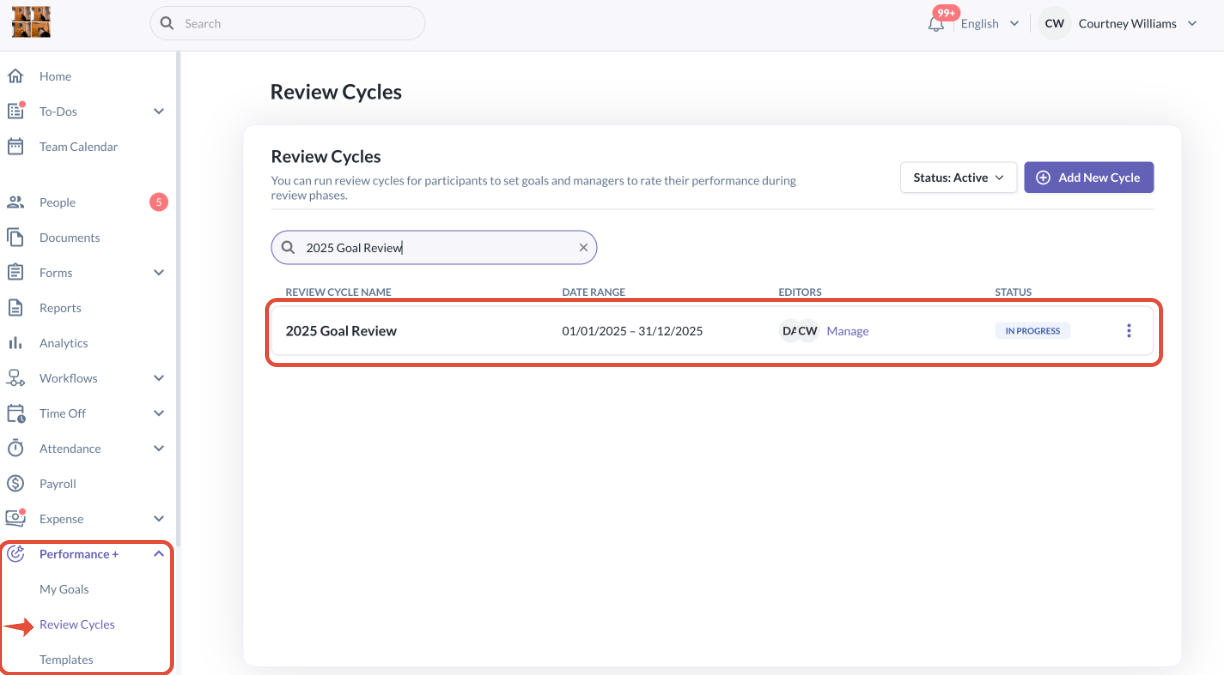
- Go to Performance+ > Review Cycles
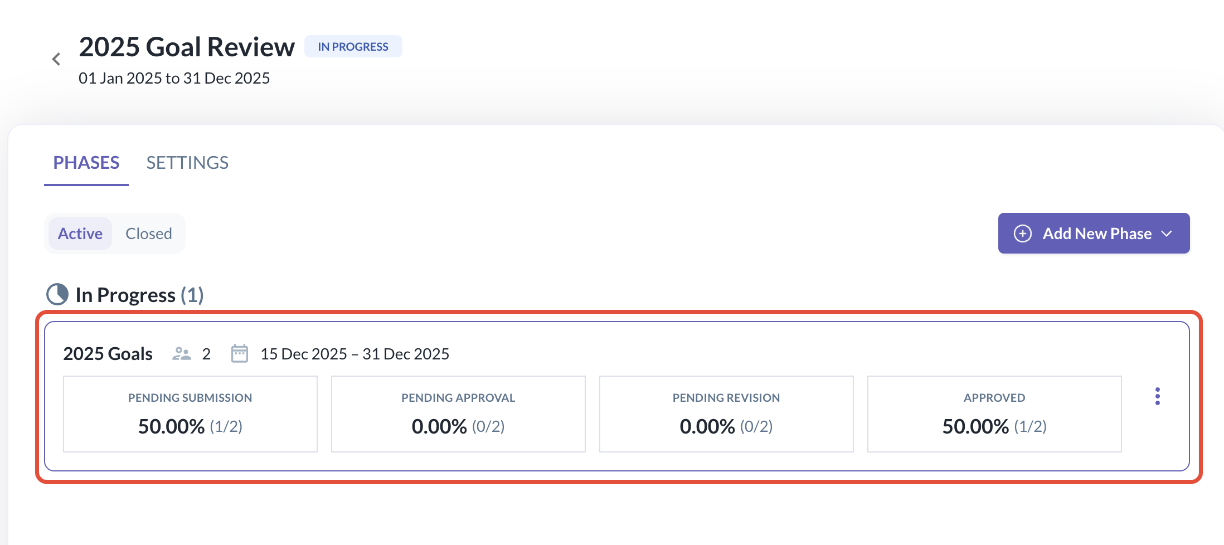
- Inside any Review Cycle that is active i.e. 2025 Goal Review, admins can navigate to the Goal Phase via the Phases tab.
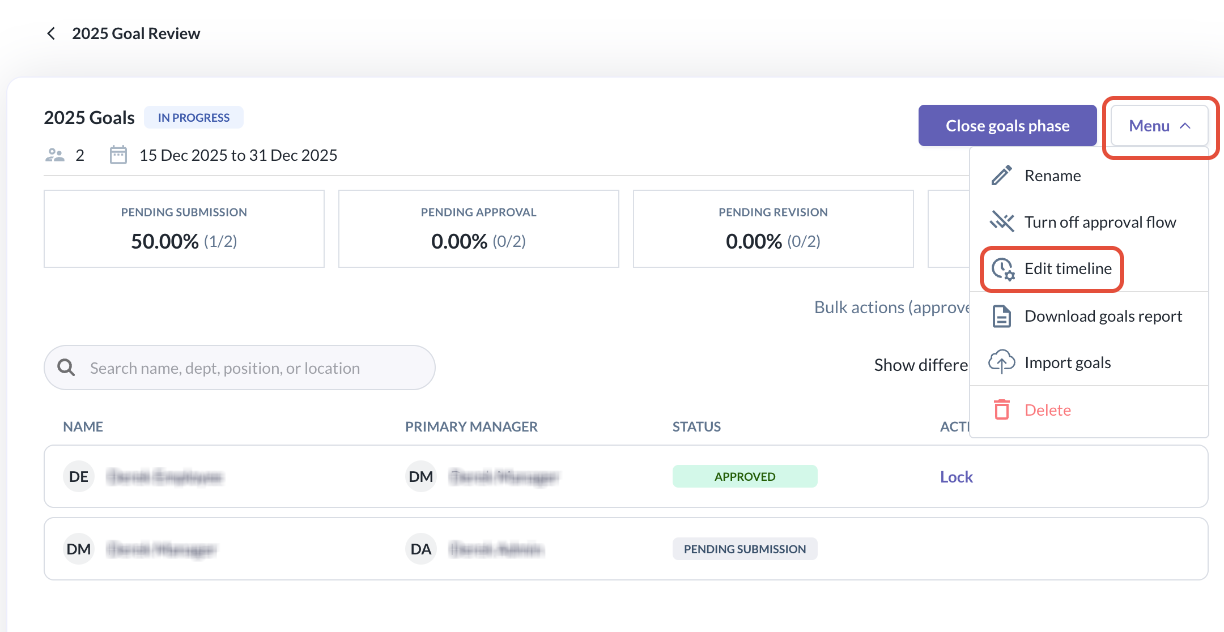
- Click into the Goal Phase and navigate to the Menu to view options available to manage this goal phase
- Click on Edit Timeline from the options available
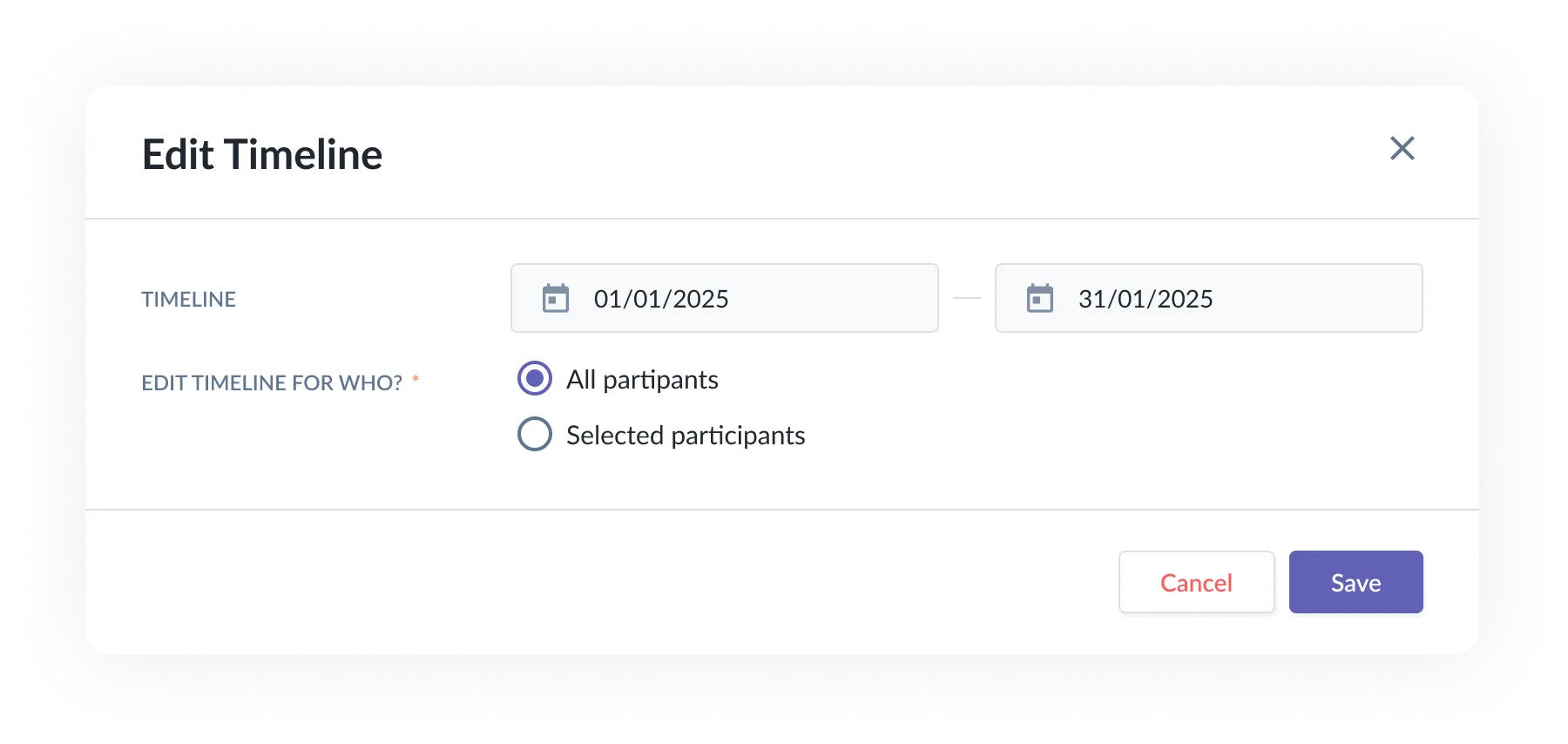
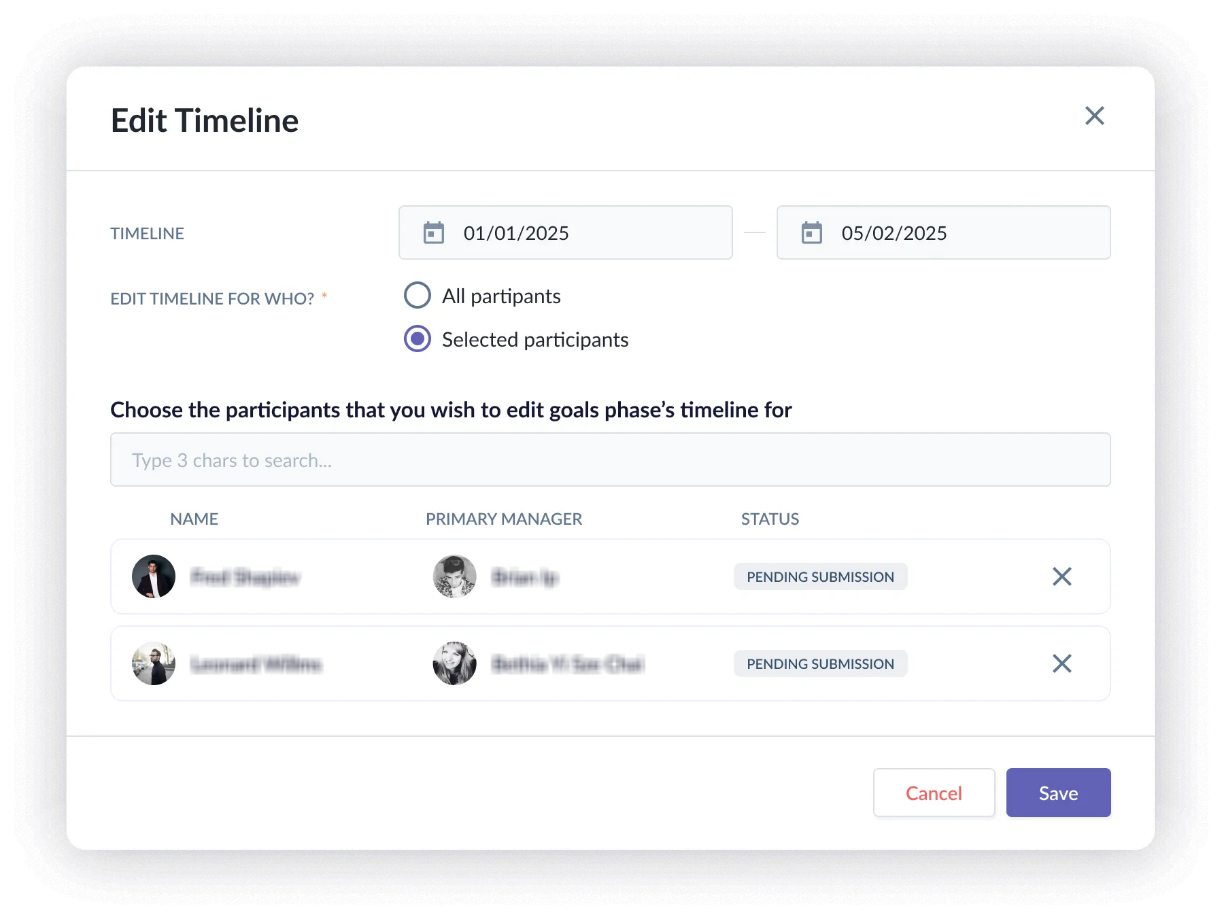
- The Edit timeline feature pop-up will be as follows:
Step 2: Editing the timeline of a goal phase
- Fill in the new start or end dates and choose from two options:
- All Participants
- Selected Participants
Option A: Editing Timeline for All Participants
- When choosing All participants, the admin updates the timeline for the entire goal phase.
- What will happen?
- The updated start/end dates apply to everyone in the phase.
- Any previously customised individual extensions are overridden and reverted to match the new timeline.
- What will happen?
- When choosing All participants, the admin updates the timeline for the entire goal phase.
Option B: Editing Timeline for Selected Participants
- When choosing Selected participants, the admin updates the timeline for specific participants only.
- What will happen?
- Selected participants will have an updated timeline.
- Other participants remain unchanged.
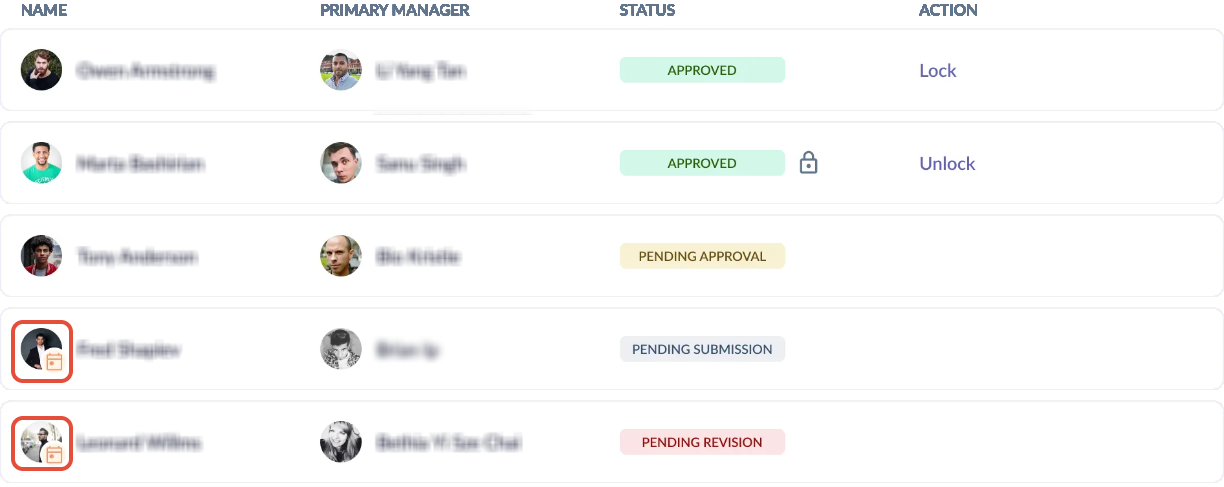
- A calendar badge will be visible next to selected participants with different timelines from the rest.
- What will happen?
- When choosing Selected participants, the admin updates the timeline for specific participants only.
Still Need Help?
Reach out to our support team should you need further assistance.
Was this article helpful?
That’s Great!
Thank you for your feedback
Sorry! We couldn't be helpful
Thank you for your feedback
Feedback sent
We appreciate your effort and will try to fix the article